What Is Mac Recovery Key? [Everything You Get]
PAGE CONTENT:
Being a Mac user has several benefits, and you gain an edge over advanced features. Apple is known for its commitment to user security. Hackers are always looking for ways to access your accounts. Just as social media platforms protect you with two-factor authentication, Apple protects Mac users with a recovery key. This guide explains what a Mac recovery key is and how to activate it.
What Is Mac Recovery Key?
A Mac recovery key is a 28-character code generated when you enable two-factor authentication for your Apple ID. You can use this recovery key to regain access to your account if you forget your login credentials or need to log in from another device. This key is not automatically generated if you don't have 2FA enabled, but it is highly recommended to set one up for added security. With a recovery key, you can reconfigure your Apple ID credentials or log in from another device, providing an extra layer of protection for your account.
2FA with Apple ID provides security, but generating a key can be complicated. If you don't know the key and your Apple ID credentials, you'll be locked out forever, unless you're logged in on another device.
Write down your recovery key in a secure location, such as a safe or a locked cabinet, to ensure it remains confidential and protected from unauthorized access.
How To Set Up Mac Recovery Key?
To set up a recovery key on your Mac, follow these steps: Go to System Preferences, then select Apple ID. Click on Password & Security, and then click on Account Details. Click on Edit next to Password & Security, and then click on Turn On.
To set up the Mac recovery key, go to System Preferences, then click on "Apple ID" and select "Password & Security" from the left menu. Click on "Recovery Key" and follow the on-screen instructions to complete the setup.
Step 1: Head over to System Preferences (System Settings) on Mac.
Step 2: Navigate to your Apple ID.
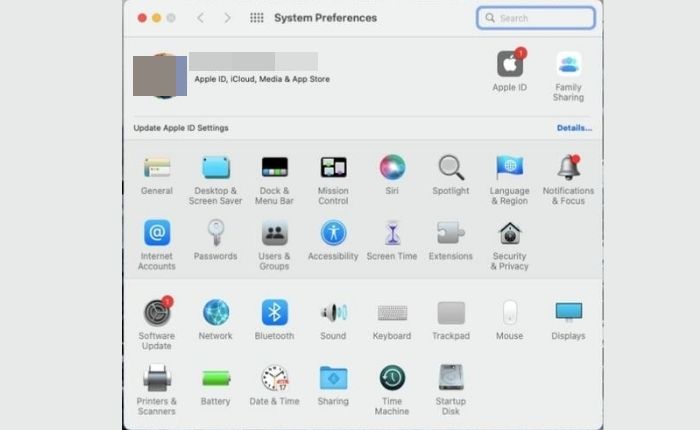
Step 3: Select Password and Security.
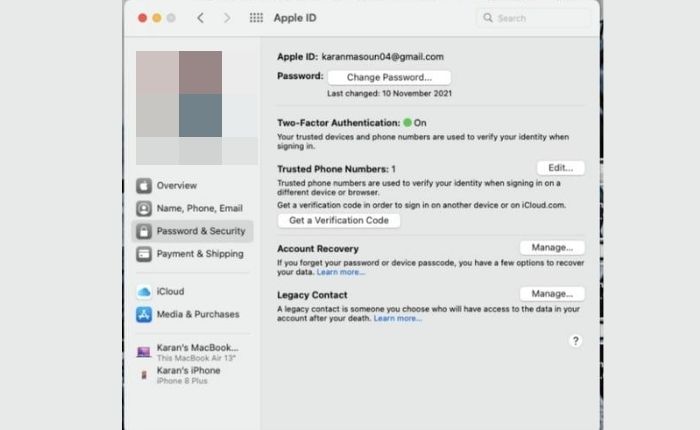
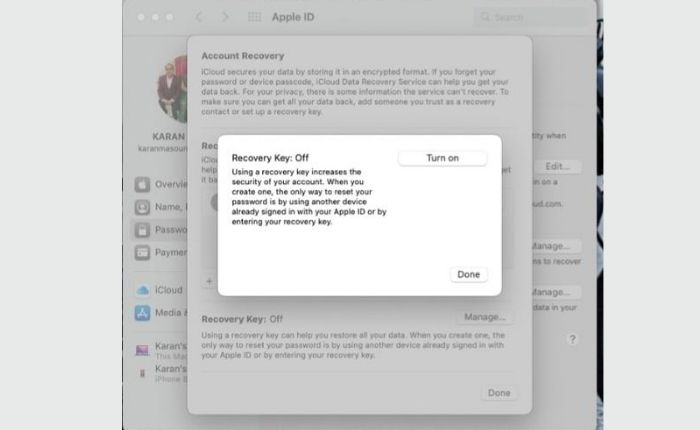
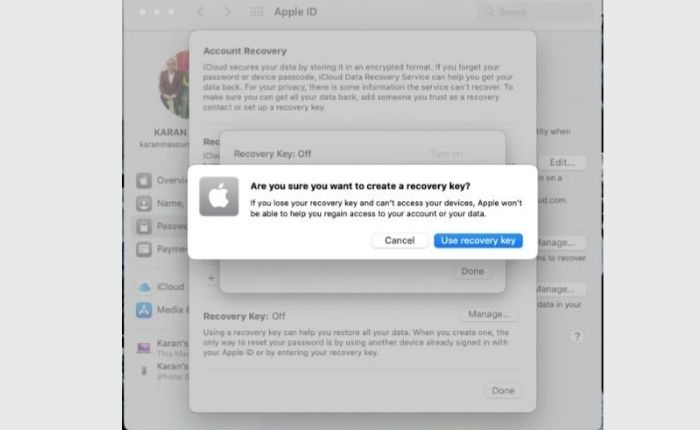
Step 4: Press the Turn On button to enable the recovery key.
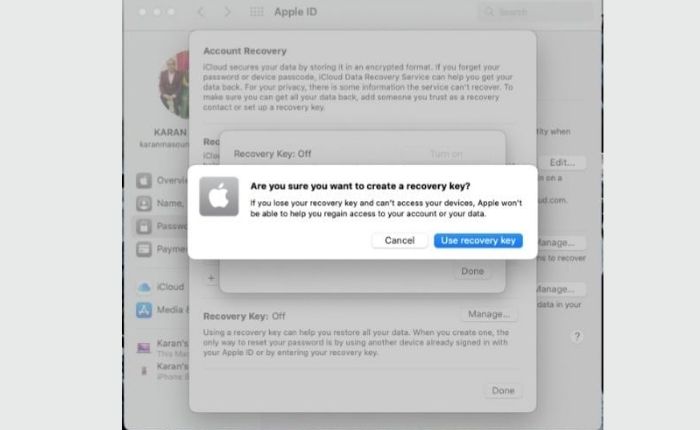
Step 5: Click on "Use Recovery Key" under the "Are you sure you want to create a Recovery key" pop-up.
Step 6: To allow the Terminal app to access your Mac's password, enter your Mac password in the prompt box that appears and press the Allow button.
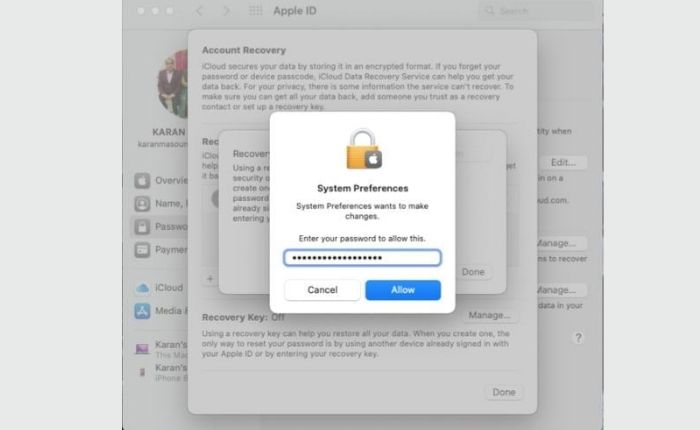
Step 7: Note down your Recovery key that appears and then click on Continue.
Step 8: Enter your Recovery Key when prompted by your Mac and then click on Done.
You have now successfully set up your Mac Recovery key.
How To Regain Recovery Key?
If you've forgotten your recovery key, you can reactivate a new one by signing in with your Apple ID credentials, deactivating the current key, and then activating a new one. This way, you won't have to restore your old device.
Here's how you can regain the recovery key for Mac:
Step 1: Go to apple.com and log in with your Apple ID.
Step 2: Using a trusted device or contact number, verify your Apple ID.
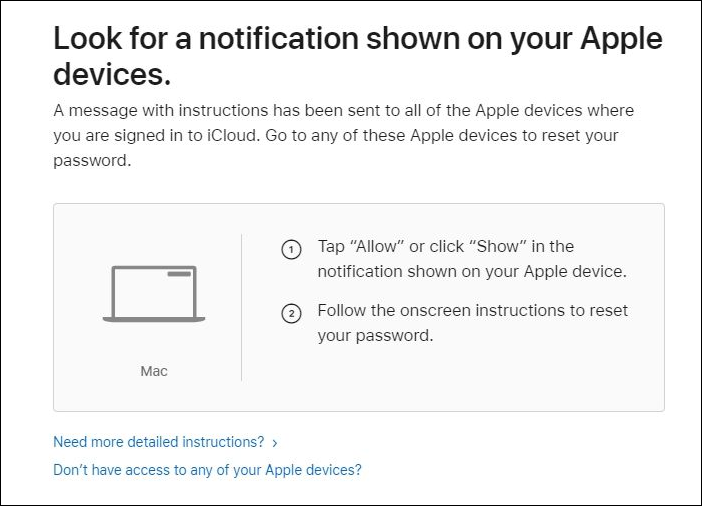
Step 3: Navigate to Security from the left pane.
Step 4: Click on Replace Apple Recovery Key.
The site will prompt you to disable your old recovery key and generate a new one, but note that the older key will be non-functional.
What To Do If Mac Recovery Key Not Working?
If your Mac recovery key is not working, it's likely due to an incorrect key entry. Try re-entering the key or trying different combinations to correct it. If you're logged into your Apple ID on a device, you can generate a new key and disable the old one. If these steps don't help, contact Apple Customer Support for assistance.
- Method 1. Double-Check the Recovery Key
- Method 2. Login by Using a Trustworthy Device
- Method 3. Reach out to Apple Customer Care
Method 1. Double-Check the Recovery Key
To enable the recovery key feature on your device, ensure that your operating system is compatible with it, as some older versions may not support this feature. Additionally, double-check that the recovery key you're generating is accurate, as it should consist of 28 characters, divided into seven groups of four characters each, which can be a combination of alphabets and numbers. Your key may differ from the standard, but it's still valid.
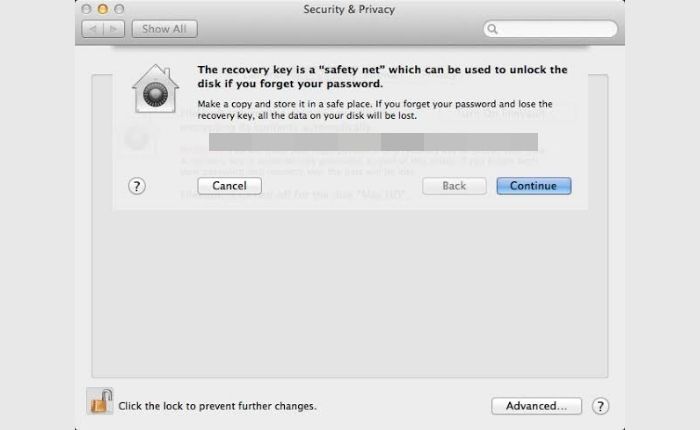
To ensure accuracy, check if the seven groups of characters are connected by dashes, a feature Apple adds by default. Verify whether these dashes have been added automatically or manually. Additionally, double-check the characters entered, as handwritten notes can sometimes lead to errors. If there is any doubt, try substituting the characters with different possible combinations to confirm the correct key.
Method 2. Login by Using a Trustworthy Device
Apple prioritizes user security by making it difficult to access a lost recovery key. However, for added convenience, users can access their Apple account on any device if logged in, but they must also know their Apple ID password and be able to access a trusted device.
To create a new recovery key on your Mac, you can follow these steps:
To set up a recovery key on a Mac, follow these steps:
Step 1: Go to System Preferences and open your Apple ID.
Step 2: Select Account Details.
Step 3: To disable the recovery key, go to the Security section and press the Turn Off button under the Use Recovery Key option.
Step 4: To generate a new recovery key, press the Turn On Recovery key on your device. This will create a new recovery key that you can use to restore your device to its original settings.
If you have a newer Mac model, you can create a new recovery key by clicking on "Create new key". Your system will generate a new recovery key, which you'll need to write down and save. Then, click on "Continue" to proceed with the process. Next, you'll be prompted to enter your new recovery key, which will deactivate your old one.
If you have a Mac and also own an iPhone, iPad, or iPod Touch, you can get a new key from your device if you've logged in with the same Apple ID on your Mac.
To generate a new key for your Apple Device, follow these steps:
Step 1: Open Settings and click on your Apple ID.
Step 2: Go to Password and Security.
Step 3: Navigate to the Recovery key and tap on Turn Off.
Step 4: To create a new recovery key, tap on the option to create a new Recovery Key.
Note down the new Apple ID key that appears on the screen, and your old recovery key will be disabled.
You can also try to fix the issue by checking the browser's cache and cookies. Sometimes, clearing the cache and cookies can resolve the issue. To do this, follow these steps:
Method 3. Reach out to Apple Customer Care
If you can't use your recovery key or don't have a trusted Apple device, you can contact Apple Support. They can assist you in resetting your password. You can reach out to them through their website or by calling their customer service number.
You can contact Apple's Tech Support or book a reservation at an Apple Store, or if you're tech-savvy, use the Apple forum and chat with other users.
Final Words
A Mac recovery key is a 28-character code that adds an extra layer of security to Mac users, acting as a 2-factor authentication (2FA) method. It is essential to note this key when accessing it, as losing it along with access to the Apple ID can lock you out of your account completely. If you forget the key but remember your Apple credentials, you can obtain a new one from Apple's website.
Sometimes your recovery key may not work, and you will need to check whether it is written correctly. If the key does not work and you have your Apple ID logged in on any of your devices, you can use that device to create a new recovery key and disable the previous one. If that still does not help, Apple technical support is your best option for assistance.
Related Articles
- What Is Microsoft Defender Advanced Threat Protection and How to Use It
- What Is Remote Desktop Connection and How To Use It? [Full Guide]
- Everything You Need to Know About Ethernet Hub
- Website Builder Software | Web Design Software
- How to Fix Windows 10 DVD Drives Not Working? [2024 Guide]
If your DVD drive has stopped working on your Windows 10 PC, it's an easy fix. To get your DVD drive up and running again, you can try updating your Windows 10 to the latest version, as sometimes a simple update can resolve the issue. - How to Fix Flashing Folder with Question Mark on Mac Without CD
Learn how to resolve the flashing folder with a question mark issue on a Mac without using a CD. This article will provide various solutions to fix the problem effectively, providing you with the necessary steps to resolve the issue and get back to work.
Products
Articles & Tutorials
- Data Recovery
- Data Backup
- File Recovery
- File Backup
- System Backup and Restore
- Disk and Partition Clone
- Technical articles
- Mobile articles
- Disk Master Help
- Windows Data Recovery Tutorials
- Windows Secure Delete Tutorials
- Windows Partition Management Tutorials
- Windows File Backup and Restore Tutorials
- Windows System Backup and Restore Tutorials
- Windows Disk Backup and Restore Tutorials
- Windows Clone Tutorials