What Is Remote Desktop Connection and How To Use It? [Full Guide]
To remotely connect to a Windows 10 PC, configure your PC to accept remote connections by going to Settings > System > Remote Desktop, turning on "Remote Desktop" and selecting the users who can remotely access the PC, then clicking "Confirm". You can then use Remote Desktop on your Windows, Android, or iOS device to connect to your PC by entering the PC's name or IP address, selecting the user account, and optionally entering a password.
Remote Desktop Connection: What Is It?
With remote desktop access, people can accomplish various tasks such as accessing a business computer from home or while traveling, accessing a home computer from other locations, performing administrative tasks, explaining software or procedures, troubleshooting computer issues, transferring files, printing documents remotely, and more.
What Is a Remote Desktop?
A remote desktop is a program or feature that lets users access and interact with a computer from another location, viewing and controlling the remote machine's desktop as if it were local.
How Does It Work?
Remote desktop software allows users to access and control another device's screen, mouse, and keyboard inputs remotely, enabling tech support specialists to troubleshoot and fix issues on a client's machine in real-time.
Many technologies allow file sharing and clipboard access between machines, and in some cases, remote desktops can also transmit audio from the remote computer to the controlling device.
RDP (Remote Desktop Protocol) is a secure protocol that allows users to remotely access their desktop, enabling them to open, edit, and share files or applications from a remote location.
What Are the Advantages of Using a Remote Desktop Connection?
Working from Home
Having a Bring Your Own Device (BYOD) environment requires having the necessary resources to make it effective. Virtualizing your computer allows it to be accessible from any device, making it possible to access your desktop using a web browser from anywhere, whether at home or traveling. This enables your team to work efficiently from any location.
Top Security
Security is crucial when data is virtualized, as a team of experts manages servers remotely, ensuring the latest security updates are applied, protecting against threats and vulnerabilities.
A remote desktop has several improved security mechanisms that safeguard your data, including advanced key encryption to secure information during transmission and login monitoring to track who accesses your company remotely.
Savings
Purchasing technology can be expensive, especially when building a reliable IT system that meets a company's needs. However, using a remote desktop service can negate this cost by allowing employees to access their workstations from their own devices, eliminating the need for additional hardware and staff. This setup also reduces the need for servers and maintenance costs, making it a cost-effective solution.
Simple Access
Accessing your data from anywhere is the main benefit of a remote desktop connection, eliminating the need for software installation on your computer. Your data is stored in a single location, making it easily accessible, and you can avoid carrying flash drives when traveling, making it a convenient option.
What Are the Disadvantages of Using a Remote Desktop Connection?
- A business may experience performance issues with remote desktops due to bandwidth requirements, resulting in laggy mouse movements and delayed responses.
- RDP may struggle with video playback on the remote computer because it needs to constantly switch between frames or screens, which can degrade the video's quality.
- Some tools for remote desktop servers can be expensive.
- Not all remote desktop applications provide the same features.
Microsoft offers a free remote desktop connection option that allows access to Windows Professional, Enterprise, or Server computers.
How To Use Remote Desktop Connection on Microsoft?
To access and manage another Windows PC remotely, you can use Microsoft's Remote Desktop Connection feature. This feature allows you to remotely access and control another Windows PC from your own device, as long as both devices are connected to the same network or have a stable internet connection. To configure Remote Desktop Connection, go to the Start menu, type "Remote Desktop Connection" and select the app from the search results. Then, enter the name or IP address of the PC you want to access and click "Connect".
- Fix 1: Set up Microsoft RDC
- Fix 2: Connect to remote PC from Windows
- Fix 3: Connect to the remote PC from Mac
Method 1: Set up Microsoft RDC
Step 1. To access a PC remotely, you or another person must physically sign into the PC you want to remotely access.
Step 2. To enable Remote Desktop, open the Settings app on your Windows computer by pressing the Windows key + I, then navigate to System and click on Remote Desktop.
Step 3. Toggle on Enable Remote Desktop.
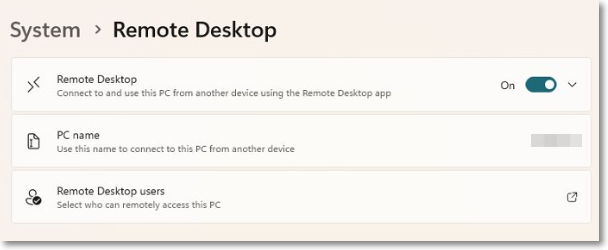
Step 4. To activate the setting, click "Confirm".
Step 5. In Windows, go to Settings, then select the option to keep your PC awake for connections when plugged in and make it discoverable on private networks, and click on "Show settings that might help" to view or modify these options.
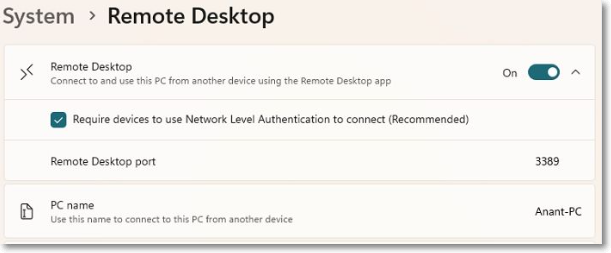
Step 6. Next, click the "Advanced Settings" option.
Step 7. To enhance security for remote connections within the same network, check the box next to "Require computers to use Network Level Authentication (NLA) to connect". This ensures users must be authorized before accessing the remote PC through NLA.
To access the Remote Desktop, it's best to sign in remotely using an admin account on the remote PC, assuming you're signing into Windows with a Microsoft Account or a user account for your business that has administrative permissions. This will provide default accessibility to any user with an admin account.
Method 2: Connect to remote PC from Windows
Step 1. To connect to a remote PC, open the Remote Desktop Connection window by pressing the Start button and typing "Remote Desktop Connection" on the search bar.
Step 2. Enter the remote PC's name or IP address in the RDC window's Computer field.
Step 3. To log in to a computer using a username, click on the login option and select the account you want to use. Next, click "Show Options" and enter the username for the account you will be using to log in.
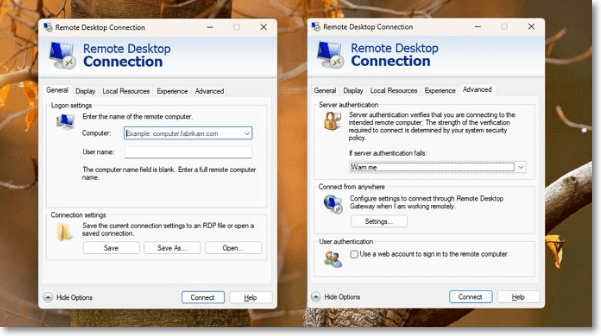
Step 4. To save your credentials, click Connect.
Step 5. To access a remote computer, enter your password in the credentials window, select OK, and then click Yes on the notification that appears, checking the box next to "Don't ask me again for connections to this computer" to avoid this prompt in the future.
Now that you're connected, you can use the remote computer to execute programs, access files, and carry out other operations, with customizable settings and controls at the top and sides of the screen.
Method 3: Connect to the remote PC from Mac
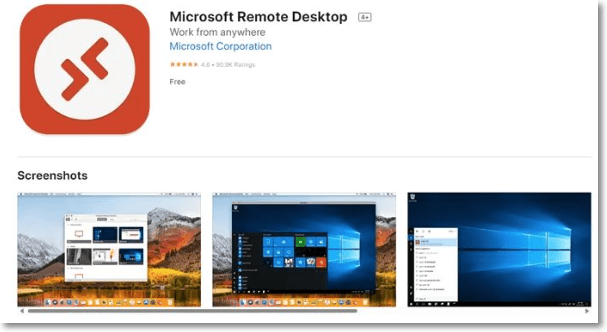
Mac users can connect to remote Windows computers by installing the Microsoft Remote Desktop program from the Mac App Store.
Step 1. To add a PC to the app, open the app and allow the required permissions. Then, enter the PC name or IP address and click the "Add PC" button.
Step 2. To access a computer on the same network, type its fully qualified domain name followed by .local, such as WINPC.local. You can either enter your username and password to save time or select "Ask when required" to input them later. Click "Add" once you're done.
Step 3. To connect to a remote computer, select its icon, and to access the menu bar, move the cursor to the top of the screen. From there, you can resize the window or disconnect from the connection using the Window menu.
Best Remote Desktop Software Recommended
The COVID-19 pandemic has highlighted the need for remote work capabilities, and having the right tools is crucial for productivity and flexibility. With remote work on the rise, it's essential to have the necessary equipment and software to enable seamless work-from-anywhere experiences. This includes reliable internet connections, secure virtual private networks (VPNs), and user-friendly collaboration tools to facilitate communication and teamwork.
Here are the top remote desktop programs for 2022, according to a thorough analysis of the market's top software today. The top remote desktop programs are TeamViewer, LogMeIn, Remote Desktop, GoToMyPC, and AnyDesk, among others, each offering unique features and capabilities for remote access and control.
TeamViewer
This technology allows remote access to a computer, smartphone, or server, enabling users to work from anywhere and still have access to necessary resources, even without a VPN connection. It facilitates immediate assistance to colleagues and clients in case of computer errors or failures, and can be used with additional apps for mobile device management.
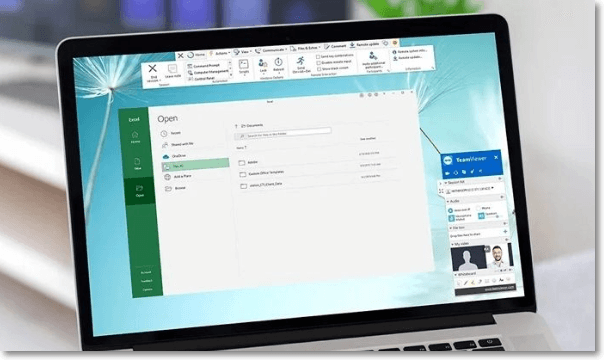
All meetings include integrated file-sharing and video conferencing, and remote printing is available for Windows and macOS users, with a black screen providing discreet remote access.
Features:
- Compatible with Linux, Mac, and Windows
- Cost: Before selecting a plan, TeamViewer offers a 14-day trial.
The advantages of TeamViewer include the following:
- Outstanding connections
- Friendly
- Available on several platforms
The disadvantages of TeamViewer include the following:
- Improvement in sound quality
- Trust issues with well-known systems and networks
- Slower speed should be made possible.
Chrome Remote Desktop
Google's Chrome Remote Desktop is a free remote access application with over 10 million installs, allowing users to easily connect to another computer or share their screen. It's simple to access and secure your computer remotely, making it a convenient option if you leave it open at home. The app can be accessed from a phone, tablet, or computer, and its user-friendly design makes remote access a breeze.
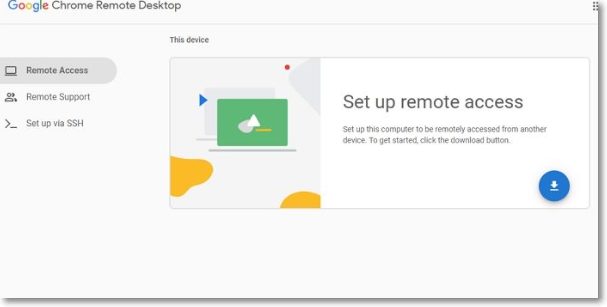
This program is reliable and utilizes Google's vast strength, along with the most current open web technology, to assist with your work.
Features:
- Compatible with iOS and Android
- Cost: Free
The advantages of Chrome Remote Desktop include the following:
- Efficient processing
- Outstanding developer tools
- Simple to use
The disadvantages of Chrome Remote Desktop include the following:
- Reports of some privacy issues
- Google is the only default browser,
- Limited customization
Connectwise
ConnectWise Control Support offers unattended access that is easy and hassle-free, allowing you to access computers even when the user is not present. To do this, you create an access agent installer, and then use a simple drag-and-drop feature to share files and folders with others, keeping your desktop organized and clutter-free.
The system allows you to control who can access your private papers by assigning unique role-based permissions, even if you give different people different roles. Additionally, you can notify end-users about maintenance to keep them informed. The Toolbox feature enables you to store all necessary files while executing quick scripts and other operations.
Features:
- Compatible with Linux, Mac, and Windows
- Cost: ConnectWise offers a 14-30-day trial. After the trial, you can select from three different plans based on the number of connections you need to create.
Advantages of Connectwise include:
- A Free trial
- Excellent management tools
- Outstanding reporting
Disadvantages of Connectwise include:
- Need to pay for each connection
- New users may find it confusing.
- Latency issues with cloud
| TeamViewer | Chrome Remote Desktop | Connectwise |
|---|---|---|
| Compatible with Windows, Linux, and Mac | Compatible with Android and iOS | Compatible with Windows, Linux and Mac |
| Provides cross-platform help for your team | Cost-effective option | Provides up-to-date support |
| Excellent connectivity | Secure infrastructure | Excellent management tools |
Final Verdict
In today's fast-paced business environment, companies need efficient solutions to stay ahead. Understanding how remote computers work and their advantages can boost productivity and save costs. By embracing remote desktop technology, businesses can increase work functions while employees work from the comfort of their own space, leading to increased efficiency and reduced expenses.
FAQs
1. Is 8GB RAM enough for a remote desktop?
The amount of RAM you need depends on your processor speed and generation, as well as the capacity of your drive and internet. For basic tasks like browsing and using MS Office apps, 8GB of RAM should suffice, regardless of the operating system you're using.
2. Which laptop is best for work-from-home?
- Dell XPS 15: The laptop is ideal for working from home due to its lightweight design, powerful Intel Core i7 processor, 1TB SSD storage, 64GB of RAM, and 8-core processor, combined with a vibrant screen and high-quality speakers.
- 2021 Apple MacBook Pro 16-Inch: The MacBook Pro features 16GB of RAM, allowing users to run multiple programs and apps with ease, and can be configured up to 32GB. It also offers an impressive 8TB storage, making it suitable for professionals who require CPU-intensive apps.
- Lenovo IdeaPad 3: The laptop features an 11th-generation Intel Core i5 processor, 12GB of RAM, and Intel Iris Xe Graphics GPU, making it suitable for most tasks and remote work.
Related Articles
- What Is System 32 in Windows and Why You Shouldn't Delete It? [Detailed Information]
- How to Open Windows Device Manager [Full Guide in 2022]
- What Is SDRAM? Synchronous Dynamic Random-Access Memory Explained
- All Inforamtion About Recovery Media Creator [Update 2022]
- How to Fix Black Screen of Death Windows 10 in 8 Different Ways
Do you know how to fix black screen of death Windows 10? This article will describe the black screen of death, its causes, and how to resolve the black screen of death on Windows 10. After reading, you can pick any method to fix the black screen of death. - How to Open Control Panel in Windows 10
Windows 10 still contains the Control Panel. Some settings appear only in the Control Panel, some in the Settings app, and some in both. This guide provides a step-by-step breakdown of different ways to open the Control Panel in Windows 10. Please give it a read and try them out yourself later.
Products
Articles & Tutorials
- Data Recovery
- Data Backup
- File Recovery
- File Backup
- System Backup and Restore
- Disk and Partition Clone
- Technical articles
- Mobile articles
- Disk Master Help
- Windows Data Recovery Tutorials
- Windows Secure Delete Tutorials
- Windows Partition Management Tutorials
- Windows File Backup and Restore Tutorials
- Windows System Backup and Restore Tutorials
- Windows Disk Backup and Restore Tutorials
- Windows Clone Tutorials