How to Open Control Panel in Windows 10
- Open Windows 10 Control Panel with Keyboard
- Open Windows 10 Control Panel in Search Box
- Open Windows 10 Control Panel in Start Menu
- Open Windows 10 Control Panel with Settings
- Open Windows 10 Control Panel with File Explorer
- Open Windows 10 Control Panel With Shortcut
- Open Windows 10 Control Panel with Cortana
The classic Control Panel, a main motherboard for system functions, has been replaced by the Settings app in Windows 10 and later versions. This change represents a significant overhaul of the traditional Control Panel.
The new Settings app is more user-friendly, accessible, and lists all the commonly used settings in one place. It also provides a better experience for users with touch-pad-enabled laptops, making it easier to navigate and access settings through touch-based accessibility.
To open Control Panel in Windows 10, right-click on the Start button and select "Control Panel" from the menu. Alternatively, you can type "Control Panel" in the search bar and select the result. You can also use the Windows key + X keyboard shortcut to access the menu and select "Control Panel".
Open Windows 10 Control Panel with Keyboard
To access the Control Panel using the system keyboard, you can press the Windows key + X and select "Control Panel" from the menu that appears. This shortcut allows you to quickly open the Control Panel without having to navigate through the Start menu or search for it. Alternatively, you can also type "Control Panel" in the search bar and press Enter to open it. Additionally, you can right-click on the Start button and select "Control Panel" from the context menu.
Step 1: Press the "Win" and "R" keys on your keyboard to open the Run window.
Step 2: In the text field, type in the term- control. Then, hit the Enter button on the keyboard.
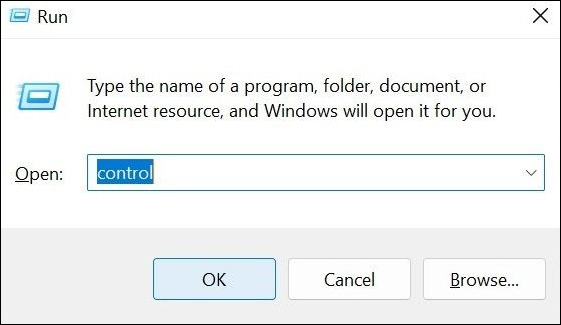
Step 3: Press OK to confirm.
Open Windows 10 Control Panel in Search Box
To open Control Panel on Windows 10, you can either search for it in the Search Box or use the shortcut to open it directly.
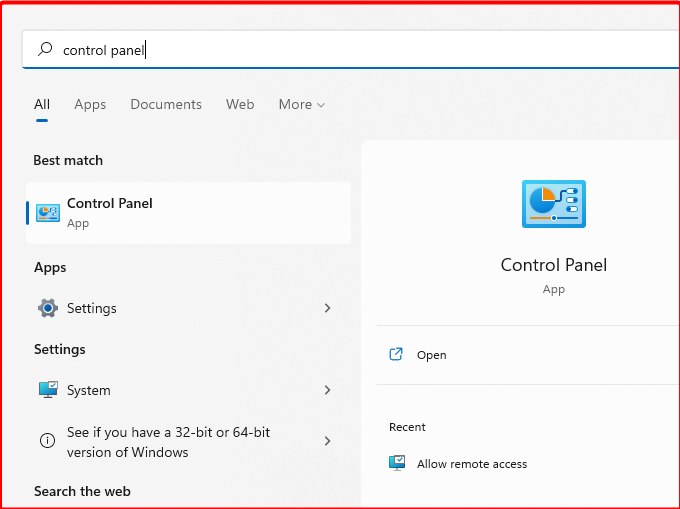
Step 1: To open the Start menu, click on the Start icon or press the Win + C hotkey to open Search directly.
Step 2: To access the Control Panel, type "Control Panel" in the search field, then press Enter or click on the first result.
Open Windows 10 Control Panel in Start Menu
To open Control Panel, you can either directly access it through the app list or click on the app tiles in the Start menu.
Go through Apps:
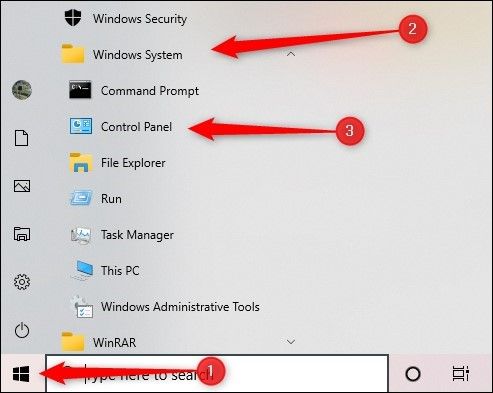
Step 1: Click on the Windows or Start button.
Step 2: To access the Windows System app, scroll through the list of features and press on it.
Step 3: To access the Control Panel, click on the arrow to get a drop-down menu of folders and then tap the Control Panel choice.
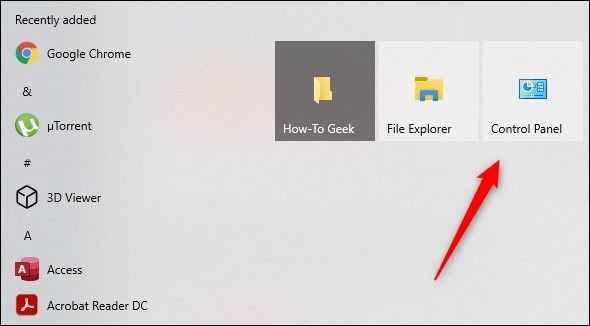
Via Pinned tiles:
Step 1: To access the Control Panel, you can either type "Control Panel" in the search box at the bottom left corner of the screen, or click on the Start menu and select "Control Panel" from the list of available options.
Step 2: Right-click on it and tap the "Pin to Start" option.
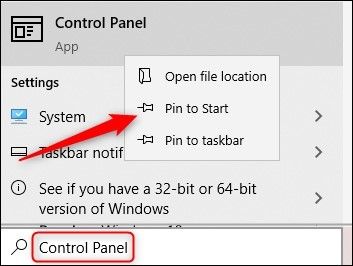
Step 3: The shortcut tile for Control Panel will appear in the pinned tile collection through the Start menu, allowing users to run Control Panel by clicking on it.
Open Windows 10 Control Panel with Settings
You can access the Settings app on your device and activate the Control Panel there.
Step 1: Go to the Settings app on your Windows 10 device.
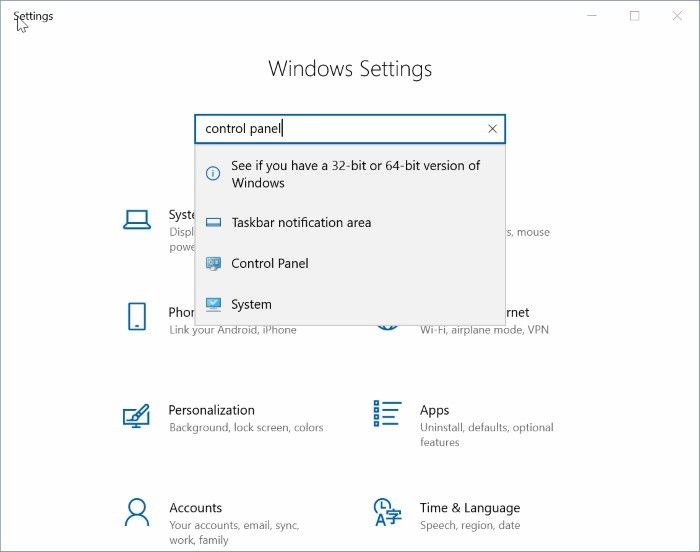
Step 2: To access the Control Panel, you can simply type in the words "Control Panel" into the text field and then press the Enter button. This will open the Control Panel application on your computer.
Open Windows 10 Control Panel with File Explorer
In Windows 10, File Explorer is the section where you can access and manage your files, and also access the Control Panel.
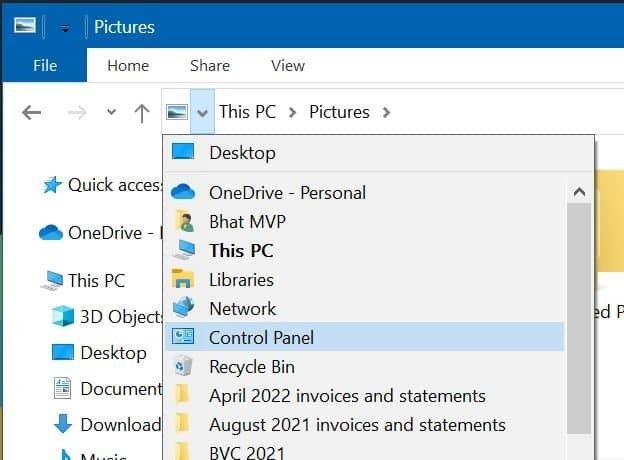
Step 1: To access File Explorer on Windows 10, click on the File Explorer app on the homepage, or tap options like Quick Access, This PC, or older folders.
Step 2: To tap the arrow icon on the left side of the window, simply click on it.
Step 3: Choose Control Panel from the options.
Open Windows 10 Control Panel with Shortcut
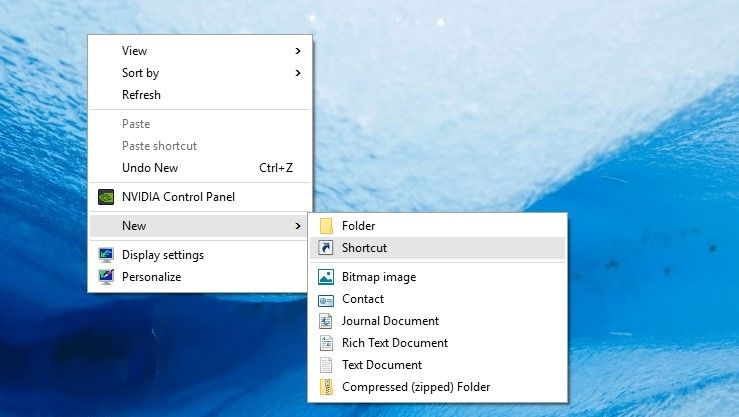
To find the Control Panel by creating a shortcut for it on your desktop, you can right-click on the desktop, select "New" and then "Shortcut". In the "Type the location of the item" field, type "control panel" and then click "Next".
Step 1: Right-click your mouse on your desktop screen and choose "New".
Step 2: From the following drop-down menu, choose Shortcut.
Step 3: The "Type the location of the item" box will come up. Add this path:
explorer shell:ControlPanelFolder
Press Next.
Step 4: Type "Control Panel" in the "Type a name for this shortcut" section and tap the Finish icon.
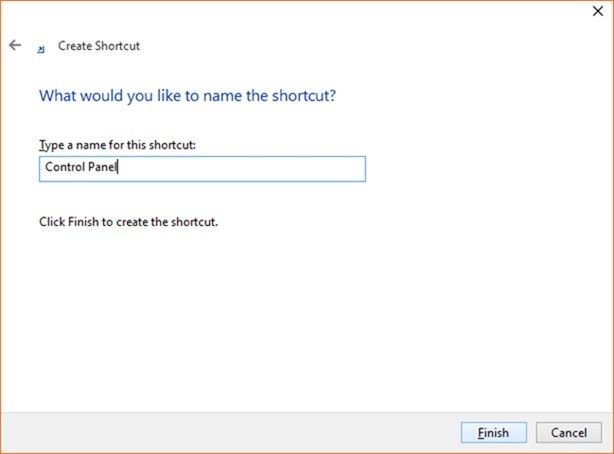
Step 5: The shortcut icon of the program will appear on the desktop, and double-clicking on it will open the program.
Open Windows 10 Control Panel with Cortana
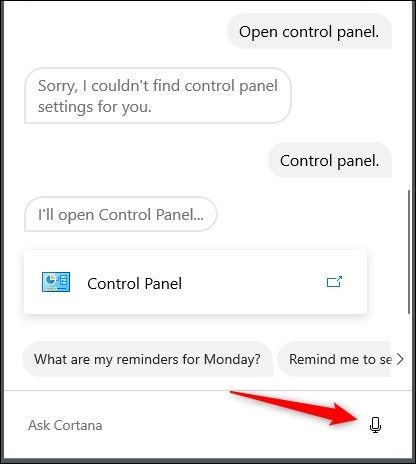
Users with PCs with microphone functionality can access File Explorer through the Cortana app by speaking to it.
Step 1: Press the Microphone icon on your computer. Next, speak "Control Panel" into the speaker.

Step 2: To open Cortana's "Note" feature, you can say "Note" to Cortana, and she will open the note-taking feature directly. I will not add "Open" before that, as Cortana does not support that search option. You can simply say "Note" to Cortana to open the feature.
Conclusion
You can easily open Control Panel in Windows 10 through various methods. Simply click on the app icon on your desktop, search for it in the Settings or Start menu, or use other available options. These methods are straightforward and accessible to most users.
Related Articles
- How to Create macOS Ventura Bootable USB and Install macOS Ventura
- Fix GRUB Loading Error 15, 17, 21, 22 and Recover Data
- How to Solve Sound Not Working on Laptop |5 Troubleshooting Tips for Laptop
- Fix Deleting Files Does Not Free Up Space Error in Windows 10/8/7
- How to Import/Export Chrome Bookmark
Learn how to import and export Google Chrome bookmarks on Mac, Windows, Android, and Chromebook. Step-by-step guide to backup, transfer, and recover your Chrome bookmarks easily. - QILING Fast Cache Tutorials
Read this guide to learn QILING Fast Cache Tutorials with clear steps, practical tips, and safer troubleshooting methods.
Products
Articles & Tutorials
- Data Recovery
- Data Backup
- File Recovery
- File Backup
- System Backup and Restore
- Disk and Partition Clone
- Technical articles
- Mobile articles
- Disk Master Help
- Windows Data Recovery Tutorials
- Windows Secure Delete Tutorials
- Windows Partition Management Tutorials
- Windows File Backup and Restore Tutorials
- Windows System Backup and Restore Tutorials
- Windows Disk Backup and Restore Tutorials
- Windows Clone Tutorials