How to Solve Sound Not Working on Laptop |5 Troubleshooting Tips for Laptop
How Do I Fix No Sound On My Computer
If you're experiencing issues with sound not working on your laptop, there are several steps you can take to troubleshoot the problem. First, check that the volume is turned up and that the correct device is selected as the output. If you're using headphones, ensure they are properly plugged in and functioning correctly. If the issue persists, try restarting your laptop or updating your audio drivers. You can also try using a different pair of headphones or speakers to rule out any issues with your current audio equipment.
Method 1: Check Your Volume Setting
Method 2: Check or Restart Your Audio Device
Method 3: Update or Install the Audio or Speaker Drivers
Method 4: Turn off Audio Enhancement
Method 5: Verify that All Windows Updates are Installed
Method 1: Check Your Volume Setting
Check if your laptop's volume is turned on. It's a simple and quick step to take when sound isn't working. Many times, the issue is as simple as the volume being turned down or muted. To check, look for the volume icon on your laptop's screen, usually found in the taskbar, and adjust the level to see if it resolves the issue. This is often the first step to take before troubleshooting further.
Step 1. To adjust the volume, ensure it's not muted, then right-click on the sound icon in the bottom-right corner of your screen.
Step 2. A small speaker icon can be found at the bottom right of the desktop, and left-clicking on it opens a tiny speaker where you can turn on the volume.
Step 3. If the X symbol is on the sound icon, it means the volume is turned off.
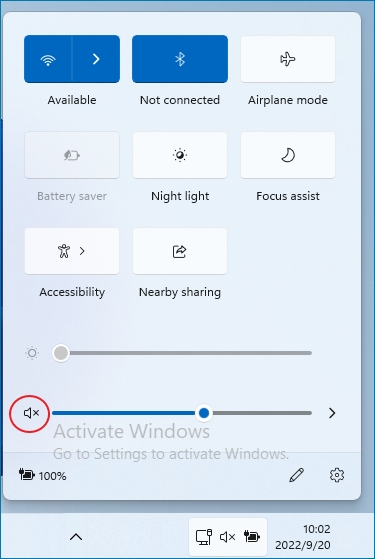
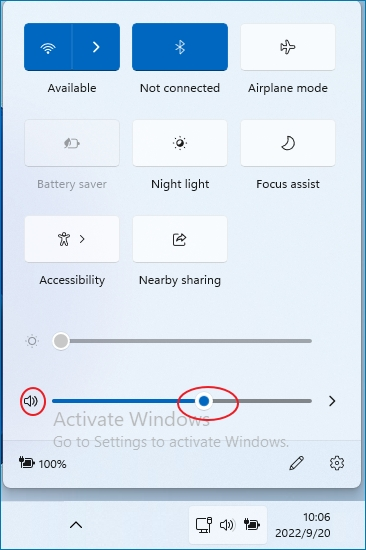
Step 4. To turn on the volume, click the speaker icon, then move the volume bar to the right to increase the volume. You'll hear a ding when you release the bar.
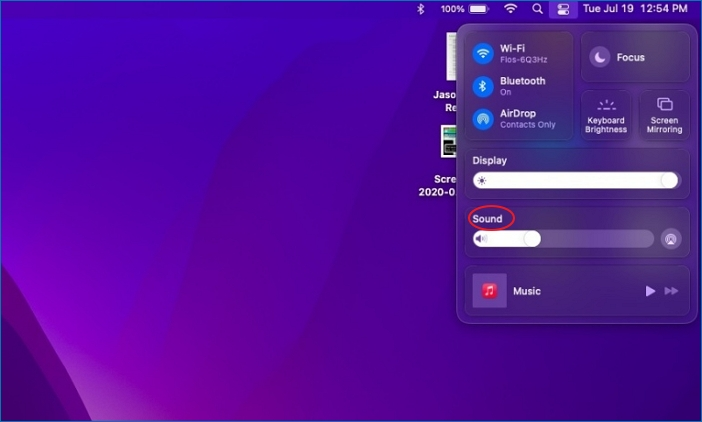
The sound controls are located within the Control Center icon in the top-right corner of the screen for Mac users running macOS Mojave or later. This allows users to easily adjust the volume, mute, and switch between different audio sources, all from a single interface.macOS Big Sur To increase the volume, drag the Soundbar to the right. For devices with earlier operating systems, an independent sound button will be available in its place.
Check to see if any plugged-External speakers are on and volume-controlled. I've verified that the music player is active and can set the volume to maximum.
The issue of accidentally muting audio from YouTube and other in-browser players can be frustrating, especially when trying to figure out what went wrong. This can be particularly challenging when using Chrome, where managing audio playback from any tab can be a bit tricky. By clicking the music note icon in the browser's menu, Chrome users can easily manage audio playback and avoid the frustration of accidentally muting their audio.
Method 2: Check or Restart Your Audio Device
If the sound is not working on your laptop, try restarting your audio device, which is often as simple as turning it off and on, or checking if it's properly connected. This basic troubleshooting step can often resolve the issue.
Step 1. Try to restart your laptop.
Step 2. If your audio device is not working, you might need to check the connections, the volume, or the settings. If that doesn't work, you might need a new audio device.
Step 3. To get a new audio device, go back into the Sound Control Panel and navigate to the Playback tab.
Step 4. You can either switch to a different audio device or add additional devices to play sound in the [output] area.
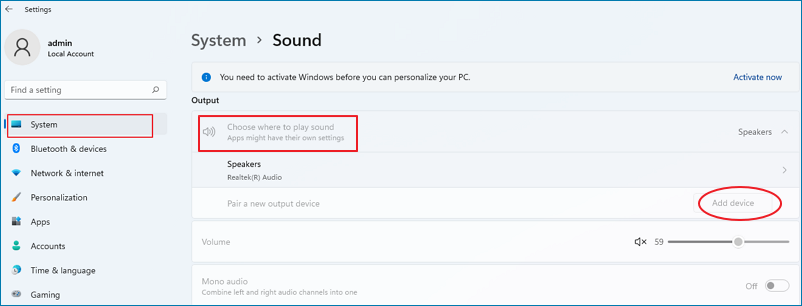
If Windows 10 is sending audio to the wrong output device, try experimenting with different audio devices to see which one works. This can help resolve the issue and ensure that sound is delivered to your computer correctly.
This issue may arise when a USB-capable audio device, such as a gaming headset, is connected to a computer, causing the laptop to identify it as the default device. To resolve this, you need to change the default setting to get sound back on the computer, indicating that the computer speakers are functional but not recognized as the preferred output.
Method 3: Update or Install the Audio or Speaker Drivers
Updating or installing drivers on your computer may seem challenging, but it's a straightforward process. One of the most common reasons for sound not working on laptops is outdated or missing drivers. You can use Qiling DriverHandy to quickly resolve audio issues.
Follow the steps below to update the audio drivers with Qiling DriverHandy.
Step 1. Download Qiling DriverHandy and open it.
Step 2. Click "Scan" to find out all the audio or speaker drivers.
Step 3. Click "Update" to fix the sound not working on laptop.
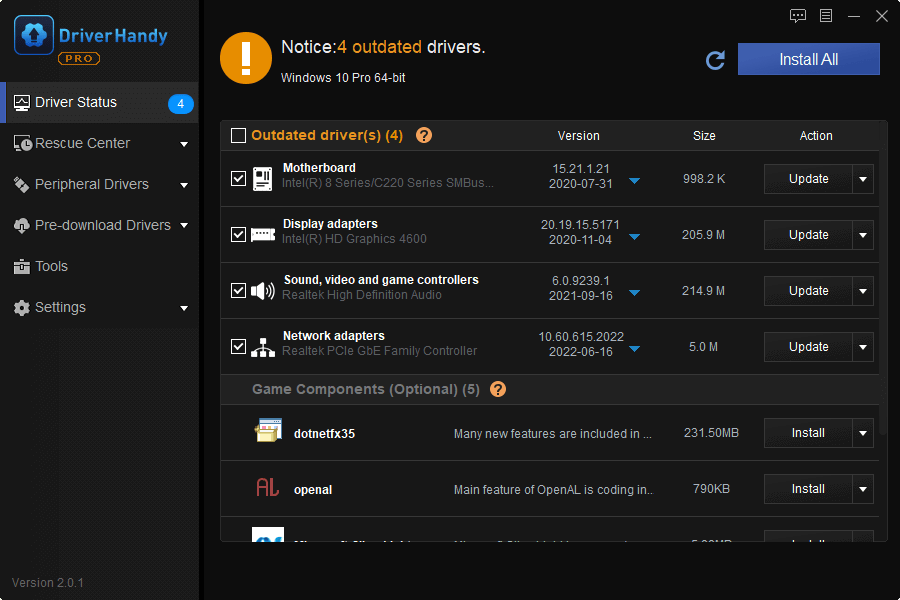
Qiling DriverHandy can automatically find outdated or corrupted drivers.
Method 4: Turn off Audio Enhancement
Disabling audio enhancements may resolve sound issues on a laptop.
Step 1. To access the Control Panel, type [control panel] into the taskbar search box, then click on it in the results list.
Step 2. Choose Hardware and Sound, and then choose [Sound].
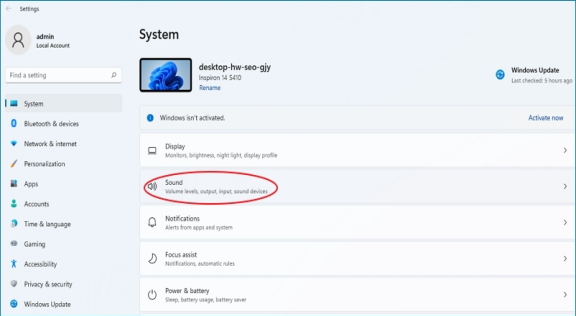
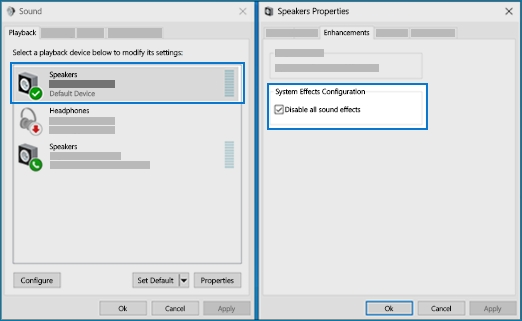
Step 3. Select and hold (or right-click) the [Default Device] while on the Playback page, then choose [Properties] from the context menu.
Step 4. To resolve the issue, go to the Enhancements tab, select either the "Disable all enhancements" or "Disable all sound effects" checkbox, click OK, and then attempt to play your audio device.
Step 5. If the issue persists, try disabling all enhancements and sound effects for each default device on the Playback page. To do this, select and right-click a default device, then choose Properties. Under the Enhancements tab, select the "Disable all enhancements" or "Disable all sound effects" check box, click OK, and try playing audio again. Repeat this process for each default device.
Method 5: Verify that All Windows Updates are Installed
If sound isn't working on your laptop, a software update, hardware incompatibility, or Windows reinstallation may not be enough to solve the problem, and you may need to make some adjustments to your BIOS settings. To update your Windows system, follow these steps.
Step 1. To check for Windows updates, go to Start, then Settings, then Windows Update, and select Check for updates. If updates are available, it will prompt you to restart your computer.
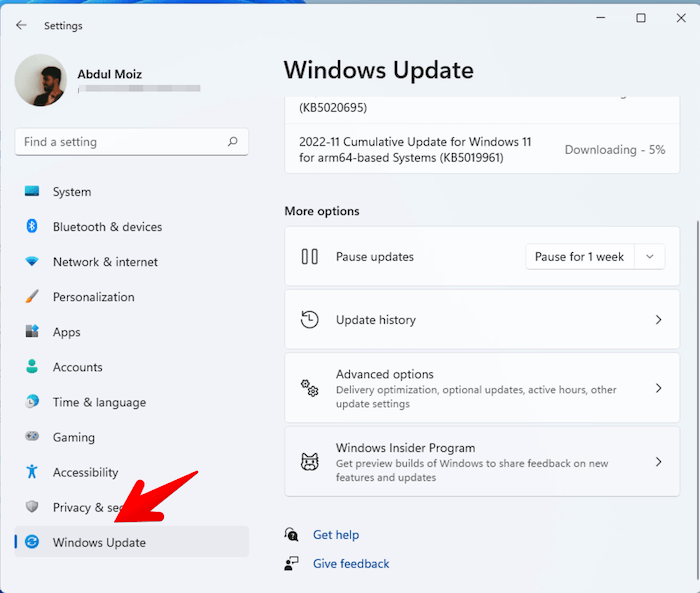
Step 2. If the status says "You're up to date", move on to the next tip. If it says "Updates are available", select "Install now".
Step 3. Choose the updates you want to install, then select Install.
Step 4. Restart your laptop and check if the sound can work properly.
Typical laptop sound issues can often be resolved with these troubleshooting suggestions, but keep in mind that this is not an exhaustive list of all possible causes for audio problems on your computer.
Try all these troubleshooting alternatives and carefully follow the instructions before making assumptions about defective hardware or software. If none of these solutions work, consider contacting a specialist or the PC maker.
Sound Not Working on Laptop Q&A
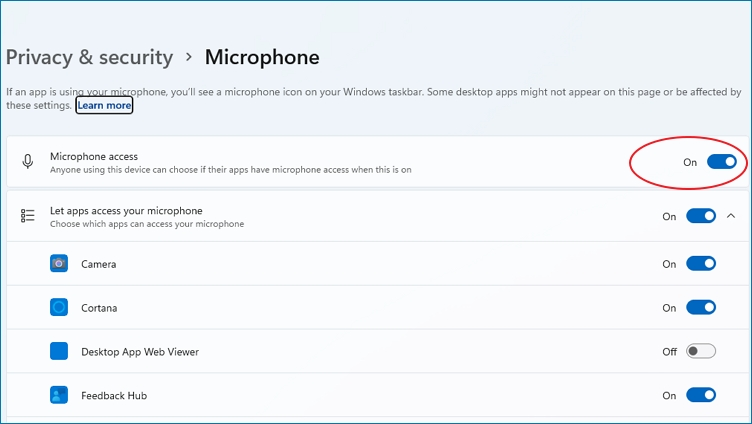
1. How can I solve the problem that the Microphone has no voice?
Step 1. Select Start > Settings > Privacy & security.
Step 2. Under App permissions, select Microphone.
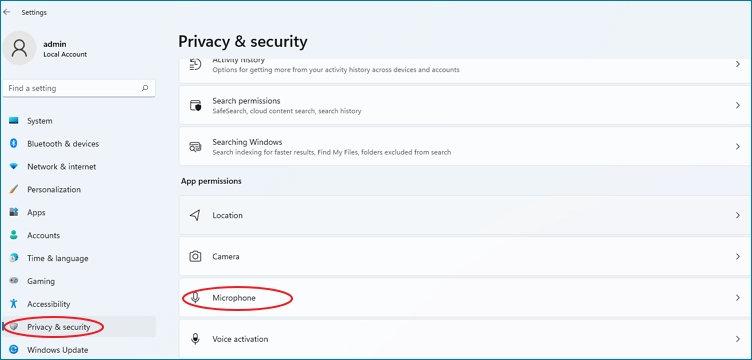
Step 3. Ensure that the toggles for "Let apps access your microphone" and "Microphone access" are both switched on.
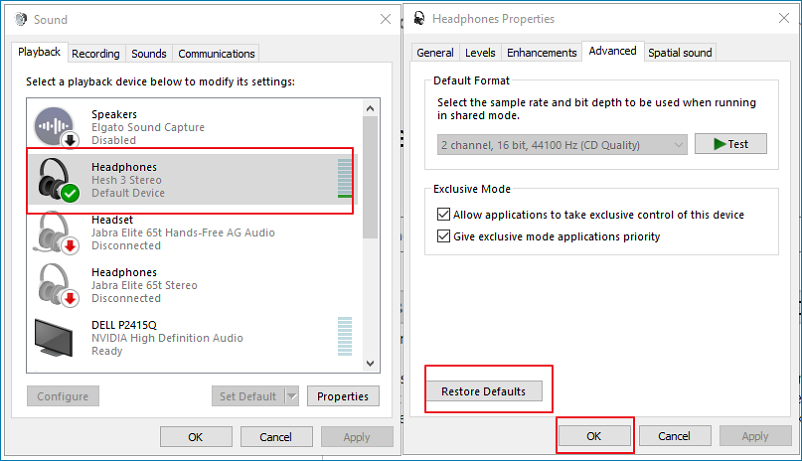
2. How to fix headphone not working issue on laptop?
Step 1. Make sure your headphone is plugged in properly.
Step 2. Make sure you open the volume.
Step 3. Make sure your headphone can work properly.
Step 4. Clean the headphone jack.
Step 5. Alter the audio format to headphone.
The Bottom Line
These troubleshooting suggestions address common problems related to poor PC audio, although they don't cover all potential causes. Many typical issues can be resolved by following these steps.
If troubleshooting steps don't resolve the issue, consider consulting a specialist or the PC's manufacturer for further assistance. They may be able to identify and resolve the problem.
Related Articles
- Google Chrome Windows 7&8.1 End of Support: What Should You Do
- How to Fix MacBook Pro/Air/iMac Won't Turn on with Black Screen [6 Solutions]
- How to Free Download Candy Crush Saga on PC/Android
- How Do SD Cards Work on Different Devices [Android/Camera/Switch/Laptop]
- What Is Windows Update Assistant? [Everything You Need to Know]
Wondering what Windows 10 edition you're using? This is where the Windows Update Assistant comes in to help you upgrade and protect your device; keep reading to know more! - Complete Guide to Windows Internet Name Service (WINS)
Want to learn how to work on a WINS server? Here are the steps you need to follow to work on a WINS server. - Fix Windows 11 No Sound (2026 Guide)
- Fix Windows 11 Microphone Not Working (2026 Guide)
Products
Articles & Tutorials
- Data Recovery
- Data Backup
- File Recovery
- File Backup
- System Backup and Restore
- Disk and Partition Clone
- Technical articles
- Mobile articles
- Disk Master Help
- Windows Data Recovery Tutorials
- Windows Secure Delete Tutorials
- Windows Partition Management Tutorials
- Windows File Backup and Restore Tutorials
- Windows System Backup and Restore Tutorials
- Windows Disk Backup and Restore Tutorials
- Windows Clone Tutorials