How to Fix MacBook Pro/Air/iMac Won't Turn on with Black Screen [6 Solutions]
MacBook won't turn on black screen Mac users often encounter issues with their devices. These problems can occur during regular use or when the Mac is turned on. The causes of these issues are usually related to software activities rather than hardware components.
Data loss may result from the MacBook Pro won't turn on black screen problem, but various solutions are available to resolve the issue.

4 Causes: MacBook Pro Won't Turn on with Black Screen Issues
The MacBook's black screen issue can be caused by various reasons, including a corrupted flash driver, third-party software problems, or other underlying factors. The issue may stem from a simple problem such as third-party software issues or a more complex one like a corrupted flash driver.
Reason 1. Power issue
The most common cause of a blank screen on a Mac is often a power-related issue, such as a faulty battery or malfunctioning charging cord, which can cause the MacBook to boot into a black screen.
Reason 2. Poor contact
A computer won't start up normally if the connections between its hardware and firmware components are loose, dirty, or damaged.
Reason 3. Malware issues
Several third-party software issues are causing problems on MacBooks, including the MacBook Air, Pro, and iMac, which may result in a black screen of death on startup due to bugs.

Reason 4. Hardware incompatibility
This issue may occur after a recent macOS update or hardware change, potentially due to incompatibility, unresolved bugs, or high disk space constraints introduced by the new upgrades.
[First-Aid]: Recover Data from Mac Won't Turn on with Black Screen
Before attempting to fix your MacBook that won't turn on with a black screen, prioritize data security to prevent any potential data loss.
Due to the risk of data loss when your MacBook can't turn on, it's recommended to try to recover deleted Mac files before forcing a restart. This approach helps prevent accidental deletion of files and data.
Here, we recommend Deep Data Recovery for Mac to help you recover the lost data when your MacBook cannot turn on and has a black screen issue.
Deep Data Recovery for Mac
- Recover lost or deleted files, documents, photos, audio, music, and emails effectively
- To recover data from a black screen external hard drive on macOS, you can create a bootable drive using a macOS installation media or a third-party tool like DiskMaker X. This bootable drive will allow you to access the external hard drive and recover your data.
- Data recovery is crucial for various system-related scenarios, including system updates, factory resets, formatting, deletion, and virus attacks. This support enables users to recover lost data, minimizing the impact of these events and ensuring business continuity.
Deep Data Recovery for Mac allows users to recover deleted files from their Mac device. To use the software, users should first download and install the Deep Data Recovery for Mac software.
How to Create a USB Bootable Media
Step 1. Install and run Deep Data Recovery for Mac on another Mac computer, select "File > Create Bootable USB" and choose a USB drive to create the bootable disc on it.
- Warning
- The creator will prompt to erase the drive to reallocate the space, then write bootable files to this drive. Please back up all USB files before processing "Eraser".
Step 2. The program creates a 2GB space on the USB and saves the boot files there, leaving the remaining space available for storage.
Step 3. Once the repair process is complete, you can boot your Mac from the bootable disc and start the recovery process. We recommend restoring your data to an external hard drive for safekeeping.
How to Recover Data from Mac Hard Disk
Step 1. Launch Deep Data Recovery on your Windows computer. Select the file types you want to recover and click "Fast Scan" to start the recovery process.

Note: You can choose different search modes based on where and why the data was lost.
Step 2. Select the disk location where you lost data and files, and click the "Search for lost files" button.

Step 3. Deep Data Recovery for Mac will immediately scan your selected disk volume and display the scanning results on the left pane.

Step 4. Select the file(s) you want to recover from the scan results, then click the "Recover" button to restore the selected data to your Mac.
6 Solutions: Fix MacBook Won't Turn on with Black Screen Issue
If your MacBook, iMac, or MacBook Air screen is black, don't panic! Most of the time, it's just a simple issue that can be fixed with a few easy steps.
If your MacBook is experiencing a black screen issue, there are several solutions you can try to fix it. To start, try pressing the power button to see if it's just a temporary glitch. If that doesn't work, try resetting the System Management Controller (SMC) and the Power Management Unit (PMU) by shutting down your MacBook, locating the following keys: power button, command (⌘) + option (⌥) + shift (⇧) + power button, and pressing them in that order.
The solutions we often take when our MacBook Pro displays a black screen are listed below.
Method 1: Unplug all attached peripherals
Disconnect all external devices from your MacBook to troubleshoot any issues with powering on.
Method 2: Force restart the MacBook/iMac
If you have a MacBook Pro with a black or dead screen, you can force a restart by using the Touch ID button on the latest models, or by pressing the power button on older models, to quickly restart your MacBook Pro.
Step 1. Press the Touch ID button on the top right.
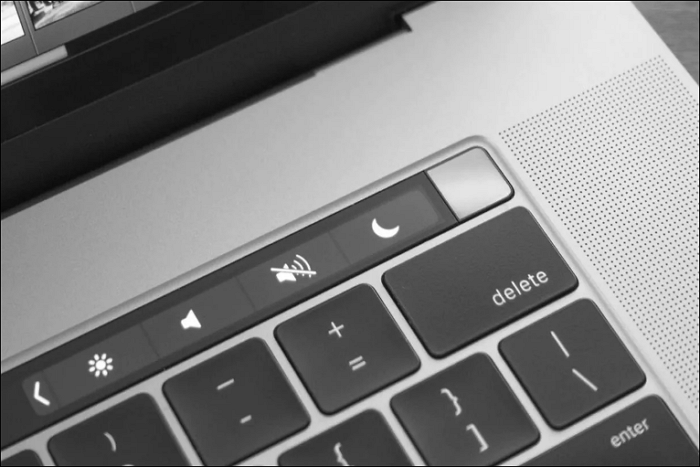
Step 2. Hold it till you hear a click sound.
Step 3. Release when the MacBook restarts.
However, if your MacBook is an earlier model than the Retina, you can choose to:
1. To turn off your Mac, you can press the power button and select "Shut Down" from the menu. Alternatively, you can long-press the power button until the shutdown option appears.
2. To force restart your MacBook Pro, press the Control + Command + Power buttons simultaneously.
Method 3: Boot into Safe Mode
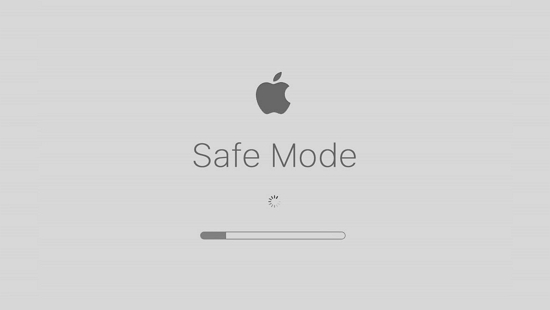
Corrupted data on the startup disk may cause a black screen, but restarting your Mac in safe mode can help identify and resolve the issue by performing disk inspections.
Step 1. Shut down MacBook first, then restart it.
Step 2. Quickly hit and hold the Shift key.
Step 3. Hold the Shift key until the Apple logo appears on the screen.
Method 4: Reset the System Management Controller
Resetting the System Management Controller (SMC) can resolve issues with your Mac's power management, such as a black screen, by restarting the low-level functions that control temperature and battery management.
Step 1. Press and hold the "Shift + Control + Option" keys and the power button simultaneously.
Step 2. Release all the keys after ten seconds.
Step 3. Turn on the MacBook to see if the black screen is fixed.
Method 5: Reset the PRAM/NVRAM
To reset the PRAM/NVRAM on your Mac, power it on and hold down the keys Command + Option + P + R until you hear the starting chime. This will clear the settings for the startup-disc option and system volume.
Method 6: Reinstall the macOS
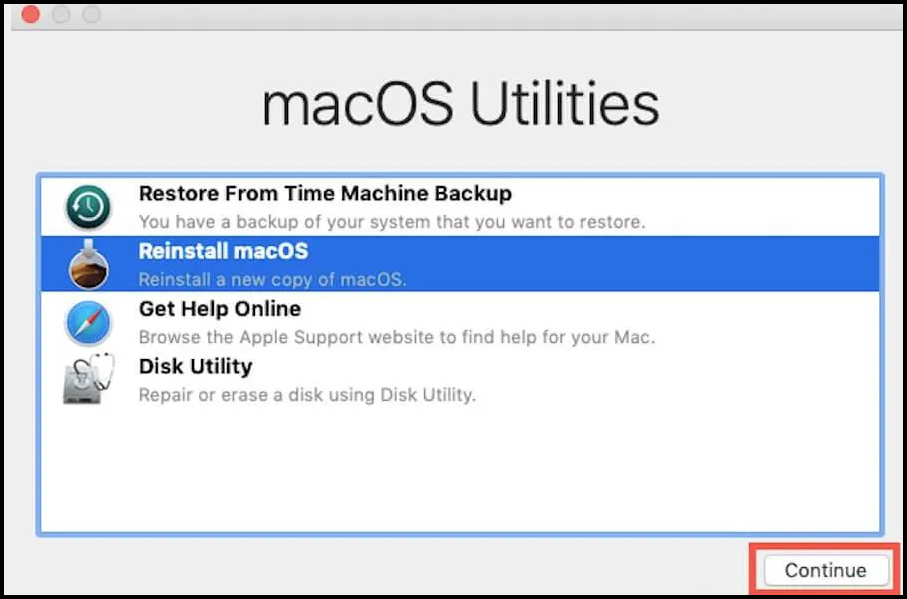
If your MacBook won't turn on and has a black screen issue, you can try reinstalling macOS in recovery mode as a last resort. This might resolve the problem if other troubleshooting methods have failed.
Step 1. Start your MacBook in Mac recovery mode.
Step 2. After entering recovery mode, choose to install the most recent version of macOS 13, and then follow the on-screen instructions.
Final Thoughts
If your Mac won't turn on and has a black screen, try restarting it. If that doesn't work, consider using data recovery software to save your files before attempting any fixes.
MacBook Air Won't Turn on Black Screen FAQs
Here are some other questions about MacBook won't turn on a black screen.
1. How to fix the MacBook air screen goes black, but still running?
you can choose and take these measures:
- Disconnect all the peripherals
- Check your display/screen's brightness
- Force Reboot your MacBook Pro
- Reset the System Management Controller
- Reset Mac's NVRAM settings
- Re-install macOS
2. What do I do if my MacBook air screen is black and won't turn on?
Hold down the power button for 10 seconds, then tap the power button and instantly press and hold the Command + R keys.
3. How do I restart my Mac when the screen is black?
- Step 1. Press the power button down for 6-10 seconds.
- Step 2. Wait 10 seconds after your Mac shuts down.
- Step 3. Restart the device by pressing the power button.
4. What does black screening mean?
A black screen when turning on your MacBook can be caused by a faulty computer monitor, broke disk permissions, software errors, or other issues with your MacBook.
Related Articles
- Fix: Scanning and Repairing Drive Stuck at 0, 10, 100... in Windows 10
- What Is the Best GoPro SD Card Format? [Best Choice and Tutorial Guide]
- What Is Mac Terminal Format Disk & How to Format Disk [Best Solution]
- [SOLVED] How to Open BitLocker Drive on Mac Ventura, Monterey, Big Sur
- How to Remove Bad Sector from Hard Disk Using CMD
This tutorial teaches how to remove bad sectors from a hard disk using the command line in Windows 10/8/7. It can help repair corrupted hard drives and recover data when files or programs cannot be opened properly due to bad sectors, corruption, or other disk errors. - How to Remove Shortcut Virus from Hard Disk/USB/Pen Drive Without Losing Data
When a shortcut virus infects your hard disk, USB, USB flash drive, or external hard drive, all files and folders become shortcuts and unopenable.
Products
Articles & Tutorials
- Data Recovery
- Data Backup
- File Recovery
- File Backup
- System Backup and Restore
- Disk and Partition Clone
- Technical articles
- Mobile articles
- Disk Master Help
- Windows Data Recovery Tutorials
- Windows Secure Delete Tutorials
- Windows Partition Management Tutorials
- Windows File Backup and Restore Tutorials
- Windows System Backup and Restore Tutorials
- Windows Disk Backup and Restore Tutorials
- Windows Clone Tutorials