What Is the Best GoPro SD Card Format? [Best Choice and Tutorial Guide]
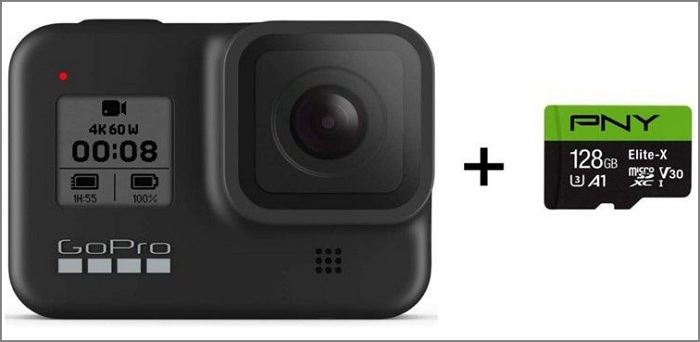
The GoPro camera requires an SD card to save photos and videos, as it does not have internal memory.
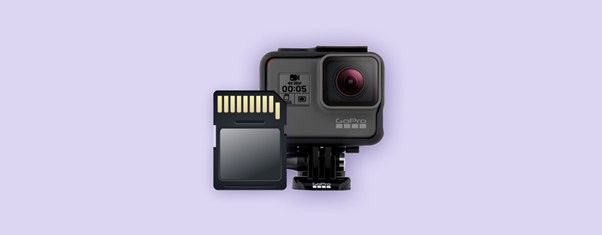
Formatting an SD card for a GoPro camera can be a challenge, as it requires a specific type of microSD card that is known to work well with the camera. To get the best results, it's essential to use a microSD card that is compatible with your GoPro, and formatting it correctly is crucial. By following the proper steps, you can ensure that your SD card is properly formatted and ready for use with your GoPro camera.
What Is the Best GoPro SD Card Format?
Formatting your GoPro SD card is a great alternative if you need to wipe it or solve any problems, and it can be done on any device that supports the SDXC file format, often requiring a card reader or adapter to connect to other devices.
| File System | File Size | Volume | OS |
|---|---|---|---|
| NTFS System | 16EB - 1KB16TB - 64KB 256TB - 64KB8PB - 2MB | 256TB - 64KB 8PB - 2MB | Linux, Windows, Chrome |
| FAT or FAT32 | 4 GB | 2TB - 512 byte 8TB - 2KB 16TB - 4KB | Linux, macOS, Windows |
| exFAT File System | 128 PB | 128 PB | Linux, macOS, Windows |
| EXT2/3/4 | 4TB - 1KB8TB - 2KB16TB - 4KB 256PB - 64KB | 4TB - 1KB8TB - 2KB16TB - 4KB 256PB - 64KB | Linux |
The table clearly shows that different operating systems support various file systems, highlighting their unique capabilities and functionalities.
- NTFS is configured for drives that store the operating system, large files, or gaming disks, typically those larger than 4GB.
- The recommended file system format for a GoPro SD card is exFAT for capacities of 64 GB or more, and FAT32 for capacities of 32 GB or less.
How to Set the GoPro SD Card Format [4 Solutions]
When setting up your GoPro camera, it's a good idea to format the SD card, and if it's not working properly, you can also try formatting it on your computer to see if it resolves the issue. Alternatively, you can try the following solutions to format your GoPro SD card.
How to Format GoPro SD Card with Qiling Partition Master
256GB SD cards cannot be formatted to FAT32 using Windows Disk Management or Diskpart due to FAT32's 32GB capacity restriction, requiring the use of an external formatting application like Qiling Partition Master Free. Formatting to FAT32 using this program requires making a copy of necessary files beforehand.
Step 1. To format an SD card, locate it and right-click on the partition you want to format, then select "Format" from the context menu.
Step 2. Set a new partition label, file system (NTFS/FAT32/EXT2/EXT3/EXT4/exFAT), and cluster size to the selected partition, then click "Proceed".
Step 3. Click "Yes" on the pop-up window to start formatting your SD card.
To format a GoPro SD card with Qiling Partition Master, follow these steps: download and install the software, insert the SD card, select the disk and partition, choose the format type (FAT32), confirm the operation, and wait for the process to complete. Additionally, the tool can also be used to convert NTFS to FAT32 or convert MBR to GPT.
How to Format GoPro SD Card on a PC
You will usually use your own computer to format the SD card. Here is how you may use your Windows PC to format the SD card that comes with your GoPro camera.
Step 1: Insert the SD card into the computer's card reader.
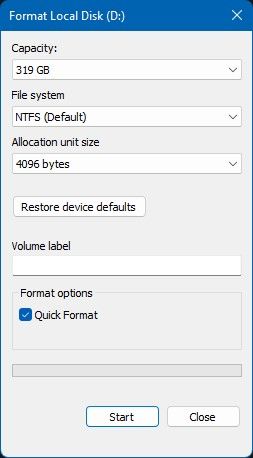
Step 2: To format the SD card, right-click on the SD card drive in "This PC" and select "Format" from the context menu.
Step 3: To ensure optimal performance, adjust the file system settings on your SD cards according to their capacity. For SD cards with 64 GB or more, use the ExFAT file system, and for those with 32 GB or less, use FAT32.
Step 4: Select "Quick Format", then press the "Start" button.
How to Format GoPro SD Card on Mac
You can format your GoPro SD card on a Mac using the following instructions, so don't worry if you're a Mac user.
Step 1: Open up the "disk utility" by clicking on its icon.
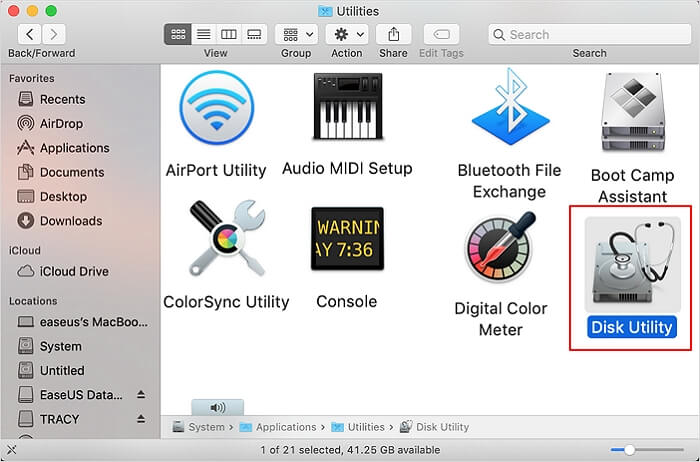
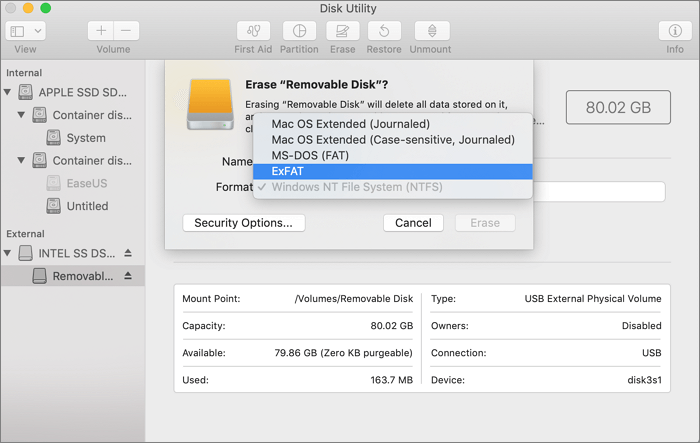
Step 2: You can select the external storage location, such as an SD card, and then choose it from the left panel.
Step 3: To format an SD card, choose the correct file system based on its size: FAT for 32GB or less, and exFAT for larger sizes. Select the items to delete, then click to start the formatting process. The process is complete when you see a confirmation of successful formatting.
If the GoPro SD card is not showing on Mac, you can fix the issue by checking the card's compatibility, ensuring it's properly inserted, and using the Disk Utility to verify and repair the disk. Additionally, you can try using a card reader or resetting the SD card.
How to Format GoPro SD Card in GoPro Camera
To format a GoPro SD card in your GoPro, you can do so directly from the camera's on-board menu, eliminating the need to use the mobile app. This process is quick and straightforward, allowing you to format the card without needing to access the app. Simply follow the steps outlined in the GoPro menu to complete the formatting process.
Step 1: To turn on the camera, press the power button. Once the camera is on, insert the memory card into the device.
Step 2: Launch the menu seen on the secondary screen (swipe down).
Step 3: Proceed to the Preferences menu.
Step 4: To reset, scroll down to the bottom.
Step 5: Select Format SD Card from the menu.
Conclusion
Formatting the GoPro SD card is a relatively straightforward process, and the best format to use is either exFAT or FAT32. To do so, simply follow the solutions outlined in this article, and you'll be able to complete the task without losing any data. This will allow you to make the most of the opportunity to format your SD card and ensure it's ready for use with your GoPro.
FAQs of GoPro SD Card Format
1. What format should the SD card be for GoPro?
The format of a memory card depends on its storage capacity. For cards 32GB or less, the microSDHC-compliant FAT32 file system is used, while cards 64GB or bigger require the microSDXC specification and exFAT file system.
2. What does it mean to format an SD card for GoPro?
Formatting an SD card erases all data on the card, allowing the camera to configure it for use with your GoPro. This can be done by transferring data from the HERO's SD card to a PC.
3. Why can't I play my GoPro videos?
The most common cause of video playback issues with a GoPro camera is often due to the device not being compatible with the H. 265 video compression used by the camera. To resolve this, it's recommended to change the video format to the more widely supported H. 264 MP4.
Related Articles
- 5 Ways | How to Increase Phone Memory to Fix Insufficient Storage Error
- How to Free Up Space on SSD in Windows 10/8/7
- How to Fix the System Cannot Find the File Specified
- How to Cancel Windows 10 Updates Once Started
- Fix: Operation Failed with Error 0x0000011b (Windows 10/11)
Operation Failed with Error 0x0000011b is caused by Microsoft security patches. And according to the root reason, this article presents three ways to address this issue. - What to Do When SD Card Photos Not Showing Up in Gallery
SD card photos not showing up in Gallery? Fix this Android issue with 6 proven methods: check the connection, show hidden files, remove viruses, change file system, delete .nomedia files, and more.
Products
Articles & Tutorials
- Data Recovery
- Data Backup
- File Recovery
- File Backup
- System Backup and Restore
- Disk and Partition Clone
- Technical articles
- Mobile articles
- Disk Master Help
- Windows Data Recovery Tutorials
- Windows Secure Delete Tutorials
- Windows Partition Management Tutorials
- Windows File Backup and Restore Tutorials
- Windows System Backup and Restore Tutorials
- Windows Disk Backup and Restore Tutorials
- Windows Clone Tutorials