5 Ways | How to Increase Phone Memory to Fix Insufficient Storage Error
When your Android phone displays "Insufficient Storage Available" or has limited space, try these solutions to increase phone memory: clear cache and data from apps, uninstall unused apps, move apps to the SD card, delete unnecessary files and photos, use cloud storage, and consider expanding your storage with a microSD card.
How to Increase Phone Memory of Android Phone in 5 Ways
| Workable Solutions | Step-by-step Troubleshooting |
|---|---|
| Fix 1. Delete Useless Apps | Go to "Settings" > Tab "Apps" > Choose useless apps or unwanted apps and select "Uninstall"...Full steps |
| Fix 2. Transfer Data to Cloud | If you have a Cloud account such as Google Drive or Dropbox for your Android phone...Full steps |
| Fix 3. Expand Android Storage Space | Connect a USB flash drive or a memory card reader to the end of the adapter...Full steps |
| Fix 4. Use Terminal Emulator | Partition your SD card with Qiling Partition Master. Check how to make it at the end of this article...Full steps |
| Fix 5. Run GOM Saver | Download the GOM Saver app from the Google Play Store...Full steps |
How Do I Increase My Android Phone's Internal Storage
"I'm running out of storage on my Android phone, which is preventing me from installing new apps, despite having 4GB of internal storage. How can I increase my phone memory without changing my phone?"
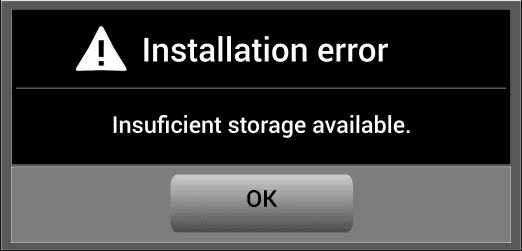
Many Android phones, particularly budget models, are facing low internal memory issues due to limited storage capacity, often only having 4G memory, making it difficult to install games and apps.
If you're running out of storage space on your Android phone, there are several methods to expand and increase internal memory. To fix the "not enough storage available" error, you can try various techniques, including expanding internal storage, which can be achieved through several different methods, ultimately increasing internal storage space on Android phones.
Fix 1. Delete Apps, Clean History to Increase Internal Memory
Android apps can take up a significant amount of space on a phone, especially when browsing history and caches accumulate over time. As a result, users' phones can become cluttered with useless apps, history, and caches, filling up internal memory. Cleaning out these unnecessary items can help free up space and extend the life of the phone's internal memory.
1. Delete unwanted apps on Android
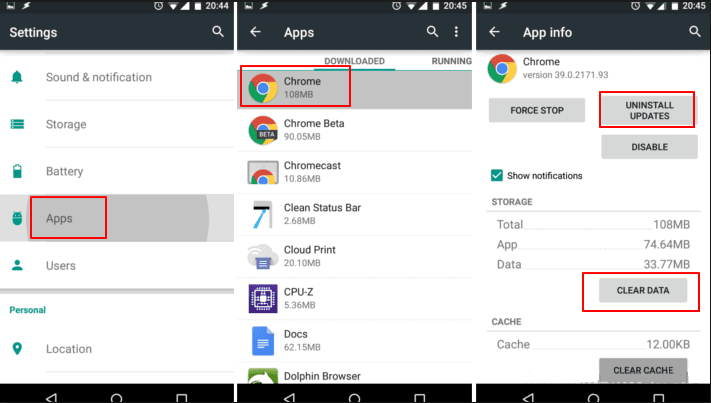
To remove unwanted apps, go to Settings, click on the Apps tab, select the apps you want to uninstall or clear data from, and click Uninstall or Clear Data.
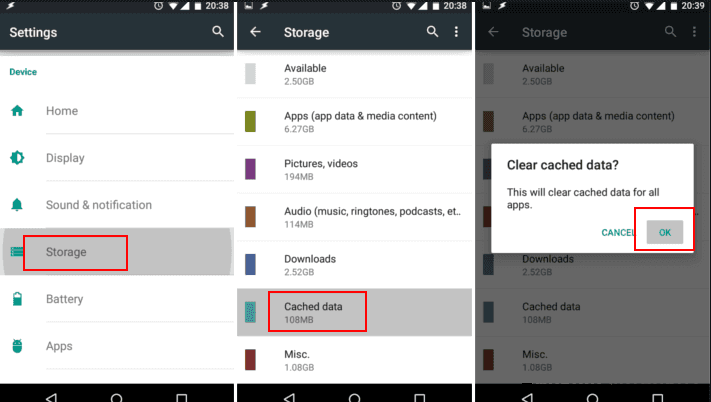
2. Clean up app history or caches to increase phone memory
Go to "Settings" > "Storage" > Click "Cached data" and confirm the deletion by clicking "OK".
Fix 2. Transfer Data to Cloud Storage or PC to Extend Storage
Transferring data to Cloud storage can save Android phone storage space by uploading photos, videos, and files to Cloud accounts like Google Drive or Dropbox. This frees up space on the device.
If you don't have a Cloud account, you can save internal memory on your Android phone by using a PC or tablet or other external storage devices. You can also export rarely used data to a PC and delete them on your phone to free up space.
If you don't want to move your Android data or files out and save in Cloud or PC, you can also try to add memory to increase internal memory on Android with USB OTG. Detailed steps will be listed in Fix 4.
Fix 3. Expand Android Storage Space with USB OTG
USB On-The Go (USB OTG) allows devices like tablets or smartphones to act as hosts, enabling other USB devices like flash drives, cameras, mice, or keyboards to connect to them, effectively adding more storage space to devices like Android phones.
You can increase your Android phone's internal storage space by adding an external hard drive or USB drive using a USB OTG adapter. If you're unsure whether your phone supports USB OTG, you can download the USB OTG Checker app to test.
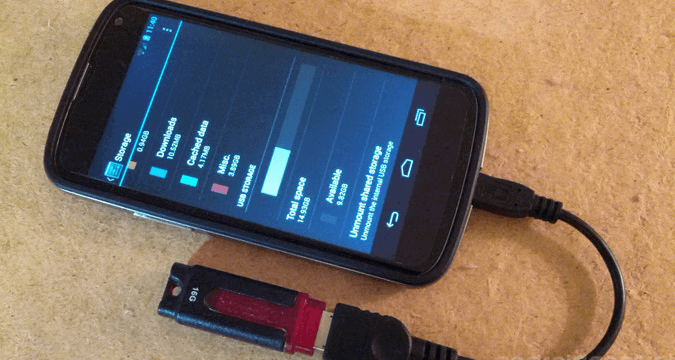
To increase internal storage space on Android phones, consider using a USB OTG (On-The-Go) adapter, which allows you to connect external storage devices, such as flash drives or hard drives, to your phone. This can provide an additional storage space for your files, apps, and other data, helping to free up internal storage and improve your phone's overall performance.
Step 1. Connect a USB flash drive or a memory card reader to the end of the adapter, then connect the OTG cable to the Android phone.
Step 2. If the file manager does not automatically appear, you can access it by swiping down from the top to show the notification bar.
Step 3. You can transfer files from your Android phone to a connected USB flash drive or memory card by tapping on the USB Drive. This allows you to move files between your device and the external storage.
To move a file from your phone to a USB drive, go to your phone's "Internal Storage", select the file you want to move, tap the three dots button, and select "Copy". Then, navigate to the USB drive and tap "Done" to complete the process.
Fix 4. Use Terminal Emulator/INT2EXT/Mounts2SD Apps
In addition to Link2SD, other apps like Terminal Emulator, INT2EXT, or Mounts2SD can also help to increase Android internal memory by utilizing SD card space, making it easier to expand internal storage space.
Let's talk briefly about how to use Terminal Emulator to borrow free space from the memory card to increase the internal storage space of Android.
Preparations:
- Higher class micro SD card(class 4 or higher)
- Install Terminal Emulator app to your Android phone
Step 1. Partition your SD card with Qiling Partition Master. Check how to make it at the end of this article.
Step 2. Download and install the Terminal Emulator App on your Android phone, then launch the app.
Step 3. To run the app, type su and press Enter, then type a2sd xdata and press Enter. The app will prompt you to continue; type y and press Enter to proceed.
Step 4. Now, Type y to reboot your device as required.
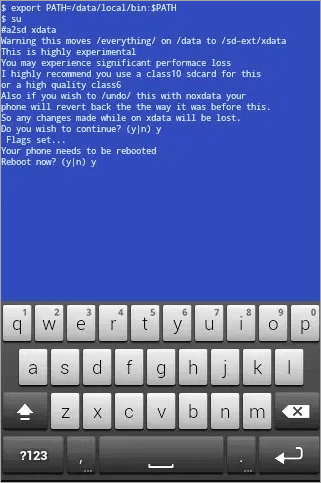
Step 5. In this way, you have successfully increased internal storage space on Android. You can go to Menu > Settings > Storage to check it.
To undo the process and revert your phone back to its original state, simply type 'su' followed by 'a2sd noxdata' and then 'y' on the command line, pressing Enter after each command.
Fix 5. Install and Run GOM Saver to Increase Storage Space on Android
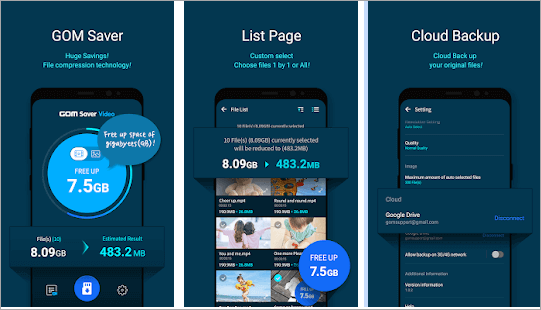
GOM Saver helps compress photos and videos, saving about 50% of the original file size. This can free up space on your Android device, increasing storage capacity.
Step 1. Download the GOM Saver app from the Google Play Store.
Step 2. Launch GOM Saver, and enter the main screen where you can see how much memory you can save by running the video or image compression.
Step 3. 1. Delete the original file or 2. Back it up in a cloud storage.
Step 4. If you compress images or videos, the compressed files will be stored on your phone.
More Quick Codes to Increase Phone Memory on Android
To increase internal storage on Android, you can try using the solutions above to fix the "Insufficient storage available" error, or simply try the following simple tips. These include using the built-in storage management tools, deleting unused apps and data, and moving files and photos to an external storage device or cloud storage service.
- Disable bloatware
- Delete photos and videos
- Temporarily disabling apps
- Remove unwanted downloads
Additional Help - How to Partition/Initialize an SD Card
Adding a memory card to an Android phone can expand internal space. The phone usually initializes and partitions the SD card on its own. If the SD card cannot be initialized or partitioned, you can try using Qiling Partition Master, a software that can resize, format, and increase space on hard drives, SD cards, and USB flash drives.
Connect your SD card to the PC, and follow the steps below. This is an example of initializing a hard drive or SSD:
Step 1. To start, open Qiling Partition Master and connect the hard drive or SSD to your PC.
Select the target hard drive or solid-state drive and choose to initialize it to Master Boot Record (MBR) or GUID Partition Table (GPT) format, depending on the drive's type and the user's preference.
If you can't initialize your SD card with Qiling Partition Master, it likely indicates that the SD card has a physical issue. In this case, you can attempt to repair the SD card using a specialized SD card repair tool. This tool can potentially restore the SD card's functionality.
Conclusions
To increase internal storage space on Android phones, one of the most useful approaches is to borrow storage from the SD card using the Link2SD app. This method allows you to move apps and data to the SD card, freeing up internal storage space. If you decide to adopt this method, note the following tips:
- Back up your memory card contents before in advance
- Have a charged phone to avoid any disruptions
- You can transfer data to an SD card without rooting your phone. Many phones have built-in features that allow you to move apps, photos, and other data to an SD card, even if it's not rooted.
If you need assistance with any further issues, you can reach out to our technical support team for help through live chat.
Codes to Increase Phone Memory FAQs
If you still have questions, you can read the questions and answers below to get additional help.
How can I increase my phone's internal memory?
Quick Navigation :
- Disable bloatware
- Delete photos and videos
- Temporarily disabling apps
- Remove unwanted downloads
- Delete Useless Apps
- Transfer Data to Cloud...
How can I increase my phone speed?
Tips To Increase Android's Performance
- Update your Android
- Remove Unwanted Apps
- Disable Unnecessary Apps
- Update Apps
- Use High-Speed Memory Card
- Keep Fewer Widgets...
Why is the phone slow?
If your Android is running slow, try clearing out excess data stored in your phone's cache and deleting any unused apps to quickly fix the issue. Alternatively, a system update may be necessary, but older phones may not be able to run the latest software properly.
Why is my phone slow and freezes?
A smartphone can freeze due to various reasons, including a slow processor, insufficient memory, or limited storage space, which can cause the device to become unresponsive.
Related Articles
- Fix WD External Hard Drive Not Showing Up/Recognized Error [2022 Tutorial]
- Fixed: Windows 10 Will Not Update with Error Code 0x80240fff
- 3 Ways to Fix USB Device_Descriptor_Failure Error in Windows
- Fix Mac Won't Boot/Start after macOS High Sierra Update
- eSATA External Hard Drive: Everything You Should Know
In this article, we will discuss what is eSATA external hard drive and its pros and cons. Besides, you can get some recommendations for eSATA external hard drives. - How to Find Motherboard on Windows 11, 10, 8 and 7
Learn how to find your motherboard model in Windows using System Information, Command Prompt, PowerShell, or third-party tools.
Products
Articles & Tutorials
- Data Recovery
- Data Backup
- File Recovery
- File Backup
- System Backup and Restore
- Disk and Partition Clone
- Technical articles
- Mobile articles
- Disk Master Help
- Windows Data Recovery Tutorials
- Windows Secure Delete Tutorials
- Windows Partition Management Tutorials
- Windows File Backup and Restore Tutorials
- Windows System Backup and Restore Tutorials
- Windows Disk Backup and Restore Tutorials
- Windows Clone Tutorials