How to Remove Bad Sector from Hard Disk Using CMD
Quick navigation on how to repair and remove bad sectors from hard disk:
| Workable Solutions | Step-by-step Troubleshooting |
|---|---|
| Procedure 1. Recover Data from Hard Disk | Launch Deep Data Recovery, hover on where you want to perform data recovery, and then click "Scan". Select the files you want to recover. After choosing the data, click "Recover"...Full steps |
| Procedure 2. Repair Bad Sectors Using CMD | Press the "Windows" key and type cmd. Right-click "Command Prompt" and choose "Run as administrator". In Command Prompt, enter the following command: chkdsk E: /f /r /x. If you don't want to perform the disk checking and repairing process in CMD...Full steps |
All About Bad Sectors
A sector, a subdivision of a track on a hard disk, stores a fixed amount of data. A bad sector is a sector that appears defective and refuses to respond to read or write operations. There are two types of bad sectors:
Physical Bad Sector (Hard Bad Sectors)
Physical bad sectors on a hard disk are caused by physical damage, making them irreparable with tools like CHKDSK. To continue using a damaged hard disk, third-party tools can be used to block affected sectors, preventing system and program access to them.
Logical Bad Sector (Soft Bad Sectors)
Logical bad sectors, unlike physical ones, are caused by software errors such as a sudden computer shutdown or virus attacks. They occur when the operating system tries to read data from a sector and finds an error-correcting code mismatch. Fortunately, these sectors can be repaired using the CHKDSK tool.
Recover Data from the Hard Disk First
Before attempting to remove bad sectors using CMD, it's essential to recover your data to a safe location first. The command line process will erase all data on the hard disk, destroying the data directory structure and potentially part of the file content. To avoid losing your data, we recommend performing data recovery in advance using a reliable hard drive recovery software like Deep Data Recovery.
To recover your data, download the tool from the button below and follow the guide steps provided. This will help you retrieve your lost information.
Step 1. Choose file types and click "Fast Scan" to start
Run Deep Data Recovery. Choose file types and click "Fast Scan" to begin the recovery process.

Note: You can choose different search modes based on where and why the data was lost.
Step 2. Select a location and start scanning
To recover deleted files, hover over the partition/drive where the files were stored, and click "Scan" to initiate the search for lost files.

Step 3. Select the files you want to recover
Once the scanning is complete, select the deleted files you want to recover. You can filter the results to display only specific file types, or search for a file by name in the "Search files or folders" box. This can help you quickly find the target file if you remember its name.

Step 4. Preview and recover deleted files
Preview the recoverable files, select the ones you want to restore, and click "Recover" to store them at a new storage location.
How to Repair Bad Sectors on Hard Disk Permanently Using CMD
After ensuring your disk data is safe, you can use the CHKDSK command to remove bad sectors from your hard disk. CHKDSK, a built-in Windows utility, checks the disk's integrity and fixes logical errors, including bad sectors. This makes it a useful tool for repairing hard disk bad sectors, making it a first choice for repairing a corrupted hard drive.
- Warning
- Running chkdsk can potentially fix the hard disk issue, but it may also result in total data loss, so it's recommended to perform data recovery in advance and then proceed with the CMD method.
To permanently remove bad sector from hard disk using cmd:
Step 1. Press the "Windows" key and type cmd.
Step 2. Right-click "Command Prompt" and choose "Run as administrator".
Step 3. To run a check on the E: drive, enter the command "chkdsk E: /f /r /x" in the Command Prompt. This command will check the drive for errors, fix them, and then read the drive to scan for bad sectors, and finally, it will force the system to dismount the drive before running the scan, which can help prevent data loss.
Notes: To repair bad sectors on a disk, you can use the CHKDSK command with parameters such as "/f" to fix errors, "/r" to locate and recover readable information, and "/x" to force the drive to dismount before the process starts, specifying the drive letter, such as "E", where the disk you want to repair is located.
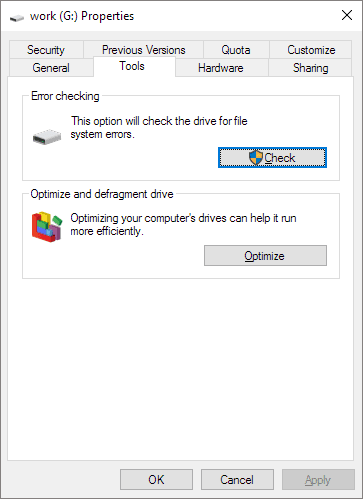
If you don't want to perform the disk checking and repairing process in CMD, you can use the disk check feature, which works the same as CHKDSK.
Step 1. To troubleshoot a drive with bad sectors, open "This PC", right-click the drive in question, and select "Properties" from the context menu. This will open the drive's properties window, where you can view and manage its settings.
Step 2. Go to the "Tools" tab.
Step 3. Click "Check" to check and repair the bad sectors on your hard disk.
Remove Bad Sector Using Automatic Command Line Tool
Download Qiling CleanGenius and install it on your computer. Let's start checking and refixing file system error on your device now.
Step 1. Click "File Showing" to enter the next step.
Step 2. Choose the target device and tick the box of "Check and fix file system error". Click "Execute" to start fixing the problematic device.
Step 3. Once the fixing process is complete, click "here" to access and start using your device.
The Bottom Line
Bad sectors on a hard drive are damaged areas that can't store data, making it unreadable or corrupt. If you're having trouble opening files or programs, it's possible that bad sectors have filled the hard disk. To fix this, you can use CHKDSK to repair logical bad sectors and instruct the system to skip over physical bad sectors, making the hard disk usable again.
Related Articles
- How to Reset Windows 10 Password in 4 Ways (Step-by-Step Tutorial)
- How to Repair PDF Files Online [Easy Guide]
- How to Recover Deleted Files/Photos on Phone from Hide it Pro
- Should You Wait for a Response or Close When Excel Frozen but Not Crashed? 10 Tricks Here
- How to Unzip Files on Windows 10 and 11
Zipping files is a common method for transferring heavy files, allowing you to compress large files into a single Zip file that can be easily transferred, reducing the risk of file loss. Here, we'll learn how to Unzip files on Windows 10 and 11. - Ways to Zoom in and out on Chromebook
There are bound to be some common issues people face and this article particularly addresses zoom in and zoom out on Chromebook. Here are 5 Easy and Straightforward Methods to Zoom in and out and Magnify part or the entire screen on your Chromebook.
Products
Articles & Tutorials
- Data Recovery
- Data Backup
- File Recovery
- File Backup
- System Backup and Restore
- Disk and Partition Clone
- Technical articles
- Mobile articles
- Disk Master Help
- Windows Data Recovery Tutorials
- Windows Secure Delete Tutorials
- Windows Partition Management Tutorials
- Windows File Backup and Restore Tutorials
- Windows System Backup and Restore Tutorials
- Windows Disk Backup and Restore Tutorials
- Windows Clone Tutorials