Google Chrome Windows 7&8.1 End of Support: What Should You Do
Google will stop supporting Chrome on Windows 7 and 8.1 from February 7, 2023, as these operating systems are no longer supported, and users need to be on a supported OS to use Chrome.

Google Chrome Windows 7&8.1 End of Support
Google will stop supporting Google Chrome for Windows 7 and 8.1, but users can still use older versions, which will no longer receive new features and security updates.
Microsoft ended support for Windows 7 in 2020, but around 10.7% of users, approximately 100 million people, still use the outdated OS. This poses a significant security risk, and it's recommended that users update their OS or switch to an alternative browser to avoid potential security issues.
Shift to an Alternative Browser
If Google stops supporting Chrome on Windows 7 and 8.1, you can try another web browser. Not having access to Chrome updates doesn't mean all browsers will be affected. If you're not a fan of Chrome's features, we can help you find a good alternative for secure browsing.
At the moment, other well-Mozilla Firefox remains a viable option for those still using older versions of Windows, as it continues to receive support and updates. Unlike Chrome, Firefox adopts an open-source approach and uses less memory, making it a great alternative for those who don't need to upgrade to Windows 10 or 11 to enjoy a seamless browsing experience.
If you're attached to the Chrome browser and don't want to lose access to its latest version or support, we can assist you in upgrading your Windows system quickly.
Bonus Advice: Upgrade Your Systems
If you're still using Windows 7 or 8.1, you'll need to upgrade to use Google Chrome next year. You can upgrade to Windows 10 for free if you have the product key, or buy a new key for around $150-$300.
If you're upgrading from Windows 7 to Windows 10/11 without prior experience, we'll provide assistance. However, be aware that there's a significant OS generation difference. Windows offers an option to keep files and apps, but data loss can occur. We recommend using a free data backup tool to prevent data loss before upgrading.
To update your Windows 7 and 8.1 to Windows 10, you can follow these steps: Go to the Windows 10 download page and click on the "Download Now" button. Choose the correct version of Windows 10 for your computer, and then click on the "Download" button.
Step 1. To download Windows 10, open your Google Chrome browser and navigate to Microsoft's website, where you can find the download link for Windows 10.
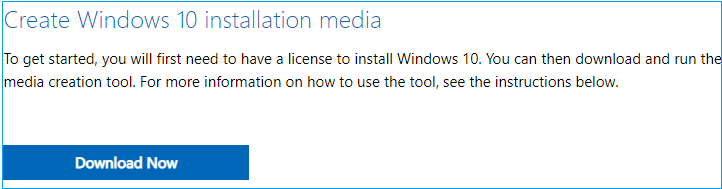
Step 2. Scroll down to the Create Windows 10 installation media section, and choose Download Now.
Step 3. Open the downloaded file and run the app.
Step 4. When started, under the Upgrade this PC Now, select Next.

Step 5. You will get the option if you want to keep your personal files or not.
Step 6. If you have backed up your existing settings and apps, you can choose the "Start Fresh" option.
- Notice:
- If you choose the Start Fresh option during the Windows 10 upgrade, all apps and settings will be deleted.
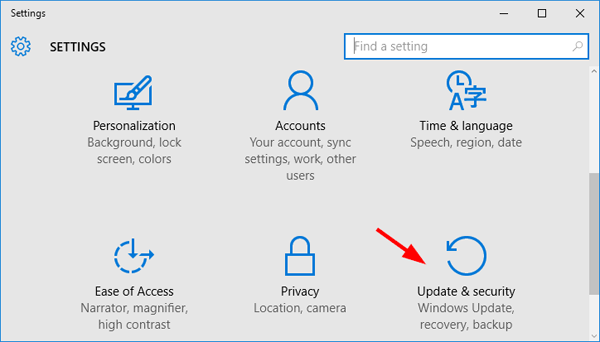
Step 7. If you're using a genuine Windows, you'll find the digital license for Windows 10 after the update process is complete. To verify, go to Settings, select Update & Security, and then select the Activation option.
You are done!
Final Verdict
As a Windows user, it can be challenging to let go of Google Chrome's features and security, especially with the end of support for Windows 7 and 8.1. However, updating to Windows 10 or 11 is the best option to continue enjoying Chrome's upgrades and support. Alternatively, you can consider using a different browser if you're not ready to upgrade your operating system.
Related Articles
- How to Download DISM on Windows 11/10/8/7 for Free | 3 Detailed Ways
- How to Recover Deleted Chrome Bookmarks on Mac
- How to Fix It Looks Like Windows Didn't Load Correctly
- Which Is the Best NTFS Allocation Unit Size, How to Set?
- Excel AutoSave Not Working Error in Windows 10/8/7
If your Excel AutoSave feature is not working, this article will show you how to automatically backup your Excel files and provide a reliable method to repair and fix the AutoSave not working error, ensuring your files are saved and backed up. - Download Windows 10 21H2/21H1/20H2/2004/1909/1903 ISO and Fix Fail to Install Error
Download and install Windows 10 21H2/21H1/20H2/2004/1909/1903 ISO without data loss. Fix KB5015020/KB5008212/KB5013945/KB4592449 update installation errors with proven solutions.
Products
Articles & Tutorials
- Data Recovery
- Data Backup
- File Recovery
- File Backup
- System Backup and Restore
- Disk and Partition Clone
- Technical articles
- Mobile articles
- Disk Master Help
- Windows Data Recovery Tutorials
- Windows Secure Delete Tutorials
- Windows Partition Management Tutorials
- Windows File Backup and Restore Tutorials
- Windows System Backup and Restore Tutorials
- Windows Disk Backup and Restore Tutorials
- Windows Clone Tutorials