Excel AutoSave Not Working Error in Windows 10/8/7
Excel AutoSave not working on Windows PC, how to fix
If Excel autosave feature has stopped working in Excel 2016, 2013 or other versions, try restarting Excel, checking for corrupted files, and updating to the latest version. You can also try disabling and re-enabling autosave, and checking for any add-ins that may be interfering with the feature. Additionally, ensure that your Windows user account has the necessary permissions to save files in the default location.
If your Excel file has stopped auto-saving files or data, you can find a quick fix and two reliable methods below to repair the Excel AutoSave not working issue and learn how to automatically backup Excel files.
Quick Fix: Check and enable AutoSave feature in Excel application
If you've forgotten to turn on or enable the AutoSave feature in Excel, you won't be able to use it to automatically save and back up your Excel files on your Windows PC.
You can follow below steps to check and turn on the AutoSave feature on Excel application now:
Step 1. Open Excel with Microsoft Excel 2016.
Step 2. Click on "File" and click "Options".
Step 3. Click the "Save" tab on the left pane, then check the "Save AutoRecover information every" box and set the desired frequency.
Step 4. To enable background saves, go to the "Advanced" tab on the left pane, select the box that says "Allow background saves," and then click "OK" to save all changes.
Now that you can use your Excel files, the application will automatically save and back up your files at a predetermined frequency, ensuring that your work is safely stored and easily recoverable.
- Tip
- If Excel's Auto Save feature has stopped working, you can try two methods to resolve the issue. First, try enabling the Auto Save feature again by going to File > Options > Save > Save workbooks, and then select the Auto Save option.
Method 1. AutoSave and backup Excel files with file backup software
If the AutoSave feature in Excel has stopped working, and you're in a rush, using alternative software for assistance would be the most suitable option.
Qiling backup software allows you to automatically backup wanted Excel files in Windows 10/8/7 with simple clicks.
Method 2. Fix and repair Excel AutoSave not working error
If you're still using Excel's AutoSave feature for saving and backing up your Excel files, you can try the following tips to repair and get it working again. To do this, you can try saving your file in a different location, such as a network drive or a cloud storage service, to see if the issue is related to the default location.
Step 1. Open File Explorer and navigate to the directory where your Excel file is located.
For Windows 7 users:
C:\Users\name\AppData\Roaming\Microsoft\Excel\
For Windows 8/10 users:
C:\Users\AppData\Local\Microsoft\Office\UnsavedFiles
Step 2. To fix and repair corrupted Excel files, use the Open and Repair tool. This feature is available in Excel and can be accessed by trying to open the corrupted file.
1. Open a blank Excel sheet, click File> Open.
2. To resolve the issue with the corrupted Excel file, click on the location and folder that contains the file. This will allow you to access the file and potentially recover or repair it.
3. In the Open dialog box, select the corrupted Excel file, click the arrow next to the "Open" button, and then click "Open and Repair".
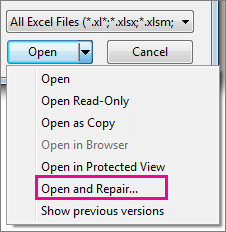
4. Click "Repair" to recover as much of the Excel data as possible.
Step 3. If Excel AutoSave feature still doesn't work after Step 2, try uninstalling and reinstalling the Excel application on your PC.
To enable AutoSave or AutoRecover in Excel, follow the guide tips in the Quick fix on this page, which will walk you through the process of turning on these features in the Excel application.
Related Articles
- How to Recover Deleted Chrome Bookmarks on Mac
- Fix Hard Drive Won't Power Up/Turn on Without Data Loss
- Fix 'Windows Can't Find A System Image on This Computer' Error
- How to Fix PS4 Cannot Access System Storage Error Code CE-34335-8
- B550 vs. X570 [Full & Detailed Comparison]
X570 and B550 are both AMD chipsets. Some users want to know how they differ and which one they should pick. You are coming to the right place if you're one of them. Read this article to learn more about B550 vs. X570. - What Are the Best External Hard Drive for PS4? Top 8 Choice in 2023
Are you tired of deleting your favorite games from your PS4's internal storage to make room for new ones? This article reviews the top 8 best external hard drives for PS4, helping you choose the perfect one to expand your gaming library without the hassle of deleting games.
Products
Articles & Tutorials
- Data Recovery
- Data Backup
- File Recovery
- File Backup
- System Backup and Restore
- Disk and Partition Clone
- Technical articles
- Mobile articles
- Disk Master Help
- Windows Data Recovery Tutorials
- Windows Secure Delete Tutorials
- Windows Partition Management Tutorials
- Windows File Backup and Restore Tutorials
- Windows System Backup and Restore Tutorials
- Windows Disk Backup and Restore Tutorials
- Windows Clone Tutorials