How to Fix Windows 10 DVD Drives Not Working? [2024 Guide]
You're not the only one in this; I also faced the same issue with my DVD drive on my Windows PC—it stopped working! But the only difference is I know how to fix the issue, but if you're reading this, I'm sure you don't know how to do it with your Windows 10 PC DVD drives.
If your DVD drive isn't working on your Windows 10 PC, don't worry - the issue can often be resolved with a few simple solutions. Even if you're running Windows 11, 8, or an older version, these fixes can still be applied. By trying out the solutions I've found, you should be able to get your DVD drive up and running again.
Continue reading for all the information!
Before We Start
The DVD drive on Windows 10 can stop working due to several reasons, although pinpointing the exact cause can be challenging. However, there are a few definite factors that contribute to this issue, including hardware problems, software conflicts, or outdated drivers that prevent the DVD drive from functioning properly.
- Old/corrupted drivers
- Loose cables
- DVD broken
- Bugs in the OS
Before attempting to fix Windows 10 DVD drives, create a backup of your PC to prevent data loss in case of a system crash or incorrect installation. This ensures your files are safe and protected.
Qiling Disk Master is a reliable backup and recovery software that has been trusted by millions for 13 years, offering features such as partition backup, disk backup, and boot partition backup.
If your system crashes, Qiling Disk Master can quickly restore it, eliminating the need to wait around for a resolution.
After backing up your computer, you can proceed with fixing Windows 10 DVD drives that are not working. To do this, you'll need to follow a series of steps.
How to Fix Windows 10 DVD Drives Not Working
If your Windows 10 DVD drive is not working, don't worry, there are several methods you can try to fix the issue. You can start by checking the DVD drive for dust or debris, which can be easily cleaned with compressed air.
- Method 1. Update your Windows to the latest version
- Method 2. Reinstall or update the driver in the Device Manager
- Method 3. Fix corrupted registry entries
- Method 4. Create a registry subkey
- Method 5. Remove IDE/ATAPI drivers
- Method 6. Check Your BIOS/UEFI Settings and Update Chipset Firmware
Method 1. Update your Windows to the latest version
If your Windows 10 computer's DVD drive isn't working, try updating your Windows to the latest version. This may resolve any issues and get your DVD drive working again.
Method 2. Reinstall or update the driver in the Device Manager
To fix a DVD drive that doesn't work, you can try reinstalling or updating the DVD drivers. This can often resolve the issue, and here's how to do it:
Step 1. Click on the Start button, search for Device Manager, and open it.
Step 2. Expand "DVD/CD-ROM."
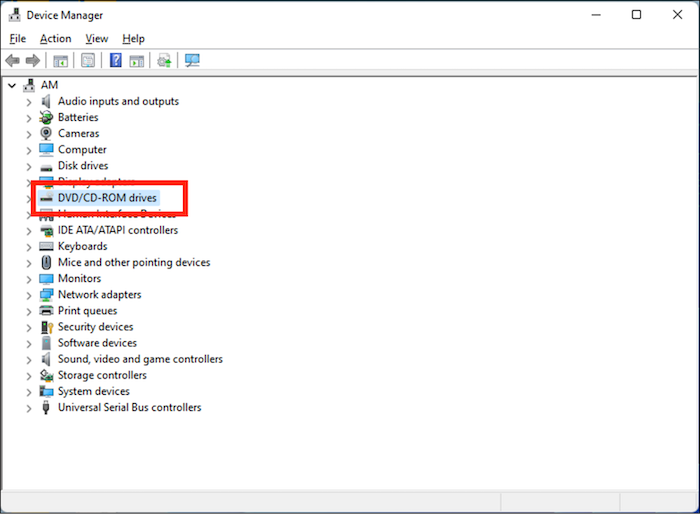
Step 3. Select the driver for your DVD and right-click on it.
Step 4. Select "Uninstall."
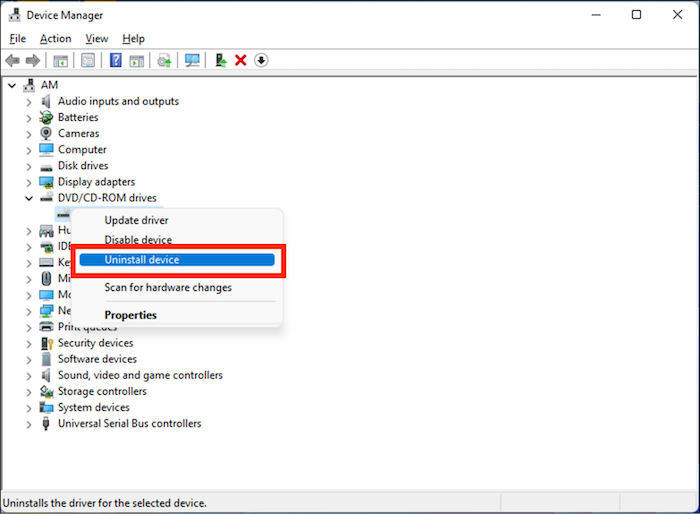
Step 5. Restart your computer.
Step 6. To update the drivers, log in to your account, and Windows will automatically detect the latest drivers and reinstall them.
The DVD drive should work properly now.
Method 3. Fix corrupted registry entries
Corrupt registry entries can also cause the DVD drive to malfunction. Fixing the corrupted drivers can resolve the issue.
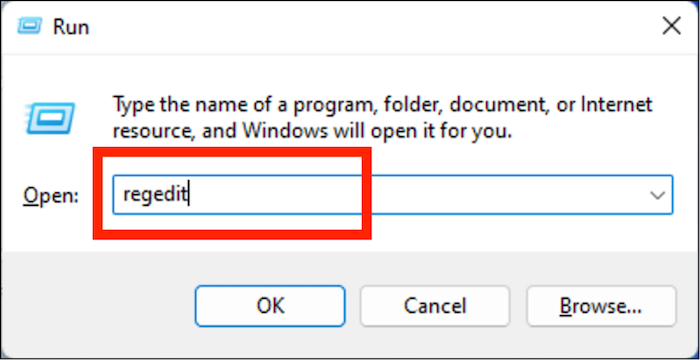
Step 1. Press the "Windows+R" key.
Step 2. To access the Registry Editor, type "regedit" in the "Run" dialog box and click on "OK."
Step 3. Copy-paste the location HKEY_LOCAL_MACHINE\SYSTEM\CurrentControlSet\Control\Class\{4D36E965-E325-11CE-BFC1-08002BE10318} in the navigation pane.

Step 4. On the right window, select "UpperFilters" and "LowerFilters" and delete them.
Step 5. After deleting, restart your PC.
If you didn't find "UpperFilters" and "LowerFilters" in the registry, it's possible that they were removed or don't exist in your system. In this case, you can try to enable the "Write" permission for the "Everyone" group on the CD/DVD drive in the Device Manager.
Method 4. Create a registry subkey
If you didn't find "UpperFilters" and "LowerFilters," you should run the System File Checker tool to scan and replace corrupted system files. To do this, open the Command Prompt as an administrator, type the command "sfc /scannow," and press Enter. This will scan all protected system files and replace any corrupted ones.
Step 1. Copy-paste this location HKEY_LOCAL_MACHINE\SYSTEM\CurrentControlSet\Services\atapi in the Registry editor navigation pane.
Step 2. To create a new key in the "Aatapi" folder, select the folder, right-click on it, and choose "New" and then "Key" from the context menu.
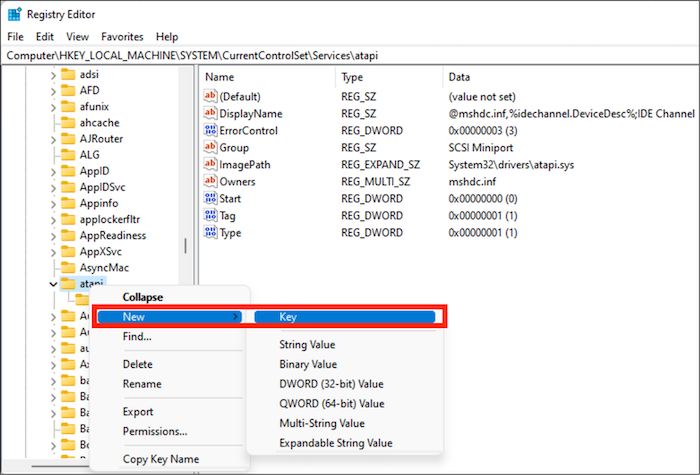
Step 3. Name the folder "Controller0."
Step 4. Right-click on the right window, select "New," then "DWORD (32-bit) Value" to create a new DWORD value.
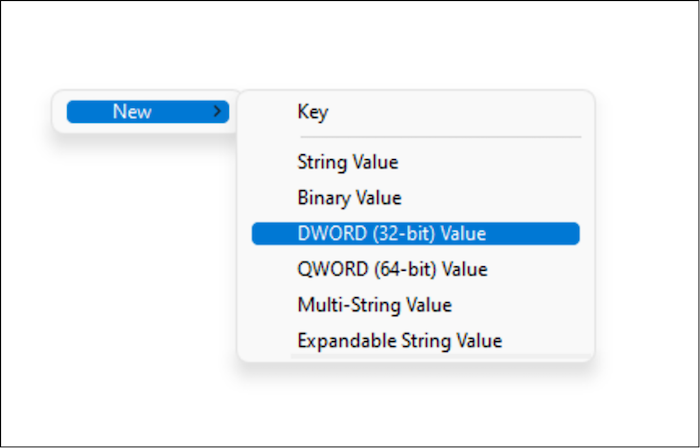
Step 5. Give it the name "EnumDevice1."
Step 6. Right-click on "EnumDevice1" and select "Modify."
Step 7. In the Value data box, type "1" and click on "OK."
Step 8. Restart your PC.
Method 5. Remove IDE/ATAPI drivers
To remove IDE/ATAPI and fix DVD drives not working on Windows 10, follow these steps: Go to Control Panel > Device Manager > Disk Drives, right-click on the DVD drive and select "Uninstall device". Then, go to Device Manager > IDE/ATAPI controllers, right-click on the IDE/ATAPI controller and select "Uninstall device". Restart your PC and Windows should automatically reinstall the drivers.
Step 1. Open "Device Manager."
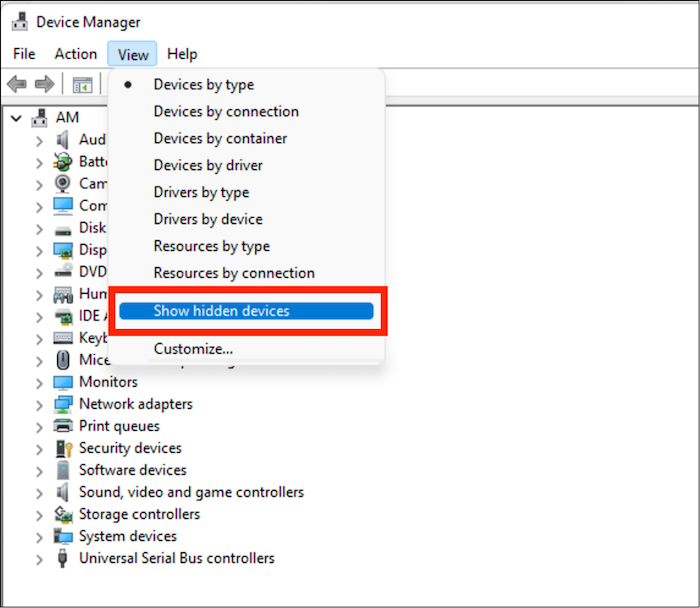
Step 2. Click on the "View" option and select "Show hidden devices."
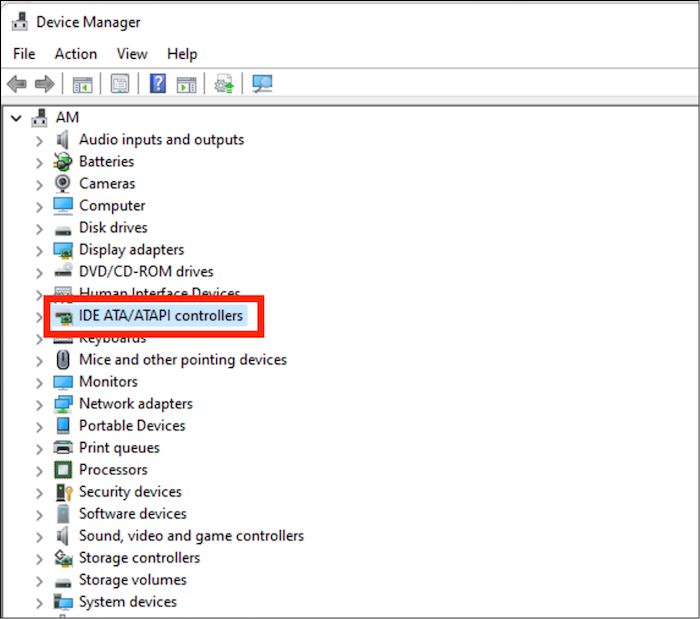
Step 3. In the IDE/ATAPI Controllers section, right-click on each of the following and select "Uninstall": "ATA Channel 0", "ATA Channel 1", and "Standard Dual Channel PCI IDE Controller".
Step 4. Restart your PC for the changes to take effect.
Method 6. Check Your BIOS/UEFI Settings and Update Chipset Firmware
The DVD drive may not be working due to a misconfigured BIOS/UEFI or outdated chipset firmware, which can be resolved by resetting the BIOS/UEFI and updating the chipset firmware.
Conclusion
DVD-drive problems are a common issue in Windows 10 and other Windows versions, but with the solutions above, you can quickly resolve the issue and get your DVD drive working again.
If your Windows 10 computer's DVD drive isn't functioning, try the solutions mentioned earlier to resolve the issue.
Frequently Asked FAQs
What are some common issues that can cause a Windows 10 DVD drive to not work? Some common issues include the DVD drive not being recognized by the operating system, the drive not being able to read or write DVDs, or the drive not being able to eject the DVD tray.
1. What is the best DVD driver for Windows 10?
Here are the three best DVD drivers for Windows 10:
- ASUS DRW-24B1ST
- LG WH16NS40
- Plextor PX-891SAF
2. Does Windows 10 have a built-in DVD player?
Some Windows computers have a built-in DVD player, while others don't, depending on the manufacturer or model. If yours doesn't, you can install one or use an external DVD player instead.
3. How do I copy a CD to my computer without a CD drive?
If your computer doesn't have a CD drive, you can purchase an external CD drive and connect it to your computer via a USB cable. This will allow you to insert the CD and transfer its contents to your computer.
Related Articles
- 4 Ways to Factory Reset ASUS Laptop Without Password
- When Is the Next Apple Event 2024: September Event [macOS Sonoma included]
- Palworld Save File Location & Config File on PC/Steam/Xbox
Finding the PC game save file location can be a challenge for some players, especially with games like Palworld that have gained popularity recently. - PC Stuck on BIOS Screen - How to Fix?🔥
Read this guide to learn PC Stuck on BIOS Screen - How to Fix?🔥 with clear steps, practical tips, and safer troubleshooting methods. - What Is ASD File? [Detailed Information]
Do you wish to know about the ASD file present on your computer? Being a frequent Microsoft Word user, you should definitely have some knowledge of this file format and how it can be opened on the computer. - How to Backup and Restore Google Chrome Bookmarks?
This guide explains how to manually backup Google Chrome bookmarks and auto-backup Chrome bookmarks with free backup software.
Products
Articles & Tutorials
- Data Recovery
- Data Backup
- File Recovery
- File Backup
- System Backup and Restore
- Disk and Partition Clone
- Technical articles
- Mobile articles
- Disk Master Help
- Windows Data Recovery Tutorials
- Windows Secure Delete Tutorials
- Windows Partition Management Tutorials
- Windows File Backup and Restore Tutorials
- Windows System Backup and Restore Tutorials
- Windows Disk Backup and Restore Tutorials
- Windows Clone Tutorials