How to Fix Flashing Folder with Question Mark on Mac Without CD
On a Mac, a flashing folder with a question mark may indicate starting disk difficulties, but don't worry - there are solutions available without needing a CD. This article will guide you through troubleshooting from initial drive settings to using macOS Recovery Mode to recover data, providing ways to fix the issue without a CD.
| Workable Solutions | Step-by-step Troubleshooting |
|---|---|
| Fix 1. Check the Startup Disk System Settings | Go to the Apple menu, click System Settings > General, and select the Startup Disk tab...Full steps |
| Fix 2. Reselect Startup Disk in macOS Recovery Mode | Restart your Mac, then immediately hold Command + R to boot into Recovery Mode...Full steps |
| To repair your startup disk via the First Aid button, boot your Mac in Recovery Mode by turning it off, pressing the power button, and holding it down until you see the Apple logo, then releasing and pressing it again. Once in Recovery Mode, click Utilities > Disk Utility, select your startup disk, and click the First Aid button. Follow the on-screen instructions to complete the repair process, which may take a few minutes. | Hold the power button until your Mac turns off entirely. Then, boot your Mac into Recovery Mode...Full steps |
| Fix 4. Reinstall macOS after Formatting Startup Disk | To enter Recovery Mode on your Mac, choose the proper procedure based on its processor...Full steps |
If you're experiencing issues with your Mac, such as data loss or booting problems, this comprehensive guide will provide you with the necessary tools and strategies to effectively address the flashing folder problem with a question mark, also known as the no-CD issue.
Recover Data When Flashing Folder Shows Question Mark on a Mac
If you're faced with a flashing folder with a question mark on your Mac, you might try various solutions, which could ultimately lead to formatting your hard drive. Fortunately, Deep Data Recovery for Mac offers a robust solution to this issue.
This program specializes in recovering Mac data in macOS Recovery Mode, with a user-friendly interface and advanced scanning algorithms, allowing users to regain access to their essential data and overcome issues caused by the flashing folder problem on their Mac.
You Can Trust Qiling Data Recovery Software
Deep Data Recovery has a large technical base in data recovery and has been trusted by billions of users since 2005, with reviews available on Trustpilot.
To resolve the issue of a folder with question marks on it, download a professional data recovery software. This software can help recover stored data before attempting to fix the folder.
Fix 1. Check the Startup Disk System Settings on Your Mac
If you're experiencing a flashing question mark folder on your Mac at startup, the first step is to check if the correct startup disk is selected. To do this, you can access the Startup Disk System Settings by clicking the Apple logo in the top left corner of your screen, then selecting System Preferences from the dropdown menu. From there, click on Startup Disk, and ensure that the correct startup disk is selected.
Step 1. Go to the Apple menu, select System Settings, then General, and finally Startup Disk, to ensure the correct start-up disk is selected.
Step 2. Ensure that external hard drives are turned on and properly linked via functional USB ports and connections.
Step 3. To make changes to the startup disk, click the lock icon at the bottom, select an appropriate startup drive from the options, and then set the lock.
Step 4. If the blinking question mark folder remains, it means that the system cannot find the operating system. In this case, you should restart your Mac and immediately hold down the Command (⌘) + R keys.
If you're unable to locate your Mac startup disk, don't panic! This issue can be resolved with some simple troubleshooting steps. First, check if the startup disk is set correctly in System Preferences > Startup Disk.
Fix No Startup Disk on Mac Without Losing Data
This article discusses startup disk errors that can occur in various situations, such as corrupted files, malware, or hardware issues, and how to recover MacBook data using Qiling, a data recovery software.
Share this article on social media to help others learn how to fix the flashing folder with question marks on a Mac without CD.
Fix 2. Reselect Startup Disk in macOS Recovery Mode
Reselecting the right start-In macOS Recovery Mode, you can reselect the starting disk by going to Disk Utility, selecting the correct disk, and then restarting your Mac from that disk. This may help resolve the issue of a flashing folder with a question mark on your Mac.
Step 1. Unplug any external drives and devices attached to your Mac.
Step 2. If your Mac is stuck on the flashing folder icon, you can try forcing it to shut down by holding the power button for several seconds. This will immediately stop the computer from running and may resolve the issue.
Step 3. To restart your Mac, shut it down, then immediately press and hold the Command + R keys while turning it back on. Keep holding until you see the Apple logo or recovery choices, then release the keys. This will boot your Mac into macOS Recovery Mode.
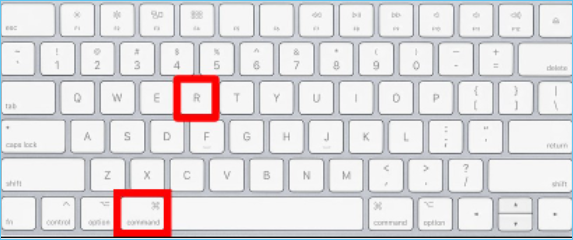
Step 4. Once in macOS Recovery Mode, select your user account, type your password, and hit "Enter" to access the Recovery Mode interface.
Step 5. To access the Disk Utility and view all volumes, follow these steps: click on "Disk Utility" and then select "View" from the top menu bar and choose "Show All Volumes".
Step 6. Select the correct startup disk from the list of available alternatives, which should contain the macOS operating system, such as Macintosh HD.
Step 7. To reboot your Mac, click the "Restart" button, and it should boot up normally without the flashing folder symbol.
Fix 3. Repair Tour Startup Disk via the First Aid Button
If you can't find any starting options in the starting Disk window, your built-in startup disk or Macintosh HD may be damaged, resulting in the flashing folder with a question mark on your Mac. To troubleshoot, you can try booting from a different startup disk or using the Recovery Mode to repair the issue. Alternatively, you can also try resetting the System Management Controller (SMC) or the Power Management Unit (PMU) to see if it resolves the problem.
Step 1. Press and hold the power button on your Mac until it turns off completely. This will discharge any residual power, ensuring a clean shutdown.
Step 2. Restart your Mac and enter macOS Recovery mode.
Step 3. Once in macOS Recovery mode, choose "Disk Utility" from the macOS Utilities box and click "Continue".
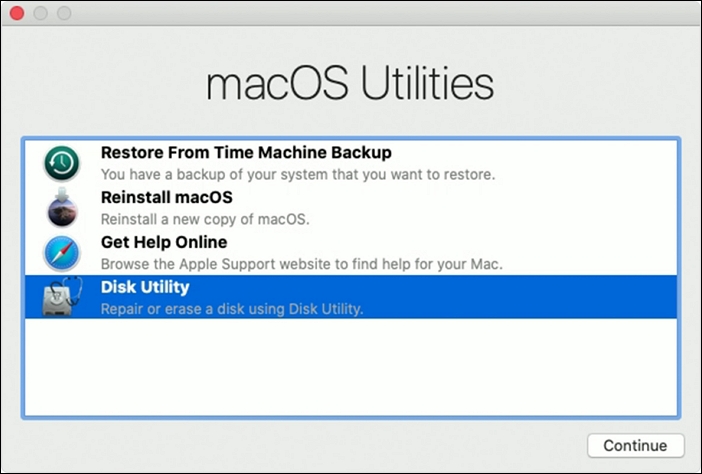
Step 4. From the Disk Utility window's left side, select your starting disk, which is usually branded Macintosh HD.
Step 5. To start the repair process, go to the top and select "First Aid," then press the "Run" button.
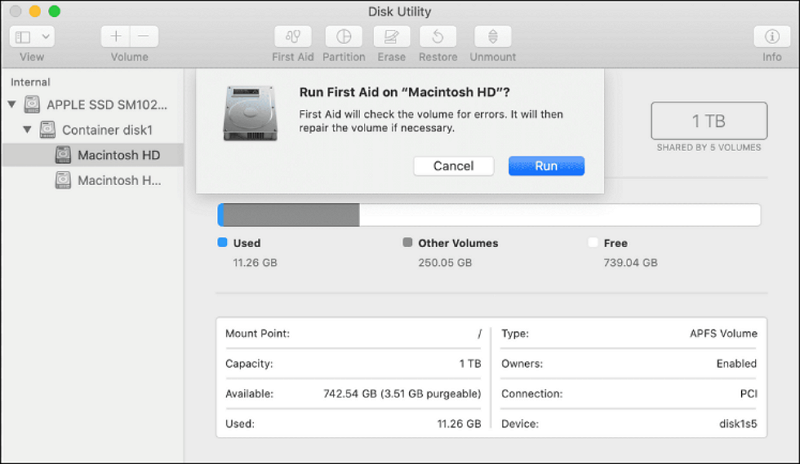
Allow Disk Utility to check and restore your starting disk, then exit and restart your Mac using the Apple menu after it's done.
Fix 4. Reinstall macOS after Formatting Your Startup Disk
To address the flashing folder with a question mark problem on your Mac, simply reinstall macOS in Recovery Mode. This process is straightforward and will not result in any data loss. To do this, restart your Mac and immediately hold down the power button until the startup chime sounds for the second time.
Step 1. To enter Recovery Mode on your Mac, choose the proper procedure based on its processor: If your Mac has a T2 chip, press the power button until it turns on, then immediately hold down the power button again. If your Mac has an M1 chip, press and hold the power button until the light turns off, then release and press it again.
• For Apple silicon Macs, hold down the power button until the starting options box displays, then click the gear icon labeled Options.
• On Intel-To restart a Mac, press and release the power button, then hold down the Command (⌘) and R keys until the Apple logo displays.
Step 2. Once in Recovery Mode, select "Reinstall macOS" from the menu.
Step 3. Accept the installation conditions and choose the hard drive to reinstall macOS. Click "Continue" to start the installation process.
Allow the installation to finish while keeping your Mac connected to power.
Conclusion
The flashing folder with a question mark on a Mac can be resolved by checking the startup disk settings, running First Aid to fix it, and reinstalling macOS. While troubleshooting, users can recover lost data using a reliable data recovery software like Deep Data Recovery for Mac. If needed, Apple Support can be contacted for further assistance.
How to Fix Flashing Folder with Question Mark on Mac Without CD FAQs
Users often ask about fixing flashing folders with question marks on Mac without CD, which can be caused by various factors such as corrupted files, disk errors, or software issues. To resolve the issue, users can try restarting their Mac, checking for disk errors, and running a disk utility scan.
1. How do I get rid of the question mark on my MacBook?
If you're experiencing issues with your Mac, try troubleshooting by reviewing your startup disk settings, repairing the startup disk using First Aid, or reinstalling macOS after formatting the startup disk. If the problem persists, you may need to contact Apple Support for further assistance.
2. How do I fix the blinking question mark folder on my Mac?
To resolve the flashing question mark folder on your Mac, you can try examining the startup disk settings, reselecting the startup disk in macOS Recovery Mode, repairing the startup disk using First Aid, or reinstalling macOS after formatting the startup disk.
3. How do I boot my Mac into recovery mode?
To boot your Mac into recovery mode, press and hold the power button until the boot process stops, then release it and immediately press and hold the Command (⌘) + R keys. This will boot your Mac into the built-in recovery mode, where you can perform various tasks such as resetting the System Management Controller, reinstalling macOS, or running disk utilities.
Step 1. For recent Macs using Apple silicon, press and hold the power button until the startup options box displays, then choose Options > Continue to enter Recovery Mode.
Step 2. To enter Recovery Mode on earlier Macs with Intel processors, press and release the power button, then hold the Command (⌘) + R keys until the Apple logo displays.
Related Articles
- How to Check SSD Health on Windows 10 via CMD [New Guide]
- [7 Ways] Can't Install Windows 10 on a New Build with Code 0x80300024, Get Help Here!
- Where Do You Want to Install Windows and How [2024 New]
- Fixed: SFC (SFC / SCANNOW) Is Not Working on Windows
- Backup VS Archive, What're the Main Differences and Which One to Choose
Backup vs archive are similar, and both are used to protect data. But there also exist some differences. We should be clear about their differences and make a reasonable choice when we need to save data and avoid some unnecessary data mistakes. - Best Windows Key Finder for Windows 11/10: Which Key Finder Is Best - Qiling
Find the best Windows key finder for Windows 11/10. Compare top product key finders including Qiling Key Finder, Belarc Advisor, and more to recover your serial numbers.
Products
Articles & Tutorials
- Data Recovery
- Data Backup
- File Recovery
- File Backup
- System Backup and Restore
- Disk and Partition Clone
- Technical articles
- Mobile articles
- Disk Master Help
- Windows Data Recovery Tutorials
- Windows Secure Delete Tutorials
- Windows Partition Management Tutorials
- Windows File Backup and Restore Tutorials
- Windows System Backup and Restore Tutorials
- Windows Disk Backup and Restore Tutorials
- Windows Clone Tutorials