[7 Ways] Can't Install Windows 10 on a New Build with Code 0x80300024, Get Help Here!
| Workable Solutions | Step-by-step Troubleshooting |
|---|---|
| 1. Check the System Requirements | Check the table below and make sure that your PC meets the minimum requirements...Full steps |
| 2. Uninstall Language Packs | Type language in the search bar on your taskbar, then click "Language settings"...Full steps |
| 3. Uninstall Third-party Antivirus | Windows 10 comes with a lot of new features and improvements...Full steps |
| 4. Rebuild BCD | Choose the "Repair your computer" option at the initial setup screen...Full steps |
| Other Effective Solutions | Repair Corrupted System Files > Turn to Windows Repair Services...Full steps |
1 - Can't Install Windows 10 on a New Build
To resolve the issue of not being able to install Windows 10 on your computer, you can try restarting the installation process, checking for any issues with your computer's hardware or drivers, and ensuring that your computer meets the minimum system requirements for Windows 10. You can also try running the Windows 10 installation in Compatibility Mode or as an administrator, or using the Media Creation Tool to create a bootable USB drive. If none of these solutions work, you can seek further assistance from Microsoft Support or a professional computer technician.
I can't get Windows 10 to install on a brand new build.
Specs:
- Gigabyte F2A88XM-D3HP
- AMD A6-6400K
- Kingston HyperX Fury 16GB (2x8GB)
- SanDisk SSD PLus 240GB
- WD Blue 1TB
These are all new components. Windows has never been installed before.
What I have tried:
- 1. Created USB Installation Media and Bootable Drive via Windows Media Creation Tool
- 2. Downloaded Windows 10 ISO from Windows Media Creation Tool - created bootable drive with Rufus
- 3. Burned downloaded ISO to DVD
The PC shows the Windows loading screen, but then reboots instead of loading Windows, resulting in the same experience every time.
You've tried various BIOS settings combinations, including disabling Fast Boot, Secure Boot, and enabling CSM/Legacy Boot, but still experience a freeze on the Windows loading screen. You've also attempted to install Windows 7, which also failed. This is unusual, as you've built many PCs without encountering this issue. What's your next step?"
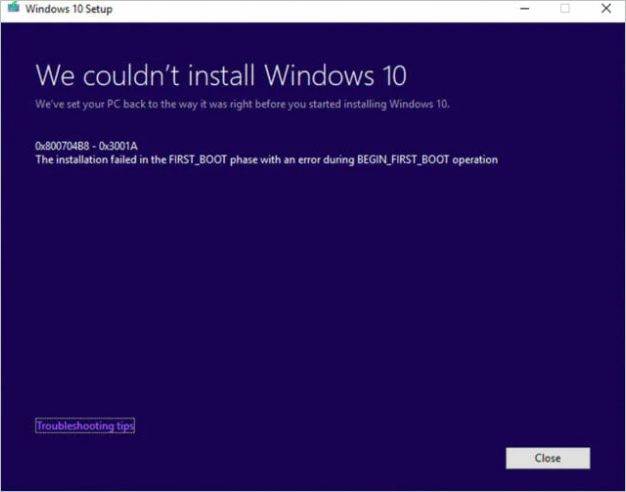
Even if you receive the error message "We couldn't install Windows 10. We've set your PC back to how it was before you started installing Windows 10," don't worry, as this post provides practical solutions to fix the Windows 10 installation has failed errors.
2 - Why Won't Windows 10 Install on My PC
Why can't install Windows 10 on any partition? When you receive the warning, it indicates that your Windows computer has the following risks.
- Your computer has missed some updates that have yet to be installed. These updates are necessary to ensure the security and stability of your system.
- SSD disks on your computer may not be clean, which can cause installation errors.
- If you're unable to install Windows 10 from a USB drive, it's likely due to a missing media driver on your PC. This means the system is unable to recognize the USB drive as a valid installation medium.
- There is not enough free space on the System Reserved partition for Windows 10 installation. You need to free up some space on that partition to proceed with the installation.
- To install the latest Windows build, your computer needs to have the latest updates installed first. This ensures that your system is compatible with the new build and prevents any potential issues during installation.
3 - How to Fix Can't Install Windows 10 with Code 0x80300024
Windows 10 installation has failed error can be caused by various reasons, including hardware issues, corrupted installation media, and outdated drivers. To fix the error, try running the Windows 10 installation media from a different USB drive or CD/DVD, and ensure that all drivers are up-to-date. Additionally, check for any hardware issues, such as a faulty hard drive or RAM, and try running the installation on a different computer. If the issue persists, try resetting the Windows 10 installation and start the process again from scratch.
Fix 1. Check If Your PC Meets the Minimum Requirements
Check the table below and make sure that your PC meets the minimum requirements.
| Processor | 1 gigahertz (GHz) or faster compatible processor or System on a Chip (SoC) is required. |
| RAM | 1 gigabyte (GB) for 32-bit or 2 GB for 64-bit |
| Hard drive size | 32GB or larger hard disk |
| Graphics card | Compatible with DirectX 9 or later with WDDM 1.0 driver |
| Display | 800x600 |
If your computer can't meet the minimum requirements, you won't be able to install Windows 10, so you might need to consider buying a new PC to install the operating system.
Fix 2. Uninstall Language Packs to Fix Can't Install Windows 10
To fix the "Windows 10 installation has failed" error, you can try uninstalling the language pack. To do this, go to the Control Panel, click on "Programs and Features", then select the language pack you want to uninstall and click "Uninstall". This may resolve the installation issue.
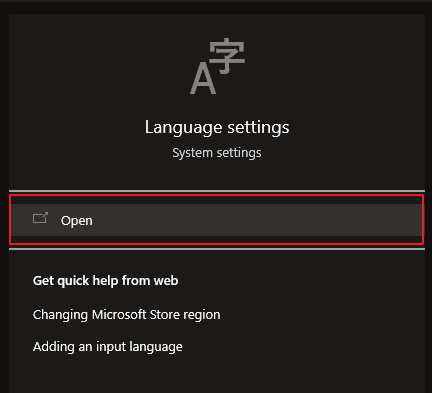
Step 1. To change the language on your taskbar, go to the search bar on your taskbar, type "Language settings", and click on the result.
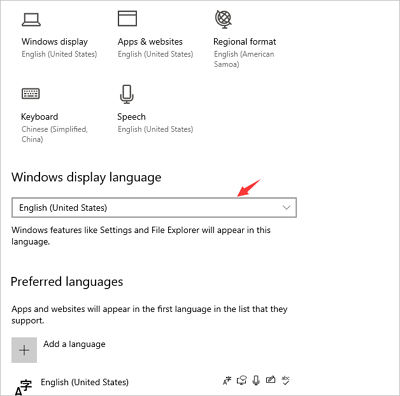
Step 2. Set Windows display language as English and remove all your non-English language packs.
Step 3. Then, install Windows 10 again to see if it works.
Fix 3. Disable or Uninstall Third-party Antivirus for a While
Windows 10 comes with many new features and improvements, but some users have reported errors when trying to install it. In most cases, these errors can be fixed by uninstalling third-party antivirus software, as it may interfere with the installation process. Since Windows 10 has built-in antivirus protection, there is no need to install additional software, and disabling or uninstalling third-party antivirus software may resolve installation issues.
Fix 4. Rebuild the Boot Configuration Data (BCD)
To rebuild the Boot Configuration Data (BCD), you'll need a Windows installation disc or Windows 10 recovery drive. If you don't have one, you won't be able to rebuild the BCD. Once you have the correct media, insert it, boot from it, and proceed with the rebuild process.
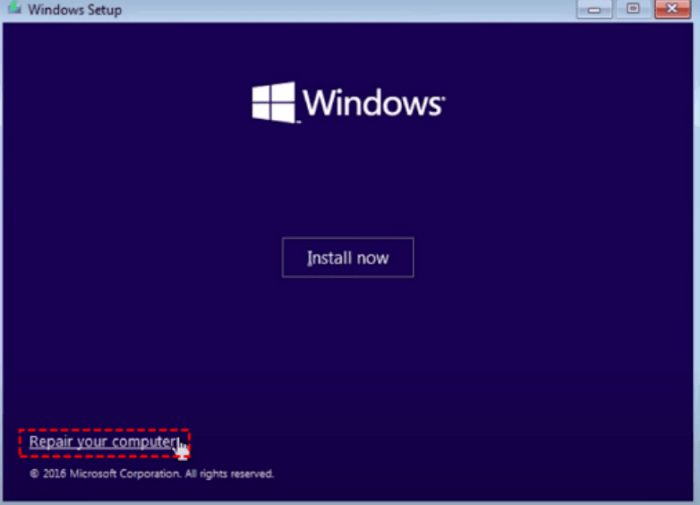
Step 1. At the initial setup screen, choose the "Repair your computer" option to proceed.
Step 2. Select Troubleshoot > Advanced options > Command Prompt".
Step 3. dir /w /p
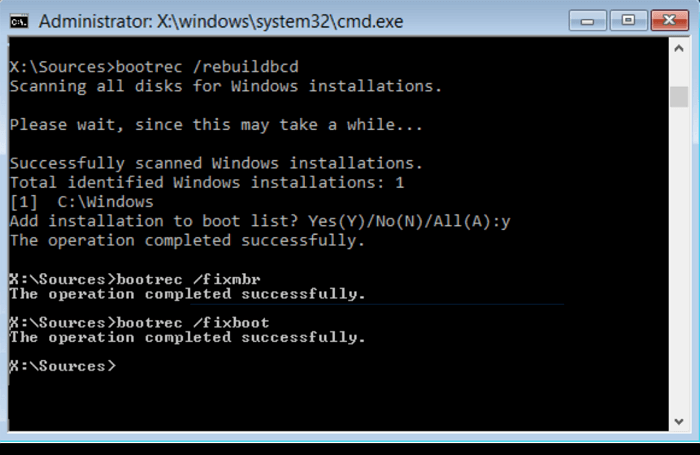
- bootrec /fixmbr
- bootrec /fixboot
The commands write a new master boot record (MBR) and boot sector to the drive, which can sometimes resolve startup issues by rewriting the MBR and boot sector.
Fix 5. Repair Corrupted System Files to Fix Can't Install Windows 10
If your system files are damaged or missing, you won't be able to install Windows 10. However, Windows 10 has a built-in tool called the System File Checker that can help fix corrupted system files, making it possible to install the operating system.
Step 1. Restart your PC from the Windows installation media.
Step 2. On the Windows Setup window, choose "Next".
Step 3. To access the Command Prompt in Windows, follow these steps: Choose "Repair your computer" from the Advanced Startup Options menu, then select "Troubleshoot" and finally "Advanced options", and from there, select "Command Prompt".
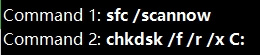
Step 4. Type sfc /scannow and hit Enter.
Step 5. Type chkdsk /f /r /x C: and hit Enter.
To resolve the issue, you can try restarting your computer and see if that resolves the problem. If not, you may need to reinstall Windows 10.
Fix 6. Turn to Windows Repair Services
Qiling Windows repair service can help fix various Windows OS problems, making it a useful tool for computer users.
Consult with Qiling data recovery experts for a one-on-one manual recovery service, which includes a free diagnosis, followed by a range of services tailored to your specific needs.
- To repair a corrupted RAID structure, unbootable Windows OS, and corrupted virtual disk file, you can try the following steps: Run a disk check and repair on the affected drive, use a RAID recovery tool to rebuild the RAID structure, and then attempt to boot the Windows OS. If the OS is still unbootable, try running a System File Checker (SFC) scan to repair corrupted system files.
- Recover/repair lost partition and re-partitioned drive
- Unformat hard drive and repair raw drive(Bitlocker encrypted drive)
- Fix disks that become GPT-protected partitions
Fix 7. Run Windows 10 Installation in Clean Boot
If the solutions above don't help, you'll need to run a clean boot installation to fix the problem. This process will reinstall the operating system and remove any corrupted files that might be causing the issue.
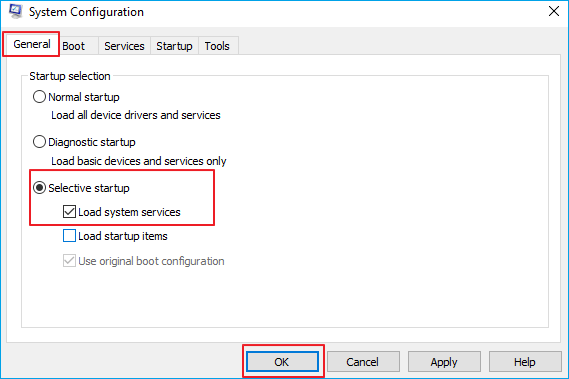
Step 1. Open Run dialog. Type msconfig and hit Enter.
Step 2. To resolve the issue, go to the "General" tab, click on "Selective startup", select "Load System Services" and then choose "Use Original boot configuration".
Step 3. To disable all Microsoft services, click the "Services" tab, select the "Hide All Microsoft Services" checkbox, and then click "Disable all".
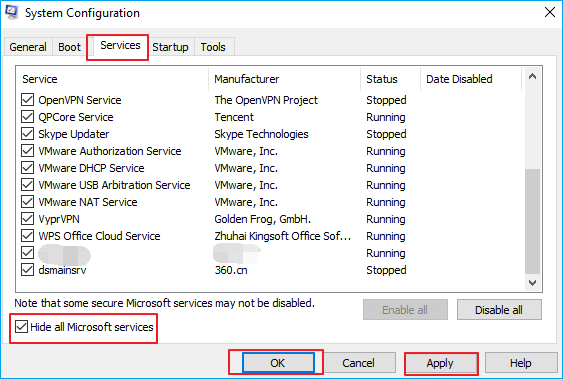
Step 4. Click "Apply/OK" and restart the computer.
Putting your Windows computer into a Clean Boot State can help resolve errors. This process disables all startup programs and services, allowing you to troubleshoot and identify the source of the issue. If the clean boot resolves the problem, you can then enable the startup programs and services one by one to find the culprit. If you're still experiencing issues, it may be best to seek professional help, such as visiting a store or watching a video like the Windows 10 installation fix video, for further assistance.
- 0:00 - Intro
- 0:35 - Uninstall Language Packs
- 1:10 - Uninstall Third-Party Antivirus
- 1:38 - Rebuild BCD
4 - Recover Data on Windows 10 After Install (Bonus Tip)
If you're unable to install Windows 10 and can't access your operating system, you can use Deep Data Recovery WinPE Edition to recover deleted files, even if your Windows system won't launch. This tool can be a huge help in retrieving your data.
- Create bootable media to temporarily run your existing operating system and recover lost data from your computer.
- Recover lost documents, photos, videos, and other files without overwriting the original data. This ensures that the recovered files are intact and can be restored to their original state, without any alterations or modifications.
- You can export and restore data without entering your operating system, like Windows 11/10/8/7, by using the built-in System Image Backup feature. This feature allows you to create a backup of your entire system, including the operating system, programs, and data, which can then be restored to a new or existing system.
Follow the steps below to retrieve all the data from your computer, hard drive, or SSD.
Step 1. Create a bootable disk
Before creating a bootable disk, ensure the USB is empty or back up any important data to another device, as the process will erase the existing data. Once prepared, Deep Data Recovery WinPE Edition can be used to create a bootable disk.
Connect the USB drive to your PC and launch Deep Data Recovery WinPE Edition. From there, select the USB drive and click "Create" to create a bootable disk.
Step 2. Boot from the bootable USB
Connect a bootable disk to the PC that won't boot, and change the boot sequence in the BIOS to prioritize the disk. This can often be done by restarting the computer and pressing F2 (or the corresponding key for your system) to enter the BIOS settings. From there, you can adjust the boot order to prioritize the bootable disk.
To boot the PC from a device other than the hard drive, press F10 to save and exit the BIOS settings, allowing you to select the boot device from "Removable Devices" (such as a bootable USB drive) or "CD-ROM Drive" (such as a bootable CD/DVD).

Note: You can choose different search modes based on where and why the data was lost.
Step 3. Recover data from a hard drive that won't boot
When you boot from a USB drive, you can run Deep Data Recovery from the WinPE bootable disk, then select the drive to scan to find all lost files.

Click "Scan" to start the scanning process.
After scanning, preview and select the desired files, then click "Recover" to save them to a different location to avoid data loss.

Conclusion
If you're having trouble installing Windows 10, there are several solutions to try. If the installation process fails and you receive the error message "Windows could not complete the installation" and the prompt to restart the installation, you can try running the installation process in Safe Mode, checking for any hardware conflicts, running a System File Checker scan, checking for any corrupted system files, running a DISM scan, checking for any BIOS updates, and finally, running a System Restore to a previous point before the installation process started.
It's a good idea to regularly back up your data to prevent losing important information. This can be done through various methods such as cloud storage, external hard drives, or even simple file copies. By taking this precaution, you can ensure that your data remains safe and secure, even in the event of a technical issue or other unexpected problem.
Can't Install Windows 10 FAQs
There are some questions and answers about Windows installations and update errors. To get additional help, read on.
1. How to install Windows 10 on a new PC?
To install Windows 10, the best method is to install it from a USB drive, which allows for a clean and efficient installation process.
- To create a Windows 11/10 installation USB, you can use a simple tool like Rufus. This free, open-source utility allows you to create a bootable USB drive from a Windows installation ISO file.
- Run the Windows Media Creation Tool to create a Windows 11/10 installation USB drive. This tool is available on the Microsoft website and can be used to create a bootable USB drive that can be used to install Windows 11/10 on a computer.
2. How to fix Windows that cannot be installed to this disk error?
To fix Windows cannot be installed to this disk. The selected disk is of the GPT partition style:
- Convert to GPT Without Losing Data
- Reformatting drive to GPT
- Boot into UEFI mode...
3. How do I force Windows 10 to install?
- Go to Settings by clicking the Windows icon.
- Select the Update & security option.
- Click the Recovery option from the left side of the window.
- Click the Get started option under Reset this PC.
4. How to fix Windows 10 update stuck checking for updates?
To fix Windows checking for updates stuck:
- Stop windows update service
- Delete two folders
- Start windows update service
Related Articles
- Detailed Tutorial for Diskpart Move Partition in 2023 [Step-by-Step Guide]
- How to Backup PS4 to External Hard Drive? [Full Guide 2022]
- How to Fix Integrated Webcam Not Working on Windows 10 [Full Guide]
- How to Delete Screenshots on Mac
- How to Fix Windows Backup Error 0x8078002a Issue With 2 Ways
if you get Windows Backup Error 0x8078002a when trying to run the Windows Backup program. The article provides you with details on what the error means, potential causes, and two ways to resolve the issue. Follow to fix the error with ease now. - Windows Update Reset (Fix It) Tool Download [Full Guide in 2023]
Windows update reset (fix it) tool is a great choice for you to solve the problems caused by Windows updates. Do you know what is it? How to use it? If you want to get detailed information, read the article in the following, then you will find the answers.
Products
Articles & Tutorials
- Data Recovery
- Data Backup
- File Recovery
- File Backup
- System Backup and Restore
- Disk and Partition Clone
- Technical articles
- Mobile articles
- Disk Master Help
- Windows Data Recovery Tutorials
- Windows Secure Delete Tutorials
- Windows Partition Management Tutorials
- Windows File Backup and Restore Tutorials
- Windows System Backup and Restore Tutorials
- Windows Disk Backup and Restore Tutorials
- Windows Clone Tutorials