Detailed Tutorial for Diskpart Move Partition in 2026 [Step-by-Step Guide]
Diskpart is a utility that allows users to manage partitions, including deleting, formatting, repartitioning, repurposing, or changing partition types. However, it's essential to use the right commands to avoid mistakes, such as incorrectly moving partitions, which can be done using Diskpart.
You may also like the following topics:
Can Diskpart Move Partition
Diskpart is a command-The diskpart utility is a line utility built-in in Windows that allows users to create, delete, and manage hard disk partitions via diskpart commands. It is included in Windows 10, Windows Server 2008 R2, Windows 8.1, and later operating system versions.
Unfortunately, Diskpart cannot move partitions, as it's designed for formatting, resizing, or changing partition types, not for moving partitions with data.
To understand what Diskpart can do, type "Diskpart" in the command prompt utility. Once initiated, type "help" to see all the commands it allows you to use, such as extending a volume or merging two disks, rather than moving partitions.
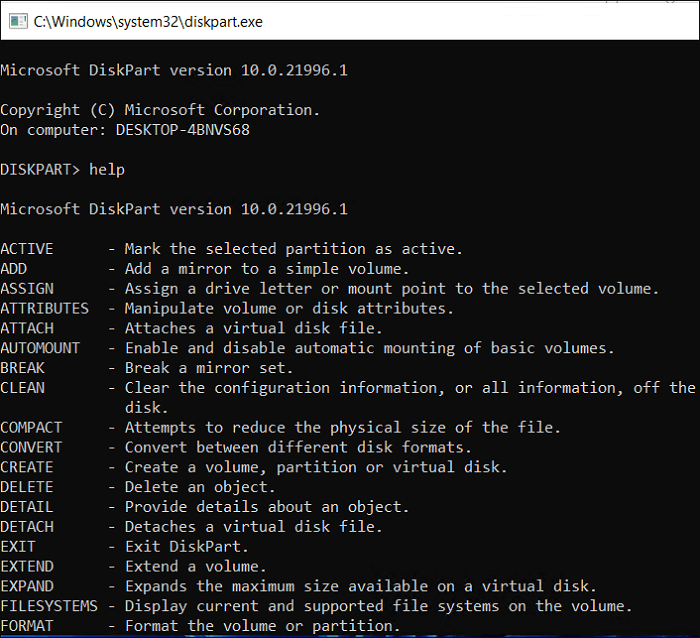 You can create ample room and utilize more space by using this feature. However, it has a limitation in that it does not support moving a partition, so you would need to turn to a third-party tool for that functionality.
Ideal Alternative to Diskpart Move Partition - Qiling Partition Master
You can use a professional partition tool like Qiling Partition Master Professional to move partitions efficiently and without hassle.
GParted is an outstanding tool that allows you to conduct many partition-related operations, including creating or moving partitions with ease. Download it and use it to manage your partitions with minimal hassle.
Step 1: Locate and select the target drive/partition
Launch Qiling Partition Master and go to Partition Manager, select the target drive/partition, right-click and choose "Resize/Move" to adjust its size.

Step 2: Resize or move the partition
To shrink a partition, you can simply drag one of its ends to free up unallocated space.

2. To extend the partition, ensure there is unallocated space available. If not, create some by following the previous steps. Then, drag your mouse into the unallocated space to extend the partition.
3. To move a partition, leave unallocated space next to the target partition, and if there isn't any, free up some space first.
Right-Select the target partition, click "Resize/Move", and drag it left or right to adjust its position.
Step 3: Confirm the result and apply changes
To save changes, click the "Proceed" button.
Here are a few reasons why it's a special tool and a recommended suggestion:
- Move unallocated space to C drive.
- Create, delete, or resize partitions easily.
- Merge partitions on SSD to create more space.
- To resolve the "low disk space" error, extend your system partition. This can be done by using the built-in Disk Management tool in Windows.
- To convert a Master Boot Record (MBR) to a GUID Partition Table (GPT) and use Windows 11, follow these steps: First, ensure your system meets the minimum requirements for Windows 11. Then, boot from a Windows 11 installation media.
- Move a partition or its content with ease, without any hassle or data loss.
- Create a new partition disk quickly and without any issues, both MBR and GPT.
- It's an all-With a disk partition manager tool, you can control and manipulate your disk partitions with ease. This tool allows you to create, resize, move, and delete partitions as needed, giving you full control over your disk space.
Conclusion
To move a partition, you can't use Diskpart, but you can use it to change the partition number. This is a different operation that can be performed with Diskpart, but it's not the same as moving the partition itself.
However, it's better to rely on a professional tool like Qiling Partition Master instead of Diskpart, as it's more reliable and offers swift partition operations, making it a better alternative.
FAQs About Diskpart Move Partition
What would you like to know that hasn't been covered yet? I'll do my best to address any remaining questions or concerns you may have. Please feel free to ask!
1. How do I move a partition to another drive?
You can move a partition to another drive by copying and pasting all the data into the other partition, or by merging the two partitions without losing data.
2. How do I move space from D to C?
To move space from drive D to drive C using the Qiling Partition Master, download the software and use it to allocate space from D to C. It is a simple process.
3. Can I move the system partition?
To clone a hard drive, you can use specialist software such as Qiling Partition Master or Samsung Data Migration if you have Samsung hard drives or SSDs.
Related Articles
- How to Solve File Stops Copying Halfway (5 Ways)
- How to Use Fdisk Format Partition in Linux [2023 Ultimate Guide]
- [Too Slow!] Fix: Windows 10 APPs Take Forever to Load
- How to Repair a Mac Disk with Disk Utility [Official Method]
- SanDisk Unveils 4TB Extreme Portable SSD V2 for Lightning-Fast On-The-Go Storage
If you would like to know about SanDisk 4TB Extreme Portable SSD V2 Review, this post will tell you all you need to know about SanDisk 4TB Extreme Portable SSD V2 with detailed information. - Ultimate Guide to Choosing the Right SD Card for Nintendo Switch
Are you using a Nintendo Switch and running out of space? You need to know what an SD Card for Switch is. Read this post to find the answer and also learn about the best SD Card for Switch.
Products
Articles & Tutorials
- Data Recovery
- Data Backup
- File Recovery
- File Backup
- System Backup and Restore
- Disk and Partition Clone
- Technical articles
- Mobile articles
- Disk Master Help
- Windows Data Recovery Tutorials
- Windows Secure Delete Tutorials
- Windows Partition Management Tutorials
- Windows File Backup and Restore Tutorials
- Windows System Backup and Restore Tutorials
- Windows Disk Backup and Restore Tutorials
- Windows Clone Tutorials