How to Use Fdisk Format Partition in Linux [2023 Ultimate Guide]
Fdisk is a utility that allows you to manage and format partitions in Linux, and is also available in earlier versions of Windows and MS-DOS. Although it has been replaced by the Diskpart command in Windows, fdisk remains a useful tool for Linux users. This article will provide a brief introduction to fdisk and guide users on how to use it to format partitions in Linux.
What Is Fdisk in Linux?
fdisk is a command-line utility for Linux, used to create, modify, and delete partitions on a hard disk drive. It is a part of the util-linux package and is used to manage disk partitions, including creating, resizing, and deleting partitions. fdisk is a powerful tool for disk management and is widely used in Linux systems.
Fdisk is a text-The utility that comes pre-installed on Linux distributions, "Disk Utility", can be used to view and manage partitions on Linux. It can be used to view and manage partitions on Linux. It can be used to view and manage partitions on Linux. It can be used to view and manage partitions on Linux.
- Create, edit, and delete partitions
- Copy or move data to new disks (partitions)
- Delete, change, resize and organize space for partitions
- The tool supports all major partition tables, including GPT, MBR, Sun, SGI, and BSD, making it a versatile and comprehensive solution for managing disk partitions.
Using fdisk, you can divide a disk into a primary partition and multiple logical partitions. To create a new partition, you'll need to format it and assign a file system to it. The process involves using fdisk to create a new partition, then formatting it and assigning a file system, which can be done in several steps. I can provide a detailed guide on how to use fdisk to format a partition in Linux.
How to Use Fdisk Format Partition in Linux?
fdisk is a command line partition editor used for managing disk partitions, offering an interactive mode that provides more control and security over partition formatting operations. This guide will walk you through managing partitions with fdisk and formatting them with the mkfs utility, providing a detailed step-by-step procedure.
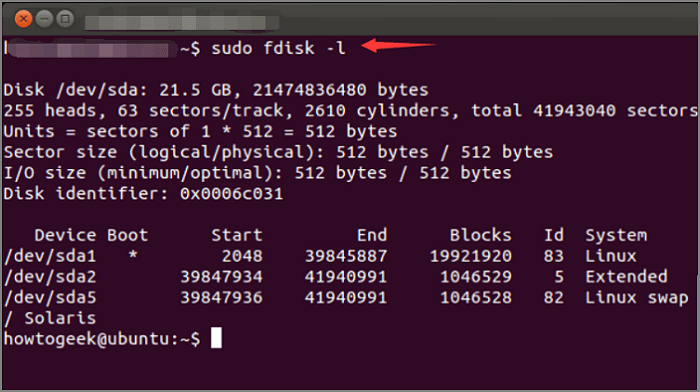
Step 1. To list all the partitions and see their /dev names, type "sudo fdisk -l" in the terminal. This command will display information about the available partitions, such as /dev/sda, /dev/sdb, or /dev/sdc.
Step 2. Use the "sudo fdisk /dev/sda" to view all fdisk commands.
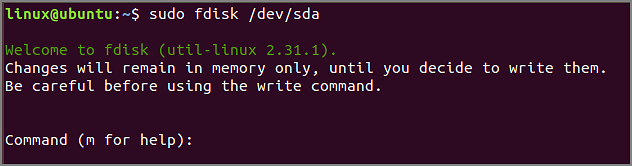
Step 3. Type "m" to view all actions performed on /dev/sda.
Step 4. To access the partition on /dev/sda and create a new one, you can use the command "sudo fdisk /dev/sda" followed by "n" to create a new partition.
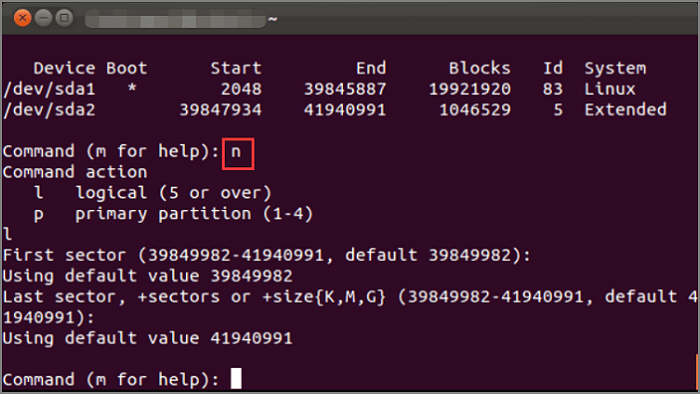
Step 5. To write the changes and reboot the system, run the "w" command.
Step 6. Type "t" to change the partition type.

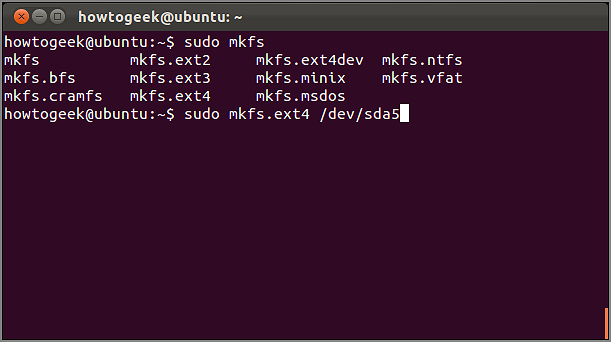
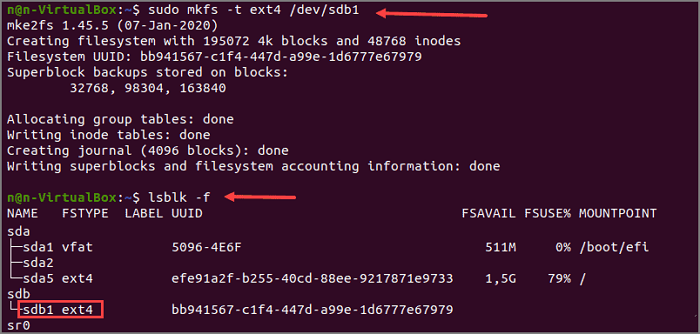
Step 7. To format a partition with the mkfs command, you can use a command like "sudo mkfs.ext4 /dev/sda5" to format the fifth partition using the ext4 file system.
Step 8. Type " lsblk -f" to verify the file system change.
Step 9. You can use the `fdisk` command to find and configure the partition. To do this, open a terminal and type `fdisk /dev/sdX`, replacing `/dev/sdX` with the actual device name of your hard drive.
- Tip
- To format a partition, you can use the mkfs command with the type of file system you want to use. For example, to format a partition with the FAT32 file system, you can use the command "sudo mkfs -t vfat /dev/sdb1".
To format a disk using fdisk in Linux, follow these steps: First, open a terminal and type 'fdisk /dev/sdX' where 'X' is the letter of the disk you want to format, then press Enter. Next, select the disk and press 'p' to print a partition table. Delete any existing partitions by typing 'd' and repeating the process until all partitions are deleted.

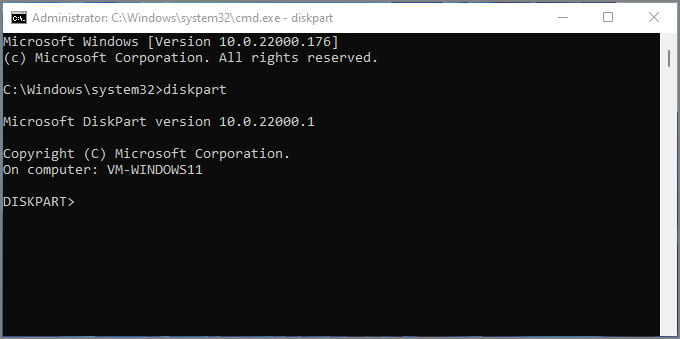
To run Fdisk on Windows 10/11, you'll need to use the Command Prompt or Windows Terminal. Press the Windows key + R to open the Run dialog box, type "cmd" and press Enter to open the Command Prompt.
If you want to learn how to run fdisk on Windows 10/11, you've come to the right place. We'll provide you with detailed information about fdisk, its uses, and other relevant details.
Bonus Tip: The Overview of Linux File System Format
Linux can support multiple file systems. And different type of file system format has the different file size and system compatibility. Here are the most commonly used file systems.
| File System Format | File Size | Compatibility | Usage |
|---|---|---|---|
| EXT4 | 16 GiB – 16 TiB | Windows, Mac, Linux | For large files |
| NTFS | 16 EiB – 1 KB | Windows, Linux | For Windows files |
| FAT32 | Up to 4 GB | Windows, Mac, Linux | For maximum compatibility |
Linux systems have various file system formats, but FAT32 is the most compatible and can be used on a wide range of systems. Converting NTFS to FAT32 can be beneficial for Linux systems. Additionally, if you're interested in learning more about Linux file systems, you can search for the differences between Ext2, Ext3, and Ext4 file system formats.
Conclusion
Formatting a partition is helpful for computer performance. Fdisk is a good solution for the command line interface, allowing users to create and format partitions in Linux after following a step-by-step guide to understand what fdisk is and how to use it.
FAQs About Fdisk Format Partition in Linux
In addition to the detailed steps about using fdisk format partitions in Linux, here are some frequently asked questions about partitions.
1. What is the use of the fdisk command in Linux?
Fdisk is a command in Linux that allows users to create and manage disk partitions. It enables direct viewing, completion, and deletion of partitions, as well as resizing and copying/moving them.
2. How do I format a partition in Linux?
To format a partition with the NTFS file system in Linux, you can use the mkfs.ntfs command.
Step 1. Run the mkfs command and specify the NTFS file system to format the disk: sudo mkfs -t ntfs /dev/sdb1
Step 2. Use the lsblk-f command to verify the file system changes
Step 3. Locate the partition to confirm the use of the NFTS system.
3. How can I see all partitions in Linux?
The fdisk command in Linux is used to view and manipulate disk partitions. You can see all partitions by typing "fdisk -l" at the command prompt. This command allows you to view the partitions on your system.
Related Articles
- What Is the Best GoPro SD Card Format? [Best Choice and Tutorial Guide]
- (2 Simple Solutions) How to Re-image a Computer for Windows 11/10/8/7
- 5 Best S3 Backup Software [Can't Miss]
- Copy Speed 0 Bytes: How to Fix File Transfer Speed Drops to Zero Windows 10
- What Is a Bup File? How to Open and Convert It?
Learn what a BUP file is, how to open it, and how to convert BUP to MOV. A complete guide to DVD backup files and related file formats like IFO and VOB. - Fix 'Can't Find the Specified File' Error When Rename/Move Folder in Windows 10/8/7
If you're getting a “can't find the specified” error message while trying to rename or move a folder on your PC, this page can help you find all missing files and folders on your Windows PC and storage devices with just a few easy clicks.
Products
Articles & Tutorials
- Data Recovery
- Data Backup
- File Recovery
- File Backup
- System Backup and Restore
- Disk and Partition Clone
- Technical articles
- Mobile articles
- Disk Master Help
- Windows Data Recovery Tutorials
- Windows Secure Delete Tutorials
- Windows Partition Management Tutorials
- Windows File Backup and Restore Tutorials
- Windows System Backup and Restore Tutorials
- Windows Disk Backup and Restore Tutorials
- Windows Clone Tutorials