How to Backup PS4 to External Hard Drive? [Full Guide 2022]
Do you know how to back up PS4 to an external hard drive? If you are also looking for an excellent way to back up, you have come to the right place. This article will recommend two of the best ways to back up, and you can choose according to your preference.
Can I Back up My PS4 to an External Hard Drive?
Backing up your PS4 to an external hard drive is a great idea, and there are several ways to do it. Since the PS4's internal hard drive will eventually run out of space, having a backup will prevent loss of settings and applications in case of hard drive failure. By backing up to an external hard drive, you can also free up space on your PS4's internal hard drive and ensure that your important data is safe.
- Recover the gaming data
- Update PS4 drive to an external drive
- Avoid reformatting on Windows or Mac
To back up your PS4 to an external hard drive, you'll need to have an external hard drive that's compatible with your PS4, and a USB cable to connect it. You'll also need to make sure your external hard drive is at least 2.5 times larger than your PS4's storage space. Once you have everything, go to Settings > System > Back Up and Restore > Back Up.
How Do I Back up My PS4 to an External Hard Drive?
To back up your PS4 to an external hard drive, you have two methods to choose from. The first method involves using a USB external hard drive that is specifically designed for PS4, and the process involves going to Settings > System > Back Up and Restore, selecting the external drive as the destination, and following the on-screen instructions. The second method requires a PC or Mac, where you can transfer your PS4 data to the computer, then copy it to the external hard drive.
Ways to Backup PS4 to External Hard Drive
When backing up PS4 data and applications to an external hard drive, there are two methods to choose from. Both methods support backing up PS4 data and applications to an external hard drive, but the better option depends on the pros and cons of each method. You can review the advantages and disadvantages of the two methods and select the one that suits your needs.
- Qiling Backup Home: This is a reliable third-party backup software.
- PS4 Built-in Tool: PS4 has a built-in application for backup and recovery.
| Comparison | ||
|---|---|---|
| Pros |
|
|
| Cons |
|
|
The PS4's built-Qiling Backup is a tool that meets primary data and application backup needs, and its Windows PC version requires a download. It supports incremental and differential backups, which can save time and storage space by only backing up changed data. This feature is especially useful for users who want to know more about different types of backup, and can be accessed by clicking a button.
Can't Backup PS4 to External Hard Drive? – You Need Preparations
To successfully back up your PS4 to an external hard drive, you'll need to prepare your PS4 and the external hard drive. This includes formatting the external hard drive, which can be done on your PS4 or a computer, and ensuring the drive is compatible with your PS4. You may also need to update your PS4's software to the latest version, as older versions may not be compatible with the backup process.
1. To prepare an external drive for use with a Windows computer, format it as FAT32 or exFAT. This will ensure that the drive is compatible with the operating system and can be easily accessed.
2. The external drive should have at least twice the storage space of the PS4 hard drive.
3. There is no need for a Phillips screwdriver to back up a PS4 on Windows. You can use the built-in backup feature or third-party software to back up your PS4 data without physically accessing the console.
To backup your PS4 to an external hard drive, first, make sure the external drive is connected to your PS4 via a USB cable. Then, navigate to the PS4's settings menu, select "System", and choose "Backup and Reset".
Method 1. Backup PS4 to an External Hard Drive with Qiling Backup
Qiling Backup is a professional backup and recovery software that allows you to easily backup your PS4 data to an external hard drive.
- The PS4 can back up all systems, partitions, files, and support disk backup.
- It can perform automatic backup to backup daily or monthly.
- This tool can quickly restore your data when your PS4 is compromised.
The software is very easy to operate and can be used immediately after downloading. To backup your PS4 to an external hard drive, simply follow the steps provided, which will guide you through the process.
Step 1. To start a backup in Open Qiling, navigate to the Backup section and select the "Disk Backup" option on the home page. This will initiate the backup process.

Step 2. Qiling Backup allows you to select specific backups, such as backing up a whole disk or a particular partition, based on your requirements.

Step 3. Select the destination where you want to save the backup. You can choose to save the backup to a local drive or to a network-attached storage (NAS) device.

Step 4. After completing the backup process, you can click "Proceed" and then click the "Advanced" button on the task to further manage your backup, such as recovering it, creating an incremental backup, and more.

In addition to backing up your PS4 to an external hard drive, Qiling Backup also offers several benefits, including
- Clone HDD to SSD.
- Perform offsite copy to FTP.
- Clone disk, partition, or system.
- Copy SD card to another SD card.
- Backup to local, external, cloud, or NAS.
Method 2. Backup PS4 to an External Hard Drive with a Built-in Tool
Backing up your PS4 to an external hard drive is a straightforward process that allows you to save your game, applications, data, and settings. However, it's worth noting that only full backups can be performed at a time, and changed files will not be supported. To backup your PS4, follow these steps.
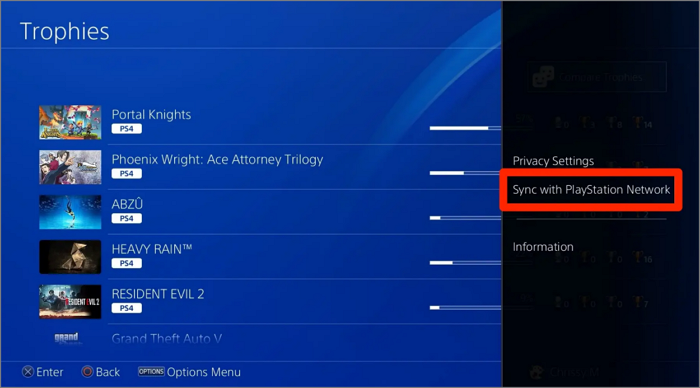
Step 1. To sync trophies, press the "Options" button and select "Sync with PlayStation Network."
Step 2. Connect the external hard drive to the USB port of your PS4.
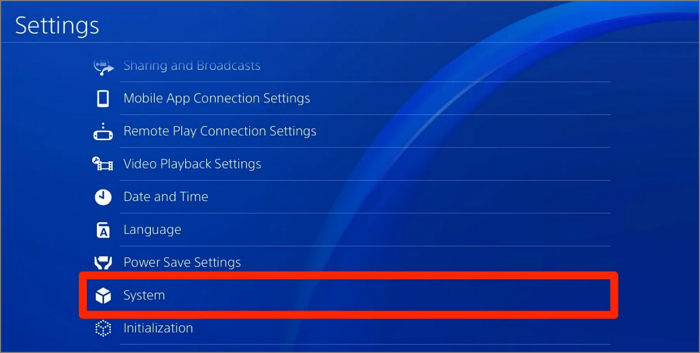
Step 3. Find "Settings" and select "System."
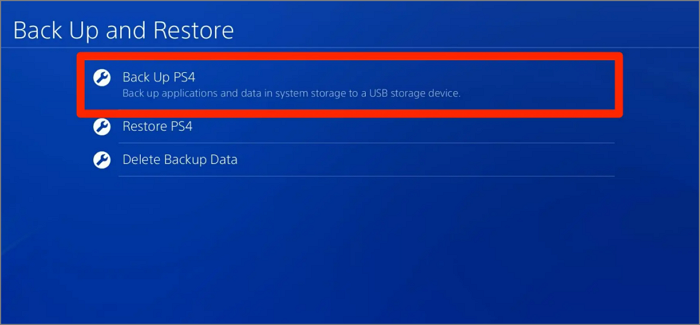
Step 4. Select "Backup and Restore" and click "Backup PS4."
Step 5. Select the data you want to back up, choose whether to back up the application, and then click "Next".
Step 6. The user is instructed to give the backup a name, select "Back up", and press the "X" button.
Step 7. Once the PS4 backup is complete, safely disconnect the external storage device.
Conclusion
Backing up PS4 data to an external hard drive is a must, and you can use the PS4's built-in tool or Qiling Backup to make the process easy. However, the PS4 backup utility has some limitations, so I highly recommend using Qiling Backup for more convenience.
FAQs About Backup PS4 to an External Hard Drive
You can backup your PS4 to an external hard drive using two methods. First, you can use the built-in backup feature on your PS4, which allows you to save your game data, save data, and system settings to an external drive. Alternatively, you can use a third-party app like PS4 Backup or PS4 External Backup to transfer your game data and other files to an external hard drive.
1. What size hard drive do I need to backup my PS4?
The size of the external drive needed to backup a PS4 depends on the data you want to backup, but it's generally recommended to have at least twice the storage space of the PS4's hard drive.
2. Can I use a USB as an external hard drive for PS4?
PS4 allows you to use a USB as an external hard drive if it's formatted to FAT32 or exFAT.
3. How to backup PS4 data to the cloud?
PlayStation Plus offers an online storage feature that allows you to back up your PS4 data to the cloud, providing a safe and secure way to store your game saves and other important data.
Step 1. Go to Settings and find "Application Data Management."
Step 2. Choose "Upload to Online Storage."
Step 3. Select the files and click "Yes" to back up PS4 data.
Related Articles
- How to Fix Mac Flashes Folder with Question Mark on Startup? [macOS 13/12/11 Applicable]
- [Fixed] Unable to Reset Your PC. A Required Drive Partition Is Missing
- How to Fix "Mac Documents Folder is Empty" Error
- [New Tutorial] Backup Game Saves on PS4 in Three Methods
- Linux File Backup - 5 Best Softeware for Linux Desktop and Server
Do you want to protect your system data against various potential data losses? It is crucial not only to backup your Linux file but also the entire operating system for a Linux desktop. To facilitate you, here are the 5 best Linux file backup software to explore! - Beginner's Guide on Linux File System Types [Detailed Explanation]
Are you searching for the best Linux file system type in the market? We have outlined a guide where the differences between all major Linux file system types have been provided for your ease. Look into the details to determine the best Linux file system types.
Products
Articles & Tutorials
- Data Recovery
- Data Backup
- File Recovery
- File Backup
- System Backup and Restore
- Disk and Partition Clone
- Technical articles
- Mobile articles
- Disk Master Help
- Windows Data Recovery Tutorials
- Windows Secure Delete Tutorials
- Windows Partition Management Tutorials
- Windows File Backup and Restore Tutorials
- Windows System Backup and Restore Tutorials
- Windows Disk Backup and Restore Tutorials
- Windows Clone Tutorials