How to Fix "Mac Documents Folder is Empty" Error
The Mac Document folder can suddenly appear empty, causing frustration and potential data loss. This page provides four practical solutions to recover emptied files from the Mac Document folder and restore your lost data with ease.
| Workable Solutions | Step-by-step Troubleshooting |
|---|---|
| Why Does Mac Documents Folder Empty | 1. Files gets deleted; 2. iCloud syncing enabled; 3. Finder...Full steps |
| Restore Mac Documents Folder Files |
Method 1. Use Mac file recovery software, scan and restore all files...Full steps Method 2. Disable iCloud syncing and recover missing files...Full steps Method 3. Change Finder settings to find disappeared Documents files...Full steps Method 4. Restore from Time Machine backup...Full steps |
Reasons for Mac Documents Folder Empty Suddenly
"I often save files to my Documents folder on my Mac desktop. However, a weird thing happens. The Mac Documents folder shows empty all of a sudden but it's not. I have saved about twenty large folders in there.
I did not drag the folders to the Trash or empty the Trash. Why did my documents suddenly disappear on Mac, and how can I recover the lost files?"
Here are the major reasons that will explain why your documents and folders disappearing from the Mac Document folder:
#1. Files in the Document Folder Are Deleted
The other main reason is that you carelessly or unintentionally emptied the Document folder or deleted all files in the folder.
#2. iCloud Is Enabled to Sync Files from Mac
macOS now allows you to sync files from your desktop and Documents folder to iCloud, making it possible to access these files across all your devices.
If you disable syncing files while syncing, files will be deleted from your computer, but they still exist in iCloud Drive. They are removed from the desktop and Documents folder.
#3. Mac Finder Hides Files in Document Folder on Mac
Mac Finder may hide your files from view in the Document folder by changing its preference settings.
If your Mac's Documents folder is empty, the cause can vary, but there are several methods to retrieve your lost or missing files. You can try the appropriate method below to recover your files in just a few clicks.
Recover Files Suddenly Disappeared in Mac Document Folder
If your files have suddenly disappeared or gone missing from the Mac Document folder, try these three methods to recover them as soon as possible. The sooner you try them, the more efficient they will be in retrieving your missing files on Mac.
Method 1. Scan the Empty Mac Document Folder and Recover Lost Files
If your Mac's Document folder suddenly empties, the easiest and most efficient way to recover missing files is to run reliable Mac file recovery software for help.
Deep Data Recovery for Mac is a reliable tool that can help recover missing files and folders from various locations on a Mac, making it a suitable choice for dealing with complicated data issues, such as recovering data from a missing Documents folder.
If you've lost files on your Mac, you can try using Qiling free Mac data recovery software to scan both the existing and lost files, especially if they're less than 2GB. This software allows you to easily retrieve your documents folder by following a few simple steps.
Step 1.Launch Deep Data Recovery on your Windows computer, select the desired file types, and click "Fast Scan" to initiate the recovery process.

Note: You can choose different search modes based on where and why the data was lost.
Step 2. Select the disk location where you lost data and files, then click the "Scan" button.

Step 3. Deep Data Recovery for Mac will immediately scan your selected disk volume and display the scanning results on the left pane, allowing users to quickly locate and recover lost files.

Step 4. Select the desired file(s) in the scan results and click the "Recover" button to restore them.
When the process finishes, you will be able to view and use the Mac files again on your computer.
Method 2. Turn Off iCloud to Recover Documents Folder Files
If your Mac's Document folder is emptied due to iCloud syncing, you can recover your missing files by turning off iCloud Drive. To do this, go ahead and disable iCloud Drive, which will allow your files to be restored to the desktop and the Documents folder. This should resolve the issue and get your files back in order.
Step 1: Open up "System Preferences" and then click on "iCloud".
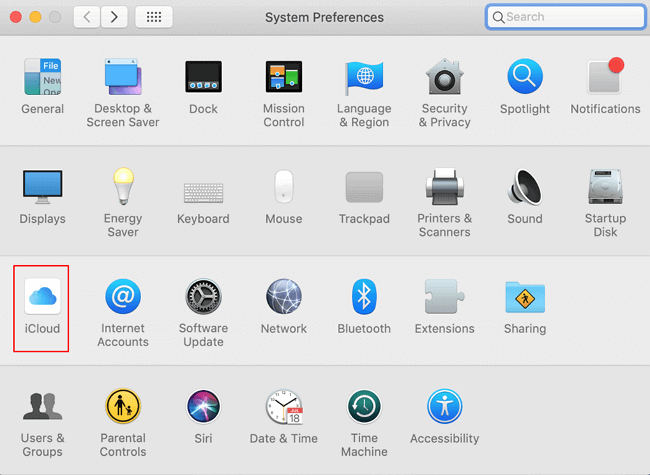
Step 2: To the right of "iCloud Drive", click on "Options".
Step 3: Uncheck the box next to "Desktop & Documents Folders".
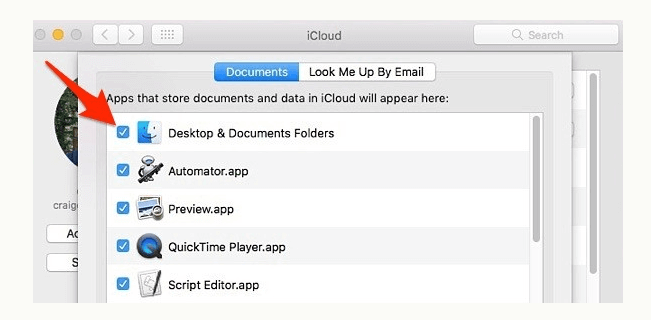
Step 4: You'll get a pop-up warning you that these files will only be stored in iCloud Drive if you disable desktop and Documents syncing. Click "Turn Off".
When you move files to iCloud Drive on your Mac, they disappear from your desktop and documents folder, but they're still accessible there. To retrieve them, open the iCloud Drive folder and you'll see the "Desktop" and "Documents" folders where your files have been relocated. You can then drag-and-drop the files back to your desktop while holding down the Command key, or copy and paste them over and delete the originals still stored in iCloud Drive.
Method 3. Find the Missing Files from Mac Emptied Documents Folder using Finder
Your files may be invisible due to improper Finder settings, but you can also find the missing files from the suddenly emptied Mac Documents folder by changing Finder settings.
Try this manual way to find your documents:
Step 1: To access the Library folder in Finder, hold the Option (⌥) key and select "Library" from the "Go" menu.
Step 2: Then go to Preferences trash these two files:
- com.apple.finder.plist
- com.apple.sidebarlists.plist
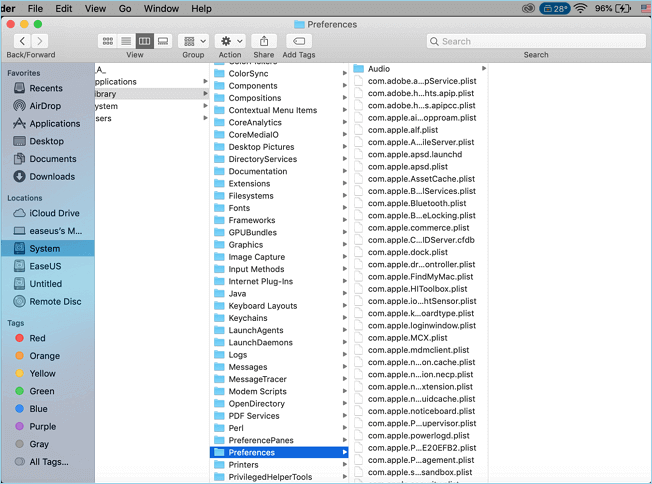
Step 3: Then, restart your Mac.
Method 4. Restore Missing Mac Documents Folder Files from Time Machine Backup
If you've created a backup of all essential files on your Mac using Time Machine, you can easily recover missing or disappeared files by accessing the backup.
Follow the steps below to bring your missing Documents files back from Time Machine Backup:
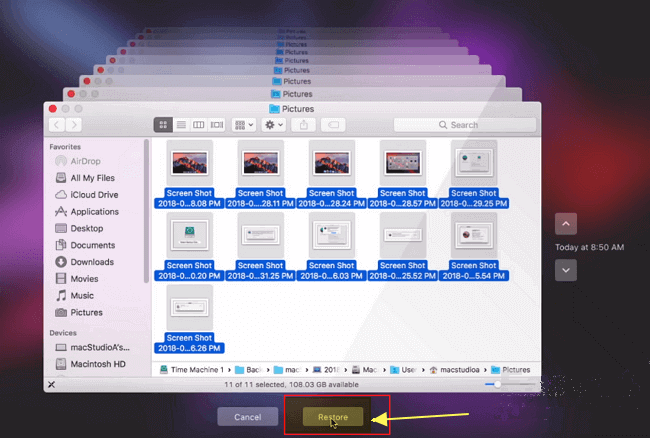
Step 1: Open Finder, go to System Preference and click Time Machine.
Step 2: Select "Show Time Machine in menu bar".
Step 3: To restore a document, click on the "Time machine" icon, select the date and time when you want to restore the document, and then choose the specific document you want to restore from the list of available documents at that time.
Step 4: To restore a Google account to a specific date and time, click "Restore" under the "Account actions" section, select the desired date and time from the calendar, and then click "Restore" to restore your account to that state.
Conclusion
The Mac Documents folder can suddenly appear empty due to various reasons, leaving users with missing files. This can be caused by software updates, disk space issues, or even accidental deletion. There are four practical methods to restore the missing files back on Mac.
For the most efficient way to restore missing or disappeared Documents folder files on your Mac, Deep Data Recovery for Mac is a top recommendation. It's also essential to regularly back up your Mac documents using methods like Time Machine, manual backup, or Mac backup software to protect your valuable files.
Related Articles
- 5 Ways to Fix Hard Drive Read Speed Slow Error
- [Too Slow!] How to Fix USB 3.0 Transfer Speed Pretty Slow
- [3 Solutions] Fix Word Not Opening on Mac
- Break Windows 10 Roll Back Limit - Roll Back to Windows 7/8 after 30 Days
- How to Fix Game Stuttering on Windows 11 [Step-by-Step Guide]
Game stuttering can be frustrating for gamers, often caused by high resource applications running in the background or outdated/ faulty display adapters. Various fixes can help resolve the issue, as discussed in the article. - How to Fix a Media Driver Your Computer Needs Is Missing in Windows
Having trouble to 'fix a media driver your computer needs is missing in windows' error? Not anymore, as to solve it, you'll get multiple ways ahead.
Products
Articles & Tutorials
- Data Recovery
- Data Backup
- File Recovery
- File Backup
- System Backup and Restore
- Disk and Partition Clone
- Technical articles
- Mobile articles
- Disk Master Help
- Windows Data Recovery Tutorials
- Windows Secure Delete Tutorials
- Windows Partition Management Tutorials
- Windows File Backup and Restore Tutorials
- Windows System Backup and Restore Tutorials
- Windows Disk Backup and Restore Tutorials
- Windows Clone Tutorials