How to Fix Game Stuttering on Windows 11 [Step-by-Step Guide]
Gamers know the frustration of seeing a stuttering screen while playing a game, which can ruin the experience and irritate them. A sudden FPS drop can be caused by various factors, including robust mechanisms at the backend of a PC trying to run games. In this article, we'll explore the reasons behind game stuttering on Windows 11 and provide solutions to fix the issue.
Windows 11's recent upgrade has caused game stuttering due to an unstable OS, resulting in fluctuating FPS drops. Microsoft is working to stabilize the OS, but in the meantime, users can try fixes to improve the stuttering or prevent it. The reasons behind this issue include the unstable OS, which is causing the game to stutter more frequently.
What Is Causing Game Stuttering on Windows 11
The stutters on PC can be attributed to various underlying causes. Some users have identified possible reasons for the frame drops in Windows 11, including the reasons below
Game DVR: Windows 11 has a built-in game DVR that records gameplay in the background, but it consumes a lot of resources, resulting in lower FPS.
Network or connection drivers: They support the games using the network to run them. Outdated or corrupt ones might lead to poor FPS resolution.
Graphic card drivers: Graphic cards ensure a smooth gaming experience by meeting the minimum FPS requirements. However, issues with the GPU and Physics drivers can lead to frame drops, disrupting the game's performance.
Response rate is 1000Hz or higher: Windows 11 is experiencing issues with stabilizing the framerate, regardless of the system configuration. To improve performance, consider setting the Mouse Pooling rate to 500Hz. This may help run applications smoothly.
Solutions to Fix Game Stuttering on Windows 11
To fix the fps drop, users can try restarting the game or application, checking for updates, adjusting graphics settings, closing other resource-intensive programs, disabling unnecessary features, updating drivers, or using a performance-enhancing tool. These steps can help identify and resolve the root cause of the issue, thereby improving the overall gaming experience.
- Solution 1. Stop the Recording Tools (DVR Game)
- Solution 2. Close Resource-Intense Apps Like Chrome
- Solution 3. Mark the Game as a High Priority
- Solution 4. Update the Graphic Card Drivers
- Solution 5. Update Audio Drivers
Now, let's start with the first solution and stop the recording tools.
Solution 1. Stop the Recording Tools (DVR Game)
Using Game DVR to screen record your gameplay can be resource-intensive, causing an FPS drop. If your computer's processors and graphic cards aren't powerful enough, this can further impact your FPS. To avoid this issue, try closing any recording tools, including Game DVR, and start playing again.
To disable Game DVR on Windows 11, you can follow these steps: The Game DVR is enabled by default, so we need to disable it to stop interrupting the gameplay. First, press the Windows key + I to open Settings, then click on the "Privacy" option. Next, click on the "Diagnostics & feedback" tab and toggle the switch next to "Include game and video clips in my reports to Windows" to the "Off" position.
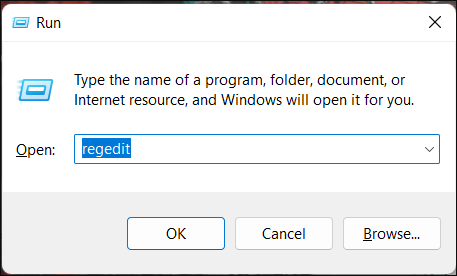
Step 1. To open the Registry Editor, press the Windows key + R to open the Run dialog, then type "regedit" and press Enter. This will open the Registry Editor application.
Step 2. To open the registry key called GameDVR_Enabled, navigate to the following path in the Windows Registry Editor: HKEY_CURRENT_USER\Software\Microsoft\GameBar\GameDVR\GameDVR_Enabled.
Computer\HKEY_CURRENT_USER\System\GameConfigStore
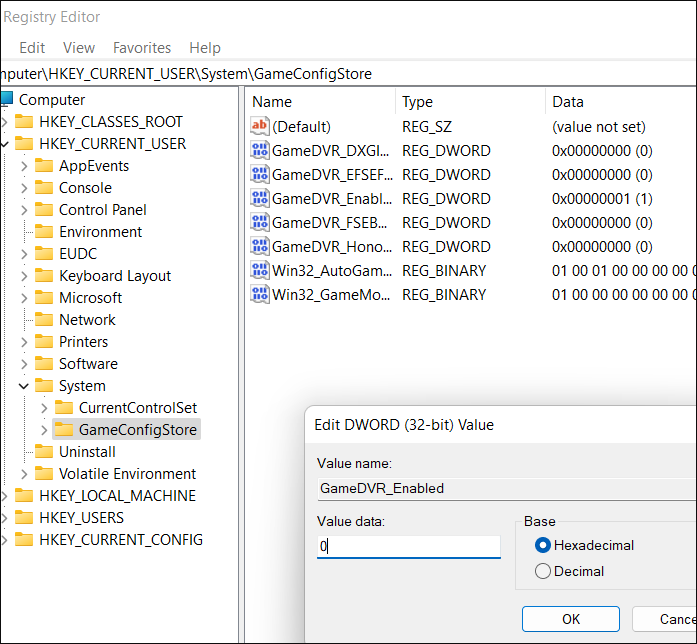
Step 3. In the field, enter 0 in the value data field, selecting Hexadecimal as the base, and then save the changes.
Step 4. Restart the computer to see the changes.
Solution 2. Close Resource Intense Apps Like Chrome
Many high-Functioning apps like Chrome, YouTube, and Twitch are resource-intensive and may cause FPS to drop if played alongside games, even if on different monitors, as the processor may satisfy app requirements at different times.
To minimize stuttering while playing games, close any unnecessary apps running in the background before starting the game. This will help free up system resources and reduce the likelihood of stuttering.
Solution 3. Mark the Game as High Priority
In some cases, closing some background apps may be necessary to allocate all processing power to the game, allowing you to set the game as a high priority in the Task Manager to maximize resources.
Steps to set the game as a high priority using Task Manager:
Step 1. Search for Task Manager and open it.
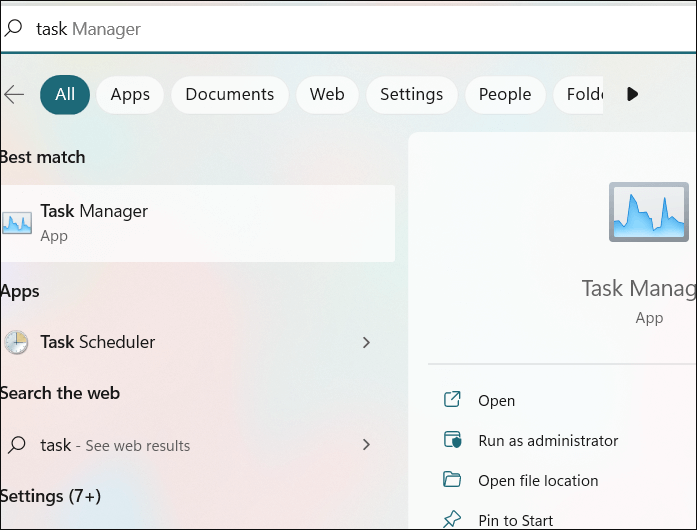
Step 2. Right-click on the gaming app icon in the Details section.
Step 3. To set the priority of a task or set of tasks in a project management tool, select the "Set Priority" option from the dropdown menu and choose either "High" or "Above Normal" as the priority level. This will indicate to the project team and stakeholders that this task or set of tasks requires immediate attention and should be given priority over other tasks.
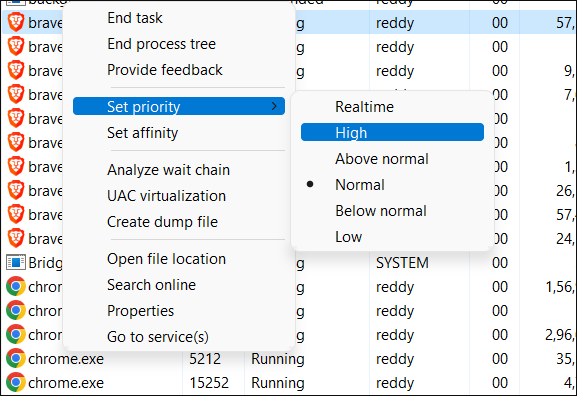
If you have apps that need resources even in the background, you can set them to a lower priority to conserve system resources. This can be particularly useful for apps that don't require immediate attention, such as music streaming or social media.
Solution 4. Update Graphic Card Drivers
Drivers are crucial in ensuring smooth operation of hardware and software. Keeping them up-to-date is vital, especially for high-end games that require robust graphic cards, such as NVIDIA or AMD, which can be updated from official sites.
Steps to update graphic card drivers on your computer:
Step 1. Press the Windows and X keys simultaneously, then click on "Device Manager" in the options.
Step 2. In the driver's section, expand the "Display Adapters."
Step 3. To update your graphic card, right-click on it in the Device Manager, then select "Update driver" from the context menu. This will initiate the update process, allowing you to choose from available drivers or search online for the latest version.
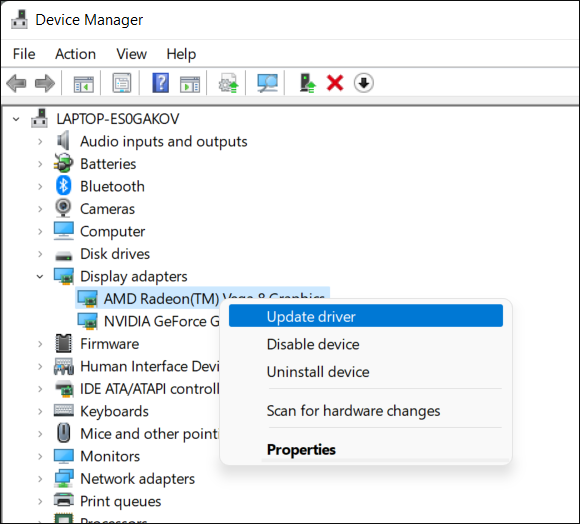
If you're still experiencing issues, try uninstalling the pre-installed NVIDIA or AMD drivers and reinstalling them from the official websites.
Solution 5. Update Audio, Network, and USB Drivers (Device Manager)
Along with graphic card drivers, other drivers like audio, network, and USB drivers also play a crucial role.
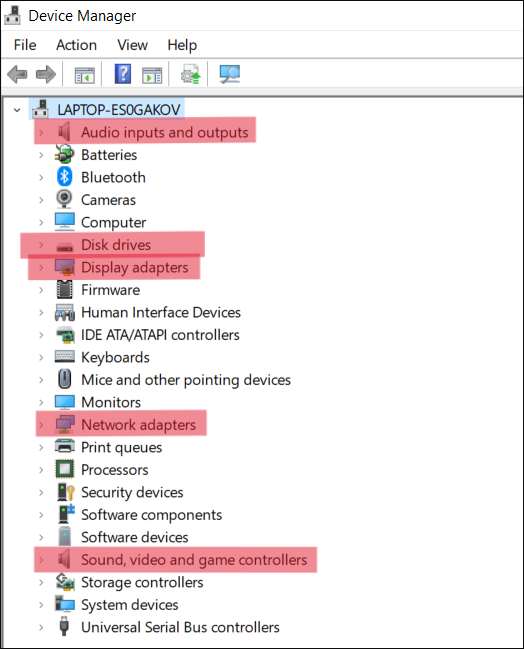
Utility drives are essential to maintain audio quality, network connections, and connected devices related to the game, helping to stabilize the game's minimum requirements. To resolve issues, navigate to the device manager, locate the drivers, and update them. For more information on fixes, you can refer to the article by MakeUseOf.
Final Verdict
You may experience game stuttering on Windows 11 due to various reasons, some of which may be unknown. However, common causes include outdated graphics drivers, conflicting software, and resource-intensive programs running in the background. Other potential culprits include a faulty hard drive, overheating CPU, and insufficient RAM.
The FPS (Frames Per Second) is related to the power of a computer's graphics card. If the card isn't powerful enough, the game may experience FPS drops, and checking the game's system requirements can help determine the optimal graphics quality.
I hope you found the articles helpful in resolving game stuttering issues on Windows 11. Please share them with your friends and leave a comment if you have any feedback.
Related Articles
- Fixed: SFC (SFC / SCANNOW) Is Not Working on Windows
- Don't Pass: Is It Safe to Update BIOS?🔥
Is it safe to update BIOS? That's the question on a lot of users' minds, and this article answers that question thoroughly. It'll also tell users what to do to avoid data loss and important things about updating BIOS. - Laptop Turns Off When Unplugged - How to Fix?
You may encounter the frustrating issue of your laptop turning off when unplugged, and it's essential to learn how to fix this problem to continue using your device correctly. This tutorial will outline 5 fixes to resolve the issue, and we'll also recommend an efficient backup tool for your files. - OneDrive Files Corrupted | How to Restore Them in 2024
Learn how to fix and recover corrupted OneDrive files, check sync issues, restore previous versions, and protect cloud files. - Quick Fix: How to Restart Windows 10 with Keyboard
How to restart Windows 10? If you're thinking about this, consider this guide to restart Windows 10 with a keyboard with the top 8 ways. Here, we walk you through the different ways how to restart Windows in a safe mode and more. - How to Restart Windows 11 [Updated 2023]
If your Windows PC is stuck, unresponsive, or you're experiencing issues with the mouse or menu. There are 7 easy ways to restore Windows 11 and get your PC up and running smoothly again.
Products
Articles & Tutorials
- Data Recovery
- Data Backup
- File Recovery
- File Backup
- System Backup and Restore
- Disk and Partition Clone
- Technical articles
- Mobile articles
- Disk Master Help
- Windows Data Recovery Tutorials
- Windows Secure Delete Tutorials
- Windows Partition Management Tutorials
- Windows File Backup and Restore Tutorials
- Windows System Backup and Restore Tutorials
- Windows Disk Backup and Restore Tutorials
- Windows Clone Tutorials