Laptop Turns Off When Unplugged - How to Fix?
Some laptop users have reported that their device turns off when unplugged, which can be frustrating. This issue can occur due to various reasons, and in this tutorial, we will explore the possible causes and provide five fixes that can be applied to laptops from different brands, including ASUS, HP, MSI, Dell, Lenovo, and Acer.
Always Backup Your Laptop to Prevent Data Loss
If your laptop turns off when unplugged, it's essential to backup your files to prevent data loss. You can do this quickly and easily using Qiling Disk Master, which allows you to save your personal files to the cloud, local storage, external storage, NAS, or network storage. This ensures your data is safe and secure, even if your laptop shuts down unexpectedly.
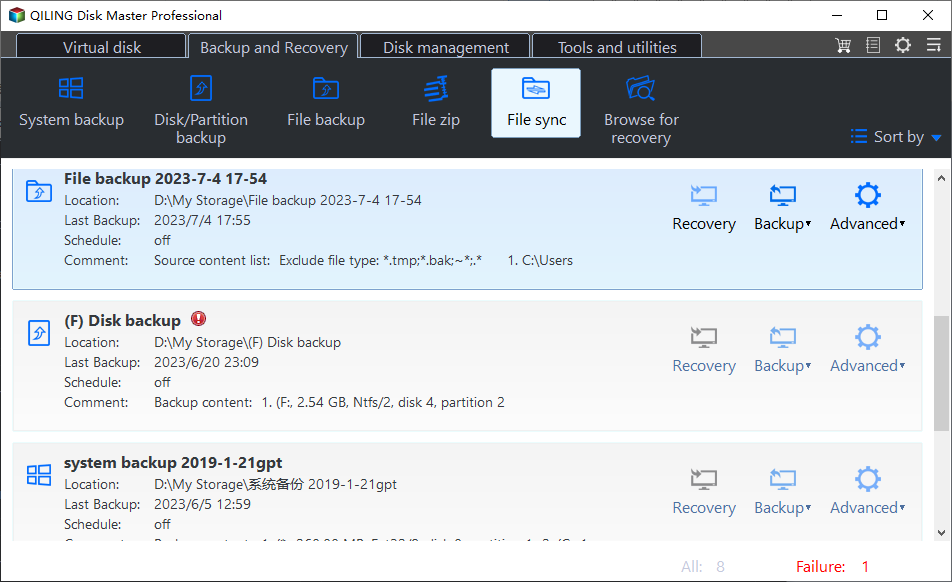
Qiling Backup offers fast data recovery from backup locations, supports scheduled and incremental backup strategies, and uses an encrypted backup mechanism for security.
This software offers free backup and recovery, allowing users to create a system image in case of a system crash or hard disk failure. It also enables users to create a bootable rescue media to boot their computer and easily create an ISO image of a USB drive.
Syncing files and backing up data has never been easier, thanks to this top-notch file sync software for Windows. It not only provides 250GB of free cloud storage to safely store your backups, but also allows you to sync files between computers, hard drives, and more. By downloading this free backup application, you can conveniently back up your laptop data and rest assured that your files are secure.
How to Fix Laptop Turning Off When Unplugged
If you're experiencing issues with your laptop's display, there are several easy fixes you can try, regardless of your laptop's brand (Toshiba, Lenovo, HP, Acer, Dell, ASUS, or MSI). Five key fixes can help resolve the problem, including the fixes below.
Method 1. Change Advanced Power Settings
To adjust your power management settings, you can follow these steps:
Step 1. Visit the Control Panel. Select "Power Options."
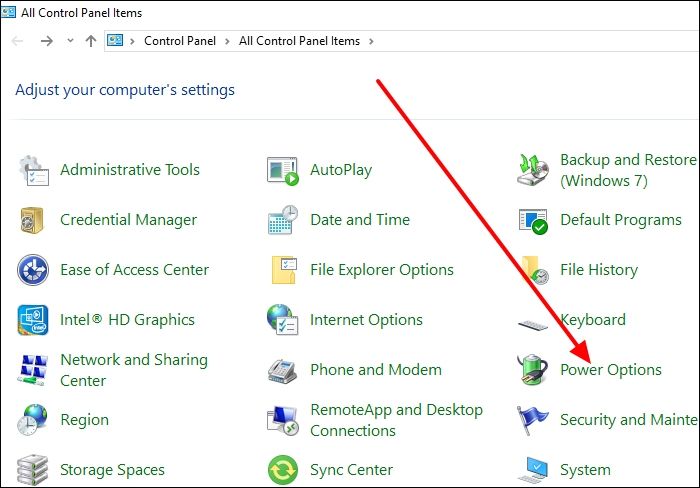
Step 2. Click "Change plan settings" then "Change advanced power settings."
Step 3. To adjust the processor power management settings, double-click "Processor power management" and expand the "Maximum processor state" category. In this section, change the "On Battery" setting to 20%. This will reduce the processor's power consumption when the laptop is running on battery power, which may help prolong battery life.
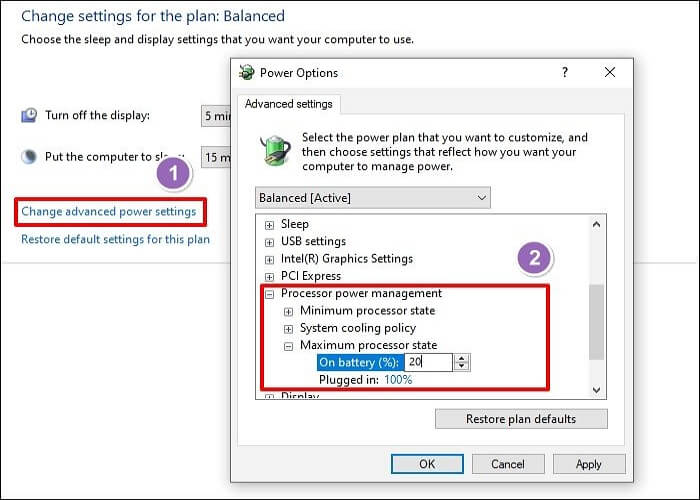
Step 4. Double-click the "Display" category, expand "Enable adaptive brightness", change the setting to "On", click "Apply" and "OK" to implement the changes. Confirm if the battery is now working correctly.
Share this article on your social media to help others solve the laptop shutting down when unplugged error.
Method 2. Power Reset Laptop
This fix helps to dissipate the power held by the hardware components connected to your laptop, potentially fixing the issue where the laptop turns off when unplugged. To implement this fix, follow these steps.
Step 1. Before you start, make sure to power off your laptop and ensure that all your files are backed up. This will prevent any data loss or corruption during the process.
Step 2. Remove the battery, unplug all peripheral devices and the power cable from the laptop.

Step 3. Press the power button for 15 seconds, then release it, allowing the motherboard components to discharge.

Step 4. To resolve the issue, leave your device as it is for 15 minutes. Then, re-insert the battery and connect your charger. This should allow the device to function normally again.
Step 5. The problem has disappeared. The issue was with the device's hardware.
Method 3. Run Power Troubleshooter
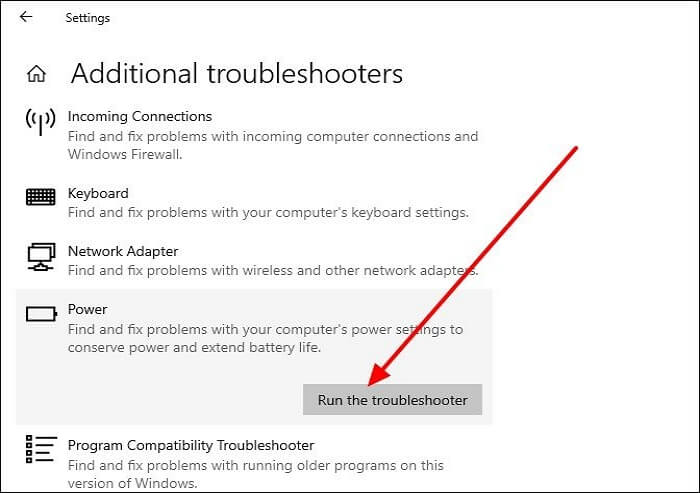
To fix issues with your battery or power connection, run the Power troubleshooter in the "Update & Security" section of your Windows Settings. This feature can help resolve problems related to your battery or power connection. You can access the troubleshooter by following the steps provided.
Step 1. Press the Windows logo + I to enter Settings.
Step 2. Click "Update & Security"> "Troubleshoot."
Step 3. Click on "Additional Troubleshooters."
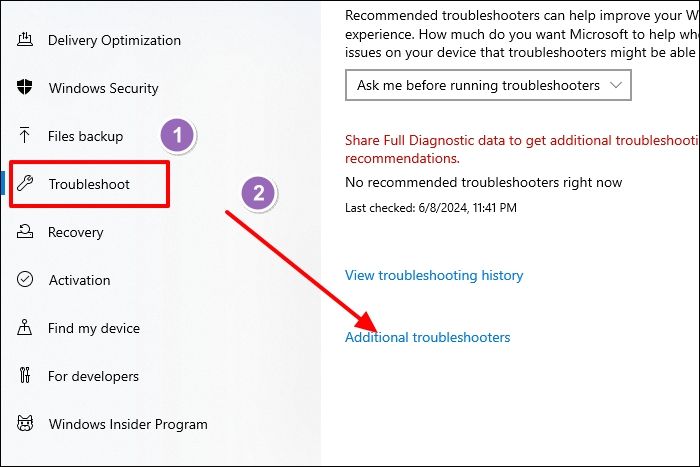
Step 4. Navigate to the "Power" option under "Find and fix other problems."
Step 5. Click the "Run the troubleshooter" button. The troubleshooter will automatically scan and fix any issues with your battery.
Method 4. Update Battery Driver
You may experience the "laptop turns off when unplugged" issue due to outdated battery drivers, which can be resolved by updating the drivers. To do this, follow these steps:
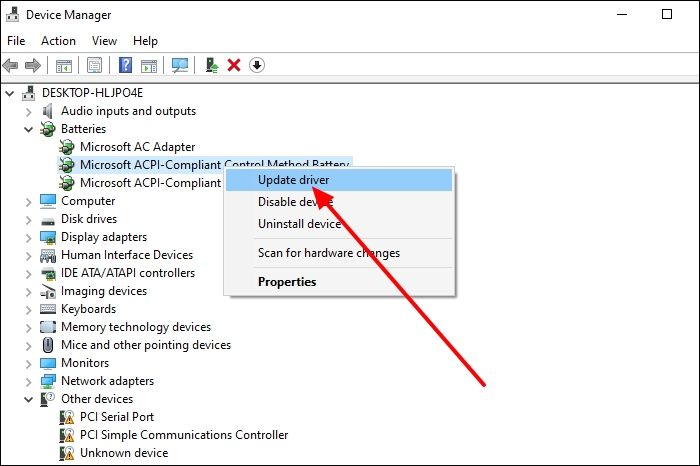
Step 1. Right-click the Start Menu. Next, choose "Device Manager."
Step 2. Double-click the "Batteries" category.
Step 3. To update the battery driver, right-click on it and select the "Update Driver" option. This will initiate a search for the latest drivers, which will then be installed on your system.
Step 4. To resolve the error, restart your system after completing the above process, and verify if the issue has been resolved.
Method 5. Update BIOS
Updating the BIOS is crucial for the normal functioning of all computer components, including laptops. An outdated BIOS can cause issues like a laptop turning off unexpectedly. To resolve this, you can follow these steps to ensure your BIOS is updated.
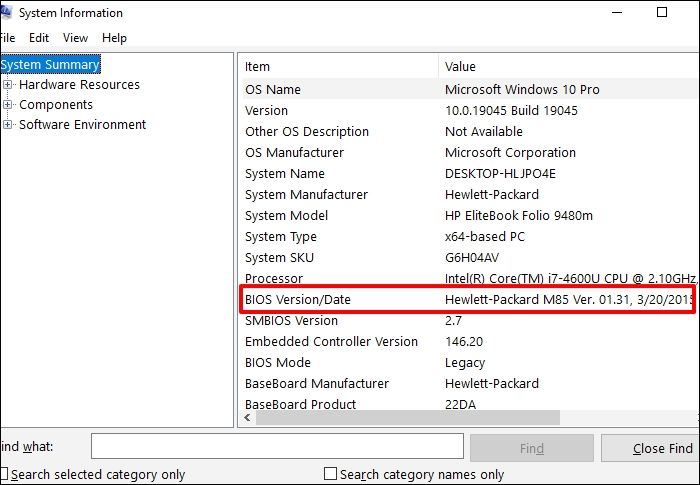
Step 1. To access your laptop's System Information, type "msinfo32" in the Run dialog box and click OK.
Step 2. Note the information about "BIOS version/Date."
Step 3. To find the correct drivers for your laptop, visit the website of the manufacturer (e.g. Dell, HP, Lenovo), enter your laptop's model number, and follow the instructions to download the required drivers.
Step 4. Check if there's an available update for your BIOS driver. Download the update file to your laptop.
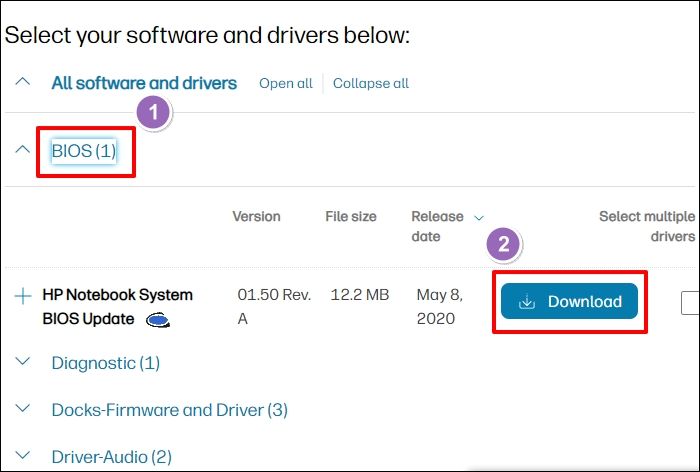
Step 5. To resolve battery issues, navigate to the download location and click on the .exe file to install the latest BIOS drivers on your laptop. This may resolve the problem.
Some articles related to BIOS updates:
Why Does My Laptop Turn Off When I Unplug It
Many people have faced the issue of their devices freezing or becoming unresponsive after significant use, with some users encountering the problem after a Windows 10 update (version 1809). However, the exact cause of this issue has not been explained, and it can also occur in users who have not recently updated their operating system.
This issue could also arise due to a faulty battery. A normal battery will power on even after removing the charger, so you'll need to address your battery issues.
Share this article on your social media to help others solve the laptop shutting down when unplugged error.
To Sum Up
The laptop turning off when unplugged can be caused by a faulty battery or even a Windows 10 update, specifically version 1809. Before attempting the 5 solutions outlined in this tutorial, it's essential to backup your data to avoid any potential loss. The fixes discussed in this tutorial can help resolve the issue, but be sure to follow them with caution.
Consider using Qiling Disk Master to save your files seamlessly, as it allows you to back up your files to different locations and retrieve them when needed, also supporting incremental and differential backup strategies.
FAQs on Laptop Turns Off After Removing Charger
Below are the common FAQs on this topic.
1. Why Is My Laptop Not Turning On Without a Charger?
Your battery might be faulty. Try briefly disconnecting and reinserting it to see if that resolves the issue. Make sure it's properly connected as well.
2. How Do I Stop My Laptop from Turning Off Suddenly?
You can try these fixes:
- Change Advanced Power Settings.
- Power Reset Laptop.
- Run Power Troubleshooter.
- Update Battery Driver.
- Update BIOS.
Browse the previous sections of this article to learn the steps for applying the fixes.
3. Why Does My Computer Keep Turning Itself Off?
A faulty power supply, overheating issues, or problems with hardware/software components may cause this issue.
Related Articles
- Quick Solutions to SanDisk SSD Not Showing up in Windows 11/10/8/7
- Windows Solution: Can't Create Restore Point Windows 10
- How to Delete Everything on MacBook [Two 2024 Solutions]
- [Fixed] Target Disk Mode Not Working on macOS Ventura/Monterey
- RAID Types: What is RAID and Which RAID Level Should Use
Are you seeking deep insights into RAID Types and RAID Levels? Guess what? You're in for a treat! Here, we have compiled a guide to help users understand this technology. - Ransomware: The PC Viruses You Must Fight Against! [Full Guide]
Are you scared of your PC detecting a malware attack but are unaware of overcoming this situation? Today, we will explain Ransomware, the PC viruses you must fight against!
Products
Articles & Tutorials
- Data Recovery
- Data Backup
- File Recovery
- File Backup
- System Backup and Restore
- Disk and Partition Clone
- Technical articles
- Mobile articles
- Disk Master Help
- Windows Data Recovery Tutorials
- Windows Secure Delete Tutorials
- Windows Partition Management Tutorials
- Windows File Backup and Restore Tutorials
- Windows System Backup and Restore Tutorials
- Windows Disk Backup and Restore Tutorials
- Windows Clone Tutorials