Quick Solutions to SanDisk SSD Not Showing up in Windows 11/10/8/7
Why Is SanDisk SSD Not Showing up on the Computer
SanDisk is a well-known brand for flash memory storage solutions, but users often encounter the issue of their SanDisk SSD not showing up on their computer. This can be resolved by checking if the SSD is properly connected, and if not, reinstalling the operating system.
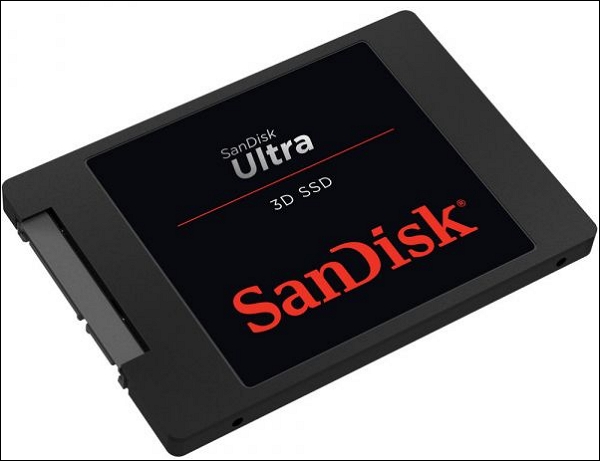
If your SanDisk SSD is not showing up, don't worry! This article is here to help you troubleshoot the issue and also guide you on how to back up your SanDisk SSD. To solve the problem, check out the scenarios listed below, which will walk you through the steps to resolve the issue and ensure your data is safely backed up.
Outdated Device Drivers
You may be experiencing issues with your PC running on outdated drivers, which can be easily resolved by updating them using Windows' Device Manager. This is especially relevant if your SanDisk SSD is more recent than your Windows setup, requiring updated drivers to be located. To fix this, simply open the Device Manager, locate the SanDisk SSD, and update the drivers to ensure compatibility and optimal performance.
If the SanDisk SSD is detected but no longer showing up, try reinstalling the SanDisk SSD driver to see if this resolves the issue, possibly due to a faulty installation of the disk drive.
Uninitialized SSD
If you plug a brand-new SSD into your PC and it doesn't work, the fix is easy. You need to initialize the SSD, which makes it usable. An uninitialized SSD won't show up in File Explorer or the Disk Management utility.
The Missing Drive Letter of the SSD Partition
Windows 10 may not recognize your SSD due to conflicting or missing drive letters. This issue can cause Windows to be less efficient and may be related to file system problems or issues with the SSD itself. To resolve this, you can quickly fix the problem by assigning a new drive letter to the SanDisk SSD in the Disk Management utility.
Improper Connection
Ensure the SSD's USB cable is securely inserted into the USB port and check for any damage on the cable. This will help resolve the issue.
Note: The issue you're experiencing is not related to Windows, but rather a hardware problem or a result of your own action when plugging in the USB cable.
The Drive Not Enabled in BIOS
To resolve the issue, ensure the SSD is properly attached and recognized by the BIOS. Access the BIOS menu by pressing the correct function key during boot-up, and search online for the specific key required for your PC. In the BIOS menu, navigate to the boot menu and verify that the SSD is listed. If it's not detected, check for hardware issues or configure the SATA controller settings in the BIOS menu.
Memory Issues in Detecting the SSD
Sometimes memory troubles inside Windows can prevent the SSD from being recognized, but the Windows Memory Diagnostic utility can detect and fix defective RAM and complicated drive issues.
Six Solutions to Fix SanDisk SSD Not Showing up
If your SanDisk SSD isn't showing up, don't worry, we've got you covered. We'll tackle this issue in separate scenarios, so let's get started. Whether you're a seasoned pro or a beginner, this guide will help you troubleshoot and resolve the problem.
Solution 1. SanDisk SSD is not Showing up due to Outdated device drivers
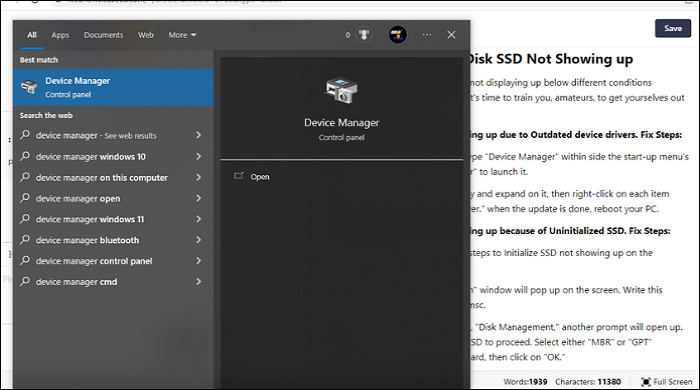
Step 1. To open Device Manager, press the "Windows" key and type "Device Manager" in the search field, then click on it or hit Enter to launch it.
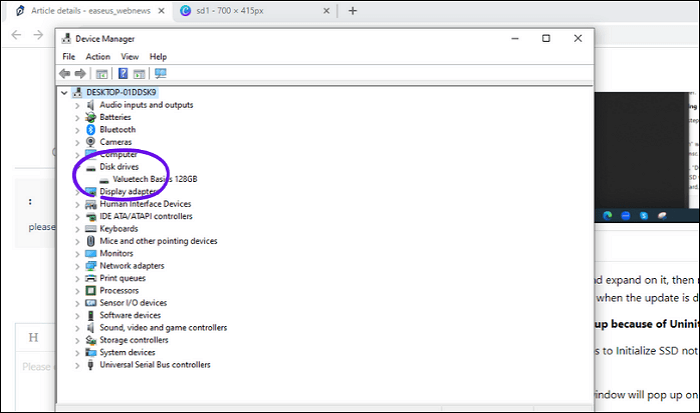
Step 2. To update the drivers for disk drives, open the Device Manager, navigate to the "Disk drives" category, expand it, right-click on each item below it, and select "Update driver". Once the update is complete, restart your PC.
Solution 2. SanDisk SSD is not Showing up because of Uninitialized SSD
You must Follow the below-illustrated steps to Initialize SSD not showing up on the computer.
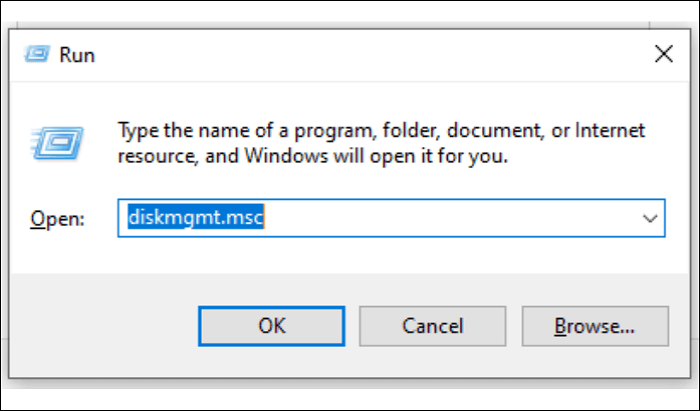
Step 1. To open the Disk Management window, press the "WIN +R" keys on your keyboard, which will open the "Run" window. In the search bar of this window, type "diskmgmt.msc" and press Enter. This will open the Disk Management window where you can view and manage your disk drives.
Step 2. Once you press the "Enter" key, a prompt will open up to initialize the SSD, asking for permission. Select either "MBR" or "GPT" depending on your system's motherboard, then click on "OK."
Step 3. Now go back to "Disk Management" and right-click on the volume of your SSD, select "Initialize Disk" in one paragraph. Now go back to "Disk Management" and right-click on the volume of your SSD, select "Initialize Disk".
Step 4. To assign a drive letter and make your SSD accessible in File Explorer, right-click on the SSD volume, select "New Simple Volume," and follow the prompts to assign a drive letter, write a volume name, and define the file system (e.g. exFAT or NTFS). Click "Next" to complete the process. Your SSD will then be visible in File Explorer.
Solution 3. SanDisk SSD is not Showing up because of The Missing Drive Letter of the SSD Partition
Step 1. To access the Disk Management tool, open "This PC," right-click on it, and select "Manage." Then, in the "Storage" menu, click on "Disk Management."

Step 2. To access the unassigned partition on your SSD, navigate through the SSD partitions and select the one without a drive letter. Right-click on it and select "Change Drive Letter and Paths" to assign a drive letter to it.
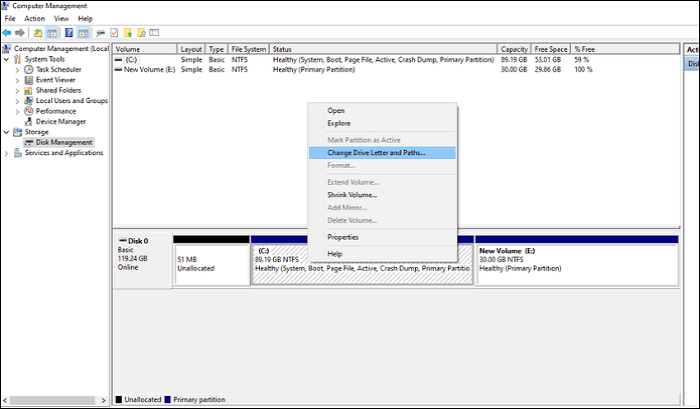
Step 3. To add a drive letter, click "Add" and select a drive letter from the dropdown menu, then click "OK" to complete the process.
Solution 4. SanDisk SSD is not Showing up because of an Improper Connection
Step 1. If the SanDisk SSD is not connected correctly, you may need to check the following: ensure the SSD is properly seated in the computer, verify the power connection, and check the data cable connection. Additionally, you may need to restart the computer, check for BIOS updates, or reset the SSD to its default settings.
Step 2. Check if there are any loose connections or faulty cables.
Step 3. Check if you have enough power supply for your PC/laptop/tablet and if it's working fine.
Step 4. If you're experiencing issues with your operating system, you might want to try reinstalling it. This can sometimes resolve problems that are preventing your operating system from showing up.
Step 5. Try using a different USB port on your device to see if it resolves the issue. Sometimes, a particular port may not be functioning properly, and switching to another one can resolve the problem.
Step 6. Try connecting your device to another computer or laptop. Sometimes, they might not work well with each other.
Solution 5. SanDisk SSD is not Showing up because the drive is not enabled in BIOS
Step 1. To resolve the issue, restart your PC and press the "F2" key (note: the key may vary depending on your PC brand or manufacturer) to access the "Config" menu, where you can make necessary adjustments.
Step 2. To enable IDE compatibility mode on your SATA controller, choose the "Serial ATA" option and press "Enter." This will take you to the "SATA Controller Mode Option" where you can select "IDE Compatibility Mode."
configure-bios-settings
Step 3. Save the changes you made and restart your PC to get into BIOS, which needs to now be capable of locating your SSD.
Solution 6. SanDisk SSD is not Showing up because of Memory Issues. Detect the SSD
You can run the Windows Memory Diagnostic utility as follows:
- To run the Windows Memory Diagnostic, start by searching for "Windows Memory Diagnostic" within the Start menu. Right-click on the "Best Match" result, which should be the Windows Memory Diagnostic tool, and select "Run as administrator" from the context menu.
- Recommend you restart your pc to check the problem.
- Tool to diagnose Windows memory.
Your PC will restart immediately, run a diagnostic test, and then automatically reboot again, showing the test results.
After connecting the SSD, you can start Disk Management or File Explorer to see if the SSD is now being detected by Windows 10. If it is, you can then initialize the SSD from Disk Management.
A Comprehensive Solution: Backup your SanDisk SSD
To fix the issue of a SanDisk SSD not showing up, you can use SanDisk SSD backup software, such as Qiling Backup, to back up your data regularly and automatically, allowing you to restore your data when the SSD is not recognized.
Qiling Backup Home is a backup and recovery utility for Windows that allows users to back up files, disks, partitions, and systems, and automatically back up files to an external hard drive or USB drive when plugged in. It also enables users to clone hard drives and migrate Windows to an SSD, and offers 250GB of free cloud storage.
The following are the detailed steps to back up your SSD.
Step 1. Start with selecting the Disk backup button.

Step 2. It is available to back up a whole disk or a certain partition. Choose the one you need.

Step 3. Select the destination where you want to save the backup.

Step 4. For disk/partition backup, you can choose to save the backup to a local drive or a Network-Attached Storage (NAS) device.

Step 5. After the backup process is completed, your task will be displayed at the left. You can further manage your backup by clicking the "Advanced" button of the task, allowing you to recover it, create incremental backups, and more.

Final Thoughts
To fix a SanDisk SSD not showing up, consider making a backup of your data to protect against mechanical failure and physical damage. You can use Qiling Backup to create a full backup copy of your hard drive, and also perform other tasks such as backing up your data to a secure location like a backup drive, cloud, or network drive. This can help ensure your important files are safe and accessible.
FAQs
1. Why is my SSD not being detected?
The SSD may not show up due to outdated drivers or a missing drive letter, causing the Windows OS to fail to recognize it. To resolve this issue, manually assign the SSD a brand-new drive letter in Windows Disk Management.
2. How do I enable SSD in Windows 10?
In Windows 8/10/11, right-click the Start icon, select Disk Management, and initialize the SSD with the GUID partition table (GPT) when prompted.
3. What is SanDisk Unlocker?
The SanDisk Drive Unlock tool is a utility that allows users to unlock password-protected SanDisk drives on computers without the SanDisk Security software installed. It appears as a virtual CD drive on the desktop, enabling users to access and unlock the drive.
4. How do you wipe a SanDisk flash drive?
To wipe a SanDisk flash drive, you can use the format option to completely erase files from the drive.
Related Articles
- 6 Ways to Fix Blue Screen Error APC Index Mismatch in Windows 10 [Full Guide]
- How to Fix File System Error (-2147219200) [7 Efficient Fixes]
- Delete OS from A Hard Drive
- Windows 10 Backup Command Line - How to Backup Files Using (from) Command Prompt in Windows 10
- [Solved] Windows 11/10 Show Hidden Files Not Working
If your Windows 10 is unable to show hidden files, there are two effective solutions provided by Qiling to fix the error and recover hidden files with ease. - Windows 10 Thinks My Hard Drive is Removable
Windows 10 mistakenly identifies an internal hard drive as removable, causing it to appear in the 'Safely Remove Hardware and Eject Media' section. Two potential solutions are presented, one of which is high-risk and requires a backup before proceeding.
Products
Articles & Tutorials
- Data Recovery
- Data Backup
- File Recovery
- File Backup
- System Backup and Restore
- Disk and Partition Clone
- Technical articles
- Mobile articles
- Disk Master Help
- Windows Data Recovery Tutorials
- Windows Secure Delete Tutorials
- Windows Partition Management Tutorials
- Windows File Backup and Restore Tutorials
- Windows System Backup and Restore Tutorials
- Windows Disk Backup and Restore Tutorials
- Windows Clone Tutorials