Don't Pass: Is It Safe to Update BIOS?🔥
Updating the BIOS can be a daunting process that strikes fear in many users. However, there are instances where updating the BIOS is necessary for better performance and optimal use of the motherboard and other hardware.
Some users are hesitant to update their BIOS due to the risk of bricking their system, but updating can also bring fixes for various issues, including support for new hardware and improved security patches, leading to better system performance.
Updating the BIOS can be a complex process, and users may wonder if it's safe to do so. Fortunately, the process has become more manageable, and motherboard vendors have implemented various methods to ensure a smooth update. However, it's still crucial to exercise caution, as the risks of bricking the motherboard exist. To mitigate this, users should follow the specific instructions provided by their motherboard vendor, which may include creating a bootable USB drive, accessing the BIOS settings, and verifying the update process.
Updating BIOS Is Definitely Safe
Updating the motherboard BIOS is a safe process, as it involves replacing the existing firmware with a newer version, which can improve system stability and provide security patches. The BIOS is a firmware that is designed to make the computer more stable and secure, and updating it from a previous version to a newer one is a safe and recommended process.
They also make the most of new hardware like RAMs and CPUs. In some cases, new BIOS might even add new and specific features like overclocking. That's why BIOS updates are important and necessary sometimes. It's also important to know that BIOS will NOT improve the performance of a computer's hard drive, add new software or programs, or change the computer's operating system. It will, however, allow the computer to take full advantage of new hardware and features, and in some cases, add new specific features.
- Cause any data loss or delete any personal files
- Remove or corrupt the operating system
- Delete or change any personal settings
- Or undo any previous BIOS settings or updates
Updating the BIOS when a stable version is released ensures that one stays current with the latest hardware and can fully utilize their motherboard's features.
If you're concerned that updating your BIOS will delete any files or data on your computer, don't worry! The BIOS update process is generally safe and won't affect your personal files, documents, or installed programs.
A Quick Answer to: Will Updating My BIOS Delete Anything?
Flashing your computer's BIOS can be a bit intimidating, but the good news is that it's a relatively safe process. In most cases, flashing the BIOS will not remove any of your installed software, files, or settings. The BIOS is a small program that controls the basic functions of your computer, such as booting up and managing hardware components.
What to Do Before Flashing BIOS
Updating the BIOS will not harm any user data, but it may cause issues with booting into the operating system, potentially leading to data loss, although this is rare.
Qiling Disk Master is a backup program that helps users create system images before updating BIOS, ensuring their data is safe in case of any issues.
Qiling Disk Master Pro allows you to copy data, clone Windows, back up multiple hard drives, and create automatic, scheduled, full, incremental and differential backups to meet various backup needs.
Other features that make it the best backup tool include:
- It can back up the system and hard drive to cloud storage.
- It can help transfer an operating system from one PC to another, making it a useful tool for upgrading or replacing hardware.
- It offers in-built 250GB cloud storage free for a 30-day trial
- It can clone a hard drive and migrate your system with ease.
- The system has a built-in security zone that safeguards sensitive data from viruses and malware, ensuring the integrity and confidentiality of the information.
To backup your computer using this tool, you should first download and install it on your computer. Once installed, follow the on-screen instructions to create a backup of your system. This will ensure that your data and settings are preserved in case of a BIOS upgrade or other system changes.
Step 1. Launch Qiling Disk Master on your computer, and click on the Backup tab page.

Step 2. To back up your Windows operating system, click "System backup" to start the backup process.

Step 3. The Windows operating system information and all system-related files and partitions will be automatically selected. You won't need to manually select anything at this step. Next, choose a location to save the system image backup by clicking on the illustrated area.

Step 4. The backup location can be another local drive, external hard drive, network, cloud, or NAS, with external physical drive or cloud being recommended for preserving system backup files.

Step 5. The Windows system backup process can be initiated by clicking the "Proceed" button after customizing settings such as enabling an automatic backup schedule and choosing differential and incremental backup options. Once initiated, the completed backup task will be displayed on the left side in a card style.

How to Update BIOS on Your PC
After taking necessary precautions, users can proceed with updating their BIOS. It's crucial to follow the system or motherboard manufacturer's instructions for downloading and updating the BIOS. Two main techniques for updating the BIOS include downloading the latest version from the manufacturer's website and following their specific update process.
Way 1. Update BIOS via UEFI Setup
To update the UEFI BIOS, download the latest version from the motherboard's website, copy it to a USB drive, and use the BIOS UEFI function to update the BIOS. This process typically involves booting from the USB drive and following the on-screen instructions to complete the update. It's essential to ensure the correct version is downloaded and the update is performed correctly to avoid any potential issues with the system.
Step 1: Download the latest BIOS from the system/motherboard website.
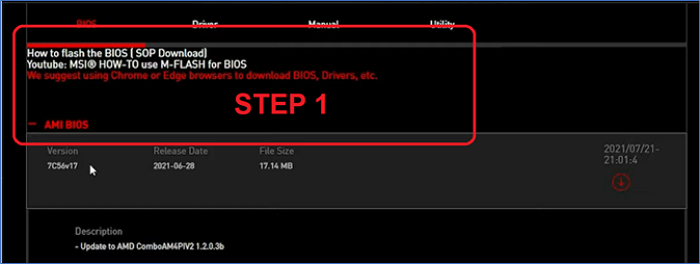
⭐Note: Users should check their PC's configuration and identify the motherboard manufacturer. They should then visit the manufacturer's website to download the correct BIOS version for their specific motherboard model.
Step 2: Copy the BIOS file to a FAT32 formatted USB drive, possibly renaming it according to the specific BIOS requirements, such as ASUS.
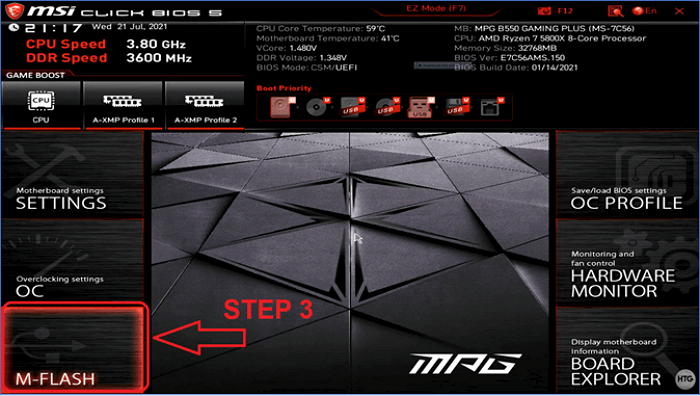
Step 3: To update the BIOS, head into the BIOS settings and access the UEFI BIOS update or M-Flash (if you have an MSI motherboard).
Step 4: Explore USB in M-Flash or UEFI BIOS.
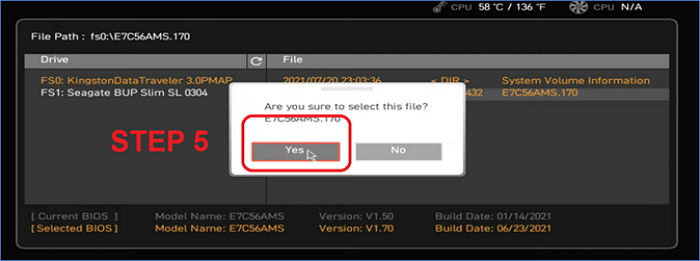
Step 5: Then select the BIOS file.
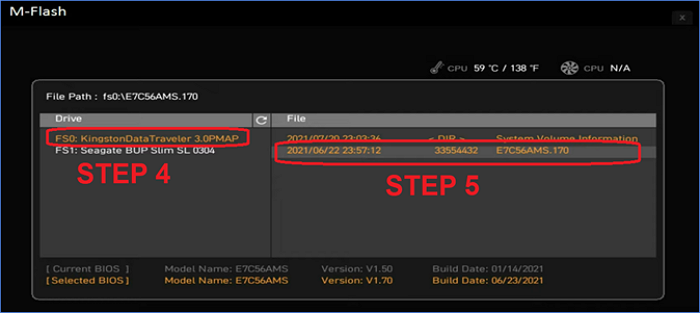
Step 6: Confirm when prompted.
Step 7: Wait for the BIOS update to finish.
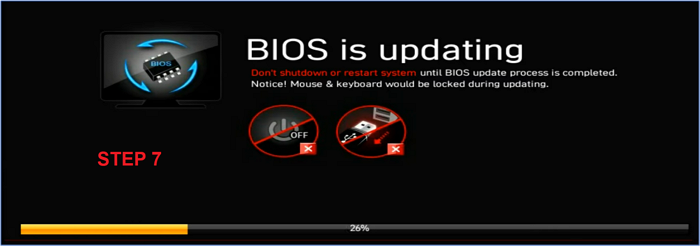
Users should have a backup power source and avoid updating their BIOS during rainy or stormy weather to prevent potential damage from power fluctuations.
Here are more articles to help you update your BIOS.
Way 2. Update BIOS via BIOS Flashback
The BIOS Flashback button is a convenient feature that allows users to upgrade their BIOS by plugging in a USB with the new BIOS and tapping the Flashback button, which is usually found on the motherboard. This process is easy and eliminates the need for a separate BIOS update process.
This method doesn't require any hardware, only a BIOS USB, Motherboard, and Power Supply, allowing users to update their BIOS without needing any additional resources.
Step 1: Download the correct serial number BIOS from the website and copy it to a USB drive.
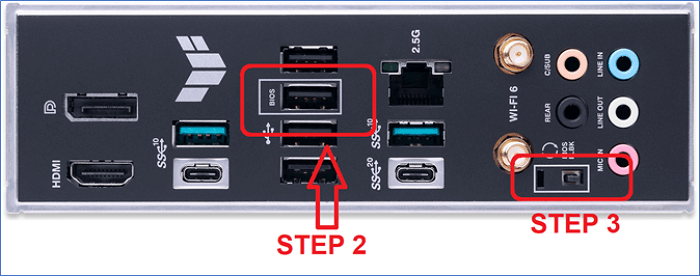
Step 2: To find the BIOS USB port on the back of the motherboard, look for a small USB port labeled as "BIOS" or "USB BIOS" which is usually located near the USB ports on the motherboard. This port is used to connect a USB drive to the motherboard and update the BIOS.
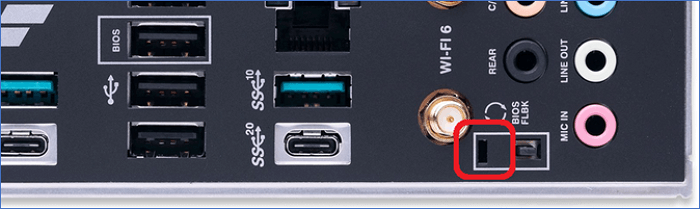
Step 3: Then tap the BIOS Flashback button.
Step 4: Wait until the BIOS Flashback LED stops flashing.
Step 5: The next step is to plug in the rest of the components, including the RAM, CPU, and GPU, and then start the PC. This will allow the system to boot up and verify that all the hardware is functioning correctly.
The user should be careful not to interrupt the process until the LED light stops flashing, as this is one of the safest ways to update the BIOS.
The recent surge in remote work has led to a significant shift in how people approach their daily routines, with many opting for a more flexible and autonomous lifestyle. While this shift has brought numerous benefits, such as increased productivity and work-life balance, it also presents unique challenges, including the need to establish a dedicated workspace, manage distractions, and maintain social connections.
To Wrap Things Up
Is it safe to update BIOSUpdating the BIOS is a safe process if done correctly, and users can do it without worrying about any issues, as long as they have a stable power connection or backup.
To be prepared, download the latest Qiling Disk Master and create a backup of your important data, ensuring a smooth migration or recovery of your operating system if needed.
FAQs on Is It Safe to Update BIOS
Here are some additional questions that users ask about BIOS updates, and they might assist in updating the BIOS:
1: How often should you update your BIOS?
Updating BIOS is not a necessity like updating drivers or Windows, but rather a "when needed" process, typically for system stability or to support new hardware.
2: Will updating my BIOS delete anything?
Updating the BIOS will not delete any data or storage on the PC, but it will remove any predetermined settings in the BIOS, such as under-volt or overclocking presets. It's still a good idea to use Qiling Disk Master to secure Windows and other important data before proceeding.
3: Will resetting BIOS affect Windows?
Updating BIOS on Windows has no negative effects on the operating system or settings, and may even improve performance by better recognizing new hardware.
4: Does reinstalling Windows reinstall BIOS?
Reinstalling Windows will not affect the BIOS as it is stored on the motherboard's specialized chip, whereas Windows is installed on the primary storage devices such as HDD, SSD, or NVME SSD.
Before applying a firmware update, use the Windows 11 pre-BIOS-update backup checklist to protect the system and recovery information.
Related Articles
- PowerShell Get Disk Space on Windows 10/11 [Full Tutorial]
- Disk Cleanup Not Working Windows 10/8/7? Here Are the Free and Easy Fixes!
- Recover Not Showing Up/Disappeared User Folder and Files in Windows 10
- Windows Update Not Installing - Try These 6 Fixes
- Reviews on Paragon Backup & Recovery [All Information]
In this post, we will introduce Paragon Backup & Recovery, a software that has received total reviews. We will summarize the pros and cons and prices of this software for you. - All You Need to Know About Patch Cable
A patch cable is a short networking cable used to connect devices like computers, routers, and switches. Learn about different types of patch cables (FC, LC, SC, ST, copper) and how they differ from Ethernet cables.
Products
Articles & Tutorials
- Data Recovery
- Data Backup
- File Recovery
- File Backup
- System Backup and Restore
- Disk and Partition Clone
- Technical articles
- Mobile articles
- Disk Master Help
- Windows Data Recovery Tutorials
- Windows Secure Delete Tutorials
- Windows Partition Management Tutorials
- Windows File Backup and Restore Tutorials
- Windows System Backup and Restore Tutorials
- Windows Disk Backup and Restore Tutorials
- Windows Clone Tutorials