Windows Update Not Installing - Try These 6 Fixes
Why Is Windows Update Not Installing
Have you ever wondered about the benefits of updating your Windows to the recently released versions? Windows update helps protect your system from potentially damaging software, resolves general Windows bugs or issues quickly, and offers new features. However, some users may face issues such as Windows update not installing or a "Windows update something went wrong" problem, which can be frustrating and require troubleshooting.
Many reasons can lead to problems, such as failing to install recent updates, which can cause issues with software and hardware.
- Windows update service problems. Windows Server Update Services (WSUS) is the leading Windows server role that offers planning, managing, and deploying different updates, hotfixes, and patches. Issues with the Windows update service may cause problems installing Windows updates.
- Outdated drivers. Windows systems need significant resources to install updates, and systems with incompatible hardware like old network cards or graphic cards may cause issues during the installation process.
- System file problems. System files can become corrupted or deleted, hindering Windows updates due to these issues.
- Low disk space. If your system doesn't have enough space to accommodate new Windows updates, it may cause the installation to fail, resulting in the "Windows update not installing" error.
- Third-party antivirus software. Disabling real-time scanning of third-party antivirus software is crucial to successfully install Windows 11's 22H2 update, as it often interferes with the updating process.
Windows 10 will continue to function normally even if a recent update is not installed, but it's recommended to install the latest updates to ensure the system remains secure and stable. You can resolve the issue by checking for updates in the Settings app, and installing any available updates. This should resolve the issue without requiring a full system reset.
🔥Read More: Windows Update KB5034441 Error(Windows Recovery Environment Servicing Failed.)
The Windows 10 cumulative update failed to install error can be frustrating, but it can be resolved by trying a few troubleshooting steps. Firstly, ensure that your internet connection is stable, as a slow or unstable connection can cause the update to fail.
Windows 10 Cumulative Update Failed to Install & Download
This article provides solutions to the Windows 10 cumulative update failed to install error, offering 6 ways to resolve the issue, and also recommends a tool to protect your data.
6 Ways to Fix Windows Update Not Installing
After going through the top reasons for the Windows update not working or installing error, it's time to go through the fixes. Solutions include checking internet connection, disabling VPN, running Windows Update Troubleshooter, restarting Windows Update Service, running System File Checker, checking for disk space, and running DISM tool to fix corrupted system files. Additionally, checking for malware, uninstalling recently installed updates, and resetting Windows Update components can also resolve the issue.
- Fix 1. Run Windows Update Troubleshooter
- Fix 2. Clean Up Disk Space
- Fix 3. Run System File Scan
- Fix 4. Restart Windows Updates Services
- Fix 5. Delete SOFTWARE DISTRIBUTION Folder
- Fix 6. Turn Off Third-party Antivirus Programs
Fix 1. Run Windows Update Troubleshooter
To solve any Windows system problem, running the Windows update troubleshooter is a reliable option. The quick steps to run the troubleshooter are:
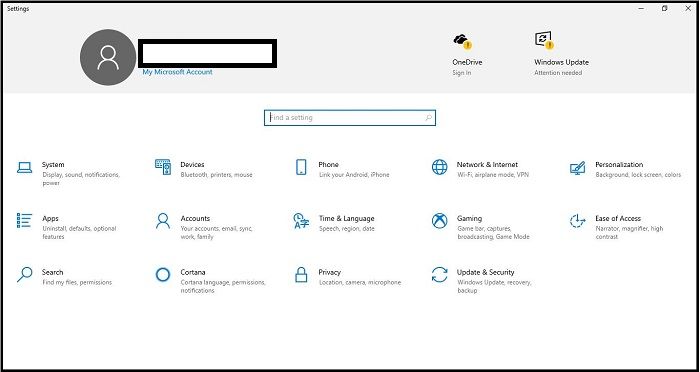
Step 1: Open the "Settings" option on your Windows system.
Step 2: Select the "Update & Security" option.
Step 3: Select the "Troubleshoot" option from the left navigation pane.
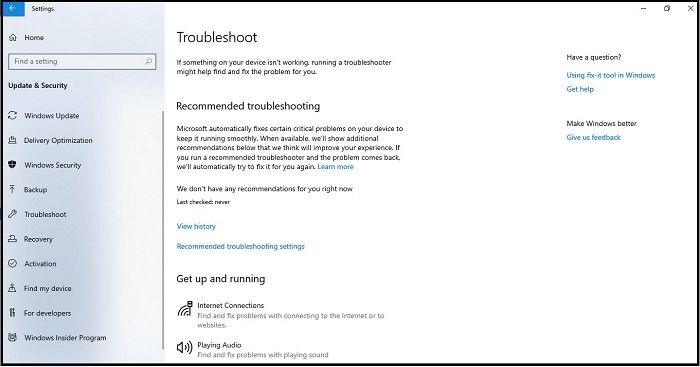
Step 4: Then select the "Additional Troubleshooters" option.
Step 5: Now, click on the "Windows Update" option.
Step 6: Select the "Run the troubleshooter" option.
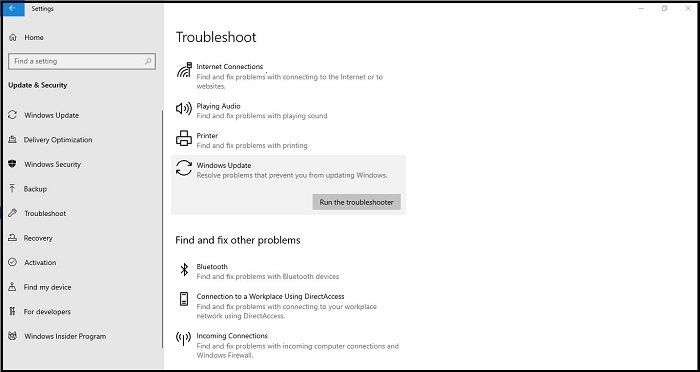
Step 7: The Windows update troubleshooter will detect and fix the problem, so wait until it does.
Fix 2. Clean Up Disk Space
If you're running a 32-bit operating system with less than 16 GB of disk space or a 64-bit operating system with less than 20 GB, it's essential to clean up your disk space. To do this, simply follow these quick steps:
Step 1: Press "Windows + R" to open the Run box.
Step 2: To open the Disk Cleanup tool, enter "cleanmgr" in the Run box (Windows key + R) and press Enter. This will open the Disk Cleanup tool, which will scan your computer and provide a list of files that can be safely deleted to free up space on your hard drive.
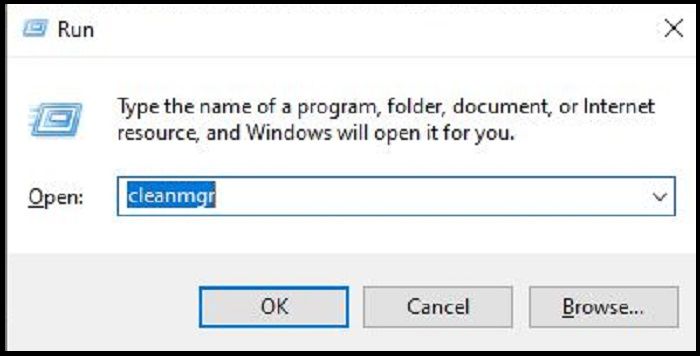
Step 3: Select the drive for clean up and then press "OK".
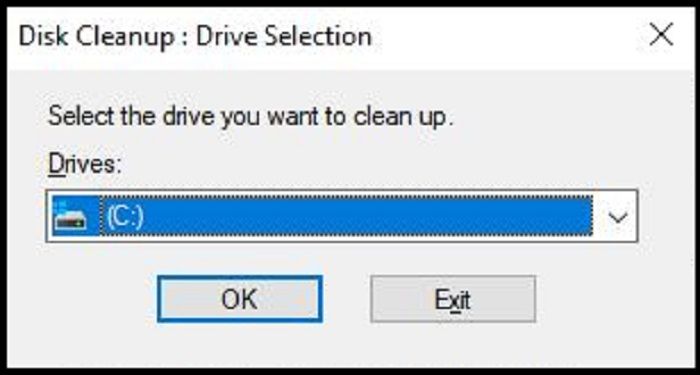
Step 4: Select the items from the list and then press "OK".
Step 5: Once completed, try to install the Windows update.
Fix 3. Run System File Scan
Running a system file scan can help resolve issues with system file corruption that may be preventing Windows updates from installing correctly. This process can be easily initiated using the Command Prompt option, and the detailed steps for doing so include:
Step 1: Press "Windows + S" to open the file search tool.
Step 2: To open the Command Prompt, type 'cmd' in the text box and select the "Command Prompt" option.
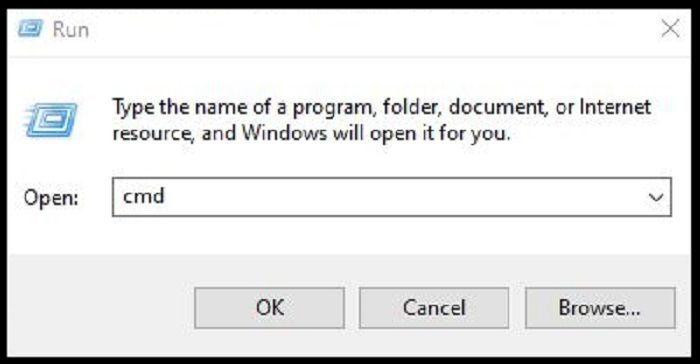
Step 3: Right-click and select the "Run as administrator" option.
Step 4: To restore health to your Windows image, open the Command Prompt as an administrator, type the command "DISM.exe /Online /Cleanup-image /Restorehealth", and press Enter.
Step 5: Run the System File Checker (SFC) tool by typing `sfc /scannow` and pressing Enter.
Step 6: Once the SFC scan is complete, wait for the Command Prompt to display the result message. This will indicate whether the scan was successful and if any corrupted system files were found and fixed.
Fix 4. Restart Windows Updates Services
To resolve issues with the Windows Update Service, ensure that the Cryptographic Service and Background Intelligent Transfer Service are running properly. If not, restart these services by following these quick steps:
Step 1: Press "Windows + R" to open the dialog box.
Step 2: To access the services page, type "services.msc" in the typing box and press "Enter".
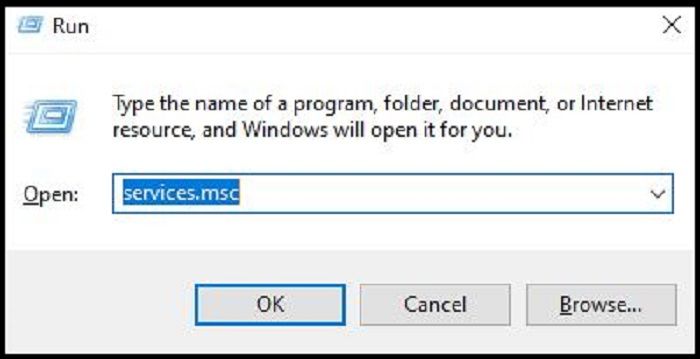
Step 3: Find the "Windows Update" option and select its properties.
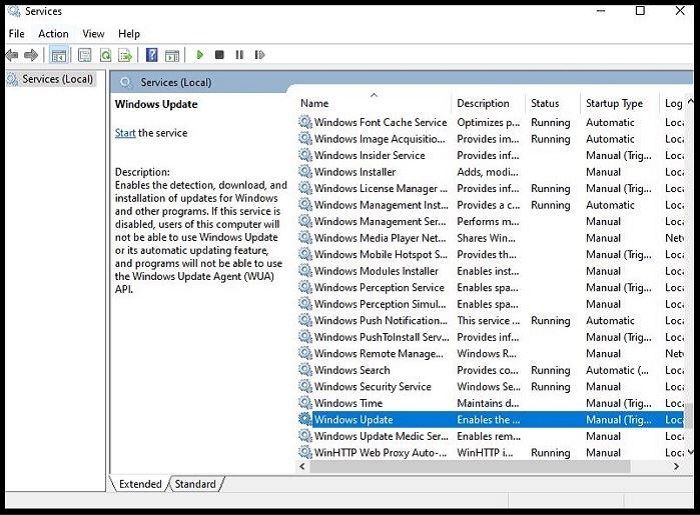
Step 4: Check the "Service Status" option, which should only be in the "Start" mode, and keep the "Startup type" to "Automatic".
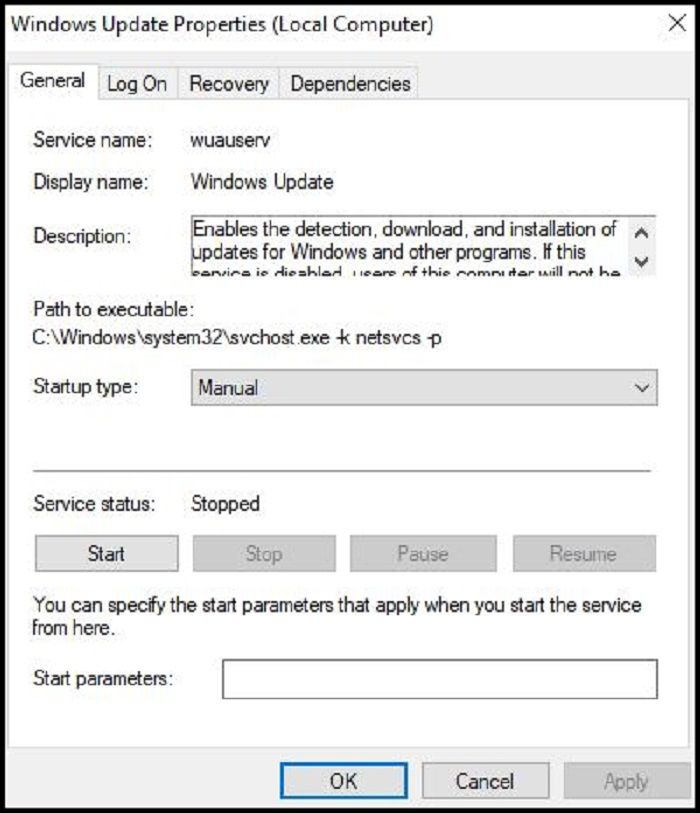
Step 5: Once completed, press "OK."
Step 6: The Cryptographic Service and Background Intelligent Transfer Services can be configured to run as a service, similar to the Windows Audio and Windows Search services. This can be done by creating a new service in the Services console, specifying the executable path and any necessary parameters, and then setting the startup type to "Automatic" or "Manual".
Fix 5. Delete SOFTWARE DISTRIBUTION Folder
The Software Distribution folder holds all Windows configuration and updates files, and issues with downloading Windows updates can cause problems with these files. To resolve the issue, you can simply delete all Software Distribution files and then download the latest files, which will replace the corrupted ones.
Step 1: Open File Explorer on your Windows system.
Step 2: Copy and paste the following command C: \Windows\SoftwareDistribution and press enter.
Step 3: Select all the files and press the "Delete" button.
Step 4: To keep your system up-to-date, download the latest available updates from the "Updates & Security" option in your system settings menu.
Fix 6. Turn Off Third-party Antivirus Programs
Additionally, the interference of third-party antivirus programs can also cause issues with Windows updates. To resolve this, simply turn off any active third-party antivirus program on your system. This should help resolve the problem and allow you to install Windows updates without any issues.
Step 1: Go to the third-party antivirus program icon.
Step 2: Right-click on the icon and select the "Uninstall" option.
Step 3: Once the program is uninstalled, restart your system and then download the Windows update.
Step 4: Wait until the Windows update is successfully installed.
Bonus Tip: Backup your Computer After Fixing the Issue
After learning about the detailed fixes for the Windows update not installing problem, it's great to back up your computer. Creating a system backup helps protect against potential data loss, and yes, you can create your own system backup using Qiling Disk Master Pro.
Qiling Disk Master Pro is a comprehensive tool for backup and recovery that supports Windows 7/8/10/11. It allows you to back up your system, file, disk, partition, computer app, and more, and enables different backup types, including full, incremental, and differential backups, which can be stored in various locations.
You can create an image of an SD card, an iso image of a hard disk, enjoy 250G cloud storage for free, and compress a backup to save space with this software.
Here is how to back up your computer using this backup tool: To start, launch the backup tool and select the type of backup you want to perform, such as a full backup or a incremental backup. Next, choose the files and folders you want to include in the backup, or select the option to back up the entire system.
Step 1. Launch Qiling Disk Master on your computer, and click the Backup and recovery tab page.

Step 2. To backup your Windows operating system, click on the "OS" option to initiate the backup process.

Step 3. Your Windows operating system information and all system related files and partitions will be automatically selected, so you don't need to do any manual selection at this step. Next, you'll need to choose a location to save the system image backup by clicking on the illustrated area.

Step 4. The backup location can be a local drive, external hard drive, network, cloud, or NAS, and using an external physical drive or cloud is generally recommended for preserving system backup files.

Step 5. Customiztion settings like enabling an automatic backup schedule in daily, weekly, monthly, or upon an event, and making a differential and incremental backup are available in the Options button. Click Proceed, and the Windows system backup process will begin. The completed backup task will display on the left side in a card style.

The Bottom Line
The "Windows update not installing" error can be attributed to various reasons, including Windows Update service issues, corrupted system files, and outdated drivers. Fortunately, the fixes mentioned above can be applied to resolve this issue, making it easier to understand and tackle the problem.
To resolve Windows update issues, try running a Windows update troubleshooter, cleaning up disk space, or running a system scan. Additionally, deleting the SOFTWARE DISTRIBUTION folder and disabling third-party antivirus programs may also help. It's also a good idea to create a quick system backup using a comprehensive backup solution like Qiling Disk Master Pro to protect your data.
FAQs on Windows Updates Not Installing
1. Why do updates fail to install?
Updates failing to install on your system can be caused by various reasons. Top reasons include software conflicts, corrupted system files, inadequate disk space, and outdated drivers. Additionally, issues with the Windows Update service, firewall restrictions, or malware infections may also prevent updates from being installed successfully.
- Issues with the Windows Update service
- Outdated drivers can lead to a shortage of compatible resources, such as network cards or graphic cards.
- Corrupted or deleted system files can cause Windows updates to fail to start.
2. How long does it take to install Windows 10 update 21H1?
Windows 10 users can easily update to the 21H1 version, with installation times varying depending on system storage size and type, taking around 10-20 minutes for solid-state storage and significantly longer for traditional hard drives.
3. How do I know if I have a 21H2 update?
Here are the steps to check if you have the 21H2 update on your system:
Step 1: Go to the "Settings" option on your system.
Step 2: Select the "About" option.
Step 3: Go to the "Windows specifications" option.
Step 4: The Windows version is 21H2 and the OS build number is 19044.
4. What happens if I turn off my computer while updating?
Turning off your computer while updating can cause data corruption or system failure, leading to serious damage to your system.
Related Articles
- SSD Showing RAW File System? All Fixes Here 2024
- The Operation Could Not Be Completed Because the Volume is Dirty [SOLVED]
- Fix Internet Explorer Keeps Crashing/Freezing/Not Responding Error
- [Solved] How to Fix DISM Error 2 Unable to Access the Image Windows 11/10
- How to Fix Checking File System on C Error on Windows 7/8/10/11 Startup
Users may encounter an error message while checking the file system on their C: drive, stating that the type of the file system is NTFS and prompting a check for disk consistency. This issue can be resolved using one of the four solutions outlined in this article. - How to Fix Dev Error 6634 in Warzone in Windows 10/11
Dev error 6634 is a Windows error caused by outdated operating system or graphic card drivers, which can be resolved by updating the drivers or ensuring the device is up-to-date.
Products
Articles & Tutorials
- Data Recovery
- Data Backup
- File Recovery
- File Backup
- System Backup and Restore
- Disk and Partition Clone
- Technical articles
- Mobile articles
- Disk Master Help
- Windows Data Recovery Tutorials
- Windows Secure Delete Tutorials
- Windows Partition Management Tutorials
- Windows File Backup and Restore Tutorials
- Windows System Backup and Restore Tutorials
- Windows Disk Backup and Restore Tutorials
- Windows Clone Tutorials