The Operation Could Not Be Completed Because the Volume is Dirty [SOLVED]
There can be many reasons behind the error with your external hard drives, and you don't have to worry as several solutions are available too. The "Operation Could Not Be Completed Because the Volume is Dirty" error can be solved by checking for disk errors, running a disk cleanup and checking for malware. Additionally, updating your operating system and disk drivers can also resolve the issue.
| Workable Solutions | Step-by-step Troubleshooting |
|---|---|
| Solution 1. Error-Checking the Drive | The recommended method to solve the error 0x80071AC3 by Windows is CHKDSK. You will need to run it...Full steps |
| Solution 2. Disable Readyboost | ReadyBoost is a Disk Caching feature that improves the performance of USB disks. Follow the steps...Full steps |
| Solution 3. Reinstall The Driver | Outdated disk drivers can be why Windows displays the "Volume is Dirty" error. Reinstall the driver...Full steps |
| Solution 4. Modify Widows Registry | Use the Registry Editor to remove the error 0x80071AC3 and resolve issues in your external hard disk...Full steps |
| Solution 5. Run CHKDSK to Fix Error | Here is a solution when the PC shows you the error. That solution is to run the CHKDSK to resolve it...Full steps |
External storage devices like USB, SD Card, SSD, etc., are prone to errors due to various situations, leading to a "Error 0x80071AC3: The Operation Could Not Be Completed Because the Volume is Dirty" prompt in Windows. This prevents any action on the data, making it challenging to repair corrupted external hard drives with important data.
The Operation Could Not Be Completed Because the Volume Is Dirty
You're experiencing an error (Error 0x80071AC3) when trying to access data on your external storage device, preventing any actions from being performed. This issue is due to the volume being "dirty," not a physical condition, but rather a problem with the internal bits that manage read and write permissions, causing Windows to be unable to read or write data from the device.
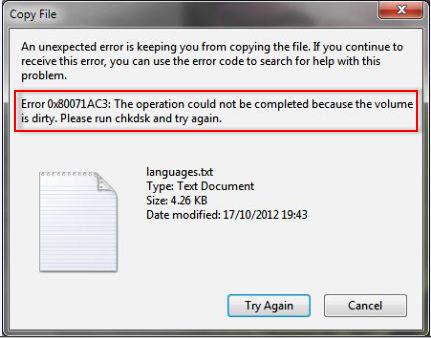
The "The Operation Could Not Be Completed Because the Volume is Dirty" error is not a Windows issue, but rather a problem with the external hard drive itself. This error prevents any read or write operations, such as copying, pasting, cutting, or deleting files, until it is resolved. The error is associated with code 0x80071AC3 and can be caused by various reasons related to the hard drive.
4 Reasons: Why It Says the Error 0x80071AC3
The "The Operation Could Not Be Completed Because the Volume is Dirty" error on Windows is usually related to an external hard drive, and not an OS error. This suggests that the issue is likely with the external storage drive itself, the USB port, or the disk drivers, rather than a problem with the operating system. The four most common reasons behind this error code, 0x80071AC3, include damage to the external hard drive, issues with the USB port, problems with the disk drivers, or other similar hardware-related issues.
Reason 1. Windows is Unable to Read or Write the Data on the Disk
The "Volume is Dirty" error on Windows may be caused by a system file issue, a virus or conflicting feature that prevents the external hard drive from being read or written, or potentially an infection on the external storage device itself, hindering Windows' ability to access the drive.
Reason 2. Outdated or Defective Hard Drivers
To resolve the issue of an external hard drive not showing up or being recognized, it's essential to ensure that your device drivers are up-to-date, as outdated drivers can cause compatibility issues with the external storage drive, leading to errors like 0x80071AC3. This can prevent read and write operations on the drive.
Reason 3. Damaged USB Drive Port
There is a chance the USB port you are using to connect to your external storage device to your system is damaged or the USB flash drive not working properly. It can affect your external drive and the data stored in it, causing the system to give you "Volume is Dirty" if you try to move some data into or from it.
Reason 4. Bad Sectors
0x80071AC3 error may be caused by bad sectors on an external hard drive, resulting in permanent damage and data loss.
5 Solutions: How to Fix the Error 0x80071ac3
Windows allows you to run multiple solutions to resolve the issue of the "The Operation Could Not Be Completed Because the Volume is Dirty" error, which can also manifest as 0x8007AC3. Unless your external storage device is severely damaged or the issues are related to hardware, these solutions can solve the problem for you.
Here are 5 common methods to resolve the issue:
Solution 1. Inspect the Drive With the Error-Checking Tool
The recommended method to solve the error 0x80071AC3 by Windows is CHKDSK. You can run it in Command Prompt or use the graphical (GUI) version of CHKDSK, known as the Error Checking Tool, which is a safer option for those uncomfortable with Command Prompt. To use the Error Checking Tool, follow the steps to run it and let it scan and fix any issues it finds, including the error 0x80071AC3.
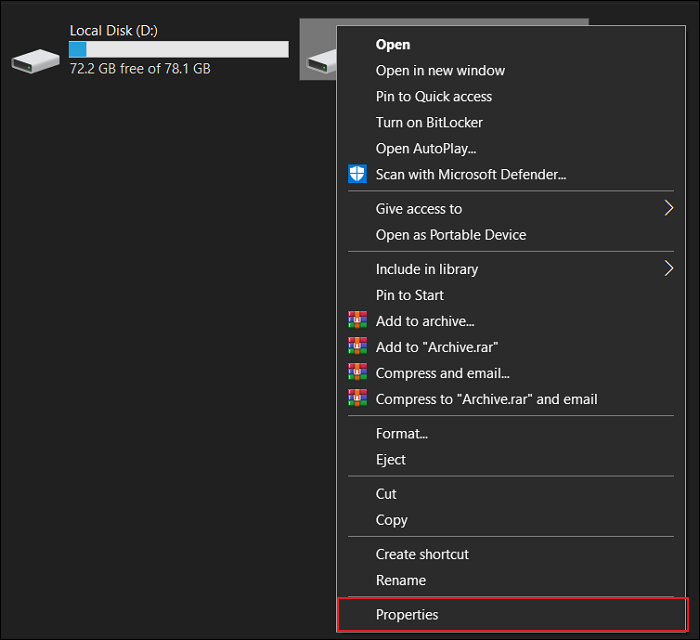
Step 1. To fix an external storage drive, access it through Windows Explorer by selecting "This PC", then right-click on the drive to open its "Properties".
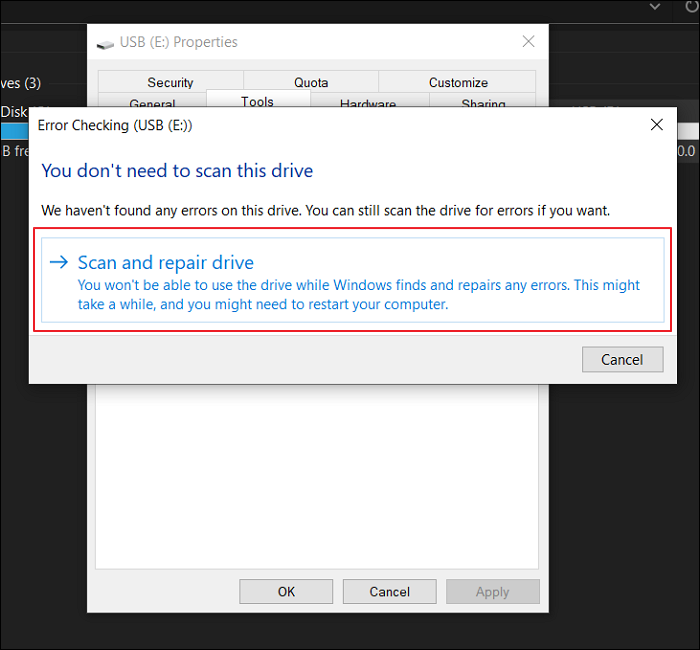
Step 2. Navigate to the "Tools" tab, press "Check" in the "Error Checking" section, tap on "Scan and Repair Drive" to start the repair process, and wait for it to finish, then confirm if the issues have been solved.
Solution 2. Disable Readyboost
In Windows, ReadyBoost is a feature that can improve the performance of USB disks, but it can also cause errors like 0x80071AC3. If your external hard drive is a USB drive and has ReadyBoost enabled, you can disable it to resolve the issue.
Step 1. Locate your external hard drive in "My Computer", right-click on it, and select "Properties".

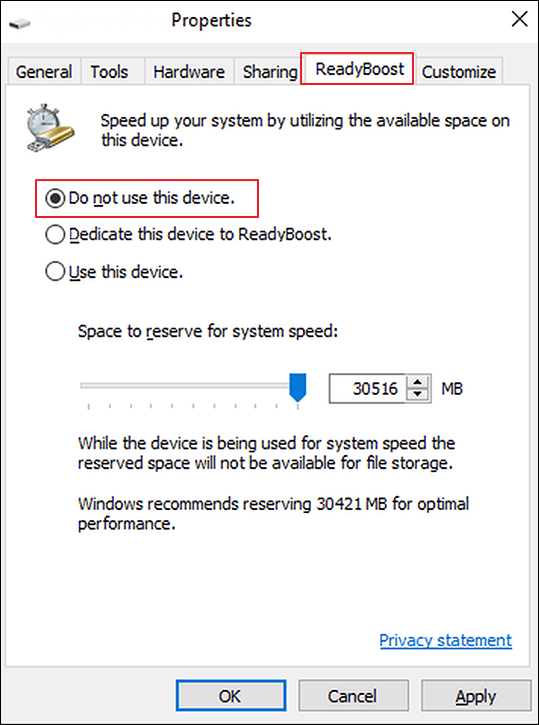
Step 2. To resolve the error 0x8007AC3, go to the "Properties" window, select the "ReadyBoost" tab, choose "Do not use this device," click "Apply," close the window, and check if the error persists.
Solution 3. Reinstall The Driver
Outdated or defective disk drivers can also cause Windows to display the "Volume is Dirty" error. To resolve this issue, you can uninstall the defective disk drivers and download and update USB drivers again. This process involves reinstalling the defective disk drivers, which can be done by following a series of steps, including uninstalling the problematic drivers and updating the USB drivers.
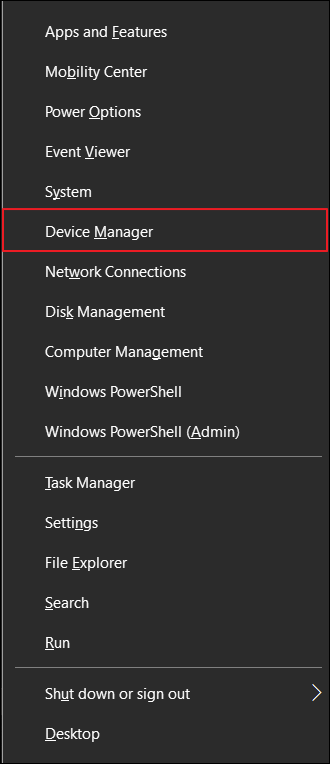
Step 1. To uninstall the defective drivers, open the Device Manager, expand the "Disk Drives" section, and click on the driver you want to uninstall. Then, right-click on it and select "Uninstall device" or "Uninstall" from the context menu. Confirm the uninstallation by clicking "Uninstall" or "Yes" in the pop-up window.
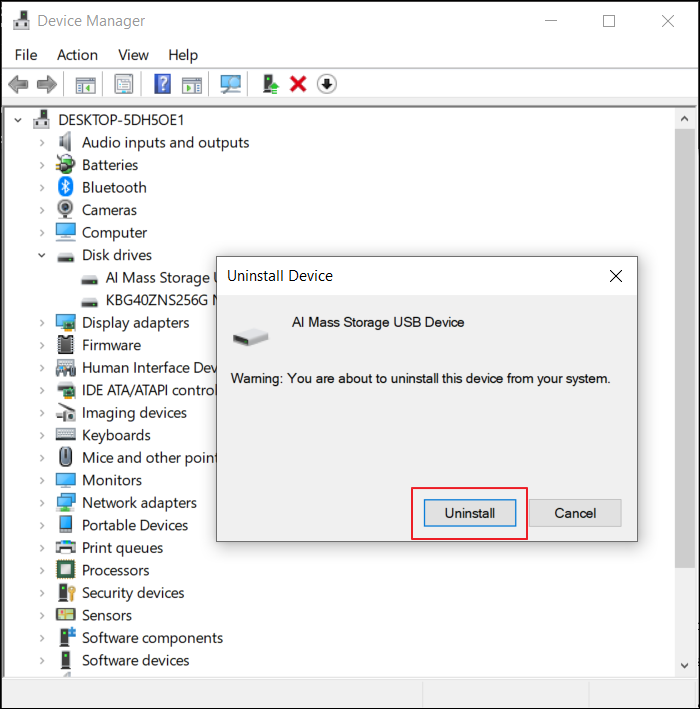
Step 2. To uninstall a defective driver, right-click on it, select "Uninstall device", and then press "Uninstall". After the uninstallation is complete, reboot your system.
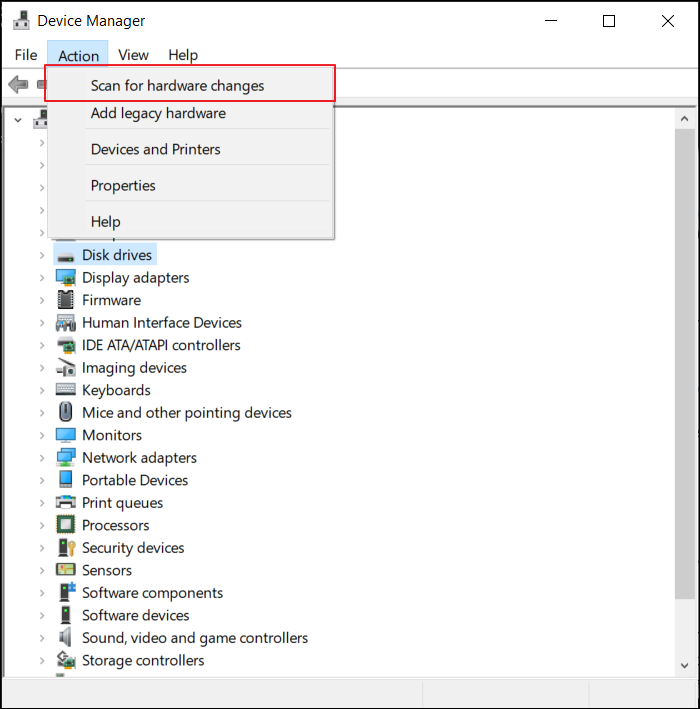
Step 3. After restarting your computer, open the Device Manager, click on "Action" and select "Scan for hardware changes" to reinstall the disk driver. This should resolve the issue and allow the external drive to function properly.
Solution 4. Modify the Registry Configurations in the Right Order
Another way to resolve error 0x80071AC3 and issues with your external hard disk is to use the Registry Editor. However, be cautious when using Registry Editor as one wrong modification can cause serious problems in your Windows. To modify the Registry Editor configurations, follow these steps carefully.
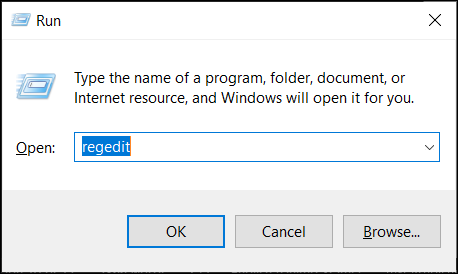
Step 1. To open Registry Editor, press the "Win + R" keys to open the Run dialogue box, then type "regedit" and press Enter, or use the search bar to find and open Registry Editor.
Step 2. The Registry Editor can be opened by typing "regedit" in the Windows search bar. To navigate to the correct key, copy and paste the following path into the address bar: "HKEY_CURRENT_USER\Software\Microsoft\Windows\CurrentVersion\Explorer\Shell Folders".
"Computer\HKEY_LOCAL_MACHINE\SYSTEM\CurrentControlSet\Control"

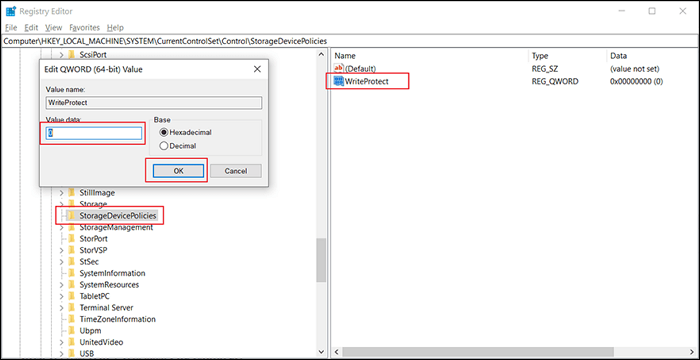
Step 3. To enable writing on a write-protected storage device in Windows, you can modify the Registry Editor. First, open the Registry Editor by searching for "regedit" in your Start menu. Navigate to the "HKEY_LOCAL_MACHINE\SYSTEM\CurrentControlSet\Control\StorageDevicePolicies" location. Then, double-click on the "WriteProtect" string value and change its data value from "1" to "0".
Solution 5. Run CHKDSK to Resolve Error 0x80071ac3
When Windows displays the error 0x80071AC3, it also suggests a solution, which is to use the CHKDSK command to fix the corruption issue. To run CHKDSK, follow these steps: 1. Open Command Prompt as an administrator. 2.
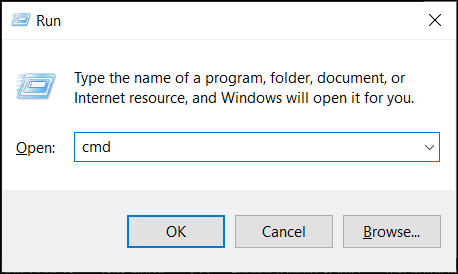
Step 1. To launch the Command Prompt as an Administrator, press the "Win + X" key and select "Command Prompt (Admin)" or use the Run dialogue box and type "cmd" to open it, and if using the "Run" press "Control + Shift + Enter" after adding the command.
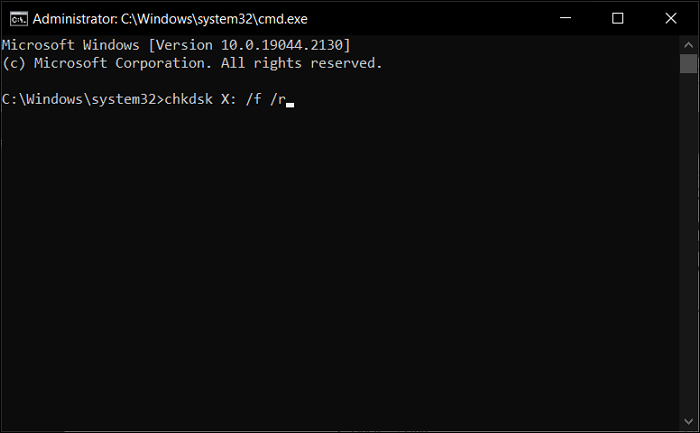
Step 2. To resolve the error 0x80071AC3 in the Command Prompt, run the command "chkdsk X: /f /r" where "X:" represents the name of your external hard drive or storage device. This will perform a check on the drive, fix any errors, and recover any readable information. Replace "X:" with the actual name of your external drive.
Bonus Tip: Recover Data From the Damaged Hard Drives
The above-Important data stored on your external hard drive may be lost during the repair process, especially if you use CHEDSK. Formatting the hard disk to make it workable again is also a possibility. In these scenarios, a specialized Windows recovery tool is needed to retrieve your essential data.
Deep Data Recovery is a tool that can recover essential data from damaged hard drives, both external and internal, and supports over 1000 data formats and 2000 devices for data recovery. It has impressive features that make it a recommended tool for data recovery.
Deep Data Recovery for Windows
- Recover lost data from Network-Attached Storage, all major NAS brands, and almost all types of NAS data are not secure. They can be easily accessed by unauthorized users, and data can be stolen or deleted.
- Recovering files from a formatted hard drive or a RAW external hard drive can be a challenging task, but it's not impossible. The first step is to stop using the drive immediately to prevent overwriting the existing data.
- This tool allows you to create a bootable WinPE disk that can be used to recover data in case of Windows corruption or damage, making it a useful resource for system recovery and data preservation.
To recover lost data from an external hard drive, start by ensuring the drive is safely connected to your computer and not being used by any other device. Then, download and install a reliable data recovery software, such as Deep Data Recovery Wizard or Disk Drill.
Step 1. Connect your external hard drive to your computer using a correct USB cable, and then run Deep Data Recovery. This software will display your external disk under External drives, supporting popular brands such as WD, Seagate, Toshiba, LaCie, SanDisk, Samsung, and more.

Note: You can choose different search modes based on where and why the data was lost.
Step 2. The process of recovering data from a corrupted hard drive typically involves selecting the affected drive, initiating the scanning process, and then waiting for the software to identify and recover recoverable data. To start this process, select the external hard drive that contains the corrupted data and then click the "Scan" button to begin the scanning process. This may take some time, depending on the size of the drive and the extent of the corruption.

Step 3. As soon as the scan process starts, the software will find and display lost and deleted data, organizing the recovered data in a user-friendly format. This allows you to quickly locate target files or folders by file type or search for specific files using the exact file name in the search box.

Step 4. After scanning, you can preview the files found by Deep Data Recovery's algorithms, select the desired files, and click "Recover". To prevent data overwriting, save the recovered data to a different drive than the original Seagate drive.
Final Thoughts
External storage devices are crucial for storing data outside of a system and creating backups. However, errors like "Error 0x80071AC3: The operation could not be completed because the volume is dirty" can occur, leading to data loss. Fortunately, Deep Data Recovery can assist in recovering data from a dead hard drive.
Operation Could Not Be Completed Because the Volume Is Dirty FAQs
Error 0x80071AC3 is a Windows Update error that occurs when there is a problem with the Windows Update service or the update files. This error can be caused by various factors, including corrupted system files, outdated drivers, or conflicts with other system services.
1. How do you fix the operation that could not be completed because the volume is dirty in Windows 7?
If you're a Windows 7 user experiencing the error 0x8007AC3, you can try the solutions mentioned above, which include running the CHKDSK or Error Checking Tool, modifying the registry, reinstalling disk drivers, and more, all of which can be performed on Windows 7.
2. How do I check the disk for errors using CMD?
To repair errors on your hard drive using the Command Prompt, open Command Prompt and run the "chkdsk g: /f /r" command, replacing "g:" with the name of the targeted hard drive. This will initiate the CHKDSK process, which will resolve errors on the specified drive.
3. How to fix "The request could not be performed because of an I/O device error"
- Check the device Connection.
- Update the device driver.
- Fix I/O device error external: change transfer mode.
- Send for manual repair.
- Fix it in Command Prompt.
4. How do I know if my hard drive is corrupted?
Signs of a failing hard drive include corrupted files and folders, disappearing files and folders, and difficulty opening certain files. Other indicators of hard drive damage may include the blue screen of death, strange noises, and computer freeze. These symptoms can signal that your hard drive is failing and may eventually lead to data loss if not addressed.
Related Articles
- How to Enable Windows Auto Login without Password
- 3 Proven Ways to Download & Install macOS 12 Monterey for Free [2022 Tips]
- How to Download DISM on Windows 11/10/8/7 for Free | 3 Detailed Ways
- How to Install DirectPlay in Windows 11/10 [Full Guide]
- How to Fix Atomic Heart Keeps Crashing Issue on PC
If Atomic Heart keeps crashing on your PC, you're not alone, and this post offers solutions and information to help you retrieve your game data. If the game crashes after an update, you can try to fix it by following the provided solutions, which will help you get back to playing the game. - How to Fix Atomic Heart Not Saving Issue on PC, PS4/5, Xbox [7 Tested Methods]
If you're frustrated with Atomic Heart not saving, there are fixes to try. Clearing Steam caches, disabling antivirus software, and running Atomic Heart as an administrator are just a few solutions to get you started.
Products
Articles & Tutorials
- Data Recovery
- Data Backup
- File Recovery
- File Backup
- System Backup and Restore
- Disk and Partition Clone
- Technical articles
- Mobile articles
- Disk Master Help
- Windows Data Recovery Tutorials
- Windows Secure Delete Tutorials
- Windows Partition Management Tutorials
- Windows File Backup and Restore Tutorials
- Windows System Backup and Restore Tutorials
- Windows Disk Backup and Restore Tutorials
- Windows Clone Tutorials