How to Fix Atomic Heart Not Saving Issue on PC, PS4/5, Xbox [7 Tested Methods]
If you're experiencing issues with Atomic Heart not saving, here are some potential solutions to try: Ensure you have the latest game patch installed, check if your save is corrupted, and try restarting the game or your console. If the problem persists, consider reinstalling the game or seeking assistance from the game's support team. Additionally, you can try verifying the integrity of the game files through your console's settings or the game's built-in options.
| Workable Solutions | Step-by-step Troubleshooting |
|---|---|
| 1. Fix Atomic Heart Not Saving by Clearing Steam Caches | Go to Settings on the Steam app, select Downloads, and then scroll down to select "Clear Download Cache" to remove any stored data.Full steps |
| 2. Check Atomic Heart Savings Corruption Issue | To open the Windows Command Prompt with admin permission, follow these steps: Right-click on the Start button, select "Command Prompt (Admin)" from the context menu, or press the Windows key + X and select "Command Prompt (Admin)" from the menu. Alternatively, you can search for "Command Prompt" in the Start menu, right-click on the result, and select "Run as administrator" to open it with elevated privileges. This will allow you to run commands that require administrative access.Full steps |
| 3. Stop Antivirus Software Temporarily to Fix Atomic Heart Issue | Open Task Manager, go to the "Startup" tab, find the antivirus app, and disable it.Full steps |
| 4. Run Atomic Heart as an Administrator on a PC | To access the game's installed directory, right-click on the app and select the context menu option to open the folder in your file explorer. This will allow you to navigate to the game's installation files and make any necessary changes or updates.Full steps |
| More Solutions | To resolve the issue, go to your Steam Library, select the Properties option for the affected game, choose Local Files, and then select the Verify Integrity of Game Files option. This will check for any corrupted or missing files and automatically replace them if necessary.Full steps |
Have you played Atomic Heart? If you are an avid gamer, chances are you have already heard and tried your hand at this game. Atomic Heart is one of the most popular single-player games released for PS4, PS5, Xbox One, Xbox Series, and Windows. It is rightfully credited as the "Game of the Year 2023".
The game Atomic Heart, like Hogwarts Legacy, has been affected by issues, including the frustrating problem of not saving progress, forcing players to repeatedly start over.
Fortunately, there are various solutions to fix the problem, and this article will explore the different methods that can be used to resolve the issue.
Method 1. Fix Atomic Heart Not Saving by Clearing Steam Caches
To resolve the Atomic Heart Not Saving Issue, delete the caches by following these steps: clear the game's cache, delete the cache folder, and restart the game. This simple method can help resolve the issue and get the game saving again.
Step 1. Go to Settings on the Steam app and select Downloads.
Step 2. To resolve the issue, clear the download cache on your device. To do this, navigate to the settings app, scroll down and select the option to clear the download cache. After clearing the cache, restart your device.
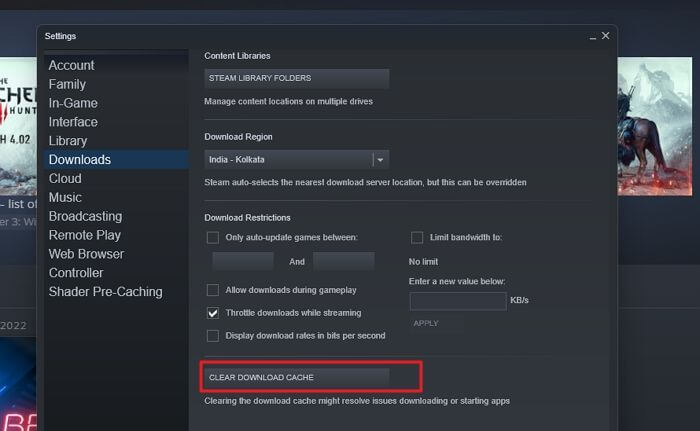
Step 3. Relaunch the game and check if the issue is resolved.
Method 2. Check Atomic Heart Savings Corruption Issue
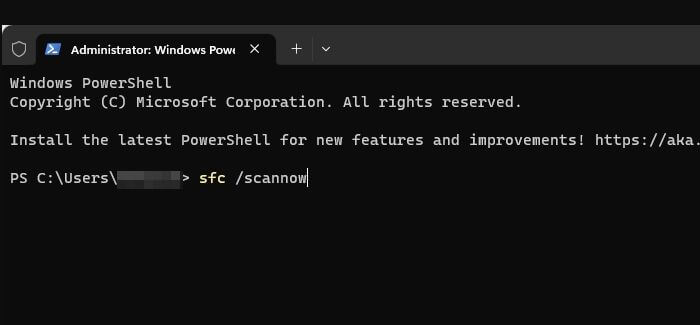
To check for save file corruption in Atomic Heart, you can use the SFC /scannow command on Windows on the drive where the game is installed, or scan the target folder directly where the save files are located.
Step 1. To open Windows Command Prompt with admin permission, press the Windows key + X to open the Quick Links menu, and then select "Command Prompt (Admin)" from the menu. This will open the Command Prompt with administrator privileges, allowing you to run commands that require elevated permissions.
Step 2. Navigate to the drive on which the game is installed.
Step 3. Run the built-in Windows tool SFC /scannow to scan and fix corrupted system files, which may be causing the issue. This can help resolve the problem.
Method 3. Stop Antivirus Software Temporarily to Fix Atomic Heart Not Saving
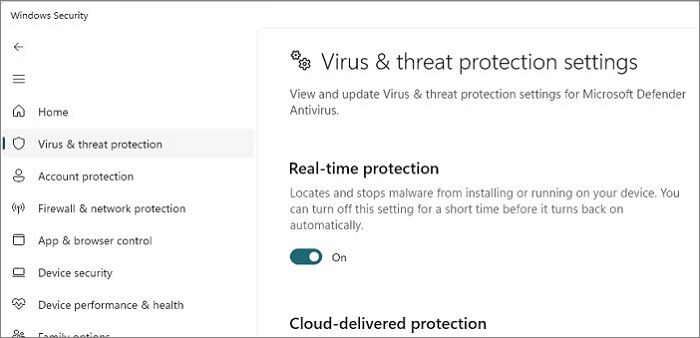
Disabling antivirus software can resolve the Atomic Heart Not Saving issue by allowing the game to run without interference, as the software may not recognize the game as a threat.
To resolve the issue, you need to disable the antivirus software temporarily, so it doesn't interfere with the installation process. Once the installation is complete, you can re-enable the antivirus software. This will allow you to install the software without any issues.
Check out the steps to follow:
Step 1. Open Task Manager and go to the "Startup" tab.
Step 2. Find the antivirus app from the list and disable it.
Step 3. Relaunch the game and check if the issue persists.
Method 4. Run Atomic Heart as an Administrator on a PC
You can try running the game as an admin to see if it resolves your issue. To do this, follow these steps:
Step 1. To access the game's installed directory, right-click on the app and select the context menu, which will allow you to navigate to the game's installed location.
Step 2. Go to Properties. Now, choose the Compatibility tab.
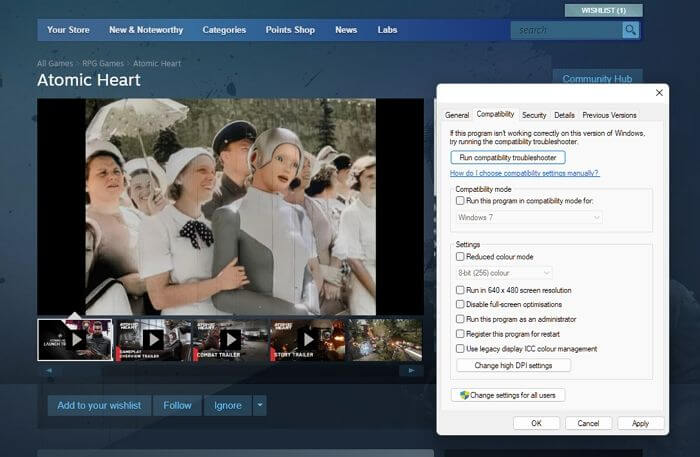
Step 3. To resolve the issue, right-click on the game's executable file, select Properties, and then tickmark "Run this program as an administrator". Select Apply and then OK. Run the game and check if the problem persists.
Method 5. Verify File Integrity to Troubleshoot Atomic Heart Not Saving
Verifying the game can help fix the "Atomic Heart Not Saving" problem. Take a look at the steps to follow:
Step 1. Go to Steam Library. Select Properties.
Step 2. Choose Local Files. Select Verify Integrity of Game Files option.
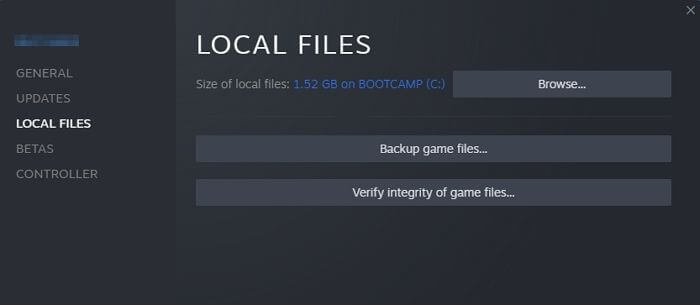
Step 3. If you've successfully fixed the Atomic Heart not saving issue using the provided solutions, you can now relaunch the game and enjoy playing it without any further problems. You can also share this guide with other game players who may be experiencing the same issue, providing them with a helpful resource to resolve their issue and get back to playing the game.
Method 6. Fix Atomic Heart Not Saving on PS4/5, Xbox
If you're experiencing issues with Atomic Heart not saving on your PS4/5 or Xbox, there are alternative solutions to try. To resolve the problem, you can try the methods below. These alternative approaches may help you fix the saving issue and ensure that your progress is saved.
Solution 1: Update the Game
Updating the game is often a simple yet effective solution to fix issues and prevent further problems. Keep an eye out for updates related to the game, and install them as soon as they become available, as they can often resolve complex issues.
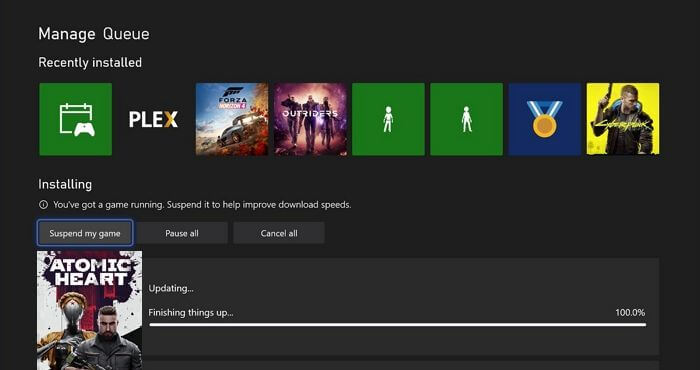
Solution 2: Close and Re-open the System
To resolve the Atomic Heart Not Saving issue on PS4/5 or Xbox, try closing the system, waiting for a while, and restarting it. If any updates are available, download them first, then relaunch the game. This simple step may resolve the issue.
Solution 3: Uninstall and Reinstall the Game
You can try uninstalling the game, then reinstalling it after some time, which may resolve the issue by downloading any necessary updates.
Method 7. Contact Atomic Heart Support Team
If the solutions provided don't work, contact the support team to resolve the issue. Be sure to clearly explain the problem. If the issue occurs on Steam, you can also reach out to Steam Support for assistance.
Restore Missing Savings of Atomic Heart on Your PC
If you're worried about losing data on your game, consider using professional data recovery software to ensure your progress is safe and you don't have to play Atomic Heart repeatedly.
The Deep Data Recovery software efficiently restores lost data, regardless of the cause, such as malware attacks, formatting, or system crashes.
The software is user-friendly and provides numerous features, making it a convenient tool to use.
- Recover deleted files like audio, video, emails, and images, as well as lost game data with this tool.
- Restores data from various devices such as cameras, hard drives, memory cards, etc.
- Send retrieved data to cloud storage directly, such as Google Drive, Dropbox, etc.
- To recover data from a formatted hard drive, you can utilize a deep scan feature that supports formatted recovery. This allows you to thoroughly scan the hard drive for any recoverable data, even after it has been formatted. This feature can be particularly useful in situations where data loss is a concern.
Conclusion
Atomic Heart, a popular single-player game, is often marred by the frustrating issue of not saving progress. Fortunately, there are several solutions that can help resolve this problem, such as updating the game to the latest version, verifying the game's file integrity, and possibly more.
Gamers may encounter data loss while playing Atomic Heart. To resolve this issue, using professional data recovery software like Deep Data Recovery can be helpful, as it is user-friendly and aids in retrieving lost data with ease.
Atomic Heart Not Saving FAQs
If you're experiencing issues with Atomic Heart not saving, there are several solutions you can try. For more information, check out the following questions and answers:
1. How to save Atomic Heart on PC manually?
To manually save Atomic Heart on PC in case the game keeps crashing and loses essential data, go to the safe areas, such as breakrooms, where you'll find the "Manual Savegame Machine" on red-colored phones, often near vending machines.
2. Why my Atomic Heart game progress is not saving?
If the game has storage issues or doesn't have a dedicated save location and permission, progress won't be saved. To avoid this, enable cloud settings within the game to save everything.
3. What is the best method to fix Atomic Heart not saving?
If Atomic Heart isn't saving, try clearing caches, uninstalling and reinstalling, or contacting support.
4. Can I recover Atomic Heart missing saves on a PC?
If you're experiencing issues with Atomic Heart missing saves on your PC, don't worry, there's a solution. A reliable data recovery tool, such as Deep Data Recovery, can assist in recovering your lost saves in a hassle-free manner. This software can help restore your data, giving you a second chance to experience the game as intended.
Related Articles
- How to Fix Your Computer Is Low on Memory on Mac
- How to Hard Restart Mac or MacBook [2024 Update]
- How to Turn On/off Firmware Password on Mac [Fixed]
- Samsung 990 Pro vs 980 Pro: Which SSD to Choose?
- [Fixed] The Object Invoked Has Disconnected from its Clients
The object invoked has disconnected from its client's message is a very common error message. Though it appears when a Java program is running on Windows, the exact cause can't be diagnosed in the first place. - Fixed: The Office Open XML Cannot Be Opened [Full Guide]
What do you know about the Office Open XML file? This article features an overview of the file format and provides a guide on what to do if the Office Open XML cannot be opened. With the provided details, you can resolve the particular issue.
Products
Articles & Tutorials
- Data Recovery
- Data Backup
- File Recovery
- File Backup
- System Backup and Restore
- Disk and Partition Clone
- Technical articles
- Mobile articles
- Disk Master Help
- Windows Data Recovery Tutorials
- Windows Secure Delete Tutorials
- Windows Partition Management Tutorials
- Windows File Backup and Restore Tutorials
- Windows System Backup and Restore Tutorials
- Windows Disk Backup and Restore Tutorials
- Windows Clone Tutorials