Fixed: The Office Open XML Cannot Be Opened [Full Guide]
Preserving documents and file management is a crucial task in businesses and corporations, with many opting for a paperless system. To meet this demand, Microsoft Office users found the Open XML format a suitable solution. However, if you're experiencing issues with opening Office Open XML files, you're not alone, and this article aims to provide a guide on what to do in such cases.
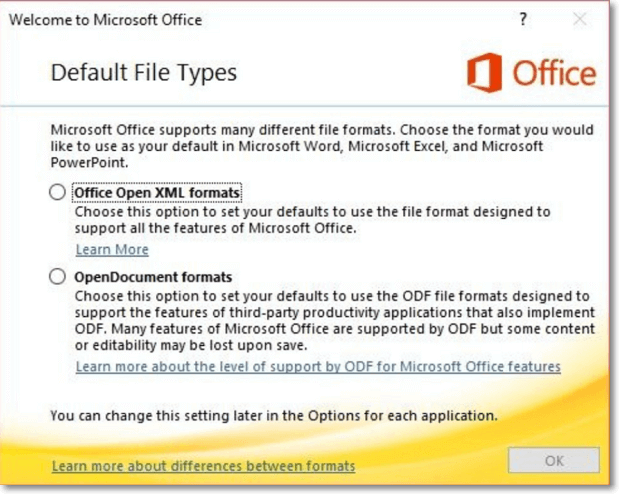
What Is Office Open XML
The Office Open XML format, introduced in 2007, may be unfamiliar to many, despite its presence in systems for over a decade. This file format offers benefits to users, and we'll provide an overview of its key features and advantages.
Microsoft, Ecma, ISO, and IEC introduced the Open XML file format in 2006, initially used in Microsoft Office 2007. This file format is inspired by XML, a markup language for storing and transmitting data, and is designed to maintain spreadsheets, charts, presentations, and word-processing documents. Its key functions make it a great option, allowing for easy storage and transmission of data.
- Files are automatically converted and compressed to 75% smaller documents using zip compression technology, which also allows them to uncompress and open automatically.
- The data components in the files are kept separately, making data recovery easier if the file gets corrupted.
- You can share confidential documents in a format that protects personal information, allowing for controlled sharing.
- Microsoft's advanced features require documents to be stored in Open XML format, making it a promising file format.
The Office Open XML format is used in various Office platforms, including Word, Excel, and PowerPoint. It can be easily opened on these platforms, making the types diverse in utility.
Possible Causes: The Office Open XML Cannot Be Opened
If the Office Open XML cannot be opened, it's likely due to a corrupted file, incorrect file association, or a missing Microsoft Office application. To resolve this, try reinstalling Microsoft Office, updating your operating system, or checking the file association settings. Additionally, you can try opening the file in a different application, such as LibreOffice or Google Docs, to see if it can be opened. If the issue persists, you may need to contact a technical support specialist for further assistance.
- The Open XML file may not open on your computer due to exporting the document or upgrading your Office, which causes the parsing error. This prevents the file from being opened.
- A virus or malware may have attacked the computer, causing the XML file not to open on your desktop, possibly due to a problem caused by the virus in the XML file.
- There's an issue with the XML file due to a wrong character in its name, preventing it from opening.
- An XML file is represented with a code, which might have some syntax or other error, making it corrupted. This corruption can occur due to various reasons such as incorrect closing tags, missing or extra attributes, and invalid character encoding.
Solutions: The Office Open XML Cannot Be Opened
To open an Open XML file, you can try using a software that supports it, such as Microsoft Office or LibreOffice. If you're using a Mac, you can also try using the free and open-source software, NeoOffice.
- Method 1: Using the Open and Repair Feature
- Method 2: Using Google Docs, Sheets, or Slides
- Method 3: Using File Repair Software
Method 1: Using the Open and Repair Feature
To access the "Open and Repair" feature in Microsoft Office, open any respective software such as Word, Excel, or PowerPoint, and follow the steps:
Step 1. To open a file, click on the "File" tab located on the top left side of the screen, then select the "Open" button from the left column.
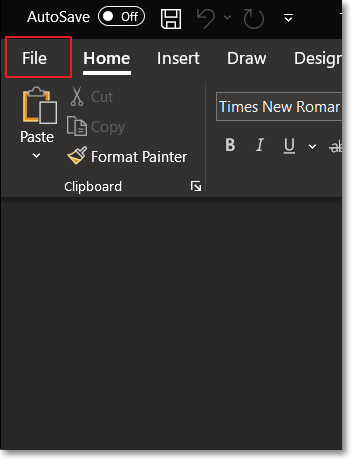
Step 2. To open an Open XML file, search for it in File Explorer, select it, click on the arrow next to the "Open" option, and choose "Open and Repair" from the dropdown menu. This will allow you to open the file with the platform.

Method 2: Using Google Docs, Sheets, or Slides
If you're having trouble opening an Office Open XML file on your computer, you can use Google Docs, Sheets, or Slides instead. To do this, follow the steps below:
Step 1. To access Google Drive, log in to your account from your browser if needed. Once on the homepage, click the "New" button and choose "File Upload" to upload a file.
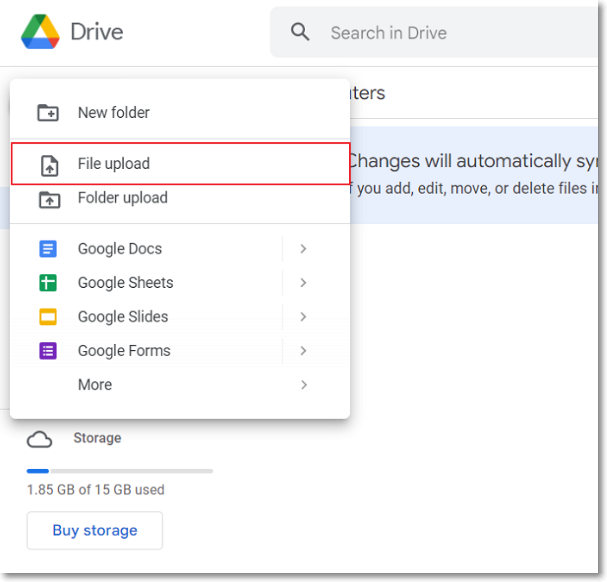
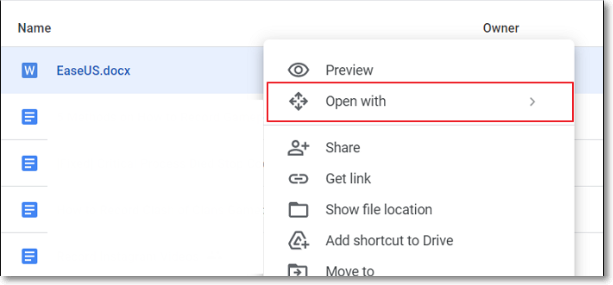
Step 2. To add an Open XML file to Google Drive, browse and successfully add the file. Right-click on the added file and select the "Open with" option, where you can choose to open it with Google Docs, Google Sheets, or Google Slides, depending on your needs.
Method 3: Using File Repair Software
To repair a corrupted Open XML file, use a file-repairing software that offers advanced options and systems for repairing the file, such as repairing corrupted files with better systems and options.
Final Thoughts
The Office Open XML file format, used in Microsoft Office, has been explained in detail, including its functions and types. A focus has been placed on the scenario where Office Open XML files cannot be opened, with clear and definite solutions provided to manage these files effectively. This comprehensive overview aims to provide a thorough understanding of the Office Open XML file format and its usage.
Office Open XML FAQs
There might be some questions that may remain for managing the Open XML files. For that, we have provided some answers to the file format as follows:
1. How do I fix XML parsing errors in Word?
To fix the XML parsing error in Word, convert the file to ZIP, extract the problematic XML file, and open it in Notepad++ where you can search for and resolve the error using the XML Tools plugin.
2. Why can I not open an Outlook window with an invalid XML?
If you're using Outlook and experiencing issues with the "Compatibility Mode" option, try disabling it by accessing your Outlook settings. This might resolve the problem.
3. How do I open XML files in PDF?
To print an XML file as a PDF, open the XML file in a browser, press the "CTRL + P" button to access the print option, change the printer to "Microsoft Print to PDF" or a third-party PDF editor, and print the document as a PDF file.
Related Articles
- Repairing Disk Errors This Might Take an Hour - How to Fix?
- How to Fix Windows 10 Start Menu Critical Error
- Disk Utility First Aid Process Has Failed [with 5 Proven Ways to Fix It]
- External Hard Drive Heating Up: Everything You Should Know
- How to Fix Error Message 'Word was Unable to Read Document. It May be Corrupt' Efficiently
The error message - Word was unable to read document. It may be corrupt, which usually happens when you suddenly can't open your word file. In this article, we will focus on why this error message appears and how to fix this problem. - Xprotectservice Explained: Apple's Built-in Antivirus Software
The Xprotectservice in macOS is an antivirus system that scans for malware and other threats in real-time. It uses a combination of signature-based and behavior-based detection to identify and block malicious software.
Products
Articles & Tutorials
- Data Recovery
- Data Backup
- File Recovery
- File Backup
- System Backup and Restore
- Disk and Partition Clone
- Technical articles
- Mobile articles
- Disk Master Help
- Windows Data Recovery Tutorials
- Windows Secure Delete Tutorials
- Windows Partition Management Tutorials
- Windows File Backup and Restore Tutorials
- Windows System Backup and Restore Tutorials
- Windows Disk Backup and Restore Tutorials
- Windows Clone Tutorials