How to Turn On/off Firmware Password on Mac [Fixed]
A firmware password on Mac is a security feature that prevents unauthorized firmware updates, essentially requiring a password to make changes to the computer's low-level software. This password is separate from your regular login password and is usually set by the user or the computer's administrator. If you're prompted for a firmware password, it's likely because someone has tried to make changes to the Mac's firmware without permission, or because the computer's firmware needs to be updated. Understanding what a firmware password on Mac means can help you troubleshoot and resolve the issue.
What Is A Firmware Password on Mac
The Firmware Password on Mac, also known as the EFI lock, is a security feature that protects personal data on Mac devices. It prevents unauthorized access to Macs with external drives, ensuring that only those with the correct firmware password can gain access. This feature provides an additional layer of security for Mac users, safeguarding their sensitive information and preventing unauthorized access.
The firmware password on a Mac is a separate password from the administrator password, used for logging in and out. It's a unique password that prevents others from starting your Mac using an external storage device or the macOS Recovery mode. This password is required only when someone tries to boot your Mac from an external source, adding an extra layer of security to protect your device.
We have talked about what the firmware is in our previous articles. You can click the link page below and learn more:
What Is Firmware? - Tutorial And Example
Firmware is a type of programming that is stored in a hardware device's memory, controlling its basic functions. It can be updated or modified, but unlike software, it is not easily changed or deleted. The main types of firmware include Boot Firmware, which initializes the system, and Application Firmware, which manages specific device functions. Firmware is distinct from software, which is typically used for operating systems and applications, and is often used in devices such as smartphones, computers, and appliances.
How to Set a Firmware Password on Mac
To turn on the firmware password on your Mac, go to System Preferences, then click on Security & Privacy, and select the General tab. Click on the lock icon and enter your admin password. Then, click on the "Allow changes" button. Next, click on the "Firmware Password" tab and select the "Set firmware password" option.
Turn On the Firmware Password on Mac
To turn on the firmware password on your Mac, follow this simple guide. You can easily complete the steps to secure your Mac with a firmware password.
Step 1. To enter the macOS Recovery, start your Mac and press the Command (⌘) and R keys together until you see the Apple icon or a rotating earth icon.
Step 2. After successfully entering the macOS Recovery, a utility window will appear, from which you can choose either the "Startup Security Utility" or the "Firmware Password Utility".
Step 3. Then click "Turn On the Firmware Password."
Step 4. A window will now appear asking you to enter a firmware password. Enter your desired password and remember it, then click on "Set Password" to confirm.
To turn on the firmware password on Mac, follow these steps: go to System Preferences, select Security & Update, click on the lock icon and enter your admin password, select the "Allow firmware password" option, and then click on the "Turn On Firmware Password" button. Once you've done this, your Mac will be protected by the firmware password you set, and it will require the password whenever someone tries to launch it through an external storage device or start it up from macOS Recovery.
Turn off the Firmware Password on Mac
To turn off the firmware password on a Mac, go to System Preferences, then click on "Security & Privacy", select the "Security" tab, and click on "Reset all warnings". Next, click on "Turn Off Firmware Password" and enter the current firmware password to confirm. If you're prompted to enter the firmware password again, do so. If you're unable to disable the firmware password, you may need to reset it by turning off the Mac, pressing the power button, and holding it for 10 seconds to discharge the power, then pressing the power button again to turn it back on, which will reset the firmware password to the default.
Step 1. To enter the macOS Recovery, start your Mac and press the Command (⌘) and R keys together until you see the Apple icon or a rotating earth icon.
Step 2. The Mac computer will require the firmware password set before. Enter the firmware password.
Step 3. After successfully entering the macOS Recovery, a utility window will appear, from which you can choose either the "Startup Security Utility" or the "Firmware Password Utility."
Step 4. Click on "Turn Off Firmware Password."
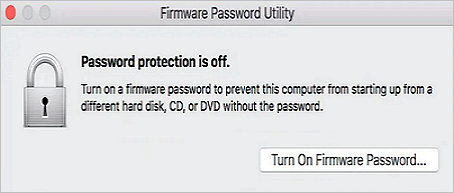
Step 5. Enter the firmware password again when prompted. Then your firmware password on Mac is turned off.
What to Do If Forget the Firmware Password
If you've deleted your firmware password and can't remember it, you can contact Apple for assistance.
If you've forgotten your firmware password on your Mac, you can schedule an in-person appointment with Apple at either an Apple Store or an Apple Authorized Service Provider to have it reset.
Apple requires the original receipt to verify ownership of a Mac, as some individuals might attempt to resell it without proper documentation. To prove ownership, bring the Mac and the original receipt to the store. This helps prevent unauthorized resale and ensures a smooth process.
Conclusion
We've provided information about the firmware password on Mac and a complete guide on how to set one, hoping to answer your questions about this feature.
FAQs about Firmware Password on Mac
Here we have collected several hot topics about the firmware password on Mac. You can check the topics below to see if there has more information you need.
1. Can you bypass the firmware password on Mac?
If a firmware password is set on a Mac, it cannot be bypassed, but the owner can disable it. To do this, the owner can follow the steps listed above to turn off the firmware password on their Mac.
2. Why is my Mac asking for a firmware password?
A firmware password is set by users to protect their personal information and prevent others from accessing their Mac. This password is required to start the Mac with an external storage device or through the macOS Recovery, thereby safeguarding the owner's privacy.
3. Where is the firmware password stored on a Mac?
The firmware password on a Mac can be found in the non-volatile memory on the motherboard.
Related Articles
- How to Restore Missing Downloaded Files Steam
- Free PDF Editor - Top 6 Best Free PDF Editors 2020 Update
- Five Things You Need to Do Before Windows 10 Update
- Best Ways To Fix Windows PowerShell Keeps Popping Up
- Forgot OneDrive Password, How Do I Restore It [2022 Guide]
OneDrive may be showing an incorrect password message if you've forgotten your password or made typing mistakes while entering it. - Free Download Easy Recovery Software to Restore Lost Data in 2022
Easy recovery software - Deep Data Recovery is available supports to recovering lost data like pictures, videos, documents, etc. on Windows 10/8/7/XP, etc., PC. Free download Qiling easy data recovery software and follow the instructions here to bring back your lost files immediately.
Products
Articles & Tutorials
- Data Recovery
- Data Backup
- File Recovery
- File Backup
- System Backup and Restore
- Disk and Partition Clone
- Technical articles
- Mobile articles
- Disk Master Help
- Windows Data Recovery Tutorials
- Windows Secure Delete Tutorials
- Windows Partition Management Tutorials
- Windows File Backup and Restore Tutorials
- Windows System Backup and Restore Tutorials
- Windows Disk Backup and Restore Tutorials
- Windows Clone Tutorials