How to Hard Restart Mac or MacBook [2023 Update]
When a Mac suddenly stops responding or experiences technical issues, a hard restart, also known as a force restart, is often the solution to resolve the problem and restore the computer's functioning. This simple yet effective troubleshooting step can help resolve many issues, making it a go-to solution for Mac users.
| Workable Solutions | Step-by-step Troubleshooting |
|---|---|
| Fix 1. Hard Restart with Keys | Hard restarting a Mac with a combination of keys is one of the simplest and most effective ways...Full steps |
| Fix 2. Boot Mac into Safe Mode | Booting a Mac into Safe Mode is another effective way to troubleshoot technical difficulties...Full steps |
| Fix 3. Run Apple Diagnostics Mode | Apple Diagnostics is yet another proven method for resolving technical issues on a Mac...Full steps |
A hard restart can be an effective solution for many technical issues on Mac, but it can also be inconvenient for users who need to become familiar with the process. This method deletes all unsaved changes, which can be frustrating. However, it remains a valuable way to troubleshoot and resolve technical issues, making it a useful tool for Mac users.
Why You Should Hard Restart A Mac
A hard restart of your Mac may be necessary due to various reasons. It ensures smooth functioning and prevents frustration, making it a good practice to hard restart your Mac when needed. Additionally, specific software and hardware-related constraints may require a hard restart, including issues such as system freezes, app crashes, and hardware malfunctions.
- Resolving frozen or unresponsive screens: A hard restart can help resolve issues like a Mac not restarting after updating, as well as problems with the mouse cursor, keyboard, or Discord not responding.
- Enhance performance: A hard restart can clear the memory and cache, improving the computer's overall performance.
- Facilitating software updates: To ensure a smooth installation process before or after a software update, it may be necessary to prepare the system by running a system update or a disk cleanup. This can help prevent any potential issues or conflicts that may arise during the installation process.
- Troubleshooting hardware issues: A hard restart can sometimes help diagnose and resolve hardware issues such as a malfunctioning battery or display.
Now that you know the reasons, you should be curious to learn different methods to hard restart your Mac, which will be explained in the coming section.
3 Ways to Hard Restart A Mac/MacBook
To hard restart your MacBook, you can use various methods, but first, make sure to back up your data on a Time Machine or hard drive to prevent any loss during the process. Once your data is safe, you can proceed with the restart methods.
Fix 1. Hard Restart Mac with Keys Group
To hard restart your Mac, press and hold the Power button and the Command (⌘) + Option (⌥) + Esc keys simultaneously for 10 seconds. This will force your Mac to shut down immediately, and then restart. This method is useful for resolving issues where your Mac is unresponsive or frozen.
Step 1. To put your Mac to sleep, press and hold the "Command "+ "Control" + "Power" buttons on your keyboard. This will immediately shut down your computer and put it into a low-power state, conserving energy and prolonging the lifespan of your device.
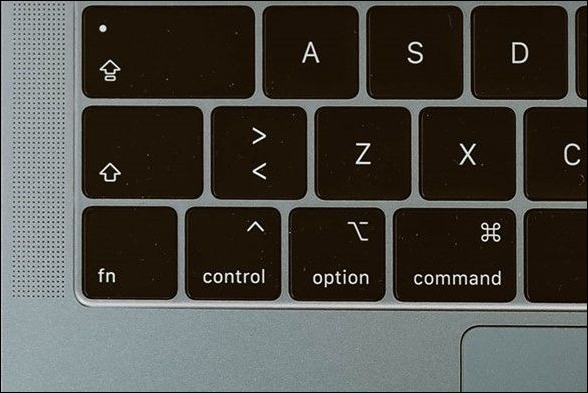
Step 2. Continue holding the buttons until the Mac shuts down.
Step 3. Release the buttons and wait for a few seconds.
Step 4. Press the "Power" button to start up your Mac.
Fix 2. Boot Mac into Safe Mode
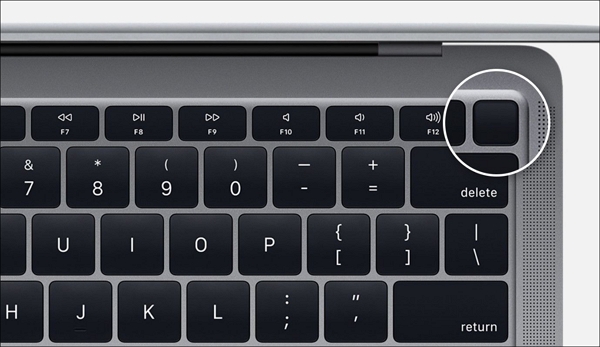
To boot your Mac into Safe Mode, shut it down completely, then press the power button to turn it back on. As soon as the boot chimes start, hold down the Shift key. Keep holding the Shift key until the login screen appears, indicating that your Mac has successfully booted into Safe Mode. In this mode, only the necessary system components and services will be loaded, allowing you to troubleshoot and resolve software and hardware issues.
Step 1.To shut down your Mac, press the Command (⌘) + Control + Power buttons simultaneously. This will immediately power off your computer.
Step 2.Immediately press the Power button on your Mac and hold the Shift key as soon as it starts up, then release both keys when you hear the boot chime. This will allow you to boot into Safe Mode.
Step 3. Hold the "Shift" key and select your hard drive.
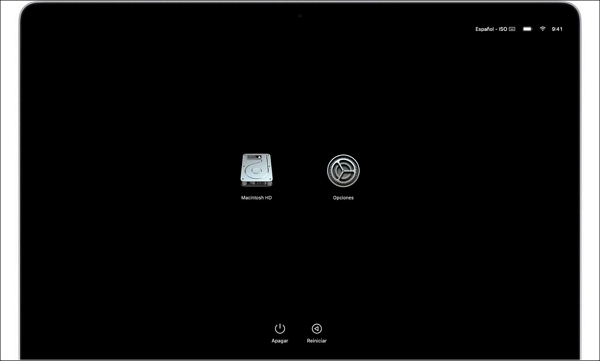
Step 4. Release the Shift key, click on "Safe Mode" and wait for the login screen to appear.
You've successfully booted into Safe Mode, which means you can now check for any system issues.
Fix 3. Run Apple Diagnostics Mode
Apple Diagnostics is a built-in tool on Macs that scans the device and reports any malicious information, allowing users to take action against it. To run Apple Diagnostics, follow these easy steps:
Step 1.To hard reset your device, press and hold the "Command," "Control," and "Power" keys simultaneously on your keyboard. This will immediately shut down your device and restart it.
Step 2.To power on the device, press the "Power" key, and then press and hold the "D" key.

Step 3. Continue holding until you see the screen of "Apple Diagnostics."
Step 4. Now, wait until the diagnostics completion bar is filled.

Once the diagnostics are finished, you'll receive a report detailing any problems that were found.
How to Recover Lost Data While Mac Freezes
Are you frustrated due to Mac's sudden unresponsiveness and worried about your important data? You can install Deep Data Recovery to ensure your data is never lost. This solution helps you recover your data even if your Mac is unresponsive, giving you peace of mind when working on important tasks.
It is a powerful data recovery tool designed to recover deleted files on Mac caused by file system malfunctions, system crashes, and unintended file deletion. User-friendly and easy to use, even for new users, this software provides a simple, all-in-one solution for Mac users' data security who experience sudden freezing and stop-responding issues.
Here are the key features of the software:
- The application supports a wide range of file types, encompassing documents, images, videos, audio files, and many other formats, making it a versatile tool for various purposes.
- Data recovery software that can recover data from various storage devices, including hard drives, memory cards, USB drives, and more.
- This software offers three scanning modes: quick scan, deep scan, and partition recovery.
- The preview feature allows users to preview recoverable files
Try out the Deep Data Recovery for Mac in three simple steps to rescue your data.
Note: To create a backup of your Mac, click on "Disk Backup" on the left first. This will allow the software to recover deleted files from the backup image, preventing further damage to your disk and data, making it a safer and more reliable process.
Step 1. Select the location and scan
Launch Deep Data Recovery for Mac, select the disk where data was lost, and click "Search for lost files" to initiate scanning.

Step 2. Filter and preview lost files
After scanning, use the file format filter on the left or upper right corner to find the deleted files you need.

Step 3. Recover lost data or files
You can double-Click a file to preview its content, or choose multiple files to recover them at once. Click "Recover" to restore the lost data to a local or cloud drive.

The Difference Between Hard Restart and Hard Reset
A hard restart is a method to resolve issues on a computer or device by turning it off and back on again, often used to troubleshoot problems such as frozen screens, slow performance, and app crashes. It can fix little bugs and glitches, and is typically done when a software issue needs to be resolved.
A hard reset on a MacBook is a drastic measure that restores the device to its original factory settings, deleting all data, settings, and configurations, including personal files and system settings. This is typically used as a last resort when a MacBook is not functioning properly, usually when restarting doesn't fix the issue.
- Factory reset: A factory reset is typically used to resolve problems with the device, such as slow performance, crashes, or errors, by restoring it to its original settings.
- NVRAM reset: The NVRAM reset can resolve issues by resetting display and audio settings stored in the NVRAM.
- PRAM reset: The PRAM reset can resolve display, audio, and disk-related issues by resetting the display, audio, and disk drive-related settings stored in the PRAM.
- SMC reset: The System Management controller reset can help resolve hardware-related issues by resetting the SMC's stored settings.
Final Words
If your Mac becomes unresponsive, a hard restart is a simple solution. In this article, we've outlined three easy methods to troubleshoot this issue. However, users often worry about losing their data during this process. Fortunately, there's a way to safely recover all your data with minimal effort using Deep Data Recovery for Mac, providing peace of mind and helping to recover lost data.
Hard Restart Mac FAQs
Still, have some questions in mind? This section will answer some of the commonly asked questions. Let's jump into that.
1. How do you restart a frozen Mac?
To restart a frozen Mac, hold down the Command (⌘) and Power buttons simultaneously for about 10 seconds, until the computer shuts down. This is the most straightforward way to restart a frozen Mac.
- To shut down your Mac, press and hold the Command, Control, and Power keys at once. This action will initiate the shutdown process, and your Mac will begin to close all applications and shut down.
- Press the "Power" button to shut down the computer, then press it again to turn it back on. Wait for the computer to fully restart before using it again.
2. When should I hard reset my Mac?
A hard reset on a Mac should be a last resort to resolve system issues, as it restores the entire system to its factory settings, erasing all data, applications, and settings. It should only be attempted after all other troubleshooting methods have failed to resolve the problem.
3. What does force restart do on Mac?
A force restart is a quick fix for frozen screens or unresponsive Macs, but it erases unsaved data, so save your work before restarting.
4. Will I lose everything if I reset my Mac?
You will lose everything on your Mac after resetting it, including all data, settings, and applications, as it will be restored to its default state.
Related Articles
- How to Fix Microsoft Excel Has Stopped Working 2007/2010/2013/2016
- Short DST Failed! How to Fix Hard Disk DST Short Test Failed
- What Is System Restore Command and How to Use It on Windows 11/10
- How to Restore Backup From Google Drive to Every Device You Want
- Does SSD Need the Power to Retain Data? Answers Are Here!
You plan to keep all backups on an SSD drive, but do you know how long an SSD can hold data? SSDs don't need power to retain data, but they have drawbacks, such as being fast but built differently from HDDs. If you have data loss problems, consider Qiling data recovery software. - Download Windows 10 Builds 14393.67/14393.51 ISO Images
You can download Windows 10 Version 1607 with updates KB3176931 (OS Build 14393.67) and KB3176495 (OS Build 14393.51) either directly or as an ISO image for a clean install.
Products
Articles & Tutorials
- Data Recovery
- Data Backup
- File Recovery
- File Backup
- System Backup and Restore
- Disk and Partition Clone
- Technical articles
- Mobile articles
- Disk Master Help
- Windows Data Recovery Tutorials
- Windows Secure Delete Tutorials
- Windows Partition Management Tutorials
- Windows File Backup and Restore Tutorials
- Windows System Backup and Restore Tutorials
- Windows Disk Backup and Restore Tutorials
- Windows Clone Tutorials