How to Factory Reset MacBook Pro, Air [Erase MacBook]
You may want to factory reset your MacBook Pro or Air due to selling it, unexpected performance, or a bug taking up internal disk space. Resetting a MacBook can be overwhelming, especially for those new to macOS or who have never factory reset their MacBook. However, a factory reset can erase all contents and settings, potentially losing some essential data. But don't worry, we have a detailed guide on how to recover your data in this article.
We'll also provide guidance on what to do before selling or trading your MacBook Pro or MacBook Air, as well as a step-by-step guide on how to factory reset your MacBook Pro or Air. Continue reading!
Preparations Before You Sell or Trade Your MacBook Pro, Air
If you are upgrading your MacBook or selling an old one, here are a few things you should manually turn off before you separate from your MacBook. They are:
- iCloud
- iMessage
- And unpair Bluetooth devices
When your MacBook Pro won't turn on or has issues like a non-functioning keyboard backlight, you can try resetting the System Management Controller (SMC) to resolve the problem. This process involves pressing a specific combination of keys while the MacBook is turned off, which can help reset the SMC and potentially resolve issues like a non-functioning keyboard backlight. You can find more detailed solutions by clicking on the provided links.
Preparation 1. Sign out of iCloud
OK, so here's how to turn off iCloud:
Step 1. Open "System Preference".
Step 2. To sign out of your Apple ID, click on "Apple ID" in the top right corner, then select "Overview" from the dropdown menu, and finally click on "Sign out" to confirm your decision.
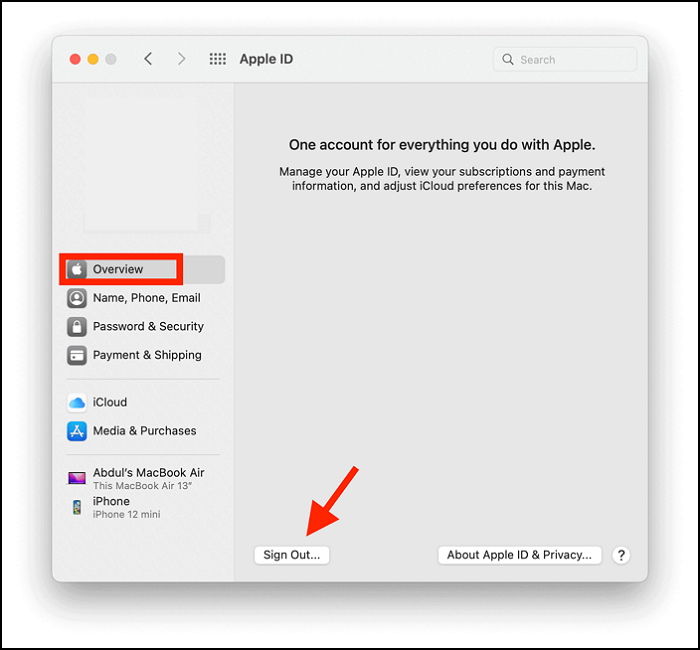
Step 3. Untick the selection and then click on "Continue".
Step 4. You will sign out of iTunes on your MacBook.
Preparation 2. Sign Out of iMessage
Step 1. Open "Messages".
Step 2. Then click on "Messages" in the menu bar on top.
Step 3. Select "Preferences".
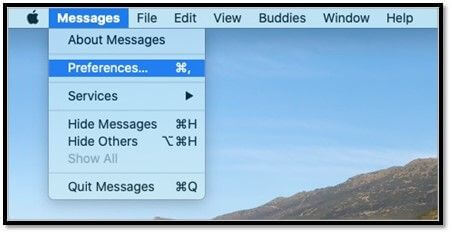
Step 4. Click on the "@" icon that reads "iMessage" below it.
Step 5. Now click on "Sign out".
Optional Preparation: Unpair Bluetooth Devices
Step 1. Open "System Preference" and then select "Bluetooth".
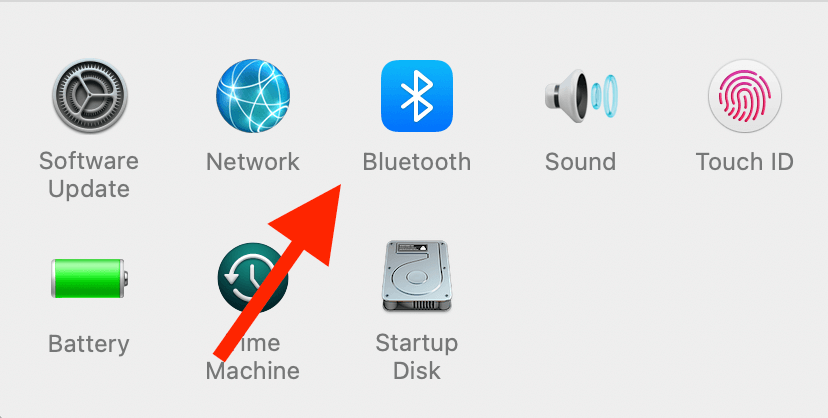
Step 2. To disconnect a Bluetooth device, go to "Devices", hover over the paired Bluetooth device you want to disconnect, and click on the "X" button.
Step 3. To pair your MacBook with other devices, repeat the process for each device you want to connect to.
How to Factory Reset MacBook Pro, Air Without Losing Data
If you are going to factory reset macOS, it is possible to lose valuable files after the reset. This section will teach you how to factory reset your Macbook without losing essential data. Now let us start with the tutorial on how to factory reset MacBook Pro and Air.
How to Factory Reset MacBook Pro, Air [2 Proven Plans]
To format or factory reset your MacBook Pro, you can follow these steps: 1) Click the Apple logo in the top left corner and select Restart. 2) Immediately hold down the Command (⌘) + R keys.
Resetting your MacBook is not straightforward if you are a new Mac user. Instead, it is hidden under the "System Preferences" menu bar, instead of being in it. But we've decided to help you factory reset your MacBook Air and MacBook Pro.
Before resetting your MacBook Pro or MacBook Air, we have a helpful video that explains the process in a way that's easy to understand. Once you're ready, you can reset your device using various methods, such as restoring it to its factory settings, erasing all content and settings, or even just resetting the System Management Controller (SMC) or the Parameter RAM (PRAM).
To make it easier, we are providing a helpful timeline for you to check out.
- 00:30 Backup your data
- 01:22 Turn of Find My
- 02:35 Reinstall Mac
Factory Reset MacBook Pro, Air with Erase All Content and Settings Option
Here's how to reset your MacBook Air or MacBook Pro in one paragraph:
Step 1. To access the System Preferences, open the "System Preferences" window by clicking on the "System Preferences" option on the menu bar.
Step 2. Now, select "Erase All Content and Settings".
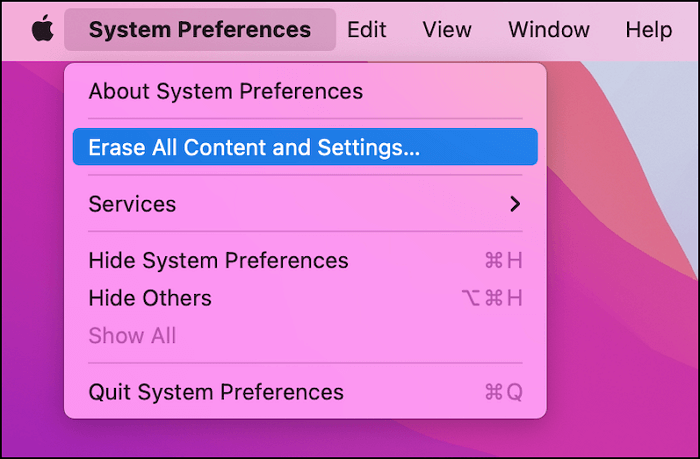
Step 3. Enter your MacBook's password and click on "OK".
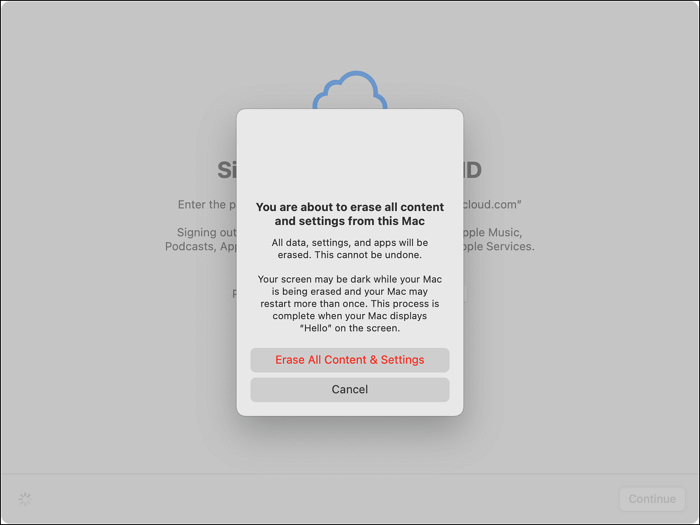
Step 4. Now follow the prompts accordingly.
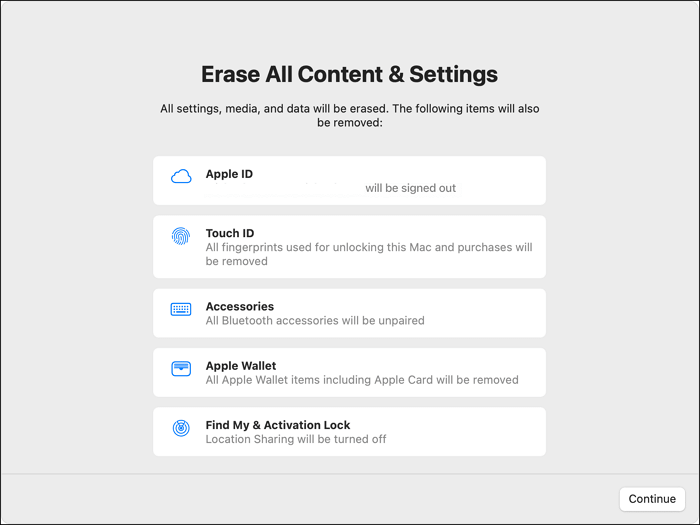
Step 5. Once the prompts have been selected and confirmed for resetting, your MacBook will restart.
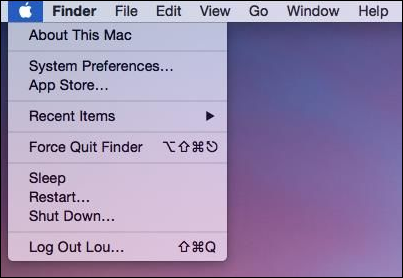
Step 6. After the MacBook restarts, click on the Apple logo on the menu bar.
Step 7. Click on "Shut Down".
You should shut down your MacBook to completely stop all background processes and prevent it from drawing power, which can be done by closing the lid or using the shutdown command. This will ensure your MacBook is fully powered off and ready for storage.
Factory Reset MacBook Pro, Air in Recovery Mode
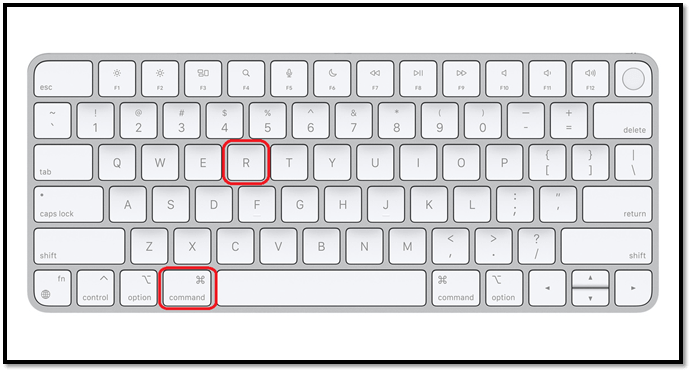
To factory reset your MacBook, start by shutting it down completely. Then, press the power button and immediately hold down the Command (⌘) + R keys. Keep holding them until you see the Apple logo and a progress bar.
Step 1. To shut down your Mac, click on the Apple logo located at the top left corner of the screen, then select "Shut Down" from the drop-down menu.
Step 2. Turn on your Mac, press and hold the Command + R keys, and release them when you see the Apple logo.
Step 3. On M-series Macs, press the power button, hold it until the startup option window opens, then click on "Options" and "Continue" to open the utility window.
Step 4. To access Disk Utility on a MacOS system, navigate to the Utilities window, select Disk Utility, and then choose the internal disk or startup disk from the list of available options.
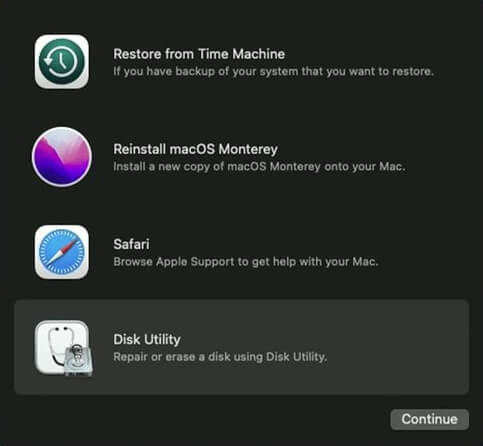
Step 5. Click on the "Erase" option at the top of the Disk Utility window.
Step 6. You can rename the disk to your desired name and select the format as APFS. For example, you can rename it to "My Disk" and select the format as APFS.
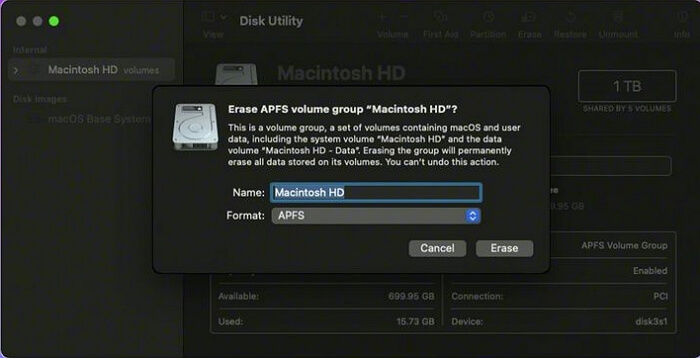
Step 7. Now, click on "Erase Volume Group" and allow a few minutes for Disk Utility to finish resetting the drive.
Step 8. Once you're done with the process, you'll be taken to the macOS utility window. If you're not redirected, restart your computer and press Command+R again to launch your MacBook in recovery mode.
Step 9. Click on the "Reinstall macOS" option under the Utilities window, then follow the on-screen instructions to reinstall macOS.
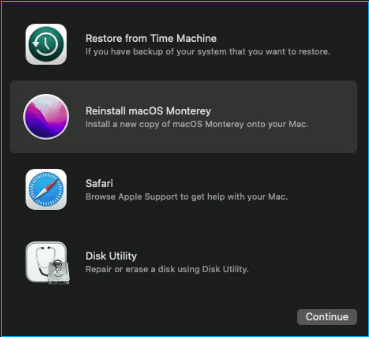
Step 10. After installing macOS, the Setup Assistant will open. Quit the Setup Assistant and turn off your Mac.
Get Back Erased Data After Factory Resetting MacBook Pro, Air
If you've backed up your Mac using Time Machine, you can restore your data after factory resetting your Mac by reconnecting the Time Machine drive, selecting the backup you want to restore from, and following the on-screen instructions to restore your files. This will allow you to recover your files and settings, making the process of resetting your Mac much easier.
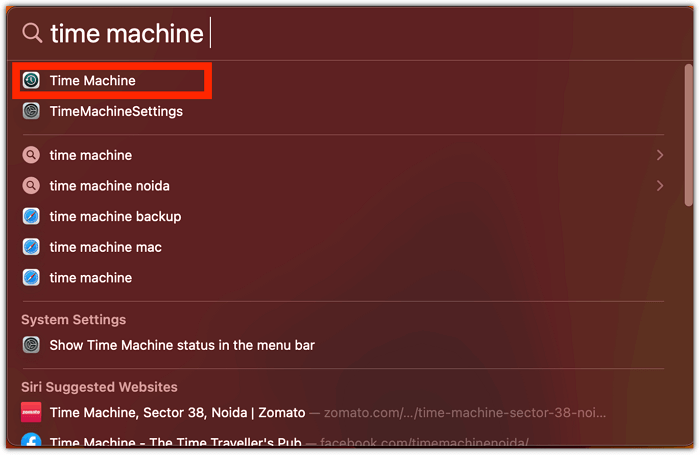
Step 1. Open Spotlight, and search for "Time Machine".
Step 2. You can scroll through your backup timeline using the up and down arrows.
Step 3. Locate the backup you want to restore and click "Restore".
Step 4. You will restore the data from that backup.
Step 5. To restore the backup, restart your computer and then follow the on-screen instructions to complete the process. Once you've completed the restore process, restart your computer again to ensure everything is properly updated.
While Time Machine can be helpful in recovering data, it's not always the most ideal solution. Additionally, setting up Time Machine requires plugging in an external hard drive or USB drive.
Users who didn't initially set up Time Machine on their MacBook can't restore data after a factory reset, but they can use Deep Data Recovery for Mac to recover their data instead.
Download Data Recovery Software and Recover Lost Files
Deep Data Recovery for Mac has a high success rate of over 90% in recovering data, offering a cost-effective and time-efficient alternative to traditional data recovery methods, which can be expensive and take weeks.
Deep Data Recovery for Mac is a powerful data recovery software that can help retrieve lost or deleted files from various storage devices, including Mac hard drives, external hard drives, USB drives, SD cards, and more. It can recover a wide range of file types, including documents, photos, videos, audio files, and more, even if they have been deleted, formatted, or corrupted. The software uses advanced algorithms and technologies to scan the storage device, identify the recoverable files, and restore them to their original location or a specified folder on the Mac.
- You can recover deleted pictures, music, videos, audio, and documents from your MacBook.
- Recover lost partitions on Mac with this tool, which can help you recover lost or deleted partitions with just one click. It's also a useful Mac partition recovery tool.
- Recover data from a dead MacBook Pro with this bootable data recovery tool, which allows you to retrieve data from a non-functional laptop. To learn more about how to make a bootable USB on Mac, click the provided link.
To use this data recovery program, follow these simple steps: first, download and install the software on your computer; then, launch the program and select the drive or partition where your lost data is located; then, choose the file type you want to recover and let the program scan the drive for the lost data; finally, preview and recover the files that are recovered.
Step 1. Select file types and click "Fast Scan" to start
Launch Deep Data Recovery on your Windows computer. Select the desired file types and click "Fast Scan" to initiate the recovery process.

Note: You can choose different search modes based on where and why the data was lost.
Step 2. Search for lost files
To search for lost files on your Mac, select the disk location where you want to look for lost files, which can be an internal HDD/SSD or a removable storage device, and click the "Search for lost files" button.

Step 3. Go through the scanning results
Deep Data Recovery for Mac will immediately scan your selected disk volume and display the scanning results.

Step 4. Select the file(s) and recover
Select the desired file(s) to recover from the scan results and click the "Recover" button to restore them.
Factory Reset MacBook Pro FAQs
For more questions about factory resetting and others, we've compiled a list of frequently asked questions that we think you'll find helpful.
How can I wipe my MacBook Pro to factory settings?
We recommend you use the Erase Assistant to factory reset your MacBook Pro.
- 1. To open System Preferences, click on the Apple logo in the top left corner of the screen, then select "System Preferences" from the dropdown menu.
- 2. Now, select "Erase All Content and Settings".
- 3. Enter your MacBook's password and click on "OK".
- 4. Now follow the prompts accordingly.
- 5. Once the prompts have been selected and confirmed, your MacBook will restart.
- 6. After the MacBook restarts, click on the Apple logo located on the menu bar.
- 7. Click on "Shut Down".
Shuting down your MacBook stops all background processes and completely powers down the device, preventing it from drawing power in standby mode. This is different from just closing the lid, which puts it into standby mode and still draws power.
How do I factory reset my MacBook Air and delete everything?
Factory resetting your Macbook Air, Macbook Pro, iMac, and Mac mini involves a series of steps that erase all data and restore the device to its original settings. To begin, click the Apple logo in the top left corner and select 'Restart' while holding down the 'Command + R' keys.
- 1. To access the System Preferences, you can open the "System Preferences" window by clicking on the "System Preferences" icon in the dock, typing "System Preferences" in Spotlight, or clicking on "System Preferences" on the menu bar. Once the window is open, you can click on the various icons or tabs to navigate to the specific preference you want to adjust.
- 2. Now, select "Erase All Content and Settings".
- 3. Enter your MacBook's password and click on "OK".
- 4. Now follow the prompts accordingly.
- 5. Once the prompts have been selected and confirmed for resetting, your MacBook will restart.
- 6. After the MacBook restarts, click on the Apple logo on the menu bar. From there, select System Preferences.
- 7. Click on "Shut Down".
What happens if I erase Macintosh HD on my MacBook Pro?
You will lose all your data. However, you can use Deep Data Recovery for Mac to recover the files despite deleting them permanently.
- 1. Scan the target disk.
- 2. Preview the lost files.
- 3. Recover them.
How can I reset my MacBook Pro to factory settings without passwords?
You can do that by factory resetting your MacBook Pro in recovery mode.
- 1. To shut down your Apple device, click on the Apple logo in the top left corner of the screen, then select "Shut Down" from the dropdown menu.
- 2. Turn on your Mac, press and hold Command + R, and release it when you see the Apple logo.
- 3. On M-series Macs, press the power button until the startup option window opens, then click on "Options" and "Continue" to open the utility window.
- 4. Select "Disk Utility" from the macOS utility window, click on "Continue", and choose "internal disk/startup disk".
- 5. Click on the "Erase" option at the top of the Disk Utility window.
- 6. You can rename the disk to "My New Disk" and choose the format as APFS. This will give the disk a new name and format it using the APFS file system.
- 7. Now, click on "Erase Volume Group" and allow a few minutes for Disk Utility to finish resetting the drive.
- 8. To enter recovery mode on your MacBook, press Command (⌘) + R on your keyboard. Once done, you will be redirected to the macOS utility window. If you weren't redirected, restart your computer and press CMR+R again to launch your MacBook in recovery mode.
- 9. To reinstall macOS, click on the "Reinstall macOS" option under the Utilities window, and follow the on-screen instructions to initiate the installation process.
- 10. After installing macOS, the Setup Assistant will open. Quit the Setup Assistant and turn off your Mac.
Related Articles
- How to Dual Boot macOS Ventura and Monterey on a Mac [Add New Volumes]
- Fix NTFS_FILE_SYSTEM BSOD Error in Windows
- How to Get Live Wallpapers on Windows 10 [Full Guide]
- How to Fix Insert Media Some Files Are Missing Windows 10
If you meet the insert media some files are missing Windows 10 error. This post will offer you 4 methods to fix this problem with simple steps to follow and clear screenshots. - What Is Boot Partition? [Specifically Explained]
Learn what a boot partition is, how it differs from a system partition, and how to create a boot partition for Windows 10. A complete guide for beginners. - A Comprehensive Introduction to Boot Sector Virus [Updated 2023]
Do you know what is boot sector virus? You may have searched for information about it online but still have not gotten the answer you want. You will have a full understanding of the boot sector virus as soon as you read this article.
Products
Articles & Tutorials
- Data Recovery
- Data Backup
- File Recovery
- File Backup
- System Backup and Restore
- Disk and Partition Clone
- Technical articles
- Mobile articles
- Disk Master Help
- Windows Data Recovery Tutorials
- Windows Secure Delete Tutorials
- Windows Partition Management Tutorials
- Windows File Backup and Restore Tutorials
- Windows System Backup and Restore Tutorials
- Windows Disk Backup and Restore Tutorials
- Windows Clone Tutorials