How to Get Live Wallpapers on Windows 10 [Full Guide]
After setting up your new computer, you can now personalize your background screen with a cool picture, video, or animation, replacing the static image of your old computer.
High-Live wallpapers can add a fun and dynamic touch to your computer background, making it stand out from the usual static images. They can display a variety of visuals, such as animations, videos, or interactive elements, which can be customized to fit your personal style and preferences. This can help to make your computer feel more unique and personalized, and can even be a great way to express your interests or hobbies. Whether you're a fan of cats, football, or something else entirely, live wallpapers can be a great way to showcase your personality and add some visual interest to your computer background.
What's not to love?
How to Set Live Wallpaper on Windows 10
To set a live wallpaper on your Windows 10 computer, go to Settings > Personalization > Lock screen, and select a live tile from the options provided. You can also set a live wallpaper from the Microsoft Store by searching for "live wallpaper" and selecting an app that offers this feature. Additionally, you can use third-party software such as Rainmeter or Win10Live to set live wallpapers on your computer.
Desktop Live Wallpaper
The Desktop Live Wallpaper app allows you to use any video file on your PC as a live wallpaper, specifically using Windows Media Viewer (WMV) video files, and is available for free in the Microsoft Store.
To access more video file types and customize playback settings, you would need to upgrade to the Desktop Live Wallpapers Pro, which costs $3.99.
Step 1. Once installed, the Desktop Live Wallpaper will appear as an icon in the notification portion of your taskbar or the Start Menu. To use it, simply open the app.
Step 2. Click "Make New Folder".
Any folder you add will be automatically scanned for video files, which will then be added to the playback list.
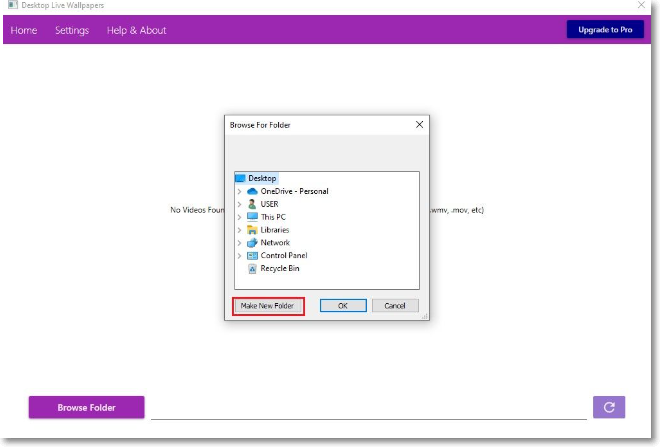
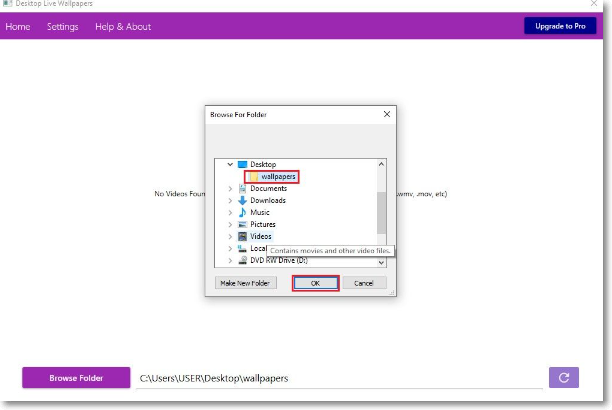
Step 3. To add a folder to the list of monitored folders, select the desired folder in the Browse Folder window and click "OK" to add it.
Videos from the selected folder will automatically play as your desktop wallpaper, appearing in the main videos list.
To change playback settings, click on the "Settings" tab, where you can modify launch options, preferred video player, and sound settings.
To stop the video playback, right-click the icon in your taskbar, click "Pause/Play live wallpaper", or exit the app to make your wallpaper static.
VLC media player
The open-source VLC media player, available on all operating systems, can play any video format available, and can also temporarily change your regular wallpaper to a live wallpaper as long as the player is open.
Step 1. Open the VLC media player and play the video you want to use as your live wallpaper.
Step 2. Right-click on the video while it's playing, then select "Video" > "Set as Wallpaper" from the dropdown menu.
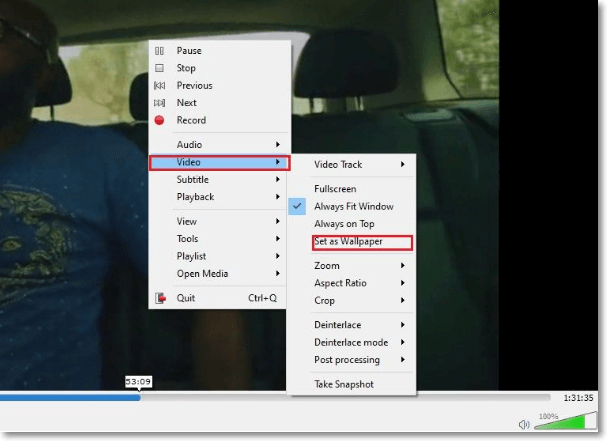
The VLC method can set a video as a wallpaper, but it may cause some icons to be missing and functions more like a modified full-screen mode than a live wallpaper.
Push Video Wallpaper
If you're considering making video wallpapers a permanent fixture, a third-party app like Push Video Wallpapers is a viable option. This app allows you to use your own videos, GIFs, or YouTube clips, and also comes with sample content to get you started.
The app enables users to create playlists, loop different media types, or set a single video to repeat, providing flexibility in media playback.
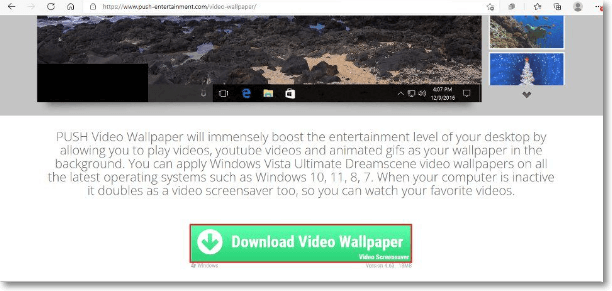
Step 1. To get started, download and install the Push Video Wallpaper, which will automatically run a live wallpaper as a demo once installed.
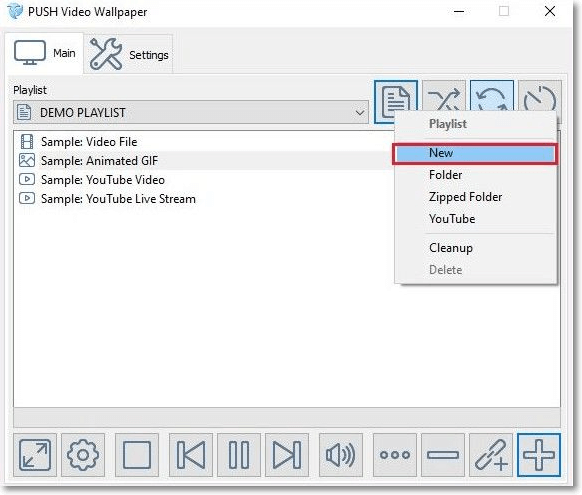
Step 2. To create a new playlist, open the app and click on the "Playlist" icon, then select "New" from the dropdown menu.
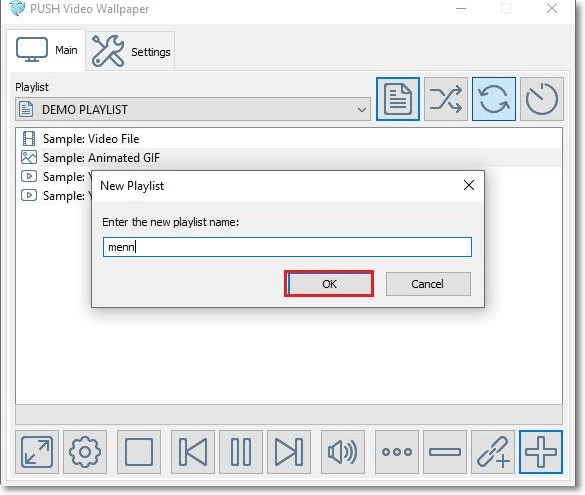
Step 3. To create a new playlist, type in a name for your playlist and click "OK" to save.
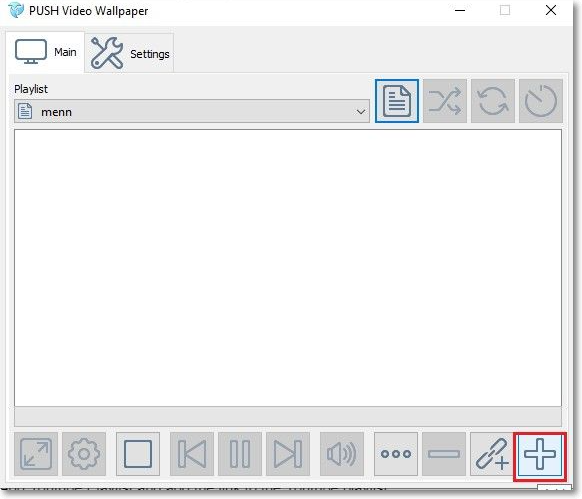
Step 4. To add a new clip, click the "+" icon at the bottom of the window.
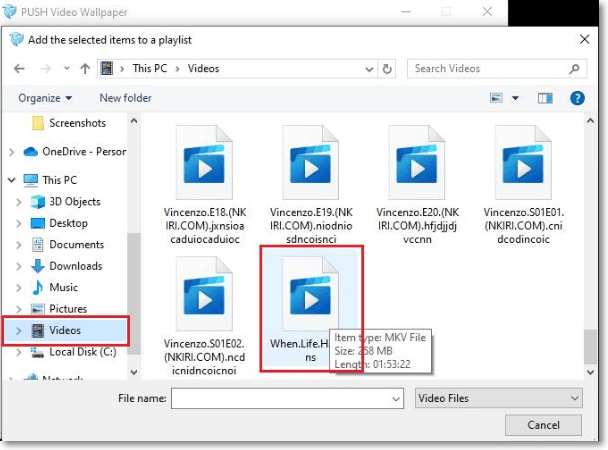
Step 5. To add a video clip, image, or GIF to a playlist, select the desired media type, and then choose the specific item you'd like to add. If you prefer to use a single clip on repeat, select the video you want to play without creating a playlist.
Step 6. To add a YouTube video or an internet video, click the "Add URL" icon located in the bottom-right corner of the screen.
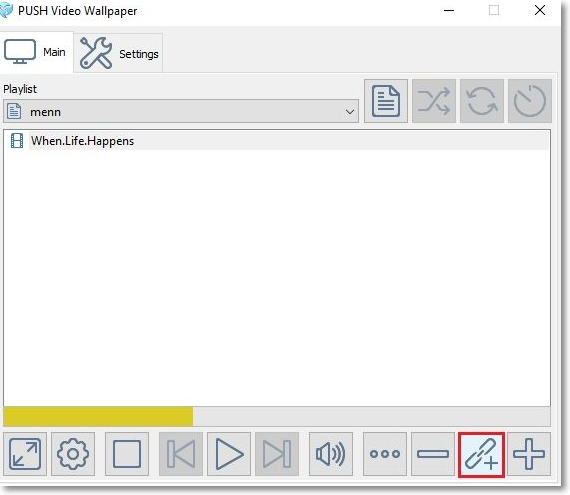
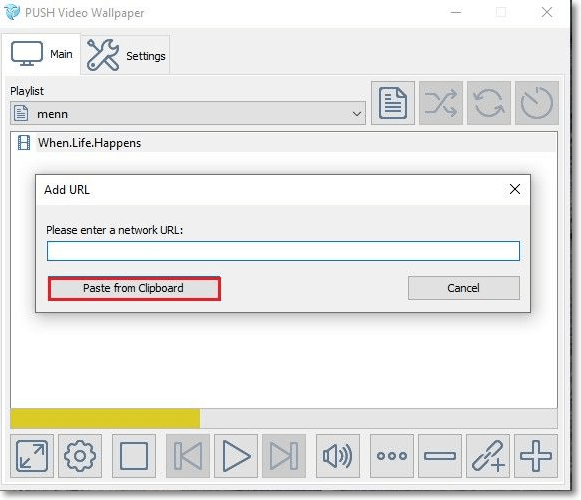
Step 7. To add a link to your playlist, first, copy the link you want to add. Then, open the Add URL dialogue box and click "Paste from Clipboard" to add the link to your playlist.
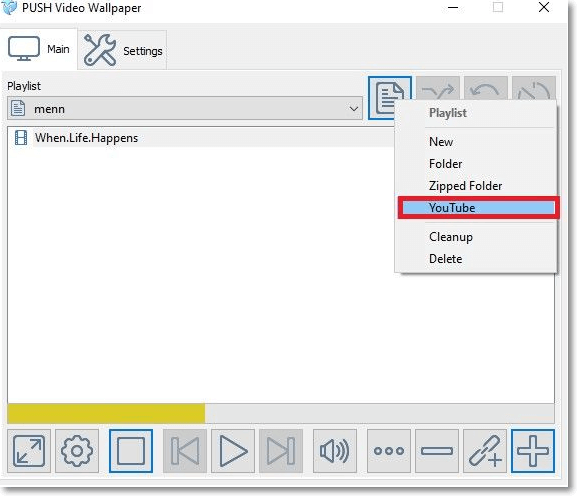
Step 8. To change your live wallpaper to a YouTube playlist, click the Playlist icon on the top-right corner and select "YouTube" from the drop-down menu.
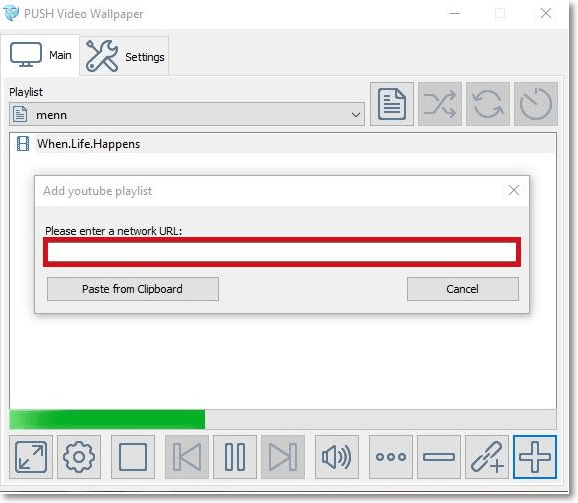
Step 9. To add videos from a YouTube playlist to your personal Push Video Wallpaper playlist, click "Add YouTube Playlist" and enter the link to the YouTube playlist.
The Push Video Wallpapers app allows you to minimize its window to make it invisible, and selecting "Settings" > "Basic" > "System Tray Icon" will convert it to a system tray icon, hiding it from the taskbar's notifications area. Additional features include a shuffle button, the ability to adjust video intervals, and a volume/mute button to control audio volume. Although the paid upgrade offers more controls for $10, the free version is sufficient for most users, making it a popular choice for live wallpapers on Windows 10.
Lively Wallpapers
To get live wallpapers on Windows 10, you can use the Lively Wallpapers app, which can be downloaded from its website or the Microsoft Store.
Step 1. Once installed, open the app and right-click on any of the live wallpaper samples available. This will allow you to view and select a live wallpaper to use on your device.
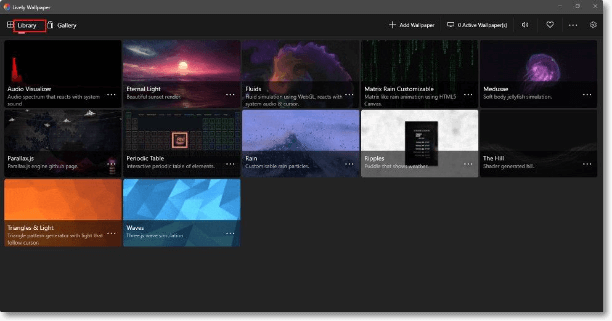
Step 2. To customize a wallpaper, right-click on the image, select "Customise" from the drop-down menu, and edit parameters like animation speed and image.
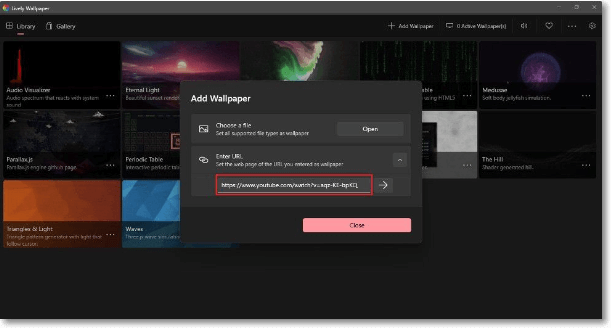
Step 3. After downloading a wallpaper, click "Add Wallpaper" at the top right corner to set it up.
Step 4. Select the desired video file from your downloads or paste the video link into the URL dialogue box.
Drawbacks of Using Live Wallpaper on PC
Having a live wallpaper can be fun, but it has some downsides. Live wallpapers can drain a computer's battery life faster, especially on older models, since they require the CPU to render constant motion. This can be a significant issue if your computer is not plugged in. Additionally, live wallpapers can slow down a PC, particularly those with lower specifications, as they put additional demand on the processors and RAM.
Related Articles
- How to Fix "No Root File System Is Defined" [Efficient & Easy Solutions]
- How to Fix Windows 10 Upgrade Error Code 0xc0000017
- Fix Computer Slow after Windows 10 Update | Speed Up PC in 6 Ways
- Fixed: CHKDSK Failed to Transfer Logged Messages to the Event Log with Status 50
- HP Recovery Manager in Windows 10 [Free Download]
What Is and How to Use HP Recovery Manager? This guide gives a full understanding of HP Recovery Manager and covers a complete guide that you can follow to use HP Recovery Manager to Backup & Restore. - What Is Hyper-V Monitoring [All You Need to Know]
Hyper-V monitoring is the process of tracking and analyzing the performance and health of a Hyper-V virtualization environment. Learn how to optimize resource utilization, detect issues, and improve system reliability.
Products
Articles & Tutorials
- Data Recovery
- Data Backup
- File Recovery
- File Backup
- System Backup and Restore
- Disk and Partition Clone
- Technical articles
- Mobile articles
- Disk Master Help
- Windows Data Recovery Tutorials
- Windows Secure Delete Tutorials
- Windows Partition Management Tutorials
- Windows File Backup and Restore Tutorials
- Windows System Backup and Restore Tutorials
- Windows Disk Backup and Restore Tutorials
- Windows Clone Tutorials