How to Fix "No Root File System Is Defined" [Efficient & Easy Solutions]
To resolve the "No Root File System is Defined" error on your device, you can try booting in safe mode, checking the boot order in the BIOS settings, or running a system file checker to identify and fix corrupted system files. If the issue persists, you may need to perform a system restore or reinstall the operating system.
One of the most common errors that occur while installing Ubuntu on a Windows partition or when a valid Linux partition hasn't been created is the inability to access your system. This error is quite frustrating and prevents you from accessing your system. Fortunately, we have some efficient and easy solutions that can help you fix this issue conveniently.
How Do You Define a Root File System?
One of the most frustrating error messages when installing Ubuntu alongside Windows or erasing the disk is the "No root file system is defined" message. This error occurs because you haven't specified the root directory, also known as the "/" partition, which is the foundation for all other directories. The root directory plays a crucial role in booting, repairing, or restoring the Ubuntu or Linux operating system.
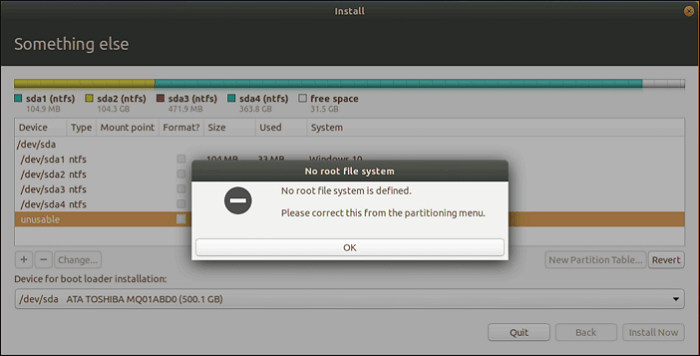
When installing Ubuntu, users are presented with two options: dual boot or erase the disk. After selecting the free space, a "+" icon is tapped to proceed. A new window appears, asking to select "/" as the mount point, after which the partition's location needs to be typed.
Where Is the Root File System
A root file system is a standalone machine where the home directory is placed in a separate file system, mounted over the home directory root file system. It includes per-user files and directories, allowing for quick access to files from multiple machines in a network system.
Besides, we also prepare another link for you, so if you are interested, just click to learn:
What Causes the "No Root File System is Defined" Error
The root file system error is a common issue that occurs during the installation of Ubuntu or other Linux distributions. This error is usually caused by three main factors: the root file system being corrupted, the installation media being damaged, or the installation process being interrupted. Understanding the root cause of this error is essential to resolve it and complete the installation process successfully.
- If you've forgotten to create a valid Linux partition, you'll encounter the error "No root file system is defined" on your device. This indicates that the system is unable to locate a root file system, which is a crucial partition for the operating system to function properly.
- If you try to install Ubuntu on a Windows partition (FAT or FAT32), you may encounter an error message due to the requirement for a Linux partition. This can lead to a frustrating experience.
- In case your Linux partition exists on your device, but you have not defined the root partition "/" yet, there are chances you will face this annoying error on your device. To resolve this, you can try to mount the existing partition to /mnt, then create a new ext4 filesystem on /mnt, and finally, mount it to /mnt again.
The error usually occurs with individuals who are unfamiliar with Linux and its partitioning system. Once you have a basic understanding of this, you can explore different solutions to resolve the issue.
You may also like the following topic since it also may happen when you use multi-OS:
How to Fix the "No Root File System Is Defined" Error
If you're tired of dealing with this frustrating error, you're in luck! We've got the complete solutions for you to finally get rid of it and move on with your day.
Fix 1: Create a Linux Partition and Assign a Root Partition
To fix the error, you can create a Linux partition by following these steps. First, open the Disk Management tool and look for the drive where your Windows operating system is installed. Right-click on it and select "Add a new drive.
Step1. To add a free partition on your device's Installation type page, tap on the "+" sign option. This will enable you to add partitions.

Step 2. The Create partition is typically set to a full size in the Size field, but you can adjust it to your preference by entering a value in MB.
Step 3. Once you've formatted the drive, select the partition type from the Primary or Logical section.
Step 4. To create a new partition, go to the Location option and select the Beginning of space or End of room.
Step 5. On completing the above process, you now have to choose the file system on your device.
Step 6. Select a mount point and tap on the OK button to confirm the installation.
By the way, there is a link for you. If you are interested, just click to learn.

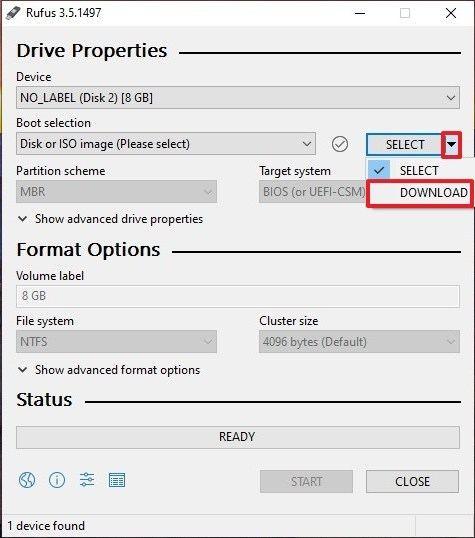
To create a bootable USB in Linux, you can use the `dd` command. First, identify the USB drive you want to use with the command `lsblk` or `fdisk -l`.
In Linux, creating a bootable USB drive is a straightforward process. First, download the ISO file for the operating system you want to install, and then proceed with the steps to create a bootable USB drive.
Fix 2: Delete Existing Windows Partition
To resolve the error, you can try deleting existing Windows partitions. This can be done by booting from a Windows installation media, such as a USB drive or CD/DVD, and then following the on-screen instructions to delete the existing partitions.
Step 1. Select the partition you are willing to delete from your device and then make a right click on it. Click on the 'Delete' option from the context menu that appears.
Step 2. Please tap on the Delete button to confirm it.
Step 3. If you're willing to make some changes to your partition, you can easily tap on the Change button conveniently.
Step 4. Once you've finished the task, a pop-up message will appear on your screen.
Step 5. To change the file to a Linux file system, simply tap on the "Use as" drop-down option.
Step 6. Select the preferable file system and tap on the OK button to confirm it.
Fix 3: Define a Root Partition
The third fix to this error involves defining a root partition. This step is crucial in resolving the issue, and it's worth giving it a try.
Step 1. To use a partition as the root partition, right-click on the partition in question and select the appropriate option to make it the root partition. This process typically involves selecting a menu item such as "Format" or "Make Bootable," depending on the operating system and partition management software being used.
Step 2. To change the default font size on your device, first, go to the Settings app. From there, select the Display option.
Step 3. You can also double-tap on the partition.
Step 4. The Edit partition will open up on your screen beside Mount Point.
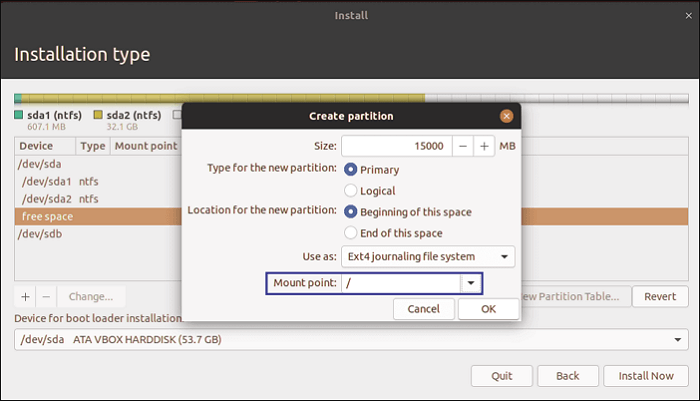
Step 5. To access the "/" partition, simply tap the drop-down menu and select the "/" partition from the available options.
Step 6. Once you have completed the changes, tap on the OK button to confirm your updates.
Here are some links that may be helpful for you to troubleshoot common issues:
No Root file System is Defined: Verdict.
Hopefully, you've learned how to effectively fix the "No root File System is Defined" issue on your device. We've provided different reasons and solutions to deal with this problem, and going through the details in-depth can help you get effective results effortlessly.
FAQs About No Root File System Is Defined
Now that you're aware of the error, let's quickly go over some common FAQs related to this topic.
1. What happens if the root file system becomes corrupted?
A corrupted root file system can render a system unbootable, but using a bootable medium like a floppy, CD, or flash drive can provide temporary access. However, this process can be risky and should be avoided.
2. How do I access root files on Android?
Getting access to the root files on Android is relatively easy. To do so, you can simply follow the steps to gain root access, which allows you to access and modify the root files on your device.
Step 1. To root your Android device, you'll need to install a custom recovery and then flash a root package. Once you've rooted your device, you can install ES File Explorer on your device's internal storage. This will allow you to browse and manage your device's files and folders.
Step 2. To enable root access for ES File Explorer, you can follow these steps: Download the ES File Explorer app from the Google Play Store or update it to the latest version. Then, navigate to the app's settings and look for the "Root Explorer" option.
Step 3. Once the root folders have appeared on your device, you can begin to navigate through them and access your files.
To view your device's root files and folders, you can use the ES File Explorer app, which is available for download from the Google Play Store. Once installed, launch the app and navigate to the "Local" tab, then select "Root" from the list of options.
3. What is the root file system?
The root file system is at the top of the hierarchical file tree, containing essential files and directories necessary for system operations, including the device directory and core programs.
Related Articles
- Fix Mac Won't Boot/Start after macOS High Sierra Update
- [FIXED] Bluetooth Disappeared Windows 10 Issue
- Fix USB Flash Drive Not Working on Windows 10/7
- Disk Cleanup Not Working Windows 10/8/7? Here Are the Free and Easy Fixes!
- System_Thread_Exception_Not_Handled on Windows 10/11, Fixed Now
How do you fix system_thread_exception_not_handled nvlddmkm.sys in Windows 10 or Windows 11? Your computer may display system thread exception not handled blue screen error and stuck in Windows boot loop. This tutorial shows you how to fix system_thread_exception_not_handled without data loss. - Tape Backup VS NAS, Which One Is Better?
This page covers tape backup and NAS backup and elaborates on their pros and cons. It also tells when to use them. I hope it can help you make a suitable choice.
Products
Articles & Tutorials
- Data Recovery
- Data Backup
- File Recovery
- File Backup
- System Backup and Restore
- Disk and Partition Clone
- Technical articles
- Mobile articles
- Disk Master Help
- Windows Data Recovery Tutorials
- Windows Secure Delete Tutorials
- Windows Partition Management Tutorials
- Windows File Backup and Restore Tutorials
- Windows System Backup and Restore Tutorials
- Windows Disk Backup and Restore Tutorials
- Windows Clone Tutorials