How to Dual Boot macOS Ventura and Monterey on a Mac [Add New Volumes]
Why Should I Dual Boot Two macOS Versions
If you're a developer or need to test apps on different macOS versions, you can install and dual boot macOS Ventura and Monterey on a single Mac device. This allows you to test your apps' performance across various versions of macOS, or use legacy apps that may not be compatible with the latest Ventura but work with Monterey.
If you don't want to upgrade to macOS Ventura, you can still try it out by downloading its beta software and enabling dual booting on your Mac, allowing you to run both macOS versions simultaneously.
How to Dual Boot macOS Ventura and Monterey on a Mac
To dual boot macOS Ventura and Monterey on the same Mac, follow these steps: create a separate partition for each OS, install each OS on its respective partition, and configure the boot order in the Startup Disk preferences. Alternatively, you can use a third-party tool like Boot Camp Assistant to create a separate partition for each OS and install them. Additionally, you can use a video tutorial to help guide you through the process.
These are the following timestamps you should check:
- 00:25 Download the macOS Ventura installer
- 00:50 Creating a new volume
- 04:30 Booting into macOS Ventura Beta
Preparations You Need to Do Before Dual Boot Two macOS Versions
Before setting up your Mac to dual boot macOS Ventura and Monterey, create free storage space on your Mac.
Here is how to do that:
Step 1. Click on the Apple logo on the menu bar, then select About This Mac.
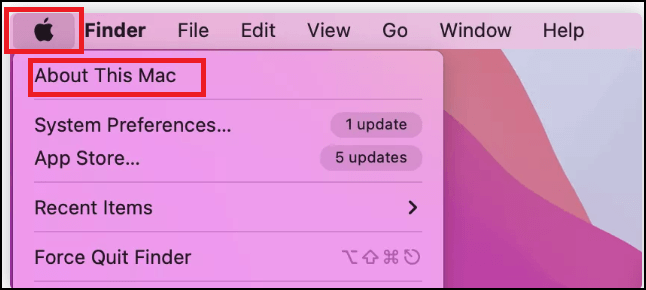
Step 2. Now, click on "Storage" and then select "Manage."
Step 3. To free up space on your device, identify and delete unnecessary files or data taking up a significant amount of space on the left side. Select the section consuming the most space and remove any unwanted files or data from it.
Step 4. To create a backup of your Mac, insert a USB flash drive into your computer, open the Disk Utility app, select the USB drive, and click the "Restore" button. Then, select the backup disk image you created earlier and click "Restore" again. This will copy your files to the USB drive, creating a backup of your Mac.
To create a backup of your Mac, you'll need to use the built-in Backup feature in System Preferences. Go to System Preferences, then click on "Backup".
Step 1. Open Spotlight and search for "Time Machine."
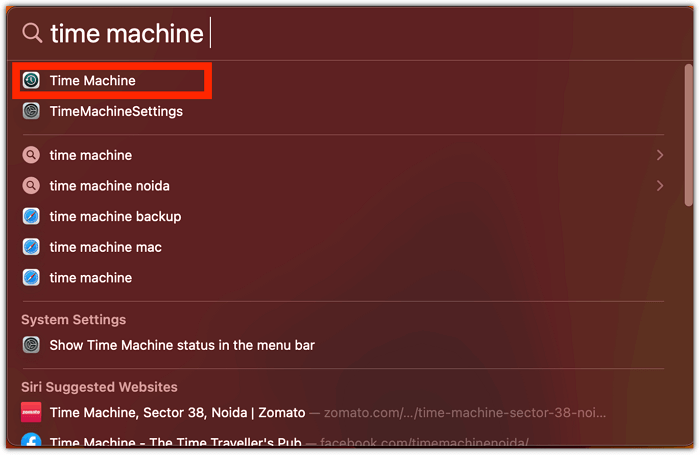
Step 2. Now plug the USB drive into your Mac.
Step 3. Select the USB drive from the list, then click on "Use disk" after selecting the option "Encrypt backups."
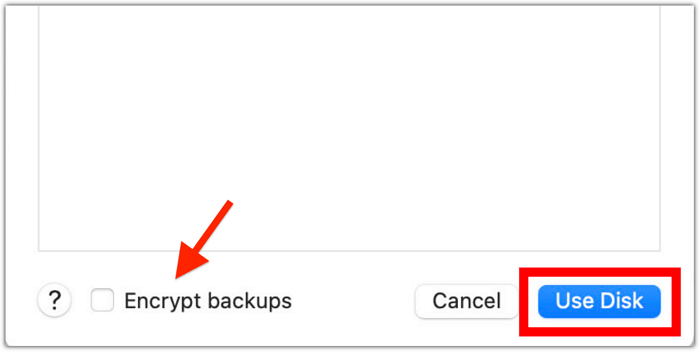
Step 4. Once your files are backed up, you can start using your computer again. You may need to restart your computer. If you're using a Mac, you can also eject the Time Machine backup disk.
After freeing up space and creating a backup of your Mac, you can recover data from Time Machine backups. It's a good idea to create a new volume before downloading macOS Monterey or macOS Ventura. This will ensure a smooth installation process and prevent any potential issues with your existing data.
How to Add a New Volume on Mac to Dual Boot Two macOS Versions
Adding a new volume to your Mac is crucial when you want to download and install another macOS, as you cannot install and access it from the existing volume. This is why creating a new volume over the existing one is necessary.
Step 1. Open Launchpad, then open the "Other" folder.
Step 2. Now, open "Disk Utility."
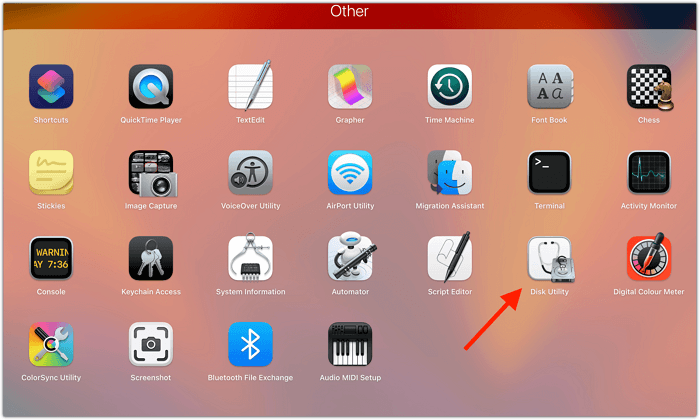
Step 3. Expand "Apple SSD" and then select "Container disk3."
Step 4. Click on the "+" icon in the "Volume" section on the top.
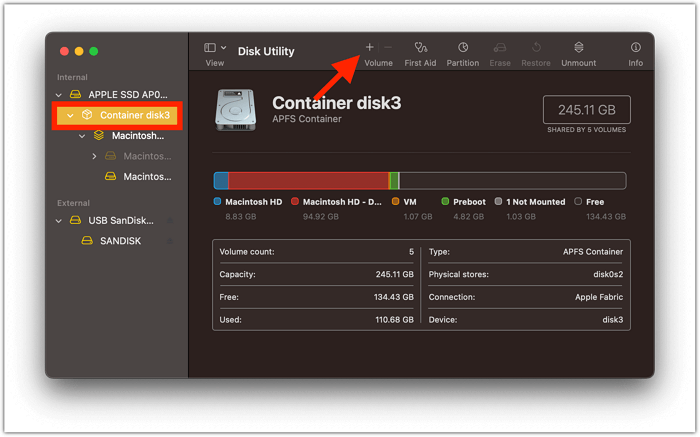
Step 5. Give a name to the Volume.
Step 6. Now click on "Done."
You will now have created a new volume on your Mac to download and install macOS Ventura.
Download and Install macOS on the New Volume
To dual boot both macOS Monterey and macOS Ventura, you will need to download and install macOS Ventura on the new Volume you created, allowing you to switch between the two operating systems.
Step 1. If you want to download the beta version of macOS, find the macOS Ventura Beta resource and download it.
Step 2. Once the install assistant is downloaded, open it.
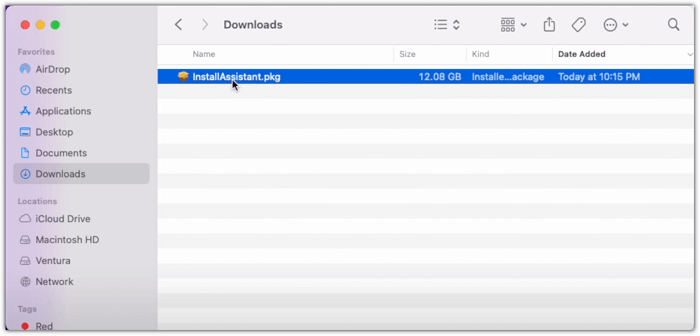
Step 3. Click on "Continue" and then click on "Install".
Step 4. Enter your Mac's password and click on "Install Software."
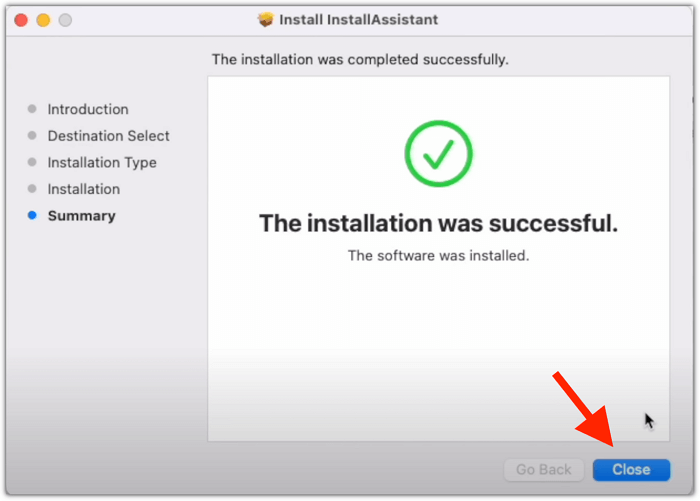
Step 5. Once it has been installed, click on "Close."
Step 6. Open "Launchpad" and then open "Install macOS Ventura Beta."
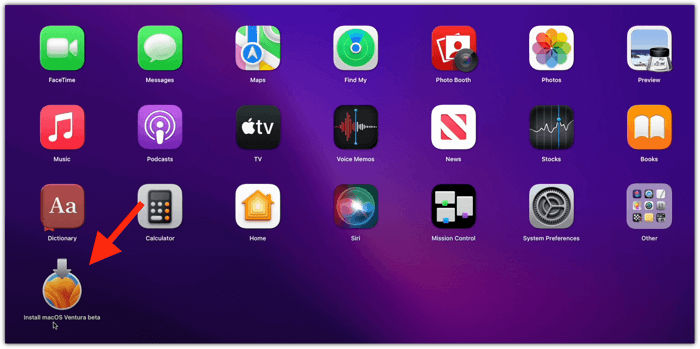
Step 7. Click on "Continue."
Step 8. Click "Agree" to confirm your acceptance of the terms, and then click "Agree" again to finalize your decision.
Step 9. To install the operating system, click on "Show All Disks," select the Volume you created, and then choose which disk to install on.
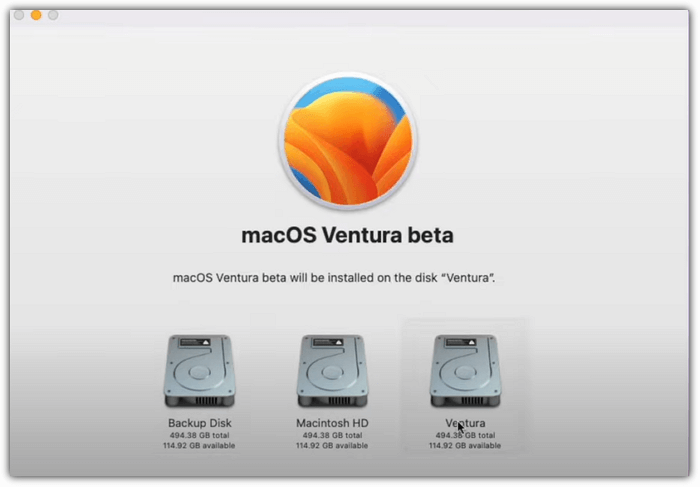
Step 10. Now, select "Install" and enter your Mac's password.
Step 11. Once installed, you will be prompted to restart your Mac, so click on "Restart."
Step 12. After restarting, it will boot into macOS Ventura. Complete the setup process to finish the installation.
How to Switch Between macOS Ventura and Monterey
To switch between macOS Ventura and macOS Monterey on the same Mac device, follow these steps: boot into the macOS Recovery mode, select the startup disk, and choose the macOS version you want to boot into. You can also switch between the two operating systems by restarting your Mac and holding down the Shift key to boot into the Recovery mode, then selecting the desired macOS version.
Step 1. Restart your Mac.
Step 2. To turn on your Mac, click the FN key and power it on if you have an M-series Mac. If you have an Intel-based Mac, press the Command button and power it on.
Step 3. To access the Startup Options, the "Startup Options" will open. From there, select the desired operating system to boot into. Click on the Volume for macOS Ventura or the correct Volume for macOS Monterey to access the respective OS.
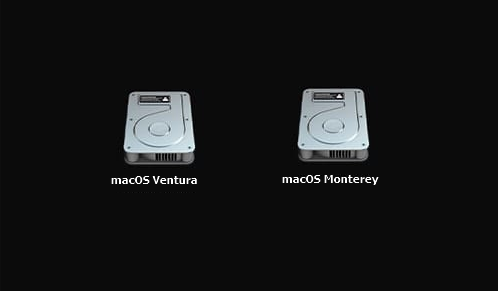
Step 4. If you chose to boot into macOS Ventura, enter your account password to log in.
Step 5. You can change the macOS system startup disk to a Windows partition, allowing you to boot into Windows instead of macOS. This can be useful for dual-booting or for troubleshooting purposes.
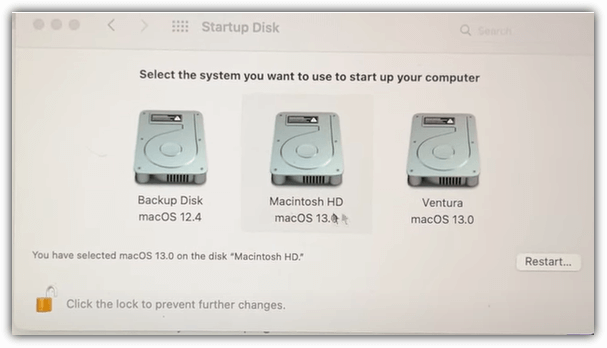
Note: If you're experiencing bugs and issues on macOS Ventura, you can click the link to resolve them.
Recover Lost Data from macOS Ventura and Monterey with Software
If you didn't create a backup of your data and lost it while setting up macOS Ventura or Monterey, you can recover it with Deep Data Recovery for Mac.
Deep Data Recovery for Mac is a software designed to recover deleted files on macOS Ventura, making it possible to retrieve accidentally deleted photos, videos, documents, audio, and other files from various storage media, including USB flash drives, SD cards, and local Macs and MacBooks. This data recovery tool can help you get back your lost files, even after they've been deleted, and is a cost-effective alternative to professional data recovery services.
This handy macOS recovery tool can recover data with one click. Check the detailed tutorial below and retrieve lost data.
Step 1. Search for lost files
Select the disk location to search for lost files, and click the "Search for lost files" button.
Step 2. Go through the scanning results
This software scans the selected disk volume, displaying pictures, documents, audio, videos, and emails in the left pane.
Step 3. Select the file(s) and recover
To recover your lost data, click the data to preview, and then click the "Recover" button to have them back.
Summary
Your Apple Mac is highly customizable, allowing you to run multiple operating systems and versions, including dual-booting different macOS versions and even entirely different operating systems.
You can boot Windows or Linux on a Mac, or use them on a Mac via a virtual machine, making Macs highly customizable and user-friendly. In contrast, Windows or Linux machines can't run Mac operating systems.
We hope this guide has helped you successfully install both macOS Ventura and Monterey on the same Mac. If you experience data loss while using these operating systems, consider using Deep Data Recovery for Mac to recover essential files and data.
Dual Boot macOS Ventura and Monterey FAQs
Four questions are below to help you get more information about dual boot macOS Ventura and Monterey.
Can I have two operating systems on my Mac?
You can have two operating systems on your Mac, including Windows. To run Windows on your Mac, download and install Parallels, a virtual machine that allows you to use Windows on both M1 and Intel Macs.
How to downgrade macOS Ventura to Monterey?
If you're experiencing performance issues with macOS Ventura, you can downgrade to macOS Monterey.
- 1. Downgrade macOS Ventura to Monterey with Time Machine.
- 2. Downgrade macOS Ventura to Monterey with macOS Recovery.
- 3. Downgrade macOS Ventura to Monterey with the bootable installer.
Can I dual-boot macOS Ventura and Monterey on an M1 Mac?
You can dual boot macOS Ventura and Monterey on an M1 Mac by creating a new Volume and installing one on this new Volume, then switching between the two.
Can I dual-boot Windows 10 and macOS Ventura on a Mac?
On an Intel Mac, you can dual-To dual boot Windows 10 and macOS Ventura, create a new Volume and install one of the target operating systems in this new Volume, similar to running Windows 10 on Mac or dual booting macOS Ventura and Monterey on a Mac. However, this method differs with Apple silicon Macs.
Related Articles
- How to Restore Mac to a Previous Date with Time Machine/Migration Assistant/Recovery Software
- 4 Proven Ways to Fix Zsh Permission Denied in Terminal on macOS Ventura/Monterey
- How to Fix Printer Driver is Unavailable Error on Windows 10/11 [Fixed Lately]
- [Step-by-step Guide] How to Reset Only C Drive in Windows 10 Safely
- What Is Rufus? Your Best Answers in 2024
Do you need to install Windows on your system, and someone recommended Rufus? If you are wondering what is Rufus, it is a free tool to create bootable USB drives. Learn more about Rufus and its features in this article. - File Formats | What Is SR2 File? All About the SR2 File Extension
The SR2 RAW file formats are associated with Sony digital cameras. This article contains all the information and details about the photo file format. Keep reading the post; you can learn how to open and convert the SR2 files.
Products
Articles & Tutorials
- Data Recovery
- Data Backup
- File Recovery
- File Backup
- System Backup and Restore
- Disk and Partition Clone
- Technical articles
- Mobile articles
- Disk Master Help
- Windows Data Recovery Tutorials
- Windows Secure Delete Tutorials
- Windows Partition Management Tutorials
- Windows File Backup and Restore Tutorials
- Windows System Backup and Restore Tutorials
- Windows Disk Backup and Restore Tutorials
- Windows Clone Tutorials