How to Fix Printer Driver is Unavailable Error on Windows 10/11 [Fixed Lately]
In the office, printing documents is a daily task, but sometimes connecting a computer to a printer can be tricky. When you try to print, you might encounter an error saying "printer driver is unavailable." Fortunately, this issue can be resolved using the methods outlined in this article, which provide explicit steps to fix the printing problem on your Windows 10/11 device.
Why Does Printer Driver Error Happen?
The printer driver is unavailable due to various reasons such as outdated printer drivers, incorrect printer installation, corrupted system files, or conflicts with other software. These issues can cause the printer to malfunction or become unresponsive, leading to the "driver unavailable" error message. It's essential to identify and address these underlying causes to resolve the problem and get the printer working properly again.
Drivers Missing or Not Installed: The printer drivers may not be installed on the Windows computer, which can cause connectivity issues with the printer.
Drivers are not Compatible: Printer driver errors can occur due to compatibility issues between the printer and the computer device, making it impossible to install drivers that are operable on the device.
Underlying Windows Update: A scheduled Windows update may cause system malfunction if it's incomplete, making it difficult to operate properly.
Drivers are not Up to Date: To resolve the issue, you can try updating your printer drivers on Windows 10/11. You can do this by going to the Device Manager, finding your printer, right-clicking on it, and selecting "Update driver." If this doesn't work, you can try uninstalling and reinstalling the driver.
How to Fix Printer Driver is Unavailable Error?
With an understanding of why the printer driver is unavailable in the Windows computer, we can now focus on fixing this issue. To resolve the problem, follow the solutions provided, which will guide you through the process of resolving the printer driver unavailability on your device.
- Uninstall and Reinstall the Printer Driver
- Update Driver
- Update Operating System
- Reconnect the Printer
1. Uninstall and Reinstall the Printer Driver
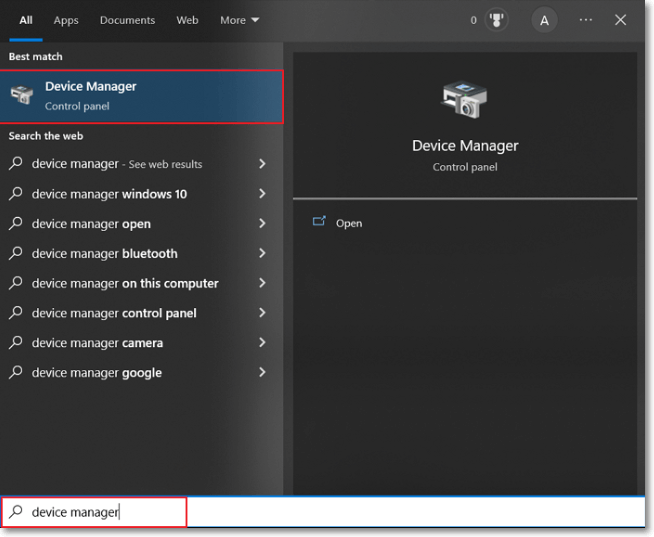
To resolve the issue where the printer drivers are not working, you can try uninstalling and reinstalling the printer driver on your computer by following these steps: go to the Start menu and search for "Device Manager", open the Device Manager and look for the printer in the list of devices, right-click on the printer and select "Uninstall device" from the context menu, once the uninstall
Step 1. To access the Windows search icon, press the "Windows + S" shortcut key. This will open the search bar, where you can type "Device Manager" to open the Device Manager window on your computer.
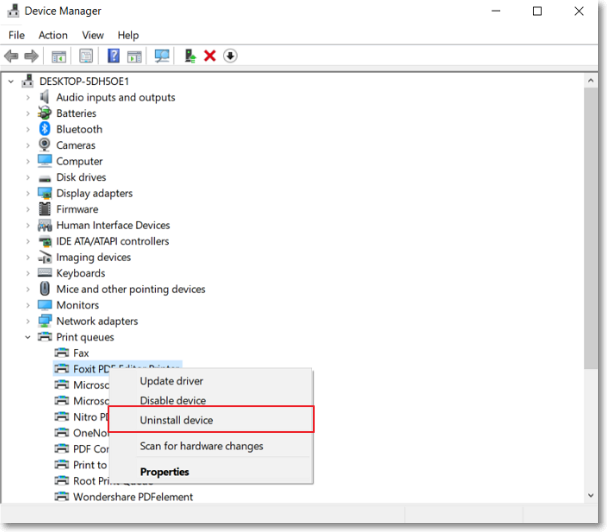
Step 2. To remove printer drivers, go to the list of drivers, navigate to the "Print queues" section, right-click on the respective printer drivers, and select "Uninstall device" to successfully uninstall them.
Step 3. To resolve the issue, you'll need to reinstall the printer drivers. This can be done by either downloading the drivers from the manufacturer's website or by connecting the printer and following the on-screen instructions to install the drivers again.
2. Update Driver
In some cases, you may have to update your driver to resolve any present glitches. For this, the procedure is quite simple and basic:
Step 1. To open the Device Manager, click on the "Start" icon and type "Device Manager" in the search bar. This will open the Device Manager on a new window.

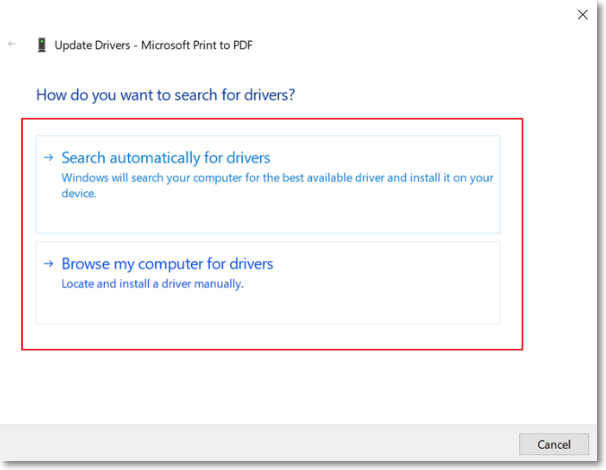
Step 2. As it opens, navigate to the "Print queues" section to find the malfunctioning printer driver. Right-click on the specific printer driver and select the option to update the driver.
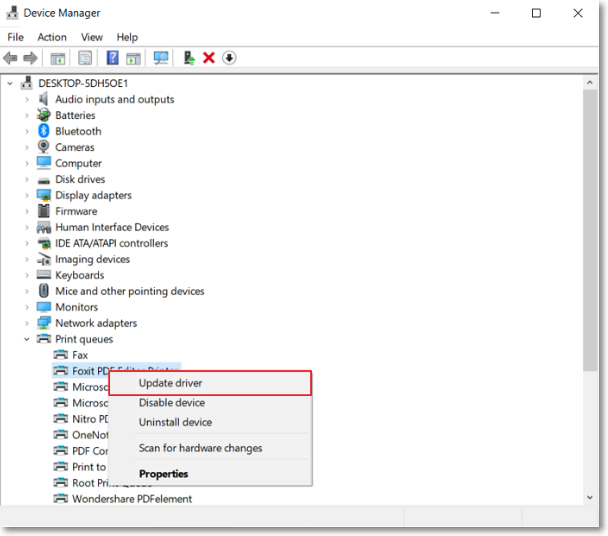
Step 3. To update the drivers successfully, you can select any options and proceed with the on-screen instructions for the next window.
3. Update Operating System
To resolve the issue of "printer driver is unavailable" due to Windows OS, update the OS by following these steps: Check for updates in the Settings app, click on "Update & Security," and then click on "Windows Update." If updates are available, click on "Download and install now" to update your OS. Once updated, restart your computer and try reinstalling the printer driver.
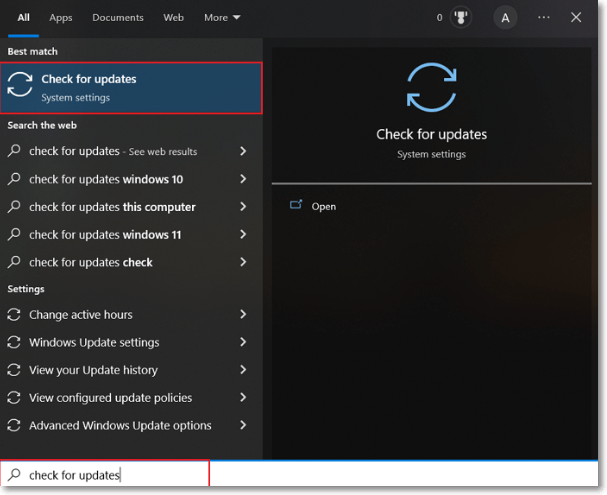
Step 1. Look for the "Search" icon on the taskbar, type in "Check for updates" on the available space.
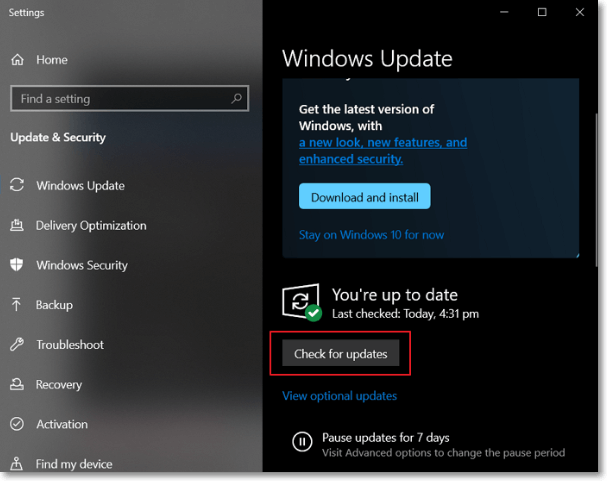
Step 2. To resolve the issue, click the "Check for updates" button on the new screen to search for OS updates, then download and install them across your device.
4. Reconnect the Printer
If the issue persists, you can try reconnecting the printer, either by disabling and enabling the Bluetooth settings or by disconnecting and reconnecting the wired connection. This may resolve any glitches or problems that are causing the "printer driver is unavailable" error.
Bottom Line
If you're experiencing issues with your printer, this article provides a helpful guide to resolve the problem. Specifically, if you're encountering the "printer driver is unavailable" error, this article offers a useful solution to get your printer up and running smoothly again.
Related Articles
- How to Uninstall Dell Backup and Recovery on Windows 10 [Full Guide]
- (Quick Solutions!) How to Backup SD Card Without Computer
- Fix 0x80070780: The File Cannot Be Accessed by the System Error in Windows 10/8/7 [10 Fixes]
- How to Backup iCloud Photo Library to Anywhere
- What Is A DLL File and Where Are DLL Files Located in Windows 10
A DLL file contains shared code that multiple applications can use to execute a specific action, and in Windows 10, these files are typically located in the System32 folder or the Program Files folder. - What Is a LAN (Local Area Network)? Definition, Types, & Benefits
A LAN (Local Area Network) connects devices within a limited area. Learn about LAN types, benefits, and how client-server and peer-to-peer LANs work. - Fix Windows 11 Printer Not Working (2026 Guide)
Products
Articles & Tutorials
- Data Recovery
- Data Backup
- File Recovery
- File Backup
- System Backup and Restore
- Disk and Partition Clone
- Technical articles
- Mobile articles
- Disk Master Help
- Windows Data Recovery Tutorials
- Windows Secure Delete Tutorials
- Windows Partition Management Tutorials
- Windows File Backup and Restore Tutorials
- Windows System Backup and Restore Tutorials
- Windows Disk Backup and Restore Tutorials
- Windows Clone Tutorials