How to Restore Mac to a Previous Date with Time Machine/Migration Assistant/Recovery Software
You may want to restore your Mac to a previous date to resolve some issues, such as a software update that caused problems, a virus or malware infection, or a hardware failure. Restoring your Mac to a previous date can also help you recover lost data or settings.
- You accidentally deleted some files on your Mac.
- To remove a computer virus, start by disconnecting your computer from the internet to prevent the virus from spreading. Next, restart your computer in safe mode to limit the virus's capabilities.
- Your Mac is running slowly with too many redundant files.
- Your macOS base system is behaving strangely due to the loss of critical data.
- Changed some macOS settings and don't know how to reset them.
- Unfortunately, if the macOS Ventura installation failed, you won't be able to boot into the operating system. However, you can try to recover your Mac by booting from the Recovery Mode.
This article provides three methods to help you solve your problem, with detailed tutorials to guide you. A chart is also available to quickly skip to one of the written tutorials, making it easier to find the solution you need.
| Workable Solutions | Step-by-step Troubleshooting |
|---|---|
| 1. Restore Mac to a Previous Date Without Time Machine | Launch Deep Data Recovery software and choose the hard drive, SSD, SD card, or USB...Full steps |
| 2. Restore Mac to a Previous Date with Time Machine | Restart your Mac, and press the power button while your Mac is turning on...Full steps |
| 3. Restore Mac to a Previous Date with Migration Assistant |
Find Migration Assistant under the "Utilities" folder. Click and launch Migration Assistant on your Mac...Full steps |
Method 1. Restore Mac to a Previous Date Without Time Machine
Yes, it is possible to restore your Mac to a previous date without a Time Machine backup. If you only need to recover deleted files or lost data, you can use professional data recovery software such as Deep Data Recovery for Mac to achieve this.
Deep Data Recovery for Mac
- To recover deleted files on a Mac without Time Machine backups, you can try using data recovery software such as Deep Data Recovery. These tools can scan your Mac's hard drive or external storage devices for deleted files and recover them in their original format.
- The software supports various file systems to recover, including NTFS, APFS, HFS+, FAT16, FAT32, and more.
- Retrieve lost data due to accidental deletion, formatting, unmounted drives, system crashes, and other unforeseen circumstances.
Step 1. Select file types
Launch Deep Data Recovery software, select the desired file types, and click "Fast Scan" to initiate the recovery process.

Note: You can choose different search modes based on where and why the data was lost.
Step 2. Select the location to scan
Choose the storage device where you lost data, then click "Scan" to start scanning the device for recoverable files.

Step 3. Filter lost Mac data
The software will automatically scan for lost data on MacBook/iMac, and once the scan is complete, users can filter the desired data using the "Type" and "Path" buttons.

Step 4. Recover lost data or files
Double-Click a file to preview it. Then, click the "Recover" button to restore the lost data to another place.
Method 2. Restore Mac to a Previous Date with Time Machine
To restore your Mac to a previous date using Time Machine, you must have previously configured Time Capsule with Time Machine and have regular backups. Without these backups, you cannot restore your Mac to a previous date.
How to Create a Mac Backup with Time Machine
Time Machine is a built-in backup feature on Macs that allows you to automatically back up your files, documents, and system settings to an external hard drive. To activate Time Machine, you'll need to connect an external drive to your Mac, such as a USB drive or a network drive.
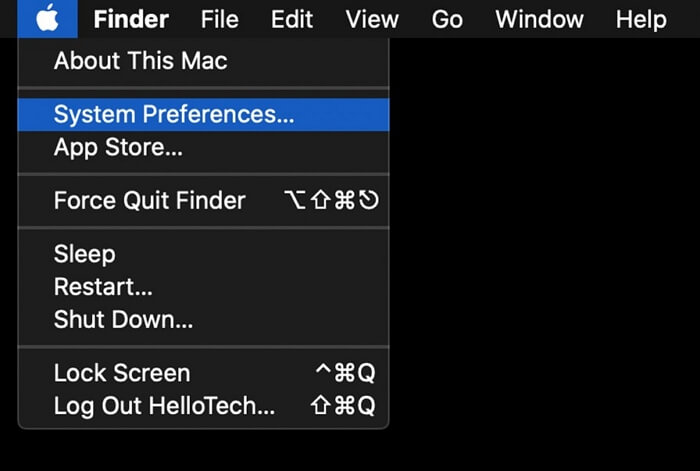
Step 1. Find the System Preferences under the Apple menu.
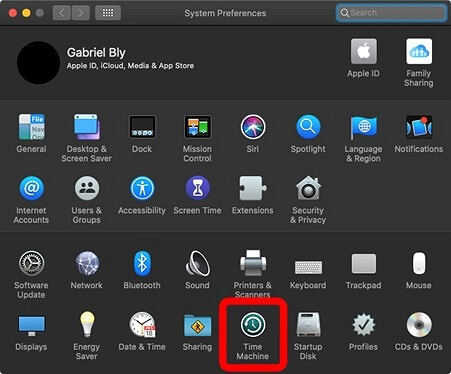
Step 2. Click "Time Machine".
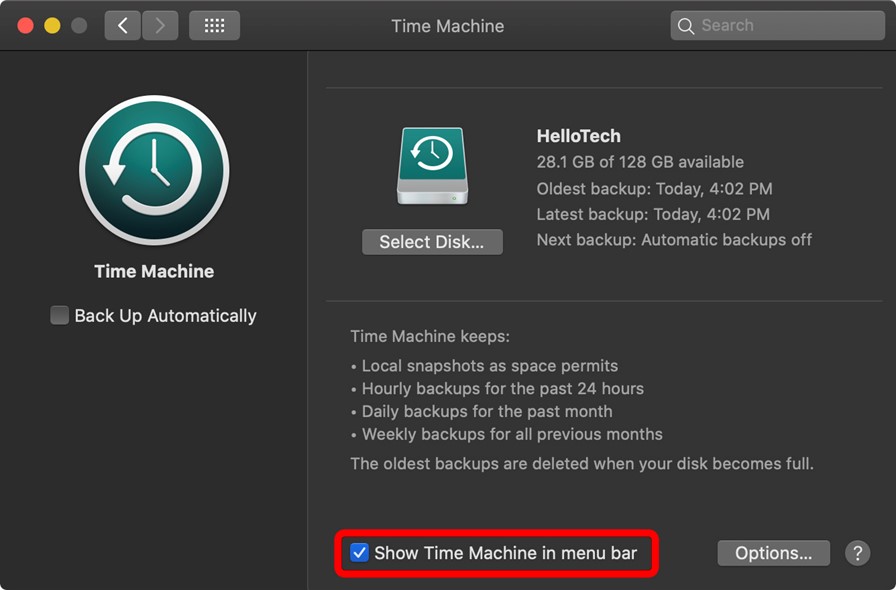
Step 3. After the Time Machine window appears, click "Select Disk" to choose the disk you want to back up, and make sure the "Back Up Automatically" box is checked.
How to Restore Mac to a Previous Date from Time Machine Backup
To restore your Mac to an earlier date from a Time Machine backup, you'll need to boot into macOS Recovery Mode and follow the on-screen instructions to select the backup and restore your Mac. This process can be completed with the help of a video tutorial, which provides a step-by-step guide to ensure a successful recovery.
- 01:32 Boot Mac into Recovery Mode
- 04:06 Restore Mac from Time Machine
- 06:35 Select a Mac backup to restore
Here is the written tutorial:
Step 1. To restart your Mac, turn it off, then press and hold the power button until it turns back on. For Intel-based Macs, hold down the Command and R keys instead.
Step 2. Release the button until you see the recovery tool on the screen.
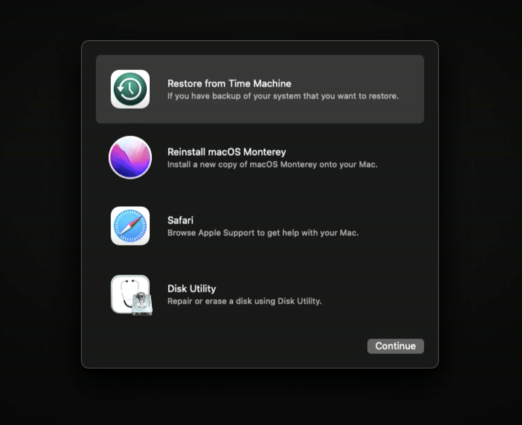
Step 3. Click "Restore from Time Machine".
Step 4. Follow the instructions and choose a backup to restore Mac to a previous date.
Method 3. Restore Mac to a Previous Date with Migration Assistant
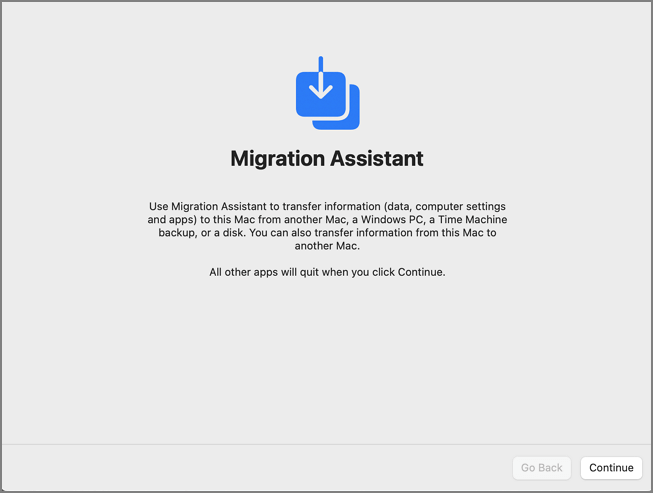
If you don't want to restart your Mac or your Mac Recovery Mode not working, macOS Migration Assistant can help a lot. Let's check how to use the Mac Migration Assistant:
Step 1. Find Migration Assistant under the "Utilities" folder.
Step 2. Launch Migration Assistant on your Mac by clicking on it, then click "Continue" to proceed with the process.
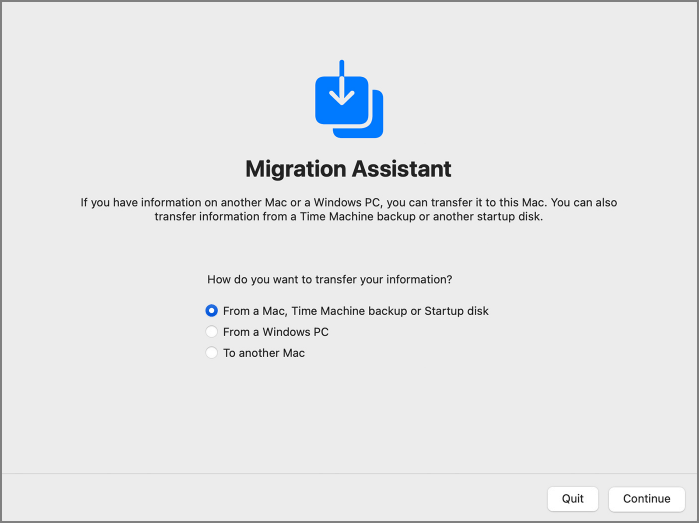
Step 3. Select the first option, "From a Mac, Time Machine Backup or Startup disk", and choose "Continue".
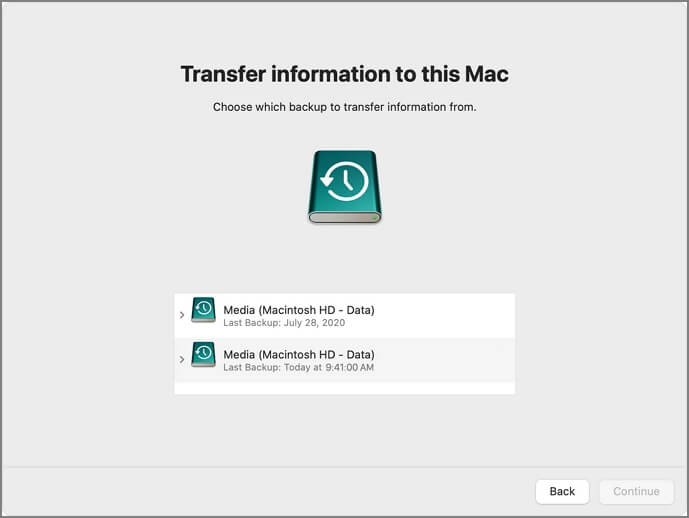
Step 4. Select a backup and click "Continue". Follow the prompts to restore the information you need.
Restore Mac to a Previous Date FAQs
To restore your Mac to a previous date, you can use the built-in Time Machine feature, which backs up your system and data. If you're experiencing issues, you can try resetting your Mac by booting in Safe Mode or using the Recovery Mode to reinstall macOS. If you need to go back further, you can use the Time Machine backups to restore your system to a previous date.
How do I restore my Mac to an earlier time?
If your Mac is in need of a refresh, you have three options to restore it to an earlier date. If you've been diligent about backing up your Mac, you can use Time Machine or the Mac Migration Assistant to restore it to a previous point. Alternatively, if you don't have any backups, you can still recover your important data and files with the help of professional data recovery software like Deep Data Recovery for Mac.
Is there a system restore option on Mac?
There is no system restore option on Mac, but users can restore their system with two methods:
- 1. Boot your Mac into Disk Utility, then select the disk you want to erase, confirm the action, and follow the prompts to reinstall macOS.
- 2. To system restore your Mac, you can use the macOS Erase Assistant, which guides you through the process with prompts, making it easy to restore your system to its original settings.
Can I restore Mac files without Time Machine?
You can restore Mac files without a Time Machine backup using Deep Data Recovery for Mac, which allows you to recover lost files in just three simple steps.
- 1. Launch the software and scan your Mac.
- 2. To recover files, you can use a file recovery software. First, filter the files you want to recover.
- 3. Preview the files to confirm and recover them.
How to back up and restore Mac with Time Machine?
To back up and restore your Mac with Time Machine, follow these steps: first, make sure Time Machine is set up on your Mac and an external drive is connected; then, select the backup disk from the Time Machine menu in the menu bar and click "Select Backup Disk" to confirm; next, go to System Preferences > Time Machine and select the backup disk from the list; finally, if you need to restore your Mac, go to System Preferences > Time Machine, select the backup disk, and click "Restore From" to choose the most recent backup.
- 1. Find the System Preferences under the Apple menu.
- 2. Click "Time Machine".
- 3. After the Time Machine window appears, click "Select Disk" to choose the disk you want to back up, and make sure to check the "Back Up Automatically" box.
- 4. To restart your Mac, simply turn it off, then press the power button while it's booting back up. For Intel-based Macs, hold down the Command and R keys instead. This will initiate a system recovery process, allowing you to reinstall macOS or access the Utilities folder.
- 5. Release the button until you see the recovery tool on the screen.
- 6. Click "Restore from Time Machine".
- 7. Follow the instructions and choose a backup to restore Mac to a previous date.
Related Articles
- How to Fix Printer Driver is Unavailable Error on Windows 10/11 [Fixed Lately]
- How to Install Windows 10 on New PC [Step-by-Step Guide]
- How to Erase All Content and Settings on Mac [macOS Ventura/Monterey]
- Solved: Getting Files Ready for Installation Stuck at 0%, 1%, 10%, 100%
- What Is a Windows Key? [All You Need to Know]
The Microsoft Natural keyboard first introduced the Windows logo key in 1994, which has since appeared on all PC keyboards, also known as the Windows-, Win-, Start-, Logo-, Flag-, or Super-Key. - How Do I Know What Version of Windows I Have on My Computer
Every Windows version allows you to check for its current version even if you've upgraded from the initial version. This article reveals multiple ways to check which Windows version you have through the Start Button, Settings, and the Command Prompt.
Products
Articles & Tutorials
- Data Recovery
- Data Backup
- File Recovery
- File Backup
- System Backup and Restore
- Disk and Partition Clone
- Technical articles
- Mobile articles
- Disk Master Help
- Windows Data Recovery Tutorials
- Windows Secure Delete Tutorials
- Windows Partition Management Tutorials
- Windows File Backup and Restore Tutorials
- Windows System Backup and Restore Tutorials
- Windows Disk Backup and Restore Tutorials
- Windows Clone Tutorials