What Is a Windows Key? [All You Need to Know]
Introduction
For those familiar with Windows products over the past twenty years, a product key is a 25-character code that's often the source of frustration when Windows refuses to cooperate. Let's dive in and learn more about this crucial component that controls your system.
The Windows key on your keyboard is a crucial component that opens the Start menu, launches system app shortcuts, and more. If it's not functioning properly, it can significantly impact your productivity and make navigating your system more difficult. Fortunately, there are various fixes that can resolve the issue, and understanding the root causes can help you troubleshoot and resolve the problem.
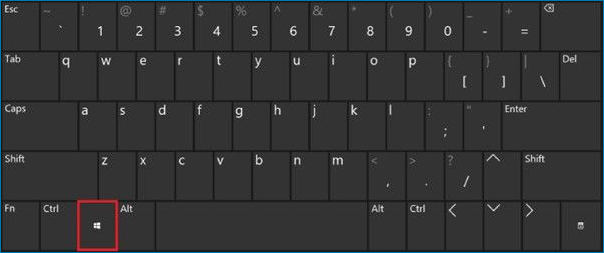
What Is a Windows Key?
The Windows key, located between Ctrl and Alt on the keyboard, is a button that, when pressed, brings up a menu with a search bar, providing access to various Windows features and functions.
To launch Windows Explorer, hold the Windows key and press the E key, then release both.
Where Is the Windows Key?
The Windows key is located between the Alt keys and the Ctrl keys, on either side of the space bar, and has a Windows logo, although some PC keyboards may display a different image, but its functionality remains the same. Some Linux users may choose to replace or cover the Windows key with a Tux sticker or key.
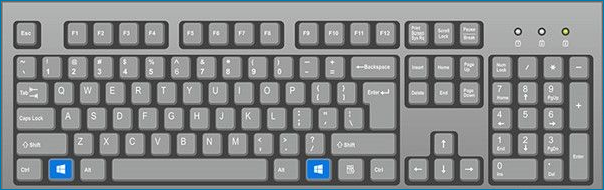
Why Is the Windows Key Not Working?
The inability of the Windows key to function is a common concern, and there are several possible reasons behind it, which can be identified by analyzing user data from various sources, pinpointing a few standard Windows 10 core concerns.
A keyboard may stop working if it is physically damaged, likely due to a broken wire connecting it to the computer, which is less likely to happen with wireless keyboards.
- A new Windows 10 update has been released, but it may cause issues with your machine, particularly if you use a gaming keyboard, which may require a new driver to function properly.
- Windows 10's Game Mode has been reported to cause issues with some keyboards, such as the Razer Blackwidow, resulting in keyboard problems. Turning off Game Mode is a potential solution to this issue.
- The Windows key has been disabled, possibly by software, a human, malware, or Game Mode, making it inactive.
- Windows 10 has a known flaw in its Filter Key feature, which can make it hard to type on the login screen due to a glitch that prevents certain keys from registering, causing frustration for users.
How to Fix Windows Key Is Not Working?
If the Windows key on your keyboard stops working, you can try to fix the issue by restarting your computer, checking for stuck keys, cleaning dust from the keyboard, and updating your keyboard drivers. You can also try pressing the Windows key and the "R" key at the same time to bring up the Run dialog box, or use the Windows key and the "E" key to open File Explorer. If none of these methods work, you may need to reset your keyboard to its default settings or replace it if it's damaged.
Step 1: Right-click on the Start menu icon on your computer.
Step 2: From the menu, select the Settings option.
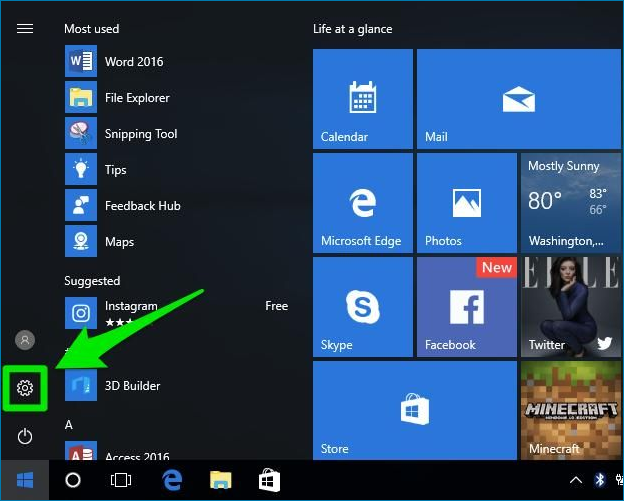
Step 3: Find the "Ease of Access" option and click on it.
Step 4: Click the Keyboard option located in the left pane.
Step 5: Find the feature that's called Filter Keys.
Step 6: Turn the switch off.
Step 7: Restart your computer and check whether the Windows key works normally. If the issue remains, review the previous settings and try another method.
Conclusion
The Windows key on a Microsoft Windows-compatible computer keyboard allows access to various shortcuts, such as the Start menu, by tapping the key alone.
FAQs
1. What do I do if I don't have a Windows key?
To install Windows 11, you need to enter a product key that identifies the Windows edition being installed. You can obtain this key by providing your credit card details at the Microsoft Store or by using the Media Creation Tool to create a Windows 11 installation USB drive.
2. How do I know if my Windows key is valid?
To check the activation status of Windows, go to Update & Security > Activation. If there's an error that doesn't mention Windows being active, it's likely due to a fake or illegal Windows 11/10 key. First, verify the activation settings to see if there's a warning. If you see an error, check the activation status under Update & Security > Activation. This will confirm whether the Windows key is genuine or not.
Related Articles
- What Is System 32 in Windows and Why You Shouldn't Delete It? [Detailed Information]
- What Is NTFS? A Great Substitute For FAT
- What Is CD-RW? Compact Disc Re-Writable Explained
- Windows Recovery Environment [How to Access with Video]
- How to Fix "Can't Convert to Dynamic Disk" Error [Step-by-Step Guide]
Fix the cannot convert to dynamic disk error with four practical methods and learn why Windows may block disk conversion. - How to Solve 'Can't Delete Partition on SD Card' [100% Working Solutions]
If you're experiencing issues with deleting a partition on your SD card in Windows, this article can help. It explains why Disk Management may not allow you to delete the partition on your SD card and provides solutions to make space available on your SD card.
Products
Articles & Tutorials
- Data Recovery
- Data Backup
- File Recovery
- File Backup
- System Backup and Restore
- Disk and Partition Clone
- Technical articles
- Mobile articles
- Disk Master Help
- Windows Data Recovery Tutorials
- Windows Secure Delete Tutorials
- Windows Partition Management Tutorials
- Windows File Backup and Restore Tutorials
- Windows System Backup and Restore Tutorials
- Windows Disk Backup and Restore Tutorials
- Windows Clone Tutorials