How to Restore Backup From Google Drive to Every Device You Want
Introduction
There are various types of data in our lives, such as photos, emails, and files, which can be lost due to hardware-software failures, virus or malware attacks, so backing up and syncing them regularly is necessary.
Google Drive is a cloud storage and sync service that allows users to store files online and access them across devices.
Storing your files and important data in the Google Drive cloud is a safe way to prevent data loss, as it is less vulnerable than an external hard drive.
How to Restore the Backup From Google Drive to Android?
To restore a Google Drive backup to an Android device, you'll need to follow a few steps. First, make sure you have a stable internet connection.
1. Reset your Android phone and set the device to its original factory settings.
2. When you reset your device, you'll see the welcome screen. Click on it, then select the "Copy your data" option on the next screen.
3. Select "Backup from the cloud" from the following options.
4. To restore your phone after a factory reset, log in to your Google account and select everything to be restored, then click Restore and wait for the process to finish.
Just sign in to your Google account and you'll be able to manage your photos and videos along with the rest of your content.
After signing in to your account, select the "Photos" tab, choose the photos and videos you want to restore, and click "Download" to restore your backed-up photos and videos.
How to Restore the Backup From Google Drive to Windows PC?
To restore a Google Drive backup to a Windows PC, simply follow these steps. You can directly restore the backup from Google Drive to your Windows PC by following the operations.
1. To access your Google Drive account on your Windows PC, open the browser of your choice (such as Google Chrome, Mozilla Firefox, or Microsoft Edge) and sign in to your Google Drive account using your Google account credentials. This will allow you to view and manage your files stored on Google Drive.
2. Select the folders you need to restore in your Google Drive account, right-click on them and choose "Download" to initiate the download process.
3. Google Drive will compress the selected folders into ZIP files and complete the download task, allowing us to unzip them to access the data inside.

How to Restore the Backup From Google Drive to iOS?
You can backup files to Google Drive from iOS devices, and even share files, but unfortunately, you can't restore the backup from Google Drive to iOS devices directly due to Google Drive's encryption protocol that restricts the iOS system.
To resolve the dilemma of transferring backup data from an iPhone to an Android phone, we can use a third-party tool, such as an Android phone itself. We can restore the backup data from Google Drive to the Android phone, and then transfer the backup data from the Android phone to the new iPhone using Gmail.
Conclusion
For your data security, it's essential to develop the habit of backing up your files, and knowing how to restore them is just as crucial. Fortunately, restoring backup files from Google Drive is a straightforward process that can be done on various devices, and the solutions outlined in this article are clear, simple, and effective, providing a helpful guide for those seeking to resolve their doubts in this area.
Q&A: About How to Restore the Backup From Google Drive
How do I access my backed-up data on Google Drive?
For your phone:
1. Open the Google Drive APP on your phone.
2. Tap Menu, and you can see the Backup option here.
3. Tap Backup and manage your data on Google Drive.
For your Windows PC:
1. Open your browser and turn to drive.google.com.
2. In the left navigation bar, select the storage option
3. To select backups, click on the "Select Backups" option in the top right corner of the open page.
4. Enter the Backups interface to manage your documents.
How do I sync my Google backup?
For your phone:
1. Open the Settings app on your phone.
2. To check your Google Account sync, go to your phone's "About phone" section and then select your Google Account, followed by "Account sync."
3. Tap the "More" option, and choose "Sync now."
For your Windows PC:
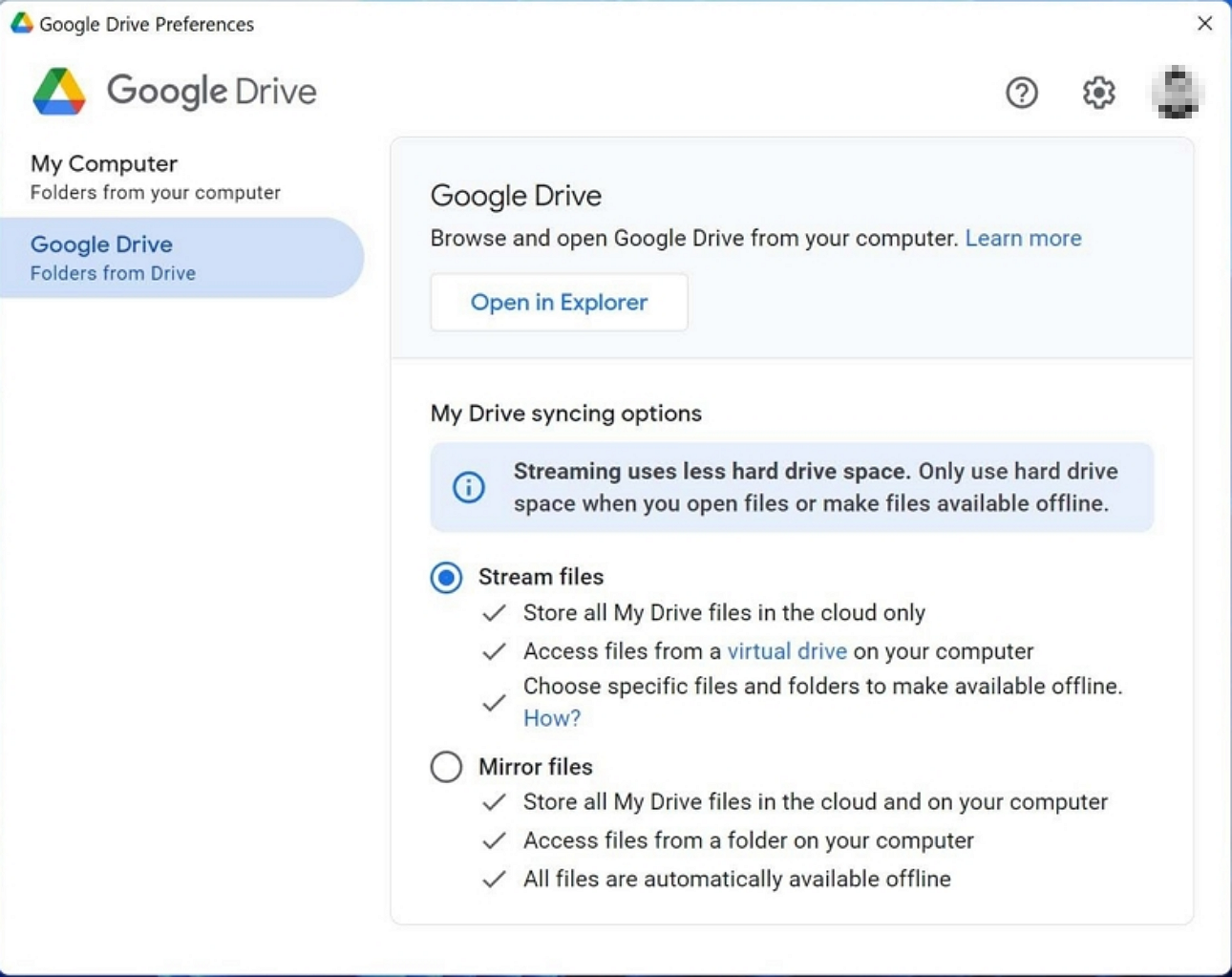
1. To get started, download and install Drive for desktop, then sign in to your Google account.
2. Click the Settings option and then choose Preferences
3. On the left-hand function bar, click Google Drive, then choose My Drive syncing options.
4. There are two categories of files here, you can choose either one you want, and once you select, the files on your PC will be automatically uploaded to Google Drive.
Do Files on Google Drive Last Forever?
Google offers a 2-year storage period for your files, and after that, they will be automatically deleted. However, Google will send a notification at least 3 months prior to the deletion.
Related Articles
- (Solved!) How to Backup Gmail Emails to Another Gmail Account
- [SOLVED] The Action Can't Be Completed Because the File Is Open in Another Program
- What Is Microsoft Safety Scanner? How to Download and Use It? [Updated in 2022]
- 4 Solutions | Fix Bootable USB Not Working in Windows 10/8/7
- What Is A LUN? Logical Unit Number Explained
A Logical Unit Number (LUN) is a unique identifier for storage devices in SAN and SCSI systems. Learn how LUNs work, their types (mirrored, striped, concatenated), and key use cases. - M.2 Not Recognized? See How to Make Your M.2 SSD Show Up in Windows
M.2 SSD not recognized in Windows 10/8/7? Learn 5 proven fixes for BIOS, boot drive, Disk Management, and File Explorer detection issues. Recover your M.2 drive data with step-by-step solutions.
Products
Articles & Tutorials
- Data Recovery
- Data Backup
- File Recovery
- File Backup
- System Backup and Restore
- Disk and Partition Clone
- Technical articles
- Mobile articles
- Disk Master Help
- Windows Data Recovery Tutorials
- Windows Secure Delete Tutorials
- Windows Partition Management Tutorials
- Windows File Backup and Restore Tutorials
- Windows System Backup and Restore Tutorials
- Windows Disk Backup and Restore Tutorials
- Windows Clone Tutorials