(Solved!) How to Backup Gmail Emails to Another Gmail Account
Many users wonder if they can move their Gmail emails to another Gmail account so that if they lose access to their primary account or if it gets compromised, their emails are still safe -- especially when the data is essential.
After extensive research, it is clear that this is possible. While there are many ways to move emails from one Gmail account to another, the best methods have been selected to help you back up your emails efficiently.
To back up Gmail emails to another Gmail account, you can use the "Send a copy" feature in Gmail. This will allow you to forward your emails to another account.
Reasons for Moving Gmail Emails to Another Gmail Account
Digitalization has spoiled us, making us reliant on online services that store our essential contacts and data. We've become dependent on corporations that provide these tools, losing control over our personal information.
They can seize your account, block your access, compromise your accounts and data, and even expose you to computer viruses and malware.
To ensure your important emails are safely backed up, it's essential to create a backup of your data, including your emails. While many users rely on email backup software to do this, there's an alternative method that can also be used. By following a few simple steps, you can back up your Gmail emails to another Gmail account, providing a secure and reliable way to preserve your emails. This can be especially useful for users who want to keep a copy of their emails in a separate account.
To back up Gmail emails to another Gmail account, you can use the built-in feature in Gmail that allows you to forward emails from one account to another. To do this, go to the settings of the account you want to back up, click on "See all settings," and then scroll down to the "Forwarding and POP/IMAP" section.
Three Ways to Transfer Emails from One Gmail Account to Another
We've selected the top three methods for transferring emails from one Gmail account to another. To find out which ones they are and learn how to follow them, continue reading.
- Method 1. Using POP/IMAP Setting to Transfer Gmail Emails to Another Account
- Method 2. Configuring Old Gmail Account with New Gmail Account
- Method 3. Using the Desktop Email Client to Transfer Gmail Emails
Method 1. Using POP/IMAP Setting to Transfer Gmail Emails to Another Account
To transfer emails from one Gmail account to another, you can utilize the settings from Gmail to help facilitate the transfer. This can be achieved by enabling the IMAP of the source Gmail account and then importing the emails to the target Gmail account. The process involves following specific steps, which include enabling POP/IMAP settings for the source account, configuring the target account to receive emails from the source account, and then importing the emails from the source account to the target account. This approach allows for a seamless transfer of emails from one account to another, making it an effective solution for managing multiple Gmail accounts.
Step 1. Open your browser, log in to your new Gmail account, and prepare to move emails from your original account.
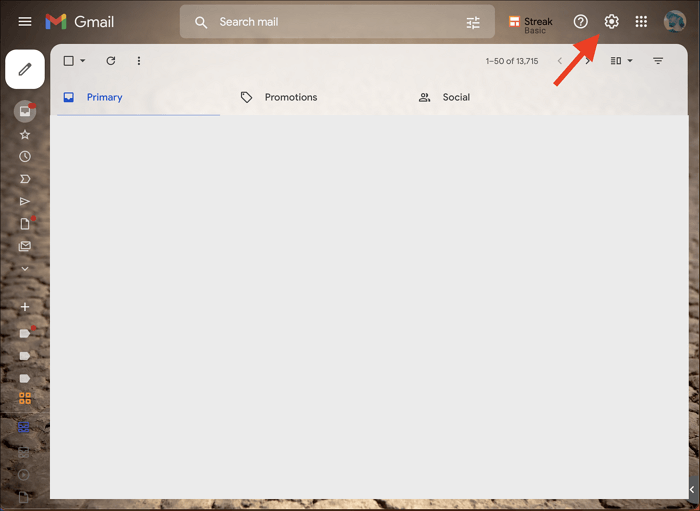
Step 2. To access the settings, click on the "gear" icon located at the top right corner of the screen and then click on "See all settings" from the dropdown menu.
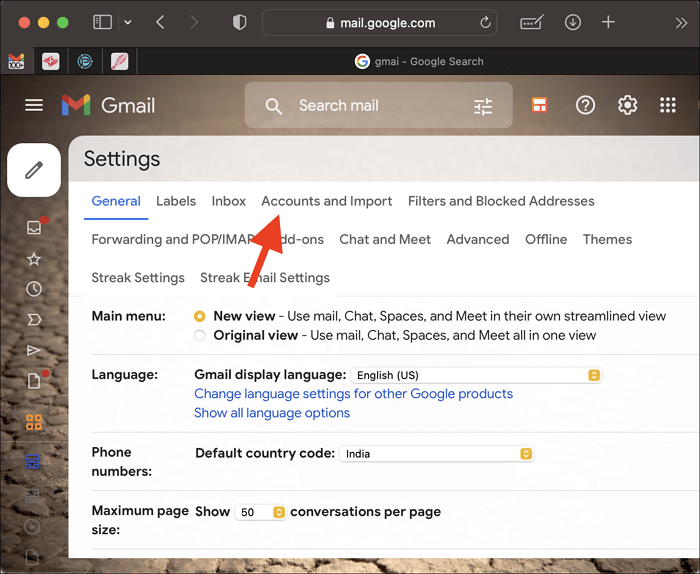
Step 3. Open the "Accounts and Import" tab.
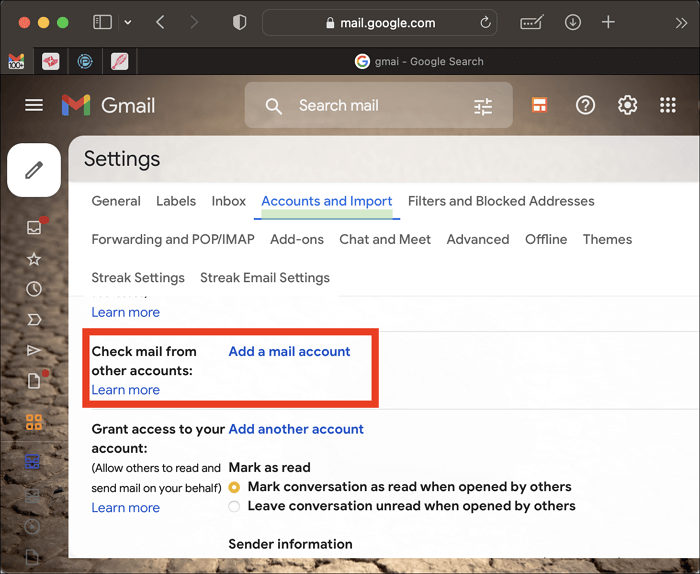
Step 4. To add a mail account, locate the "Check mail from other accounts" option and select the "Add a mail account" option.
Step 5. Enter the email address of the account you want to transfer emails from and press the "Next" button.
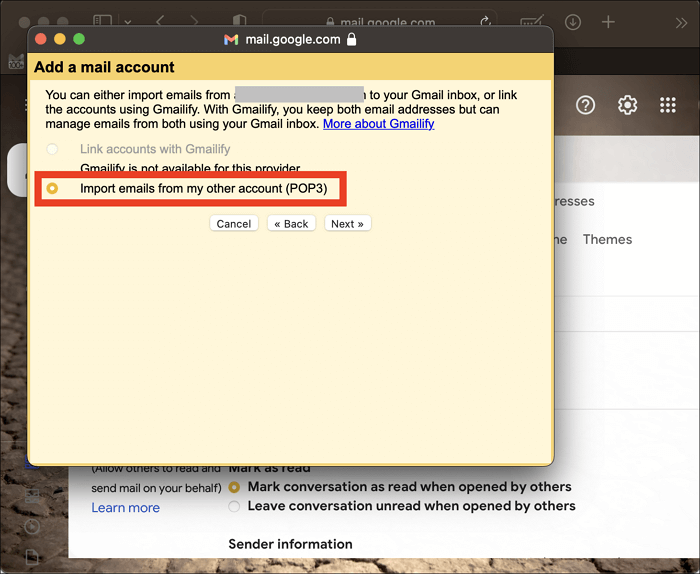
Step 6. To import emails from another account, select the "Import emails from my other account (POP3)" option and click "Next".
Step 7. To transfer emails from one account to another, you need to enter the password and the username of the account that has the emails you want to transfer. This will allow you to access the account and initiate the transfer process.
Step 8. To add a Gmail account, select "pop.gmail.com" and "Port No. 995" under the "POP Server" section, then click on "Add Account."
Step 9. The solution involves setting up a forwarding rule in your original email account to automatically forward all incoming emails to the new email account. This way, all emails received by your original email address will be redirected to the new email account, effectively making the new account the primary recipient of all emails.
Method 2. Configuring Old Gmail Account with New Gmail Account
To move emails from a Gmail account to another, you can configure an old Gmail account with a new account. This involves setting up the old account to forward emails to the new account, and then deleting the old account. This method allows you to keep all your emails in one place, but still have the option to delete the old account if needed.
Step 1. To access the Gmail settings, log in to your Gmail account and then click on the "Gear" icon.
Step 2. Open the "See All Settings" tab, select "Accounts and Import," and click on "Add a Mail Account."
Step 3. Enter the email address you want to transfer emails from, then click Next.
Step 4. Select "Import Emails From My Other Account (POP3)" and press "Next."
Step 5. In POP Server, choose "pop.gmail.com" and Port to 995.
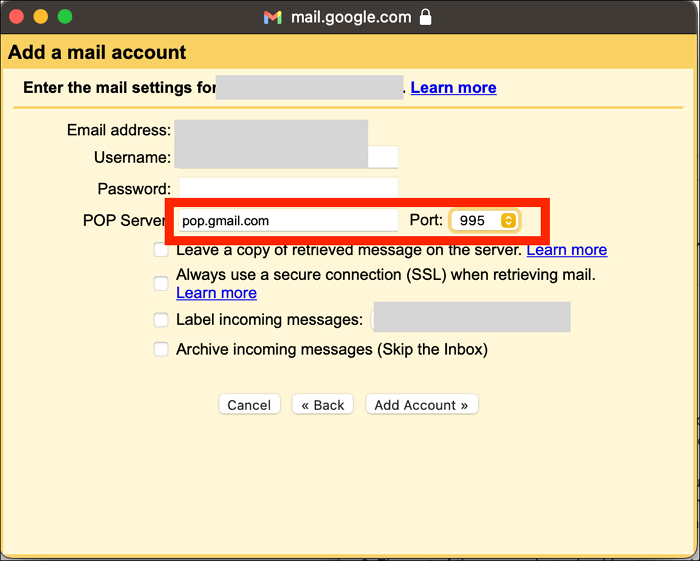
Step 6. Select "Leave a Copy..." and tick the option "Always use a secure connection (SSL)."
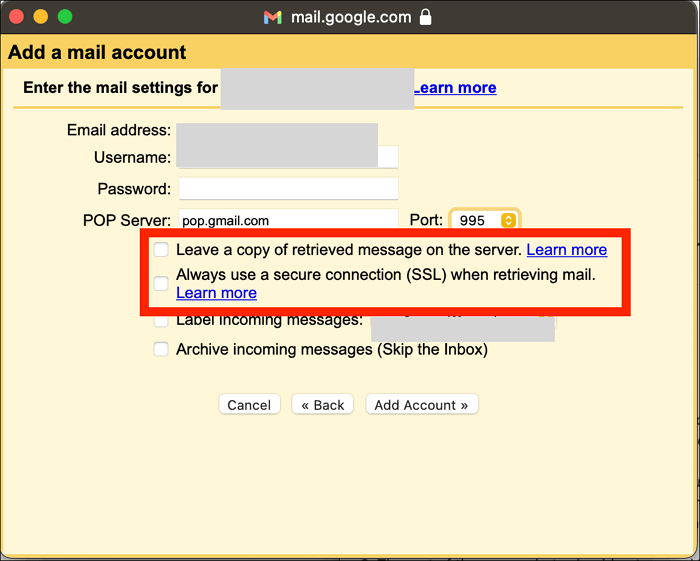
Step 7. Now, click on "Add Account" and then click on "Yes."
Step 8. Now, you will see a few prompts that you need to configure yourself, and once done, all your emails from the original account will be sent to this account.
Method 3. Using the Desktop Email Client to Transfer Gmail Emails
To transfer emails from one account to another using Outlook on your desktop, you can use the "Import and Export" feature. This feature allows you to export emails from one account and import them into another account. To do this, go to File > Open > Import and Export Wizard, select "Export to a file" and choose the email format you want to export to. Then, select the folder you want to export and choose the emails you want to export.
Step 1. Click on File > Info > Account Settings > Account Settings.
Step 2. Under the "Email" tab, click on "New."
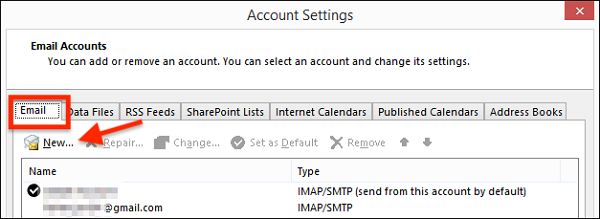
Step 3. To set up your primary email address, go to the settings menu and select "accounts". Then, tap on the "add account" option.
Step 4. To add a second account, repeat the process of creating a new account, entering the email address and password of the second account, and confirming the password. This will create a new login session for the second account.
Step 5. Close the "Account Settings" window and let the emails download fully in Outlook before proceeding.
Step 6. To transfer emails from one account to another, select all emails in the source account by pressing Ctrl + A, then drag and drop them into the destination account.
Step 7. You will now successfully transfer all the emails to your other account.
How to Backup Gmail Emails with Attachments for Windows 11/10/8/7
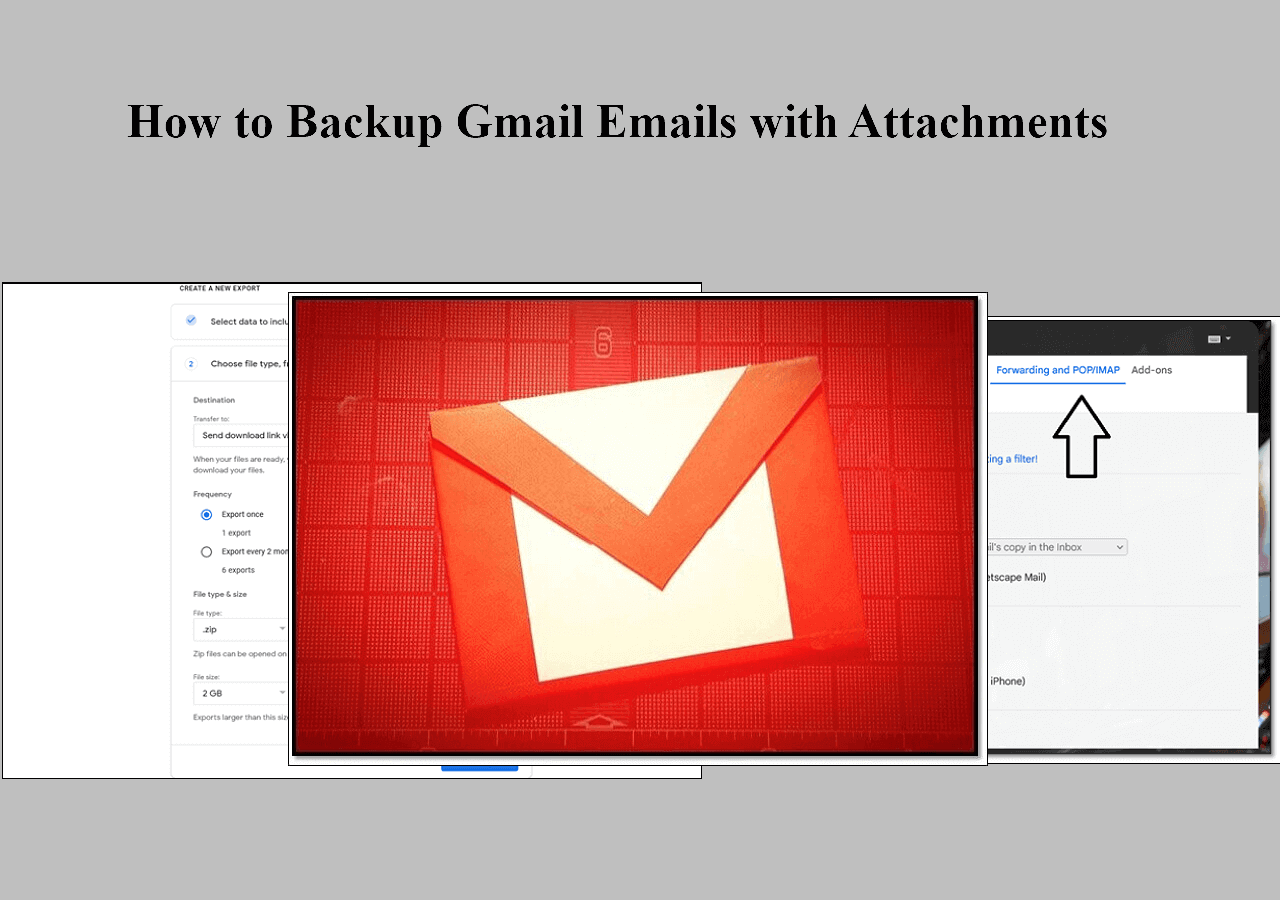
To back up Gmail emails with attachments, you can use the built-in export feature in Gmail. First, log in to your Gmail account and navigate to the "More" menu, then select "Settings" and click on the "Forwarding and POP/IMAP" tab.
Final Words
You can transfer all your emails from different Gmail addresses to a backup Gmail account by setting up each email address to automatically move to the backup account, making it a simple way to protect your emails.
FAQs
1. Can you forward an old email address to a new one?
To avoid missing emails when changing your email address, set up auto-forwarding, ensuring you receive all new emails at your new address.
2. How can I save all my emails from Gmail before deleting?
To save all your emails before deleting a Gmail account, follow these steps:
Step 1. To access your Google account settings, log in to your account, click on the "Gear" icon, and then select "Manage your Google Account."
Step 2. To view the "Data & privacy" tab, click on the left side menu and select the "Data & privacy" option.
Step 3. The section "Download or delete your data" can be found by scrolling down.
Step 4. Click on "Download your data" and locate "Gmail."
Step 5. Select "All Mail data included" and then click on "OK."
Step 6. Scroll down once again, and click on "Next Step."
Step 7. Now choose how you want to export the data and click on "Create export."
3. Does deleting a Google Account delete everything?
If you initiate the deletion of your Google account, you have 30 days to change your mind and keep the account. If you want to cancel the deletion, simply log back into the account within the 30-day time frame.
Related Articles
- Windows 7 Registry Backup Location [All You Need to Know]
- How to Fix Smart Failure Predicted on Hard Disk 0, 2, 4
- Why Format SD Card: Full Guide on the Main Reasons
- How to Fix "No Root File System Is Defined" [Efficient & Easy Solutions]
- MOV Repair: Top 6 Ways to Repair Corrupted MOV Files
Learn how to repair corrupted MOV files with 6 proven methods. Fix MOV videos that won't play on Windows, Mac, or online using VLC, QuickTime, and top repair tools. - 4 Choices of Portable Windows Product Key Finder for Your PC
You will have problems if you lose the product key of Windows or any software while reinstalling the Operating System or any other software from scratch. There are so many tools to get it back. But We shortlisted only the 4 best portable Windows Product Key Finder choices for Your PC.
Products
Articles & Tutorials
- Data Recovery
- Data Backup
- File Recovery
- File Backup
- System Backup and Restore
- Disk and Partition Clone
- Technical articles
- Mobile articles
- Disk Master Help
- Windows Data Recovery Tutorials
- Windows Secure Delete Tutorials
- Windows Partition Management Tutorials
- Windows File Backup and Restore Tutorials
- Windows System Backup and Restore Tutorials
- Windows Disk Backup and Restore Tutorials
- Windows Clone Tutorials