How to Fix Smart Failure Predicted on Hard Disk 0, 2, 4
Overview of Smart Failure Predicted on Hard Disk 0, 2, 4 Issue
Your Dell laptop is showing a "Smart Failure Predicted" error on its hard drive, specifically the ST9640320AS model, but it's still booting normally and everything seems to be working fine. This error suggests that the hard drive's built-in monitoring system (SMART) has detected potential issues with the drive, but it's not necessarily a cause for immediate concern. The drive may still be functioning properly, and the error might be a false alarm. However, it's recommended to run a diagnostic test on the drive to confirm its condition and consider backing up your data to prevent potential losses in case the drive fails in the future.
What Is a Smart Failure
SMART (Self-Monitoring, Analysis, and Reporting Technology) is a built-in utility that continuously monitors a hard drive's or solid-state drive's condition, reporting performance and error rates to the system. When you receive a "Smart Failure Predicted on Hard Disk" error message, it means that SMART has detected an impending failure, but it's not an actual failure yet. The technology uses predictive failure analysis to alert you to potential issues, allowing you to take preventive measures before a complete failure occurs.
Reasons and Common Cases
The "Smart Failure Predicted on Hard Disk" error message typically indicates that the hard disk drive is experiencing hardware issues and is likely to fail soon. It advises users to immediately back up their data and replace the hard disk drive, as a failure may be imminent. The message also prompts users to press F1 to continue, but it's essential to heed the warning and take action to prevent data loss.
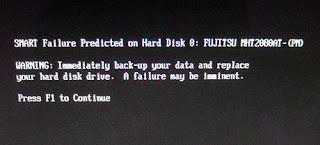
The BSOD, also known as the Blue Screen of Death, often appears on laptops like Dell, Sony Vaio, and Lenovo ThinkPad, as well as other devices running Windows 7 or 10, due to various issues such as bad sectors, physical shock, overheating, or improper shutdown, particularly when the disk is almost full and not properly defragmented.
How to fix or disable Smart Failure Predicted on Hard Disk on 0, 2, 4
The "Smart Failure Predicted on Hard Disk" error indicates that the hard drive is likely to fail soon, potentially within days, a week, or even a month. It is recommended to address this issue promptly to avoid potential data loss and system crashes that may occur if the hard drive fails unexpectedly.
1. Back Up Data Before Repairing Smart Hard Drive Failure Issue
To create a backup of your system, download and launch Qiling backup software, then select the appropriate backup option.
Step 1. To select the Disk backup feature, start by going to the Backup and recovery page. From there, select the Disk backup feature.

Step 2. It is available to back up a whole disk or a certain partition. Choose the one you need.

Step 3. Select the destination where you want to save the backup.

Step 4. For disk/partition backup, you can save the backup to a local drive or to a network-attached storage (NAS) device.
Step 5. Once the backup process is finished, your task will be displayed on the left side. You can select any task to further manage your backup, such as recovering it, creating an incremental backup, and more.

The program allows you to clone a disk in Windows 10, making it easy to move to a new hard disk without reinstalling Windows. This saves you the hassle of manually fixing issues like Smart Failure Predicted on Hard Disk on 0, 2, 4.
2. Fix/Disable Smart Failure Predicted on Hard Disk
There are two ways you can apply.
Method 1. Check and Fix Bad Sectors
Step 1. In Windows 7, click "Start" -> "Computer", in Windows 10, click "File Explore".
Step 2. Right click on any one partition on the hard disk with SMART failure error.
Step 3. Select "Properties" -> "Tools" and hit "Check now" under the "Error-checking".
Step 4. Enable the "Automatically fix file system errors" and "Scan for and attempt recovery or bad sectors" options.
Step 5. Click on "Start" to begin the process.
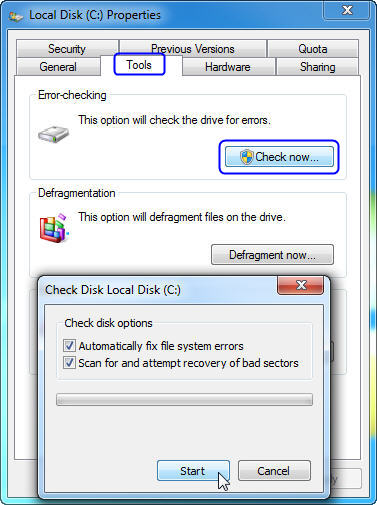
If you check the partition that contains your Windows installation, you will be prompted to schedule a disk check after the restart.
Fix File System Error with Third-Party Tool
Download Qiling CleanGenius and install it on your computer. Let's start checking and refixing file system error on your device now.
Step 1. Click "File Showing" to enter the next step.
Step 2. To fix a problematic device, select the target device, check the box next to "Check and fix file system error", and then click "Execute" to initiate the repair process.
Step 3. After the fixing process is complete, click "here" to access and start using your device.
Method 2. Defragment Disk
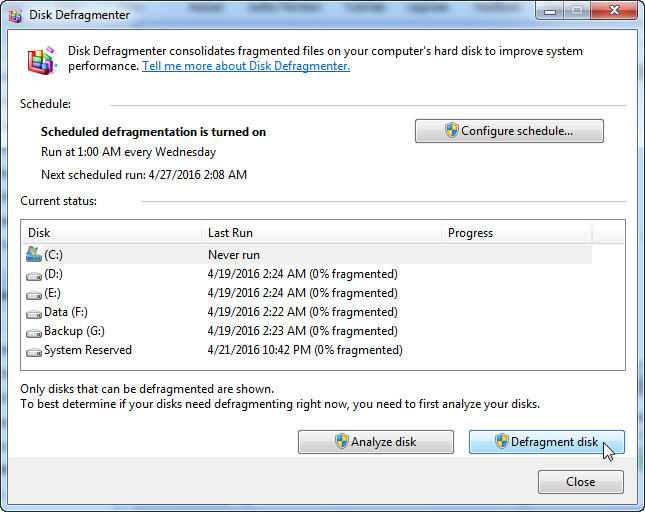
A SMART hard drive failure warning can sometimes be attributed to disk fragmentation, and in some cases, it can be resolved by defragmenting the disk.
Step 1. Click the "Start" button.
Step 2. In the search box, type Disk Defragmenter and then select "Disk Defragmenter" in the list of results.
Step 3. Select the drive you want to defragment and click "Defragment Disk".
If you're experiencing the "Smart Failure Predicted on Hard Disk on 0, 2, 4" issue on your Dell laptop, Sony Vaio, Lenovo ThinkPad, or other devices in Windows 7, 10, try these solutions one by one to repair or disable the smart hard drive failure.
Related Articles
- 5 Ways to Fix Hard Drive Read Speed Slow Error
- How to Solve Hard Disk Error 303 and 305
- Fixed: Windows 10 Reset Stuck or Windows 10 Fails to Reset
- Windows 10 Keeps Restarting or Continuously Reboots? Fix It Now!
- Top 2 Best Cloning Software for HDD and SSD of 2024
If you're looking for the best cloning software on Windows 10, 8, or 7, we've can help. The top contenders are Qiling Disk Master and Clonezilla, both of which offer powerful disk cloning capabilities for HDDs and SSDs. After a comparison, you can choose the one that best suits your needs. - Best Way to Backup Data to Synology NAS (2024 Choice)
Are you looking for the best way to back up data to Synology NAS? Well, you are in a helpful guide. This tutorial will walk through the best backup software Qiling Disk Master, as well as the steps to use it to back up Windows data to Synology NAS.
Products
Articles & Tutorials
- Data Recovery
- Data Backup
- File Recovery
- File Backup
- System Backup and Restore
- Disk and Partition Clone
- Technical articles
- Mobile articles
- Disk Master Help
- Windows Data Recovery Tutorials
- Windows Secure Delete Tutorials
- Windows Partition Management Tutorials
- Windows File Backup and Restore Tutorials
- Windows System Backup and Restore Tutorials
- Windows Disk Backup and Restore Tutorials
- Windows Clone Tutorials