Windows 7 Registry Backup Location [All You Need to Know]
Windows 7 backup is a crucial aspect of maintaining your computer's health, but have you ever wondered about the Windows 7 registry? The registry is a database that stores settings and options for Windows 7, and it's comprised of several files located in specific directories on your computer. To back up your Windows 7 registry, you'll need to know where these files are stored, and this article will guide you through the process, providing all the necessary information to keep your registry safe and secure.
What Is Windows 7 Registry
The Windows Registry is a central database containing system settings, application settings, and other essential Windows system data. Users can back up their registry to avoid resetting their new computer and restore the registry files to get their old settings.
Windows registry backup refers to the process of backing up Windows registry files, which is a crucial step in maintaining system stability and preventing data loss. This process involves creating a copy of the registry files, which store settings and configurations for various system components, applications, and hardware devices. By backing up the registry, users can ensure that their system settings and data are safely stored in case of system crashes, software updates, or hardware failures, allowing for quick and easy recovery of their system to a previous working state.
- Backup and restore with a straightforward click
- Automatic Backup is provided
- Restore from Windows safe mode
- Backup and restore all user profiles
Where Is Windows 7 Registry Located
You're likely familiar with Windows 7 registry backup, but if not, it's a way to back up your computer's registry in case of an unbootable system. The registry file is easily locatable on your computer.
The Windows 7 registry backup is stored in the "Windows\System32\Config" folder, which can be found on the drive where Windows is installed. To locate it, open "This PC" on your computer and navigate to the specified site, where you'll find the Registry file.
How to Backup Windows 7 Registry
To backup Windows 7 registry, go to Start, type "regedit" in the search box, and press Enter. In the Registry Editor, go to File > Export, select a location and a file name, and click Save. This will create a backup of your registry in a .reg file.
Step 1. To access the Registry Editor, press the Windows key + R to open the Run dialog box, type "Regedit" in the box, and press the "Enter" key to open the Registry Editor.
Step 2. To back up the entire Registry or a specific registry key, click on "Computer" from the left side, which will display a list of all Registry entries, allowing you to select and back up the entire Registry or a specific key.
Step 3. After selecting, choose "File" on the top and select "Export."
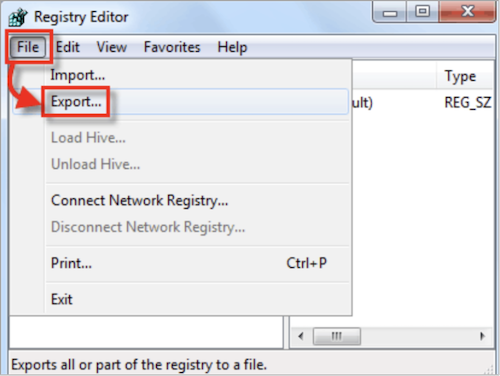
Step 4. To create a backup, first choose the location you want to back up and then type the file name.
Step 5. You have successfully backed up your Windows 7 registry. Click "Save" to complete the process.
Backing up and restoring the Windows 7 registry can be a crucial step in maintaining system stability and security. To do this, you can use the built-in Windows Registry Editor (Regedit) to export the registry to a file, or use third-party software to create a backup. Once you have a backup, you can restore the registry by importing the backed-up file into the Regedit.
FAQs on Windows 7 Registry Backup Location
The registry backup location in Windows 7 is a crucial topic for many users. One of the most frequently asked questions is where to find the registry backup location in Windows 7, with many users looking for a simple and straightforward answer. Another question is how to backup the registry in Windows 7, with some users seeking a step-by-step guide on how to do it safely and effectively. Finally, some users are curious about the best practices for restoring the registry from a backup in Windows 7, with many seeking advice on how to do it without causing any system instability.
1. Where is registry backup in Windows 7?
The Windows 7 registry backup is located in the "Windows\System32\Config" folder.
2. Where are the backup registry files located?
When backing up the registry files on your computer, you have the option to choose a specific location to store the files, giving you flexibility and control over their storage.
3. What is registry backup?
The Windows registry backup refers to the process of saving copies of the Windows registry files for future reference or recovery purposes.
Final Thought
Windows 7 registry backup is a backup related to essential computer data, serving as a safeguard for critical system information.
To back up your registry files, first locate the registry file in the location: Windows\System32\Config, then follow the guide to back up your registry files.
I hope we have solved your questions. Thanks for reading!
Related Articles
- Fix Windows 10 Hangs or Stuck on Shut Down Error
- Clean C Drive without Formatting in Windows 10/8/7 [Tested & Worked]
- Steam Quit Unexpectedly Mac? 6 Methods to Fix it [macOS Ventura/Monterey/Big Sur]
- How to Fix macOS 13 Ventura Installation Failed/Stuck/Frozen (2022 Tips)
- How to Download and Install ADB Drivers on Windows 11[2024 Updated]
We can extend the uses of Android ecosystems on our PC using Android development tools like ADB and Fastboot, but to do so, we need to download and install ADB software and drivers on our devices, which can be done on Windows 11 using various methods and ways. - How to Fix Drag and Drop Not Working [8 Ways Included]
Fix drag and drop not working in Windows with practical methods for File Explorer, system settings, mouse issues, and app conflicts.
Products
Articles & Tutorials
- Data Recovery
- Data Backup
- File Recovery
- File Backup
- System Backup and Restore
- Disk and Partition Clone
- Technical articles
- Mobile articles
- Disk Master Help
- Windows Data Recovery Tutorials
- Windows Secure Delete Tutorials
- Windows Partition Management Tutorials
- Windows File Backup and Restore Tutorials
- Windows System Backup and Restore Tutorials
- Windows Disk Backup and Restore Tutorials
- Windows Clone Tutorials