How to Download and Install ADB Drivers on Windows 11[2024 Updated]
To download and install ABD drivers on your Windows 11, follow these steps: first, go to the official website of the ABD driver provider, then click on the "Download" button to get the latest version of the driver; next, save the downloaded file to a designated location on your computer; after that, open the Device Manager, find the ABD device, right-click on it, and select "Update driver"; finally, follow the on-screen instructions to complete the installation process.
| Workable Solutions | Step-by-step Troubleshooting |
|---|---|
| Fix 1. By Using ADB Installer on A PC | We can download the ADB drivers with ADB Installer, an all-in-one package...Full steps |
| Fix 2. By Using Set Up Wizard by XDA | XDA developers have configured a more straightforward way of downloading...Full steps |
| Fix 3. Download It Automatically | You can download the ADB and Fastboot drivers automatically...Full steps |
| Fix 4. By Using SDK Platform Tools | You can use SDK platform tools to help you better download...Full steps |
Android is one of the most advanced operating systems in the world, but to perform advanced operations like downloading apps, upgrading firmware, and flashing ROMs, you need to use the Android Debug Bridge (ABD) and Fastboot, which serve as bridges between your mobile device and PC.
The Android Debug Bridge (ADB) and Fastboot are essential tools for Android development, allowing developers to control and perform actions on their Android devices from their PCs. To use these features, developers need to download the proper drivers for ADB and Fastboot, which enables them to debug and troubleshoot local programs on the platform.
The ADB is based on a client-The ADB (Android Debug Bridge) consists of three main components: the client, daemon, and server. However, to fully utilize ADB, one must first set up the Android device within the ADB interface, which involves additional steps beyond just the three components.
The ADB drivers are essential for the correct functioning of ADB commands, allowing for seamless communication between devices. However, they only work properly if installed on your PC, specifically Windows 11. To download and install the ADB drivers, follow the procedures outlined in the article. This will enable you to successfully interface and manage your devices using ADB commands.
Methods to Download and Install ADB Drivers
ADB drivers can be installed manually or automatically. A more detailed look at the methods is necessary, but for now, let's summarize that ADB drivers can be installed in two ways: manually or automatically.
Fix 1. Install ADB and Fastboot Drivers Using ADB Installer on A PC
We can download the ADB drivers with ADB Installer, an all-in-one package, which takes a few minutes to download and set up the drivers on your device.
Steps to download the ADB drivers using ADB Installer:
Step 1. Go to the ADB Installer website and download and install the ADB driver on your computer.
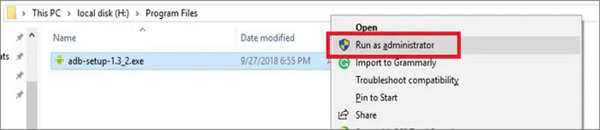
Step 2. To run the file, go to its location, right-click on it, and select "Run as administrator" from the context menu.
Step 3. A command Prompt opens with a command line: Do you want to install ADB and Fastboot?
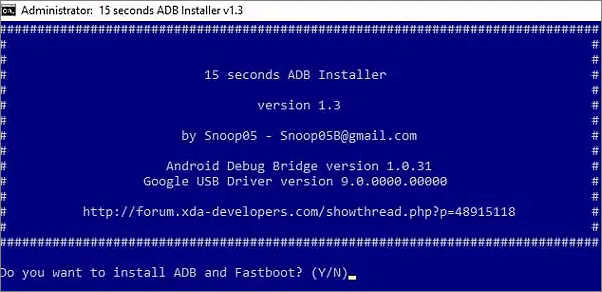
Step 4. Press "Y" and "Enter" until the below popup appears on your device.
Step 5. Click on "Finish" to install the drivers.
Fix 2. Install ADB and Fastboot Using Set Up Wizard by XDA
XDA developers have made it easier to download and install ADB and Fastboot drivers, eliminating the need for the lengthy processes previously required.
Steps to download ADB and Fastboot using set up Wizard on Windows 11:
Step 1. Download the "SDK platform tools" file for Windows from here.
Step 2. Extract the downloaded files from the folder and follow the installation instructions to install them on your device.
Step 3. Open the file in administrator mode and let the Wizard get the latest drivers on your computer, then connect your computer with your Android device.
Fix 3. Download ADB and Fastboot Drivers Automatically
The software can automatically download and install ADB and Fastboot drivers with just one click, saving time and ensuring the latest driver version is installed on your PC.
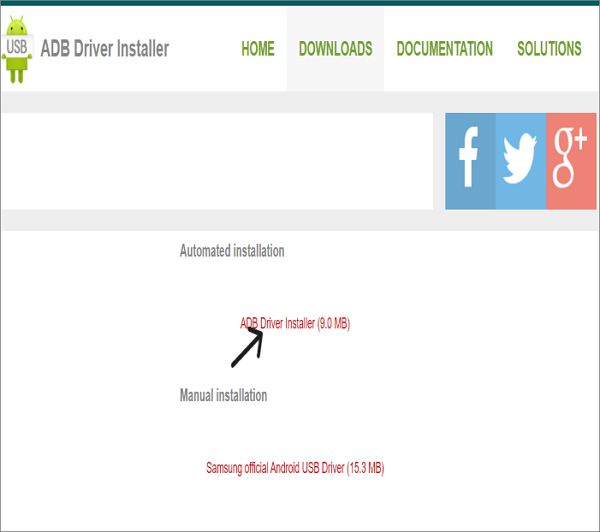
To ensure that your Android device is ready for the automatic installation, please enable the "USB debugging" feature on your device. This will allow the installation to proceed smoothly.
Step 1. Go to the "settings" on your device.
Step 2. Navigate to "My Device" section.
Step 3. To become a developer on an Android device, tap on the Android version until your device receives a "You are now a developer" popup.
Step 4. Go back to settings, and enable the "USB debugging" option to be ready for automatic installation.
Fix 4. Download and Install ADB and Fastboot Drivers Manually Using SDK Platform Tools
You can use SDK platform tools to help you download and install ADB and Fastboot drivers more efficiently.
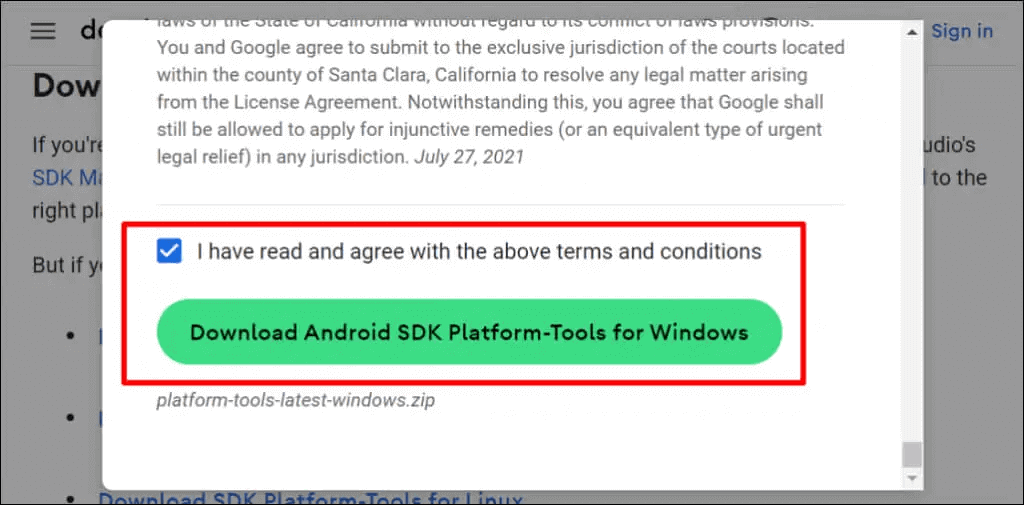
Step 1. To download the SDK platform tools for Windows, go to the SDK platform and click "Download SDK Platform Tools for Windows."
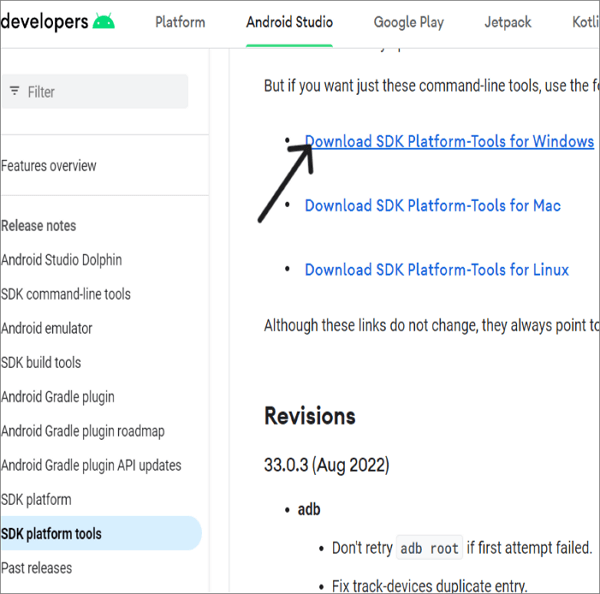
Step 2. Agree to the terms and conditions and download the tool.
Step 3. To move a zip file to the C drive, locate the file on your device, usually found in the Downloads folder or the location where you saved it. Right-click on the zip file and select the option to move it to the C drive, choosing the C drive as the destination and confirming the move.
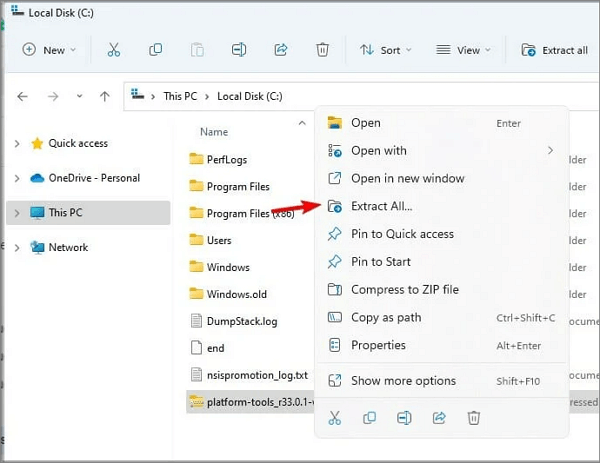
Step 4. Right-click on the file and "Extract all" the files.
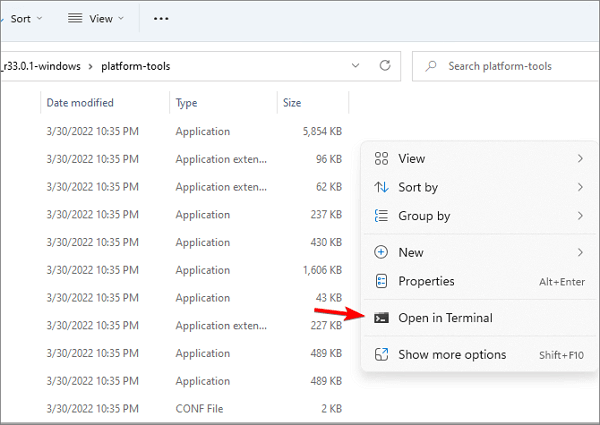
Step 5. To open the terminal in the current directory, go to the desired folder, right-click on an empty space within that folder, and select "Open in terminal" from the context menu.
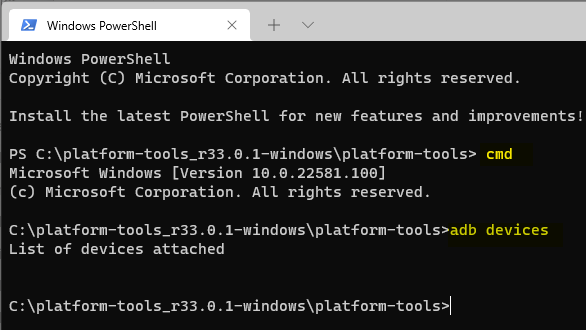
Step 6. Run the below commands to see the connected Android devices on your PC.
cmd
adb devices
Final Verdict
Android tools, particularly ADB and Fastboot, are crucial for app development, and to use them efficiently, drivers need to be installed on Windows 11. Fortunately, there are four simple methods to download and install the ADB drivers, allowing you to connect and control your Android devices from your PC. These methods can be explored to complete the download and setup of ADB on your device.
If you find this article helpful, share it with your friends and leave a comment about it. Also, if you have any queries regarding the topic, feel free to ask them in the comment box, and do let me know of the future issues you wish to see articles from Qiling.
Related Articles
- SD Card Not Showing Up on Steam Deck? What to Do?
- How to fix the error DNS PROBE FINISHED NO INTERNET? [A Complete Guide]
Fix DNS_PROBE_FINISHED_NO_INTERNET by clearing browser data, checking DNS settings, resetting network options, and troubleshooting connectivity. - How to Fix Game Stuttering on Windows 11 [Step-by-Step Guide]
Game stuttering can be frustrating for gamers, often caused by high resource applications running in the background or outdated/ faulty display adapters. Various fixes can help resolve the issue, as discussed in the article. - How to Fix Flashing Folder with Question Mark on Mac Without CD
Learn how to resolve the flashing folder with a question mark issue on a Mac without using a CD. This article will provide various solutions to fix the problem effectively, providing you with the necessary steps to resolve the issue and get back to work. - How Big of a Flash Drive Do I Need to Backup Windows 10?
Are you trying to back up Windows 10 but don't know what size flash drive to prepare? Well, read this post and find your answer here. - How Many CPU Cores Do I Have [Fixed]
A CPU (Central Processing Unit) is the primary component of a computer that performs most instructions that the computer executes. The number of cores in a CPU affects its performance, but it's not the only factor.
Products
Articles & Tutorials
- Data Recovery
- Data Backup
- File Recovery
- File Backup
- System Backup and Restore
- Disk and Partition Clone
- Technical articles
- Mobile articles
- Disk Master Help
- Windows Data Recovery Tutorials
- Windows Secure Delete Tutorials
- Windows Partition Management Tutorials
- Windows File Backup and Restore Tutorials
- Windows System Backup and Restore Tutorials
- Windows Disk Backup and Restore Tutorials
- Windows Clone Tutorials