SD Card Not Showing Up on Steam Deck? What to Do?
The Steam Deck, a $400 gaming console that combines the functionality of a Nintendo Switch with a gaming PC, has been reported to have issues by some users. Despite its impressive processing power and touchscreen capabilities, some users have experienced problems with their device's SD card not showing up, as shared on Reddit.
Qiling has found fixes for the bug that causes the SD card not to show up or work on the Steam Deck, so reading this article can help you learn why and how to fix it.
Why Is My SD Card Not Showing on Steam Deck
Many problems can cause the SD card to not display or work normally on the Steam Deck, including a fully charged Steam Deck, a damaged or damaged SD card, incompatible SD card format, and application conflicts on the Steam Deck.
- Some random bugs on Steam Deck can cause SD cards to not show up on the device.
- If your device's charge is less than 20%, you may encounter errors, which are typically caused by the low battery level.
- Damaged SD card: Your SD card may be malfunctioning or corrupted and, therefore, not recognized by Steam Deck.
- The Steam Deck can only recognize an SD card that is formatted in EXT4, which means if your SD card is formatted in a different file system, the Steam Deck won't be able to read it.
The following topics are related to Steam Deck storage; check them and learn more:
How to Fix SD Card Not Showing Up on Steam Deck
Here are four quick fixes to resolve the "SD card not showing up on Steam Deck" issue:
Fix 1: Restart Your Steam Deck
If some random bug or glitch occurs, your Steam Deck may have problems recognizing the SD card. In such cases, the best and fastest solution is usually to simply reboot your device.
Fix 2: Take Out and Reinsert the SD Card
If the Steam Deck doesn't solve the problem after a reboot, shut down the device, remove the SD card, power it back on, and then reinsert the SD card.
Read Also: How to Fix Nintendo Switch Keeps Asking Formatting SD Card
Fix 3: Check the Power
The Steam Deck may not recognize your SD card if the device's battery level falls below 20%. To prevent this, ensure the Steam Deck is at least 20% charged before connecting the SD card.
Fix 4: Try a Different Device
If your device doesn't recognize the SD card, try using it with a different device (e.g., a Linux PC) to see if the issue is with the card itself. If the Linux PC also doesn't recognize it, you may need to purchase a new SD card.
If your SD card isn't showing up on your Steam Deck, don't worry! There are some fixes you can try to resolve the issue.
Format SD Card to Fix Steam Deck Not Showing Up on Steam Deck
You can reformat your SD card at any time to fix file system-related issues. This can also help solve the problem of an incompatible SD card not being recognized by Steam Deck, as formatting it as EXT4 can resolve the issue.
If you need to format your Steam Deck SD card, you have two options. You can try formatting it directly on the Steam Deck, but this method may be too complicated for those with limited computer experience. Alternatively, you can use a Windows PC and Qiling Disk Master to format the SD card, making it a more accessible option for those who are new to formatting.
- Notice:
- Reformatting will delete all data on the SD card. Please back up the data (if any) in advance. And you will need to re-download the game afterward.
Guide 1. Use Qiling Disk Master
When using Windows, you can't properly format SD cards with the EXT4 format required for Steam Deck. To format your SD card with EXT4 on Windows, you'll need a third-party tool. We recommend using Qiling Disk Master Free, which has a clear interface and provides timely guidance, making formatting fast and safe. Download it to get started.
Step 1. Launch Qiling Disk Master, right-click the partition you intend to format and choose "Format".
Step 2. Enter the partition label, select the file system (FAT32, EXT2, EXT3, or EXT4), and set the cluster size in the new window.
Step 3. To start formatting the partition to FAT32/EXT2/EXT3/EXT4, click the "Proceed" button.
Step 4. Then you will see a warning window, click "Yes" in it to continue.
If your SD card is using NTFS, you can easily convert NTFS to EXT4 with Qiling Disk Master.
Guide 2. Use Steam Deck
Valve allows you to format SD cards with EXT4 directly on the Steam Deck, making it a simple and easy process. To do this, you can follow the provided steps.
Step 1: To access the Steam menu on your Steam Deck, insert the SD card and press the "Steam" button located below the left touchpad. This will open the Steam menu.
Step 2: To access the Steam settings, go to the Steam menu and select Settings by pressing A. Then, navigate to the "System" option and press A to open it.
Step 3: Select the "Format SD Card" option by pressing A, which will prompt you to confirm the formatting process.
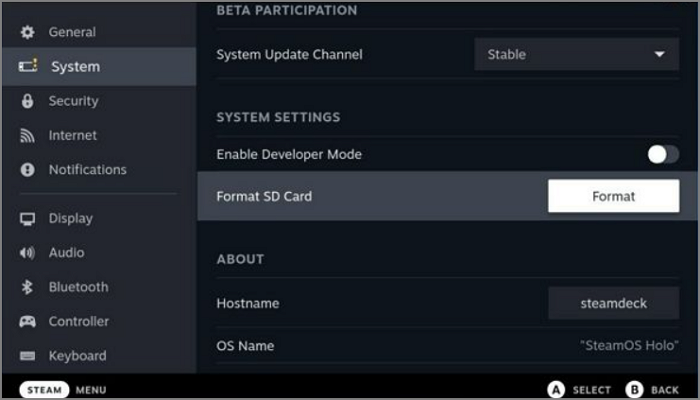
The formatting process for an SD card in Steam Deck takes a few minutes, depending on the card's size and data. After formatting, the SD card is ready to use for downloading and playing games through Steam Deck. If the device cannot format the SD card, a link can be used to troubleshoot the issue.
How to Fix Steam Deck Unable to Format SD Card
The Steam Deck operates under the LINUX environment, utilizing the ext4 file system as its standard partition format. This compatibility with ext4 is suitable for LINUX, as it aligns with UNIX file and folder permissions.
Conclusion
Many Steam Deck users experience issues with SD cards not being recognized or functioning properly on their device. To resolve this, several methods can be employed, including using a specific SD card formatting tool that sets the card to EXT4, making it compatible with Steam Deck.
SD Card Not Showing on Steam Deck FAQs
Steam Deck may not recognize your SD card due to various reasons. Here, I list some other questions to help you get more details about this error.
1. Why can't I see my SD card on Steam Deck?
If your Steam Deck is having trouble recognizing the SD card, it may be due to random errors or installation problems. Restarting the Steam Deck or reseating the SD card can usually resolve the issue.
2. What to do when my SD card is not showing up on Steam Deck?
If your Steam Deck has trouble recognizing your SD card, try rebooting it. If that doesn't work, shut down the device, remove the SD card, and then power it back up and reinsert the card. This should resolve any bugs or glitches that may be causing the issue.
3. How do I make Steam Deck recognize my SD card?
To get Steam Deck to recognize the SD card, you can try restarting the device, reinserting the card, or formatting it. If the SD card is not faulty, you'll need to consider its compatibility with Steam Deck, which only recognizes EXT4 formatted cards.
Related Articles
- How to Fix Grayed Out Folders or Files on Mac
- Overall Solutions: How to Ungroup the Taskbar In Windows 11
- Windows 7 Registry Backup Location [All You Need to Know]
- Fix Windows (11/10/8/7) Won't Boot From USB Error
- How To Switch Monitors 1 and 2 On Windows 10 Computer
Do you have multiple monitors connected to your Windows 10 Computer? Do you want to know how to change monitors 1 and 2? Then follow this guide on how you can Switch Monitors 1 and 2 On Windows 10 Computer - How to Clear Cache on Chrome on Windows and Mobile Devices
Learn what cache is in Google Chrome in detail. Go through the detailed steps to clear the cache on Google Chrome on Windows and mobile devices quickly and accurately.
Products
Articles & Tutorials
- Data Recovery
- Data Backup
- File Recovery
- File Backup
- System Backup and Restore
- Disk and Partition Clone
- Technical articles
- Mobile articles
- Disk Master Help
- Windows Data Recovery Tutorials
- Windows Secure Delete Tutorials
- Windows Partition Management Tutorials
- Windows File Backup and Restore Tutorials
- Windows System Backup and Restore Tutorials
- Windows Disk Backup and Restore Tutorials
- Windows Clone Tutorials