How to Clear Cache on Chrome on Windows and Mobile Devices
Cache collects website data, documents, and images from the internet, leading to slow internet speed and browser performance. This can be particularly problematic for Google Chrome users, who often find themselves suffering from cache issues. As a result, many Chrome users look to clear their cache to improve their browsing experience.
Let's dive into the details of clearing Google Chrome cache. Starting with the basics, cache in Google Chrome refers to the temporary storage of frequently-used data to speed up browsing. To clear the cache on Google Chrome, users can follow detailed steps on various platforms, including Windows, Android, and iPhone, regardless of their level of expertise. By eliminating the cache, users can resolve reduced browsing speeds and enjoy a smoother experience.

What Is Cache in Google Chrome
The cache on Google Chrome is a temporary storage of data from websites visited, aimed at speeding up browsing. It stores multimedia, scripts, images, files, and other information, which is quickly loaded for every visit, saving users time. Clearing the cache on Chrome means deleting this stored data on the device, effectively refreshing the browsing experience.
Clearing the cache in Google Chrome can be beneficial for users who want to free up space, resolve issues with websites, or improve browser performance. The cache stores common files like scripts, multimedia files, images, and others, taking up space on your device. Users may need to clear the cache due to various reasons, such as freeing up space, resolving issues with websites, or improving browser performance.
- The device is facing a storage space shortage.
- The device is taking too much time to load or work.
- Having multiple caches stored on a device can lead to slower performance, as it may take longer for the device to process and retrieve the information from the caches.
- Cache storage is an automatic process, making it essential to regularly clear the cache from the device to maintain optimal performance.
- Google Chrome saves the latest version of website data even after clearing the cache.
How to Clear Cache in Google Chrome
If you're experiencing slow loading times on websites in Google Chrome, it's possible that the issue is due to a cache in the browser. To resolve this, Chrome users can clear the cache, which will ensure they receive the most up-to-date information from websites. The process is straightforward, and we've outlined the steps to clear Chrome cache on Windows, Android, and iPhone in a detailed list, making it easy for users to follow.
Clear Chrome Cache on Windows
Windows users can clear Chrome's cache using two different methods. The first method involves using shortcuts, while the second method uses the settings menu. Both methods can be used to clear the cache in Chrome.
1. Clear cache in Chrome using Shortcut
To clear Chrome's cache using a shortcut, follow these quick steps: Press Ctrl+Shift+E (Windows) or Command+Option+E (Mac) to open the Clear Browsing Data window. From the dropdown menu, select the type of data you want to clear, such as browsing history, cookies, and cached images and files.
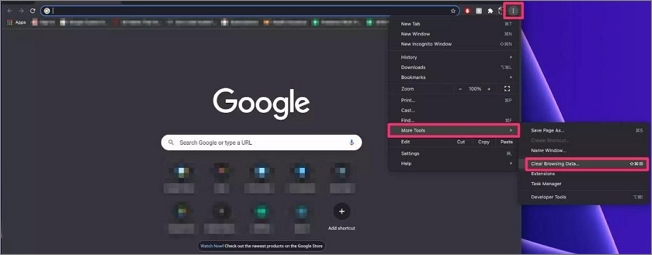
Step 1. Go to the three-dots menu in Google Chrome.
Step 2. To clear browsing data, open the three-dot menu, select "More Tools," and then click on "Clear Browsing Data."
Step 3. Select the time range, check the "Cached images and files" option, and press the "Clear data" option.
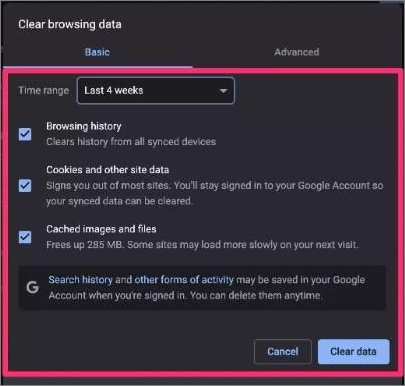
Step 4. To clear the cache on Google Chrome from a Windows system, follow these steps: Go to Settings, then click on Advanced, and click on Clear browsing data. Select the types of data you want to delete, including cached images and files, and choose the time range for which you want to delete the data.
2. Clear cache in Chrome using Settings
Here are the quick steps to clear cache in Chrome using the Settings menu:
Step 1. Go to the three-dots menu in Google Chrome
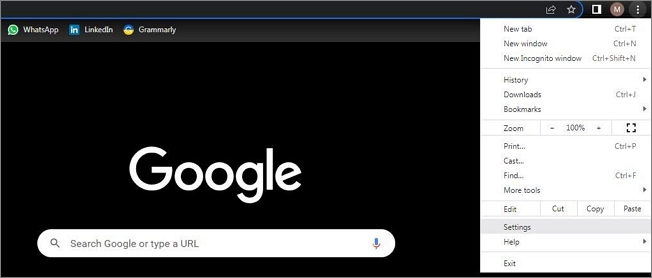
Step 2. Go to the "Privacy and Security" option.
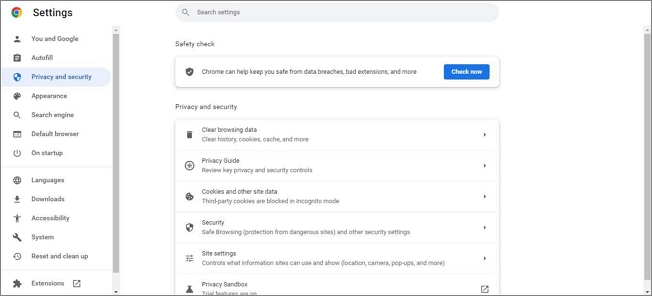
Step 3. Select the "Clear browsing data option."
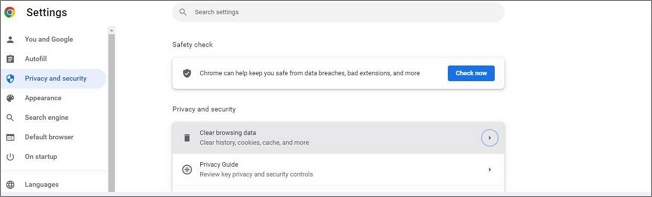
Step 4. To clear browsing data, go to the "Basic" option, tick the "Cached images and files" and click "Clear data".
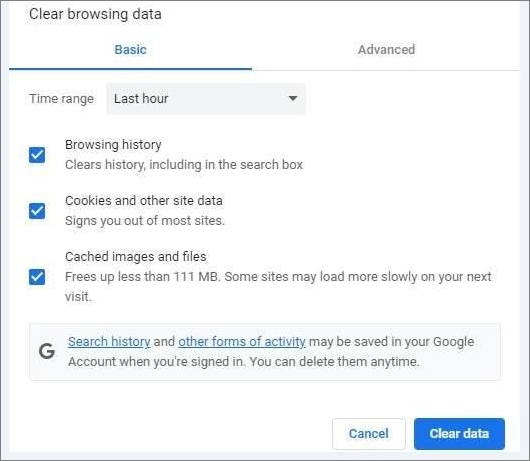
Step 5. All Google Chrome cache will be deleted after this step.
Clear Chrome Cache on Android
It is easy for Android users to clear Chrome cache with quick steps only. To do this, first, open the Chrome app on your Android device, then tap the three vertical dots at the top right corner, followed by the "Settings" option. Next, scroll down and tap "Site settings" and then select the site you want to clear cache for.
Step 1. Launch Google Chrome on Android.
Step 2. Go to the "Settings" menu in the three-dot menu.

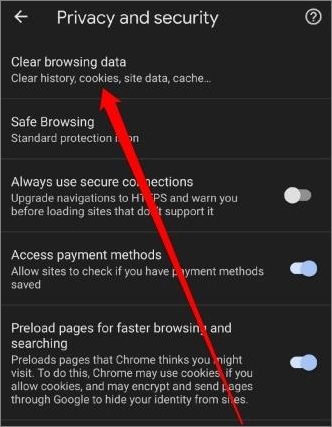
Step 3. To clear browsing data, go to the "Basics" option, then select "Privacy and security," and finally click on "Clear browsing data."
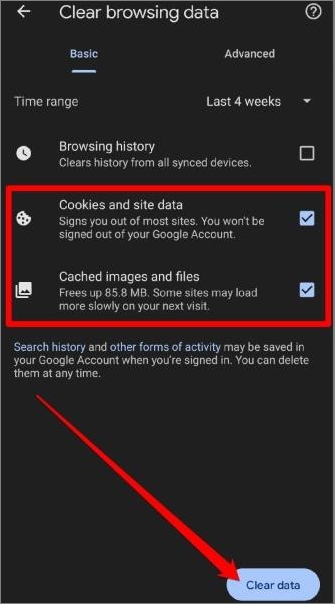
Step 4. Select the time range, check "Cookies and site data" and "Cached images and files," then press "Clear data."
Clear Chrome Cache on iPhone
iPhone users can quickly clear the cache on Google Chrome by following these simple steps:
Step 1. Go to the "Settings" option on iPhone.
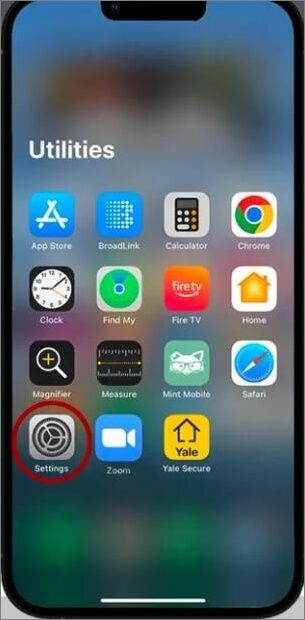
Step 2. Select the "Safari" option.
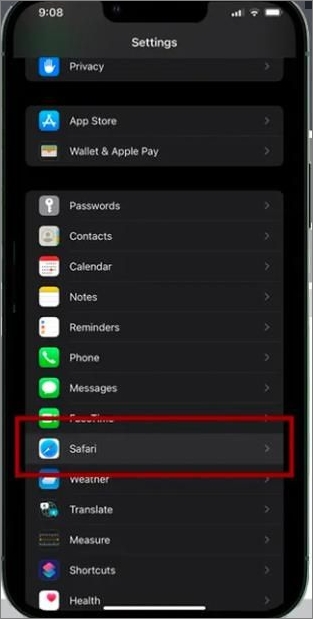
Step 3. Select the "Clear History and Website Data."
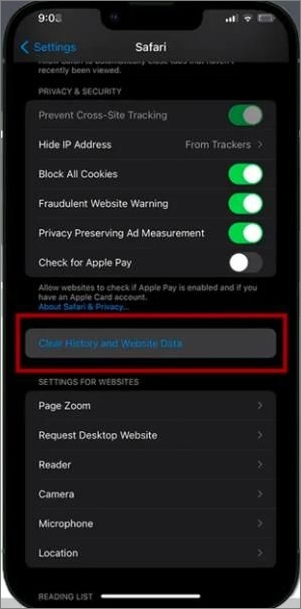
Step 4. Select the "Clear History and Data."
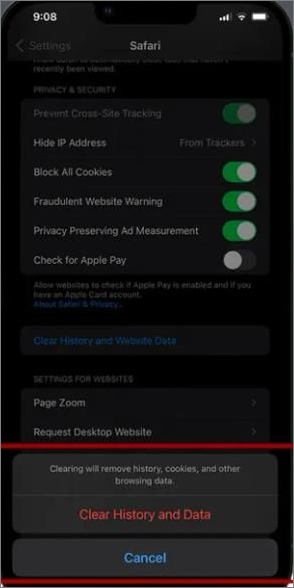
Step 5. All cached data is cleared from Google Chrome on iPhone.
Wrapping Up
Cache in Google Chrome refers to the temporary data stored by the browser while visiting different websites. For users experiencing slow speeds, clearing the cache in Chrome can be a helpful solution.
Clearing cache in Google Chrome is a straightforward process that can be done on Windows, Android, and iPhone. Users can follow detailed steps to solve the problem of how to clear the cache on Google Chrome, regardless of their technical expertise. By clearing cache memory, users can experience improved browser speed, making it a simple yet effective solution to common browser issues.
Related Articles
- Computer Shuts Down When Put to Sleep: Fixes Are Here
- Brand New Ways to Reset/Erase Mac M1/M2 [Safe & Sound]
- macOS Sonoma Installation Failed | 4 Practical Methods to Fix it 2023
- Windows 7 Registry Backup Location [All You Need to Know]
- How to Find Microsoft Office 2007 Product Key (7 Ways)
If you've lost your Microsoft Office 2007 product key and can't access the software on your computer, you can easily find it using one of the seven practical methods. - Two Ways to Find or Recover Inventory Software Serial Key
Are you looking for finding your lost inventory software keys? Here are two excellent methods to recover your serial keys. Follow the steps here.
Products
Articles & Tutorials
- Data Recovery
- Data Backup
- File Recovery
- File Backup
- System Backup and Restore
- Disk and Partition Clone
- Technical articles
- Mobile articles
- Disk Master Help
- Windows Data Recovery Tutorials
- Windows Secure Delete Tutorials
- Windows Partition Management Tutorials
- Windows File Backup and Restore Tutorials
- Windows System Backup and Restore Tutorials
- Windows Disk Backup and Restore Tutorials
- Windows Clone Tutorials