Computer Shuts Down When Put to Sleep: Fixes Are Here
If your PC or laptop is turning off when using the sleep functionality, you're not alone - this issue is common and frustrating, often resulting in data loss. However, you can take steps today to prevent this from happening again and permanently fix the problem.
This article will guide you through how to fix the computer shuts down when put to sleep error and offer a way to help you protect your computer. It's based on a guide from Qiling. Continue reading to learn more!
Why Computer Shuts Down Instead of Sleep
Sleep mode allows you to temporarily shut down your computer while still keeping it on, using minimal resources.
This feature, intended to allow users to quickly resume work on their computer without waiting for it to boot, is instead causing shutdowns when put in sleep mode due to various issues.
- System files are corrupted
- Outdated drivers
- Outdated BIOS
- Power settings are not properly configured
- The computer overheated during the idle state
To resolve the issue of your PC shutting down unexpectedly when put to sleep, ensure your power settings are configured correctly. Go to your Start menu, search for "Power Options," and select the "Change plan settings" option.
How to Fix Computer Shutting Down When Putting It to Sleep
The solutions other users who have encountered a similar problem have utilized are listed below for your reference. Please work through each potential solution until you find one that resolves the issue in your case. Let's get started.
- Solution 1: Check and Clean the Dust
- Solution 2: Update IMEI Drivers
- Solution 3: Update BIOS
- Solution 4: Update Power Settings
- Solution 5: Troubleshoot Power Settings
- Solution 6: Turn off Hibernation
Solution 1: Check and Clean the Dust
Dust buildup in a computer can cause overheating by blocking the fan and preventing the intake of fresh air, leading to the accumulation of warm air and potentially damaging the computer.
As the computer's energy levels drop, it starts generating heat, and to prevent damage, it automatically shuts down. To troubleshoot, use a clean microfiber cloth to clean dust off the computer and see if the issue persists.
If your computer still shuts down when putting into sleep mode, try updating your graphics driver, disabling any recently installed software or drivers, or running a System File Checker (SFC) scan to ensure all system files are intact. Additionally, check for any BIOS updates and ensure your power settings are set to "Never" for both the hard disk and the system.
Solution 2: Update IMEI Drivers
If you're using a PC with an Intel processor, it installs Intel Management Engine (IMEI) Drivers that help the processor communicate properly with the motherboard and other components.
Updating the IMEI drivers may resolve issues with your PC crashing or performing poorly, and also help prevent it from shutting down when put to sleep. To update the IMEI drivers, you can follow these steps below. This may help improve your PC's power settings and overall performance.
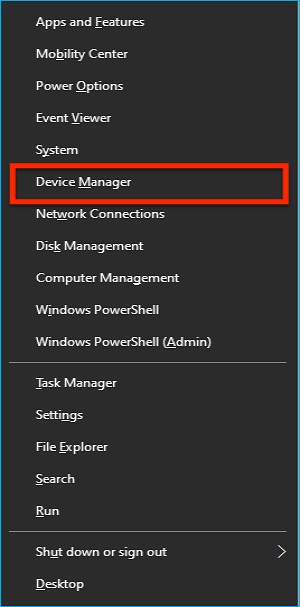
Step 1. Right-click on the Start button and select "Device Manager."
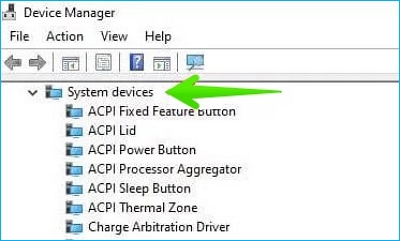
Step 2. Select and expand "System devices."
Step 3. To access the Intel(R) Management Engine Interface, click on the application and then right-click on your mouse or trackpad.
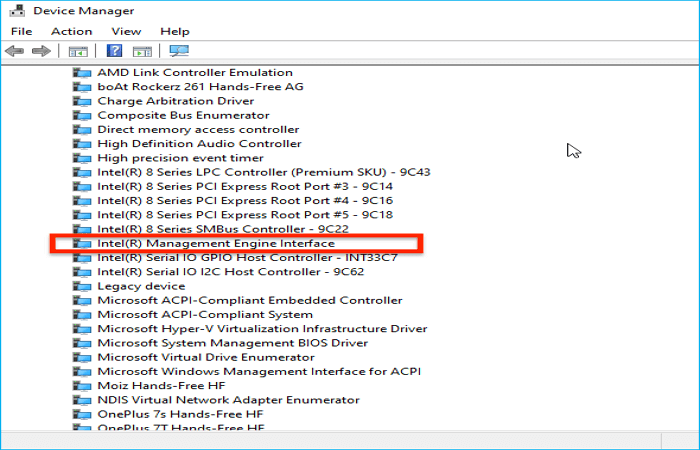
Step 4. Right-click on it and select " Properties."

Step 5. Click on "Drivers" and select "Update Driver."
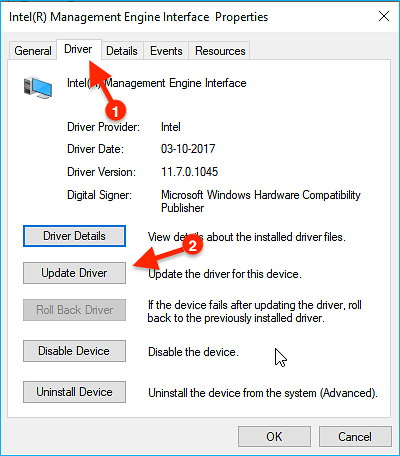
Step 6. Now, select "Search automatically for drivers."

Step 7. Windows will locate and install the latest drivers.
Now your PC should sleep when you put it into sleep mode instead of shutting down.
Solution 3: Update BIOS
Upgrading your computer's BIOS can resolve shutdown issues when in sleep mode, but it's typically a rare occurrence. If you're not a tech-savvy user, it's recommended to seek help from an expert or consult your motherboard's manual to ensure a safe and successful update.
If you're unsure about updating your BIOS, you can refer to the following articles for assistance. These resources provide step-by-step guides and troubleshooting tips to help you successfully update your BIOS.
Solution 4: Update Power Settings
Windows PCs are highly customizable, making them the most popular operating system globally. However, if your PC shuts down when you put it to sleep or close the lid (sleep mode), it may be due to misconfigured power settings. To resolve this, update the power settings by following a guide.
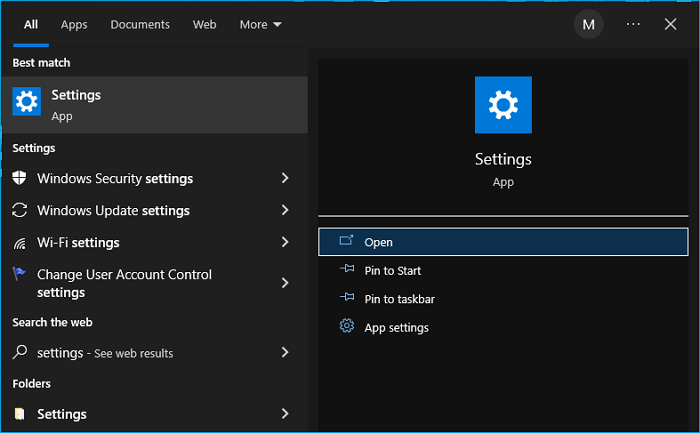
Step 1. To start, click on the "Start" button on your computer, then search for "Settings" and open it.
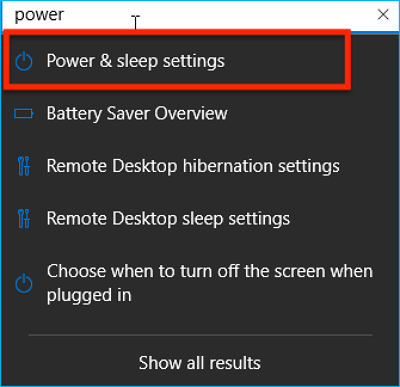
Step 2. In the settings menu, type "Power & sleep settings" in the search bar and select the option that appears.
Step 3. To adjust power settings, select "Additional power settings" from the "Related settings" option on the right-side window.

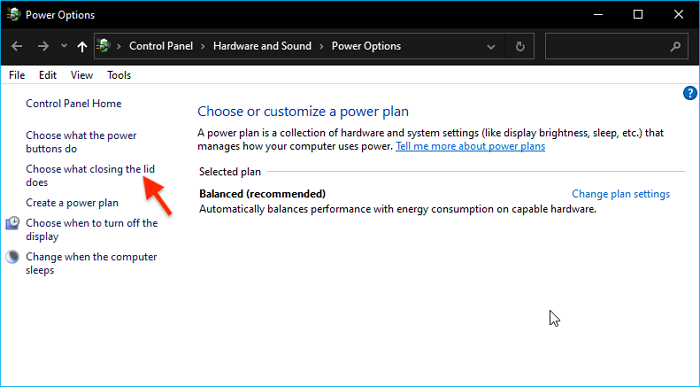
Step 4. On the left side of the Power Options menu, select the option "Choose what closing the lid does."
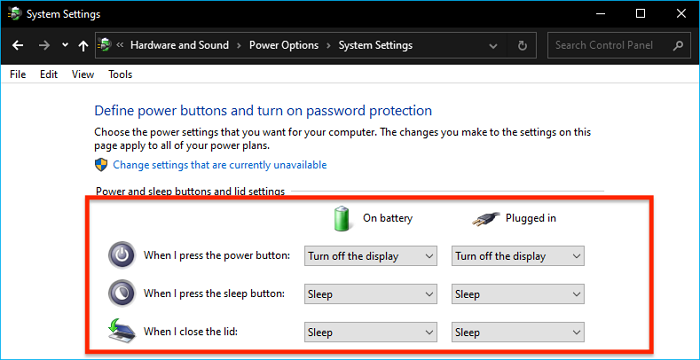
Step 5. To configure these settings, go to Settings > System > Power & sleep. Here, you can customize the actions that occur when you press the power button, sleep button, and close the lid.
Step 6. Click "Save Changes" to save your changes.
Solution 5: Troubleshoot Power Settings
If updating the power settings didn't resolve the issue, it's possible that there's an existing problem with the power settings that's causing your PC to turn off when put to sleep. In this case, troubleshooting your power settings and addressing any issues that may be contributing to the problem could be a potential solution.
Step 1. Open "Settings."
Step 2. Select "Update and Security."
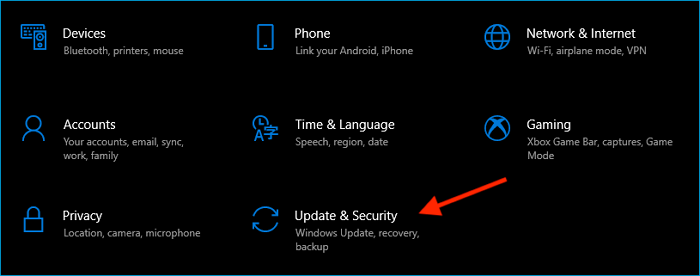
Step 3. On the left-side menu, select "Troubleshoot."
Step 4. In the right-side menu, select "Additional troubleshooters."
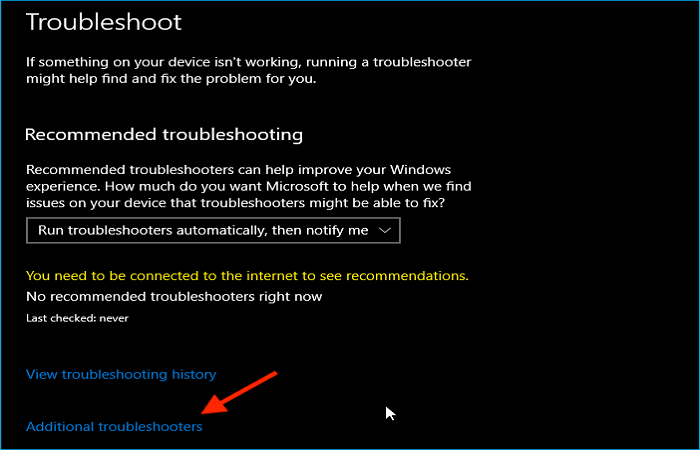
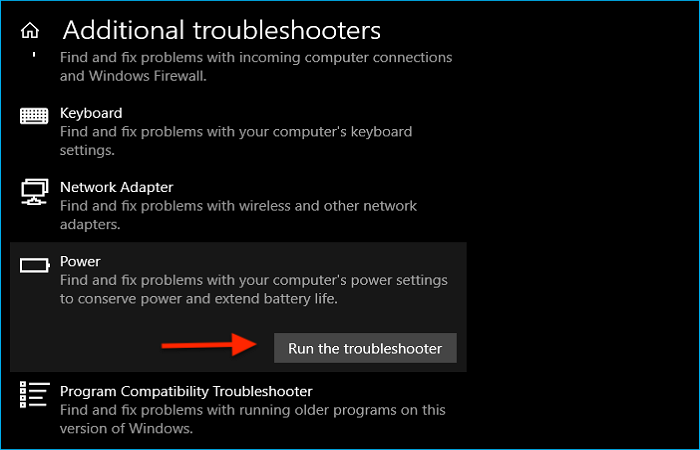
Step 5. To resolve the issue, go to the Start menu, search for "Power," locate it, expand it, and select the "Run the troubleshooter" option. This will initiate a built-in troubleshooting process to identify and potentially fix the problem.
Solution 6: Turn off Hibernation
To turn off hibernation, go to your computer's Power Options, click on "Choose what the power buttons do", and select "Do nothing" for both the power button and the lid close button. This will ensure that your computer turns off completely when you press the power button. Alternatively, you can also disable hibernation by going to the Command Prompt and typing "powercfg -h off". This will disable hibernation and make your computer turn off completely when you press the power button.
Step 1. Click on the "Proceed" button and open the "Control Panel."
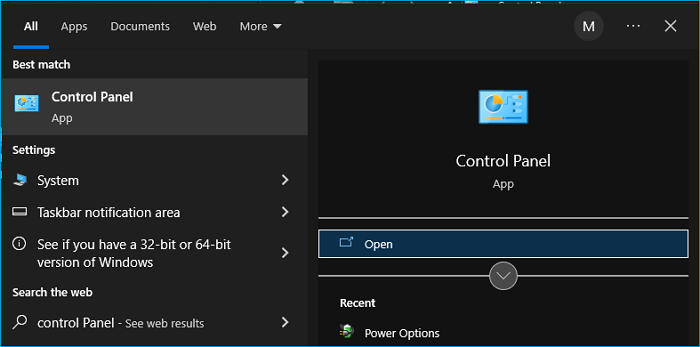
Step 2. To adjust the power settings, select the "Hardware and Sound" option from the Control Panel, then choose "Power Options," and finally click on "Change plan settings" to make any necessary changes.
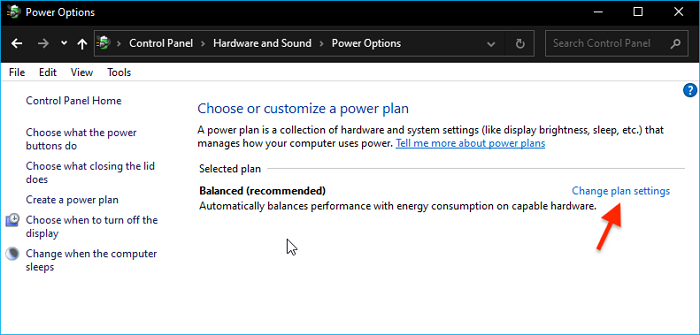
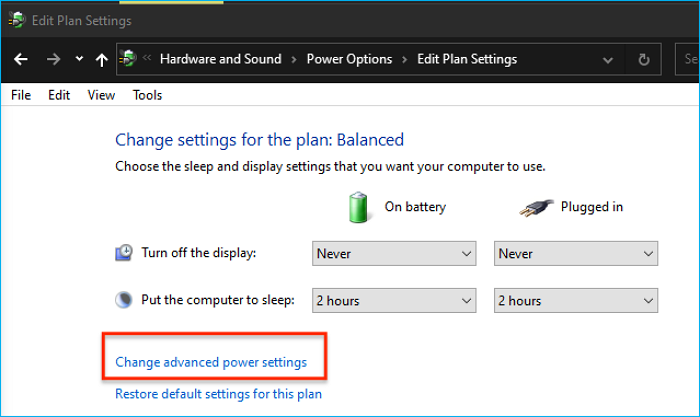
Step 3. Now select "Change advanced power settings."
Step 4. Locate and expand "Sleep," and then select "Hibernate after."
Step 5. Change "On battery (Minutes)" status to "Never."
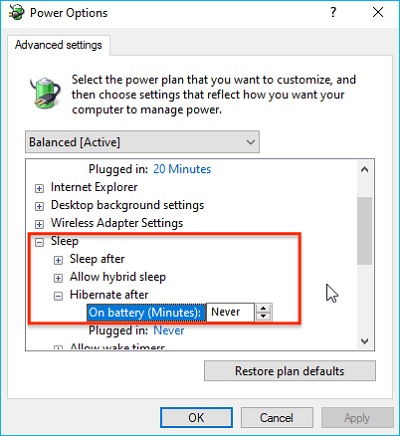
Step 6. Now, click Apply," followed by "OK."
Bonus Tip: How to Backup Your Computer for Data Security
Windows users often experience crashes and data loss, but regular backups can prevent this. Qiling Disk Master is a user-friendly backup program that makes it easy for people of all ages to protect their data with its simple interface.
Qiling Disk Master Pro is a practical backup program that allows users to have full control over their computer and select what to back up, with options to back up specific disks or partitions or perform a complete system backup for data security.
The software offers various features, including the ability to create different backup modes, such as full, incremental, and differential backups, allowing for tailored backup solutions. Additionally, it provides 250 GB of free cloud storage space and a Security Zone to securely back up files to the cloud.
Qiling Disk Master Pro
- One-To back up and recover your data and migrate your OS from a traditional Hard Disk Drive (HDD) to a Solid-State Drive (SSD), follow these steps:
- Transfer the operating system from one PC to another
- Mount backup images to extract individual files
- Clone a hard disk and image a hard drive
- Intuitive interface and all-weather after-sales support
Using Qiling Disk Master, users can both back up their primary computer but also clone it to use on multiple other computers, keeping all their data safe and secure. As a PC user, it's recommended to download and try this software to back up your computer.
Step 1. Launch Qiling Disk Master on your computer, click Create Backup on the home screen, then select backup contents by clicking the big question mark.

Step 2. To back up your Windows operating system, click on "System backup" to start the backup process.

Step 3. 1. Windows will automatically select the operating system and system-related files and partitions. 2.

Step 4. The backup location can be a local drive, external hard drive, network, cloud, or NAS, with external drives or cloud storage being the recommended options for preserving system backup files.

Step 5. Customization settings such as setting up an automatic backup schedule in daily, weekly, monthly, or upon an event, as well as making differential and incremental backups, are available in the Options button. Upon clicking "Proceed", the Windows system backup process begins, with the completed backup task displayed on the left side in a card style.

To Wrap Things Up
The inclusion of sleep functionality by Windows is a great move, but it's not well-optimized and often causes a computer to shut down instead of going to sleep. However, you can fix this issue by trying the methods mentioned above, such as checking for BIOS updates, disabling the sleep timer, and adjusting power settings. By following these steps, you can resolve the computer shuts down when put to sleep error and enjoy the benefits of sleep functionality.
As a concerned PC user, it's essential to back up your computer regularly to prevent data loss due to accidental shutdowns or other reasons. A great tool for this task is Qiling Disk Master, which allows you to back up your PC files to an external drive or even the cloud, providing peace of mind and protecting your valuable data.
FAQs on Computer Shuts Down When Put to Sleep
Here are the answers to some frequently asked questions about computers shutting down when put in sleep mode.
1. Why does my PC shut down automatically?
Your PC is shutting down automatically due to overheating or other software/hardware issues. Check if the fan vents are free of dust and clean them, and also clean the internals of your PC to prevent overheating and automatic shutdown.
2. Shutting down a PC vs putting it to sleep: Which one is better?
Windows PCs perform better when shut down, not in sleep mode, due to the broken sleep functionality. Unlike macOS, Windows requires frequent shutdowns/restarts, but it's okay to leave it in sleep mode for a short time.
3. What is the difference between sleep and hibernation?
Sleep and hibernation are similar, but serve different purposes. Sleep mode saves current work on RAM, allowing for quick restart, while hibernation saves work to the hard drive, reducing power consumption and preserving data.
Hibernation mode saves the computer's state to the hard drive or solid-state drive, but it takes longer to start up from hibernation compared to a full shutdown.
In sleep mode, your computer is always on and drawing a small amount of power, allowing for quick startup, whereas in hibernation mode, it fully shuts down and only restarts from the previous state when turned back on.
4. Is putting the computer to sleep or hibernation safe?
Putting your computer in sleep or hibernation mode is safe, but ensure it doesn't have dust buildup to prevent overheating. Regularly back up your data to keep it safe, even if something happens to your computer.
Related Articles
- How to Dual Boot macOS Ventura and Monterey on a Mac [Add New Volumes]
- How to Solve Mouse Not Working Windows 10? [Step by Step]
- Create Monterey USB Installer on Mac [A Step-by-Step Guide]
- Detailed Tutorial for Diskpart Move Partition in 2023 [Step-by-Step Guide]
- How to Unblock Websites on School Chromebook 2024
Want to unblock websites on your school Chromebook in 2024 without the hassle? This article is your go-to guide, providing you with the necessary steps to access blocked websites on your school-issued Chromebook. - How to Uninstall Sonoma Without Losing Data
Do you want to discover how to uninstall Sonoma without losing data on your Mac? Let's learn efficient fixes and backup methods for a worry-free process.
Products
Articles & Tutorials
- Data Recovery
- Data Backup
- File Recovery
- File Backup
- System Backup and Restore
- Disk and Partition Clone
- Technical articles
- Mobile articles
- Disk Master Help
- Windows Data Recovery Tutorials
- Windows Secure Delete Tutorials
- Windows Partition Management Tutorials
- Windows File Backup and Restore Tutorials
- Windows System Backup and Restore Tutorials
- Windows Disk Backup and Restore Tutorials
- Windows Clone Tutorials