How to Image a Hard Drive Windows 10 in 2 Different Ways
Imaging your hard drive in Windows 10 not only backs up your files, but also includes your Windows installation, system setup, drivers, and installed programs. This type of backup can be a lifesaver in case of a severe system issue or hard disk loss, saving you a significant amount of time. If you're wondering how to image a hard drive in Windows 10, this article will guide you through the process.
What Is a Disk Image
A disk image is a snapshot of a disk or partition that captures all data and system structure at a specific point in time, allowing for a precise restoration to that state if needed.
Disk imaging can be used for various purposes, including digital forensics, backup, cloud computing, and system administration, but its primary use is for backup purposes. Additionally, a virtual hard disk can be created from a disk image of a hard drive, allowing for the testing or running of software incompatible with the host operating system.
Image a Hard Drive in Windows 10 via Professional Disk Imaging Software
Using professional backup software is the easiest way to image a hard drive, resulting in a backup image file that can only be restored using the same program that created it, such as Qiling Disk Master Pro.
Qiling Disk Master Pro is a professional backup and recovery tool compatible with Windows 11/10/8/7. It allows for automatic file, system, disk, partition, and app backups, as well as full, incremental, and differential backups. Additionally, it enables you to create an iso image of a hard drive, making it a versatile tool for backup and recovery needs.
- Save backups to the local drive, NAS, a secure zone, and the cloud.
- 250G free cloud storage.
- Restore Windows 10 system image to a new hard drive.
- Migrate Windows 10 from HDD to SSD.
- Create a recovery partition.
- Clone a hard drive in Windows 10.
To image a hard drive on a Windows PC, you'll need to follow these steps. First, ensure that the hard drive you want to image is connected to the PC and is not in use.
Step 1. On the main page, click "Select backup contents".

Step 2. Among the four available categories, click System backup.

Step 3. Qiling Disk Master will automatically select your system partition, requiring only the selection of a backup destination.

Step 4. Both local drive and NAS (network-attached storage) are available for you to save the backup file, depending on your preference and storage needs.

Step 5. After completing the backup process, you can check the backup status, recover, open, or delete the backup by right-clicking the backup task on the left.

Create System Image in Windows 10 Using Backup and Restore (Windows 7)
To create a system image using the Windows native tool, Backup and Restore (Windows 7), follow these instructions. This tool, developed by Microsoft, is still available in Windows 10 and 11, the most recent versions. Using Backup and Restore, you can create a system image, which is another way to think of a hard drive image. Simply follow the prompts to learn how to use this feature.
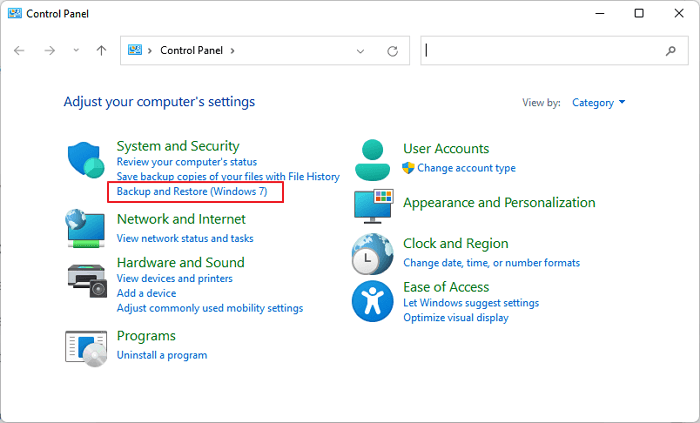
Step 1. To access the Backup and Restore (Windows 7) feature, launch the Control Panel and click on Backup and Restore (Windows 7) under the System and Security category.
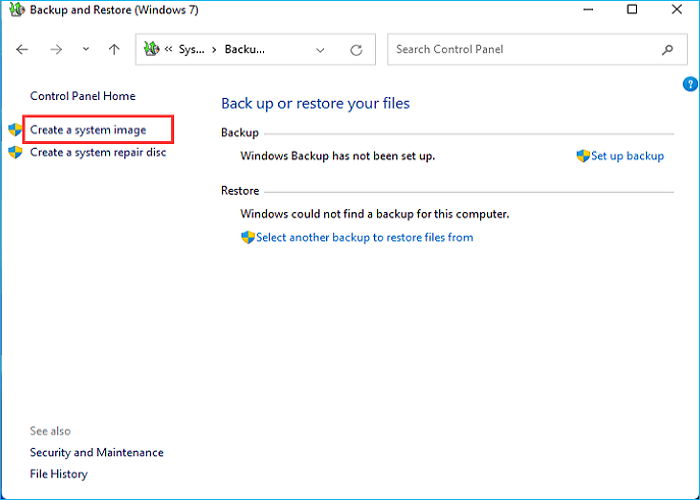
Step 2. Select Create a system image.
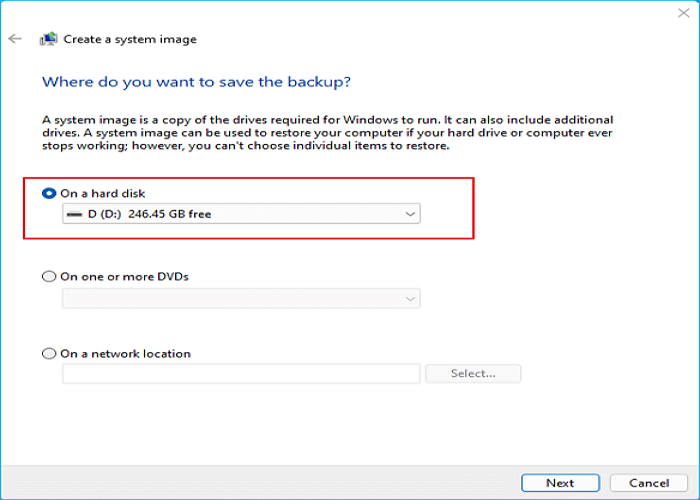
Step 3. To save a backup, first decide on an external hard drive location, then connect a prepared USB drive to your computer.
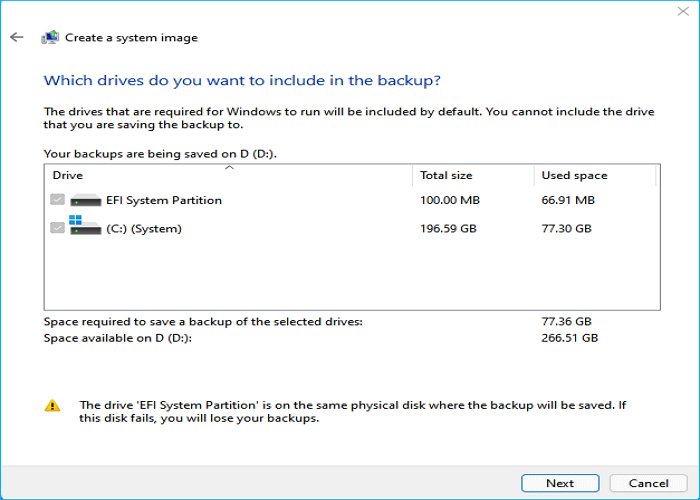
Step 4. After clicking "Next", choose the drive you wish to involve in the backup, with the system partition being the default selection for Backup and Restore.
Step 5. Confirm the backup settings by rechecking the backup location and content, and then click on "Start backup" to create a Windows system image.
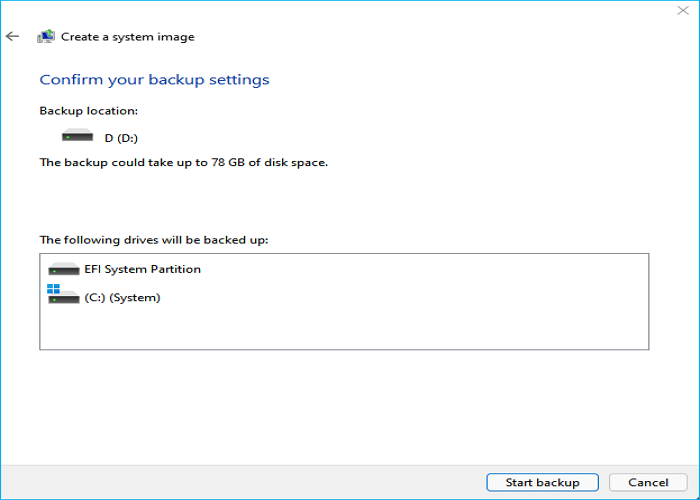
Once the process is complete, you will have a system disk image file on your USB stick. Keep it secure and attach it to your PC when you need to perform a system recovery.
Professional Disk Imaging Software vs. Backup and Restore (Windows 7)
Imaging a hard drive is like creating a compressed copy of your operating system and files, stored as an ISO file, which can coexist on a single hard drive, allowing for multiple backups.
To take an image of a hard drive on a Windows 10 PC, you can use professional backup software like Qiling Disk Master, which can create a sector-by-sector backup of the entire hard drive, including the operating system, programs, and data. Alternatively, you can use the built-in Windows utility, Windows Backup and Restore, which can create a system image of the hard drive, but it only includes the operating system and installed programs, and not the user data. The two methods have different use cases, and the choice depends on your specific needs.
|
Comparison |
Pros |
Cons |
|---|---|---|
|
Qiling Disk Master Pro |
|
|
|
Backup and Restore (Windows 7) |
|
|
The Bottom Line
Imaging a hard drive in Windows 10 can be achieved using Qiling Disk Master and Backup and Restore. Qiling Disk Master offers flexibility, effectiveness, and versatility, making it a better choice for this task. Its user-friendly interface and advanced features allow for a seamless imaging process, ensuring that your hard drive is accurately duplicated. In contrast, Backup and Restore, while still a viable option, may require more manual effort and technical expertise.
Qiling Disk Master Pro is a tool you can use to create a disk image of your hard drive, which cannot only help you to take an image of a hard drive but also allows you to perform other tasks such as backing up your SSD to an image and reinstalling Windows without losing programs.
FAQs
1. Is imaging the same as cloning?
Cloning a hard drive is the process of copying the data from one drive to another, allowing you to unplug the destination drive and install it internally once the operation is finished. In contrast, imaging is the process of archiving the data on a hard drive byte-by-byte in a compressed file and moving it to another drive.
2. What does it mean to image a hard drive?
A disk image is an exact copy of a storage device's contents, such as a hard drive, DVD, or CD, that includes all data and structure information exactly as on the original device. This can be used to create a virtual hard disk using a hard drive's image, known as a VHD.
3. Is it better to clone or image a hard drive?
Cloning and imaging are both useful for backups, but they serve different purposes. Cloning is ideal for quick recovery, whereas imaging provides more backup options, allowing you to save multiple snapshots of your data without significantly increasing storage space. This makes imaging a better choice for users who need to save many versions of their files, such as photographers who want to keep track of their work's progress.
Related Articles
- Qiling Disk Master License Code 2023 (100% Official)
- How to Install Windows 10/11 on NVMe SSD Drives (99% Have Learned)
- [Solved] Upgrade or Clone PS3/PS4 Hard Drive to a Larger Drive
- The Best 11 Xbox Games All the Time (2023 Updates)
- How to Backup GTA V Files on Steam (2023 New Guide)
- How to Backup and Restore Thunderbird Emails (Windows & Mac Guide)
- Best Way to Backup PC to Synology NAS (2024)
It is wise always to create a backup of your PC, but backing up data to keep it safe can be tricky. So, you should learn here how to backup PC to Synology NAS to avoid any data loss and keep working seamlessly.
Products
Articles & Tutorials
- Data Recovery
- Data Backup
- File Recovery
- File Backup
- System Backup and Restore
- Disk and Partition Clone
- Technical articles
- Mobile articles
- Disk Master Help
- Windows Data Recovery Tutorials
- Windows Secure Delete Tutorials
- Windows Partition Management Tutorials
- Windows File Backup and Restore Tutorials
- Windows System Backup and Restore Tutorials
- Windows Disk Backup and Restore Tutorials
- Windows Clone Tutorials