Best Way to Backup PC to Synology NAS (2024)
Many computer users choose Synology NAS for PC backup, but backups can become incomplete or time-consuming if the method is not set up correctly. Choosing the right backup approach helps protect Windows files, system data, and important folders more reliably.
If you're looking for a quick and easy way to backup and restore data to your Synology NAS, this guide explains practical methods and key tips for efficient backup.
Synology NAS is widely used because it provides centralized storage, network access, user permissions, security features, and scalable capacity. It is suitable for both personal and business backup needs.
- 🧑🔬Unlike other storage servers, it doesn't require a physical connection between the device and the server.
- ⛑️Synology has implemented various measures to prevent data breaches or loss, including a large internal hard drive storage system for added data security.
- 🫀Synology NAS offers a centralized storage concept, providing a range of benefits.
Professionals rely on Synology NAS for data safety due to its numerous advantages, including high security, scalability, and ease of use.
Can I Connect the PC Directly to Synology NAS for Backup
People normally follow two main methods to connect a PC to a NAS. The first method is through a USB, which is not applicable for connecting a PC to Synology NAS. The second method is through a network connection, which is the recommended approach. This involves setting up a network connection between the PC and the NAS, allowing for seamless file sharing and access. This is the preferred method for connecting a PC to Synology NAS.
To connect to this server directly from your PC, you can use its IP address. To do this, follow these steps.
- Create an IP manually on both PC and NAS
- Find Synology NAS using a finder application
- Copy-Paste the IP in the address bar
By following these steps, you have successfully connected your Synology NAS with your PC directly. No further action is required unless your system encounters any technical errors.
How to Backup Windows PC to Synology NAS (3 Easy Ways)
To connect your PC to Synology NAS, follow the steps outlined above. Once connected, you can easily back up your PC to the NAS using one of three major methods. These methods allow you to backup your PC without requiring extensive technical knowledge.
| Method | Types of Backup | Required Time | Difficulty |
| Qiling Disk Master👍 | You can back up the entire hard drive, system, and partition to keep your data safe. | 5-10 minutes while setting up for the first time | Easy🔥 |
| Backup and Restore | You can restore your system to a previous state by keeping files from that time, effectively taking your system back to normal. | 10-30 minutes | Medium |
| File History | To enable saving specific files to a particular folder in the network, you can configure the network settings to designate a specific folder as the default save location for certain file types. This can be achieved by modifying the network configuration to point to the desired folder, or by using a file management tool that allows you to set custom save locations for specific file types. | 10-15 minutes | Medium |
Method 1. Best Way to Backup PC to Synology NAS - Qiling Disk Master
Backing up your data can be a complex task, but using a reliable program like Qiling Disk Master can make it efficient and effective, allowing you to back up your files without losing a single one.
With this software, you can safeguard your files from system failures, malware attacks, and accidental data removal by creating a system image, ensuring your data remains safe and secure.
Here, we have enlisted some of the main features that make it a better choice to back up your PC to Synology NAS quickly.
| Feature | Description |
| 💽Offsite Data Saving | Qiling Disk Master software will automatically store a backup copy of your files on a Synology NAS every time you save changes to them. |
| 💾Useful Backup | It only backs up used files and drives, reducing the space needed for backups. |
| 🔐Excessive Security | This backup software saves copies of files both offsite and to cloud storage. |
| 🖥️Complete System Backup | You can use its disk cloning This feature allows for the quick replication of an entire disk, making it ideal for tasks such as data backup and disaster recovery. |
If you're looking for efficient backup software, this is definitely worth trying. It allows you to utilize all features, from basic to advanced, in this toolkit.
To backup your OS to a NAS (Network-Attached Storage), you can follow these steps:
Step 1. Launch Qiling Disk Master and choose the "Backup and Recovery" main tab page.

Step 2. To start a system backup, click on the "System backup" option among the available categories.

Step 3. The system partition will be automatically selected, so you only need to choose the location to install the system.

Step 4. You can save backup files to your local drive, cloud storage, NAS, or even connect an external hard drive to store system backup files.
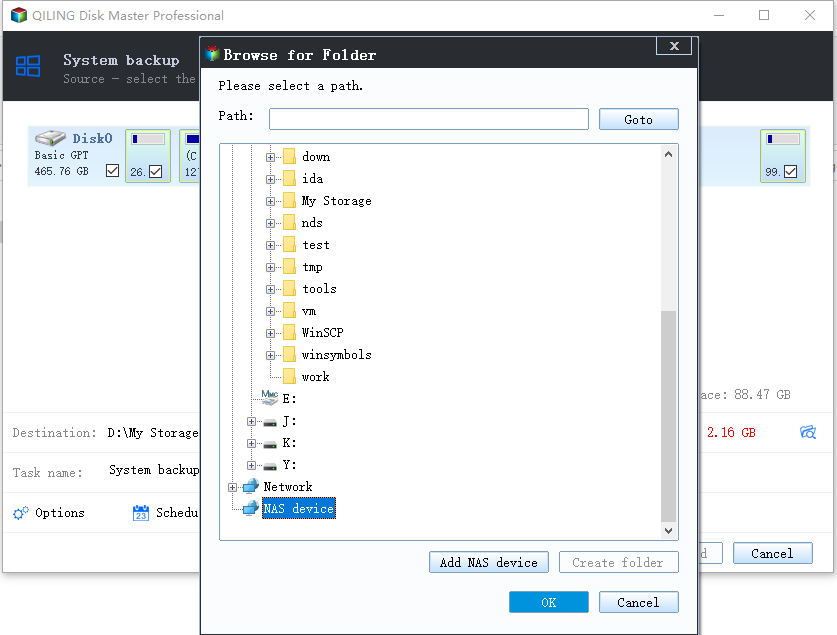
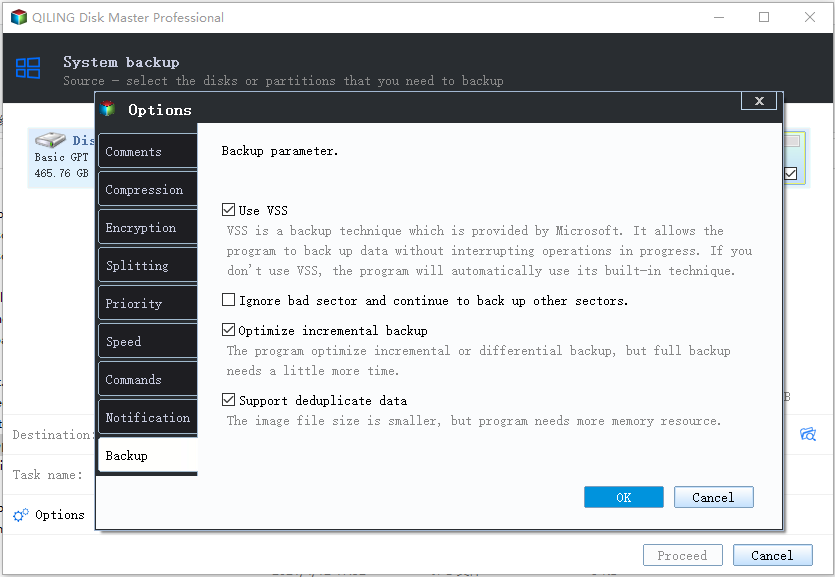
Step 5. You can customize settings in the "Options" section at the bottom left, then click "Proceed" to start the process.
After completing the backup process, you can check the backup status, recover, open, or delete the backup by right-clicking on the backup task on the left.
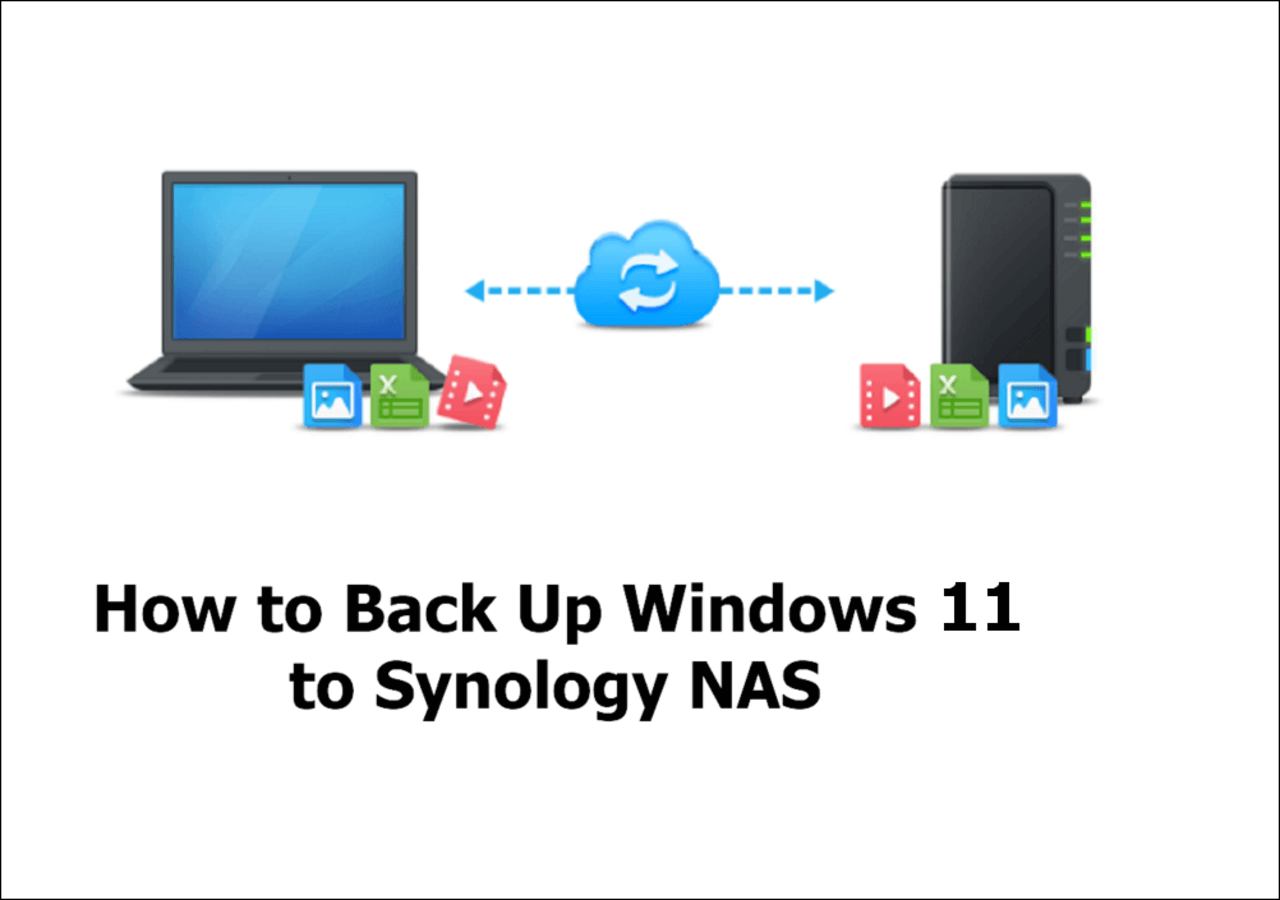
Backing up your Windows 11 computer to a Synology NAS (Network-Attached Storage) device is a crucial step in ensuring data safety. There are three effective ways to achieve this: using the built-in Windows Backup tool, configuring the Synology NAS as a backup destination in Windows Backup, or utilizing the Synology Drive app to backup Windows files directly to the NAS.
Do you want to backup Windows 11 to Synology NAS? Check out the three convenient ways to use Windows 11 backup to Synology NAS and make recovery and collaboration easy.
Share it to Twitter or Reddit if it is helpful:
Method 2. Use Backup and Restore to Backup PC to NAS
You can also backup files to your Synology NAS using the built-in Backup and Restore feature in Windows. To set this up, follow these simple steps:
Step 1. Go to Settings of your system.
Step 2. Search for Backup and Restore.
Step 3. To set up a backup, click on the "Set up backup" option from the window that opens on your system.
Step 4. To save your file on a network, choose Save on a network from the right side of the screen.
Step 5. Click on the Browse button and add the network location.
Step 6. Enter Network Details, including username and password.
Step 7. Click on the OK button to get the process finished.
To back up your PC to a Synology NAS, use the built-in feature and follow simple and easy steps. You can also customize your system settings using on-screen options for more advanced settings.
Share it to Twitter or Reddit if it is helpful:
Method 3. Use File History to Backup Files to NAS
Sometimes, you may not find the Backup and Restore backup option reliable for you. In this case, you can use another Windows built-in feature named File History. If you don't know how to use this feature, follow these steps to learn it completely.
Step 1. Go to Settings and then open Backup settings.
Step 2. Choose More options from the screen.
Step 3. Tap on See advanced settings given below the related settings.
Step 4. To add a network, tap on "Select a network location" from the screen.
Step 5. Insert NAS IP into the address bar.
Step 6. Select the desired folder to save your data, ensuring it's easily accessible and organized for future reference.
Step 7. To enable the option, click on the OK button on the screen.
With this built-in feature, you can back up files to a specific folder without using a third-party tool. However, File History mainly protects selected files and folders, so it is not a complete system backup solution.
File History vs. Backup and Restore | Which Is Better?
This article compares and contrasts two entities, highlighting their strengths and weaknesses, and pitting them against each other in a comparative analysis.
The Final Words
If you're looking for ways to backup your PC to a Synology NAS, there are three simple methods to consider. However, if you're looking for a software solution that can back up your data without losing a single file, you may want to consider using Qiling Disk Master.
This software will automatically save everything from your NAS to its cloud storage once you've given it the go-ahead. This means you won't lose system images, files, and folders, even if your computer experiences technical issues.
FAQs on How to Backup PC to Synology NAS
1. What is the best backup strategy for Synology NAS?
The best backup strategy for Synology NAS is to use Qiling Disk Master software, which allows you to store everything in its storage and restore it whenever you want.
2. Can I connect the PC directly to Synology NAS?
You can connect your PC directly to your Synology NAS by accessing the NAS's IP address in your browser and logging in with the username and password you've set for the NAS.
3. What is the difference between sync and backup in Synology?
In backup, you copy files from one location to another to keep them safe, while in sync, you can manually copy and delete files as needed, making it a more dynamic process.
Related Articles
- How to Install Windows 11 on New PC Without Operating System | 2 Ways
- How to Create Portable Windows 10 to USB Drive (Windows 11 Support)
- Top 2 Ways to Transfer OS from Laptop to Desktop🔥
- Ghost Windows 7 Using Hard Drive Ghost Software
- [Tutorial] How to Backup Excel File Automatically in 2 Tested Approaches
- Top 10 Best Desktop Imaging Software [2024 Reviews]
- 3 Top Ways to Move Photos from Google Drive to Google Photos - Qiling
This page covers 3 top methods widely applied to help you move photos from Google Drive to Google Photos anytime and anywhere. Follow and learn how to free up space in your Google Drive by immediately moving photos to Google Photos.
Products
Articles & Tutorials
- Data Recovery
- Data Backup
- File Recovery
- File Backup
- System Backup and Restore
- Disk and Partition Clone
- Technical articles
- Mobile articles
- Disk Master Help
- Windows Data Recovery Tutorials
- Windows Secure Delete Tutorials
- Windows Partition Management Tutorials
- Windows File Backup and Restore Tutorials
- Windows System Backup and Restore Tutorials
- Windows Disk Backup and Restore Tutorials
- Windows Clone Tutorials