Top 2 Ways to Transfer OS from Laptop to Desktop🔥
If you want the same OS, files, personal data, and programs on your desktop, you can transfer the OS from your laptop to your desktop. Two common methods are universal restore from a system backup and system cloning.
Can I Transfer OS from a Laptop to a Desktop
Yes, you can transfer OS from a laptop to a desktop. Before starting, check Windows activation, driver compatibility, boot mode, and hardware differences.
Transferring an operating system can save setup time because it keeps your familiar Windows environment, applications, and settings. It is also useful when replacing old hardware or moving to a more powerful desktop.
- Performance Upgrade: To enhance overall performance, we move a file from a hard disk drive (HDD) to a solid-state drive (SSD) or a computer with better specifications.
- Data Backup: Data backup is a crucial reason to use a VPN. With the internet becoming increasingly widespread, new threats emerge daily, and protecting your data is essential.
- Preserve Customization: If you've customized a computer with specific settings, programs, and preferences, transferring the OS is often the best option. This way, you can take your customized setup with you, including any installed programs and personalized settings, making the transition to a new computer much smoother.
- Less Downtime: Transferring the OS is significantly faster than reinstalling everything from scratch.
2 Ways to Migrate OS from Laptop to Desktop
Migration can be a helpful procedure in many cases, although it may be complex depending on the method chosen.
You can move a Windows OS from a laptop to a desktop using two methods aside from a clean install. The first method backs up the entire laptop system and restores the image to the desktop. The second method uses disk cloning software to clone the system drive and boot it on the desktop.
| Method | Description | Time | Difficulty |
| Perform Universal Restore | Create a system backup of the entire laptop on a hard drive and restore it on the desktop. | about 20 min | ⭐ |
| Perform System Clone | Clone the entire system onto a hard disk and install it on the desktop. | about 30 min | ⭐ |
- Tip
- If you're using Qiling Disk Master, the best approach depends on your laptop and desktop's hardware. For similar hardware, cloning is the most suitable option.
Way 1. Perform Universal Restore
There is a native Windows tool called Backup and Restore to transfer Windows OS, but it's complex. A simpler way is to use professional universal restore software like Qiling Disk Master for a universal restore.
Qiling Disk Master Pro is a professional tool that allows for advanced backups and cloning of entire systems, hard drives, files, and partitions, with options to store backups on the cloud.
To migrate the OS from laptop to desktop, download the tool and follow the step-by-step guide, which involves two parts to complete the whole process.
Part 1. Create a system image backup on an external drive
Step 1. Launch Qiling Disk Master on your computer, and click Backup and recovery tab page.

Step 2. To back up your Windows operating system, click on "System backup" to initiate the backup process.

Step 3. Your Windows operating system information and all system related files and partitions will be automatically selected, so you don't need to manually select anything at this step. Next, you'll need to choose a location to save the system image backup by clicking the illustrated area.

Step 4. The backup location can be another local drive on your computer, an external hard drive, network, cloud, or NAS. It's generally recommended to use an external physical drive or cloud to preserve system backup files.

Step 5. Customization settings such as enabling an automatic backup schedule in daily, weekly, monthly, or upon an event, and making a differential and incremental backup are available in the Options button. Upon selecting the desired settings, clicking "Proceed" initiates the Windows system backup process, which will display the completed task on the left side in a card style.

Part 2. Restore the system image backup to the desktop
To perform system recovery on a non-bootable machine, try to boot the computer through the recovery mode, which can be accessed by pressing a specific key during the boot process, such as F8 or F2, depending on the system. This will allow you to access the recovery environment and run system recovery tools to attempt to repair or restore the system to a previous state.Qiling Disk Master emergency disk.
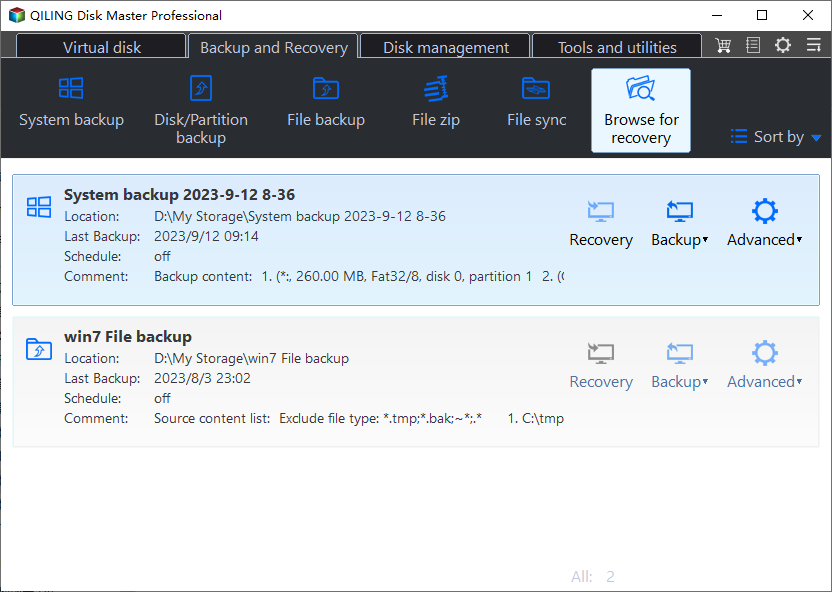
Step 1. Launch Qiling Disk Master, click "Browse to Recover".
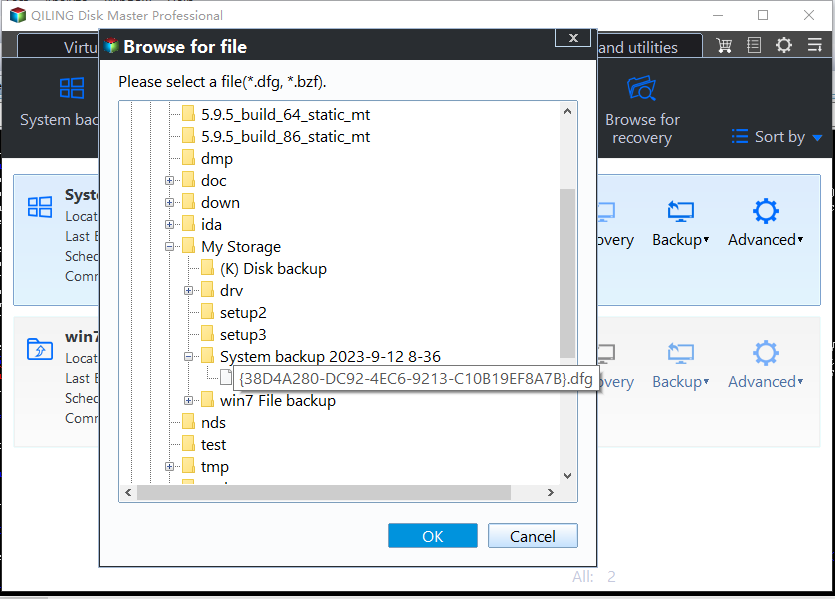
Step 2. Guide to your backup destination, choose the system backup file you need. (The backup file created by Qiling Disk Master is a pbd file.)
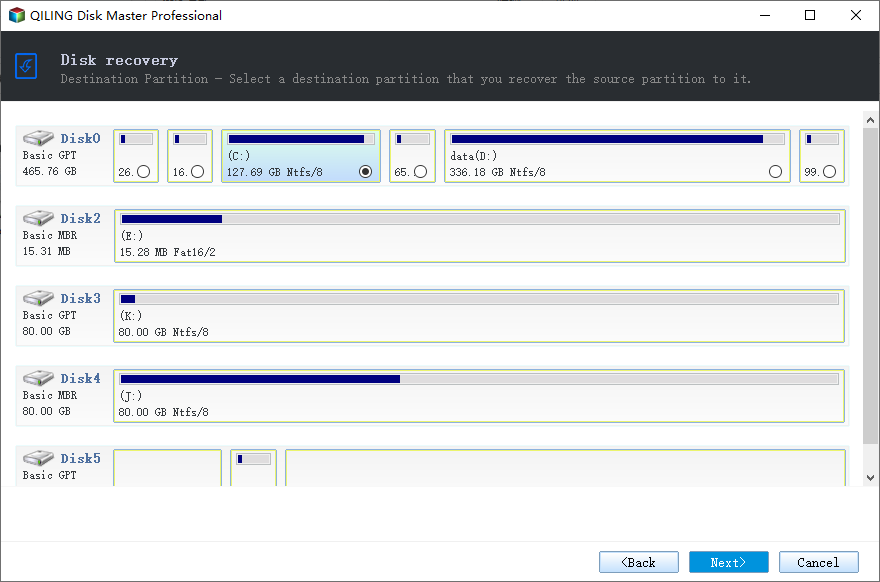
Step 3. To create a recovery disk, select the recovery disk option and ensure that the partition style of the source disk (the drive from which you're creating the recovery disk) and the recovery disk are identical. This is crucial for a successful recovery process.
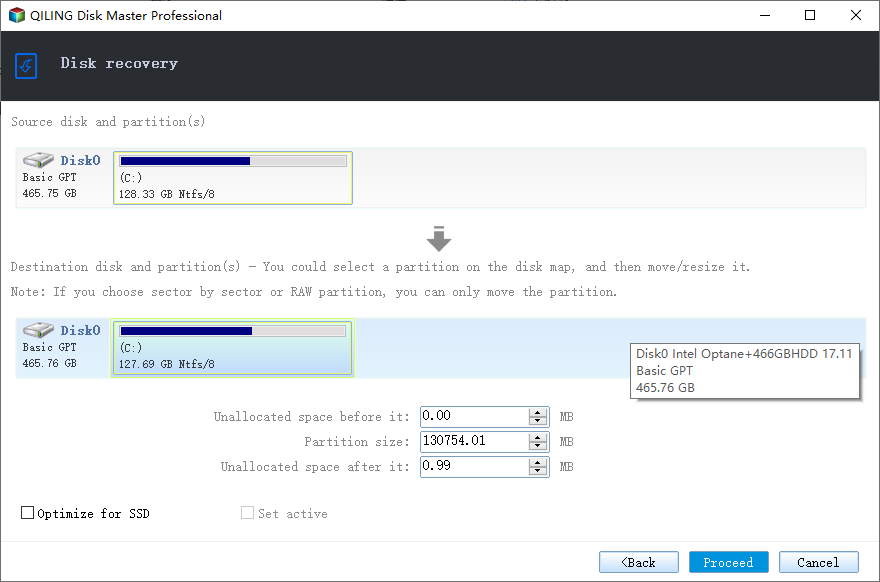
Step 4. You can customize the disk layout based on your needs, then click "Proceed" to initiate the system backup recovery process.
Remember to share the post on social media to help more people.
Way 2. Perform System Clone
Qiling Disk Master allows you to clone a hard drive, creating a picture-perfect clone of your laptop that can be used on your desktop, enabling a seamless transition of your laptop OS to your desktop.
Step 1. On the main page, find and click "Tools" to access system clone and other utilities.
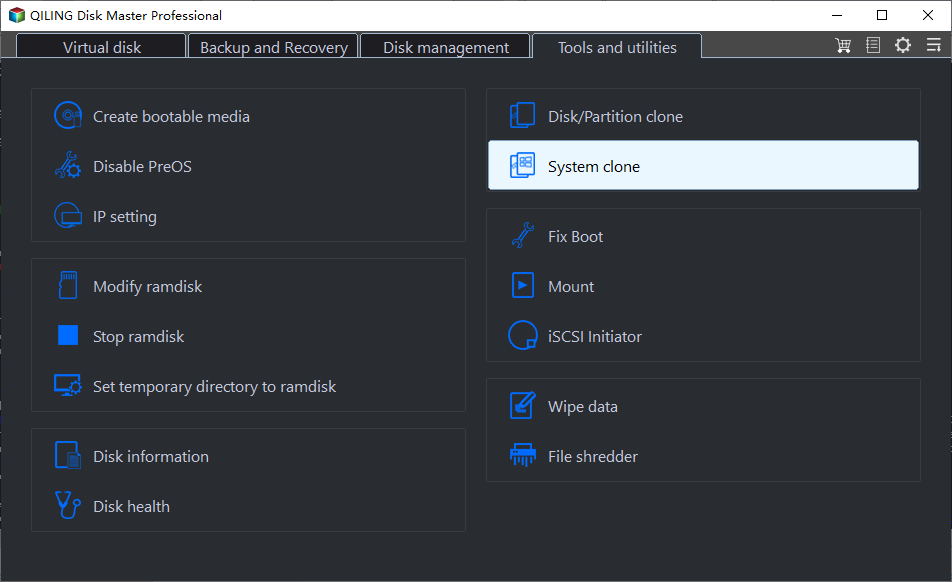
Step 2. Qiling Disk Master will automatically select the boot and system partition, choose the target disk and click "Next".
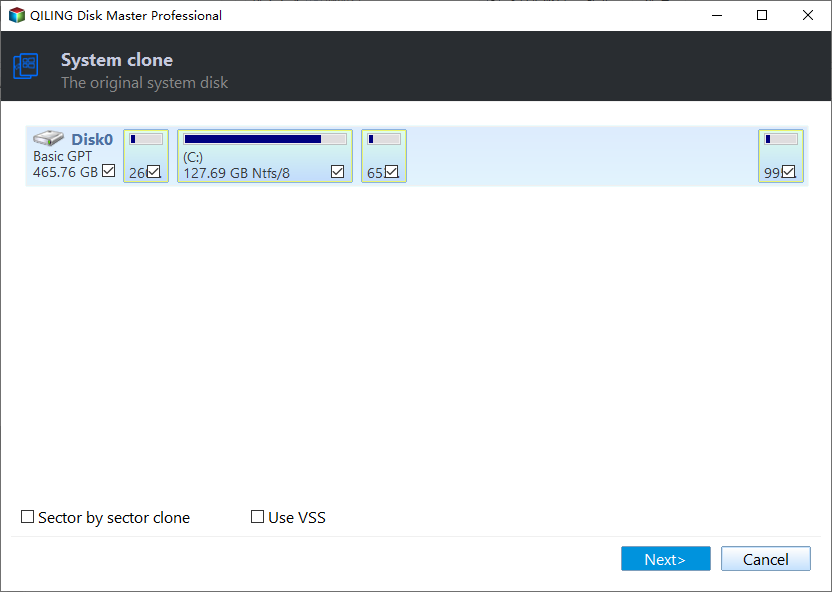
System clone will completely erase all data and cannot convert between MBR and GPT partition styles, so ensure the source and target disks have the same partition style.

Step 3. If the target disk is a SSD, select "optimize for SSD" in the advanced options.

Step 4. Click "Proceed" to start cloning.

To minimize the risk of incompatibility issues, it is highly recommended to perform a universal restore after a system clone. This will ensure that the system is restored to its original state, including all necessary drivers and software, which can help prevent any compatibility problems.
Bonus Tip: How to Boot Computer from Cloned Disk
To boot your computer from the cloned disk, you need to change the boot drive order priority and set the cloned disk as the first. This involves accessing the BIOS settings, navigating to the boot order section, and rearranging the priority to have the cloned disk as the first option. Once you've made the necessary changes, save the changes and exit the BIOS settings. Your computer should now boot from the cloned disk.
Step 1. To set the priority order, restart your desktop, press the BIOS key, and invoke the BIOS menu. This allows you to set the priority order in the BIOS setup, specifically for Windows OS.
For most manufacturers, the BIOS keys are typically "F2", "F10", "F12", or "Del", but it's always best to check the internet for specific instructions based on your device's manufacturer.
Step 2. Now, click on the "Boot" tab and select the cloned disk as the first priority in the boot order in the BIOS settings.
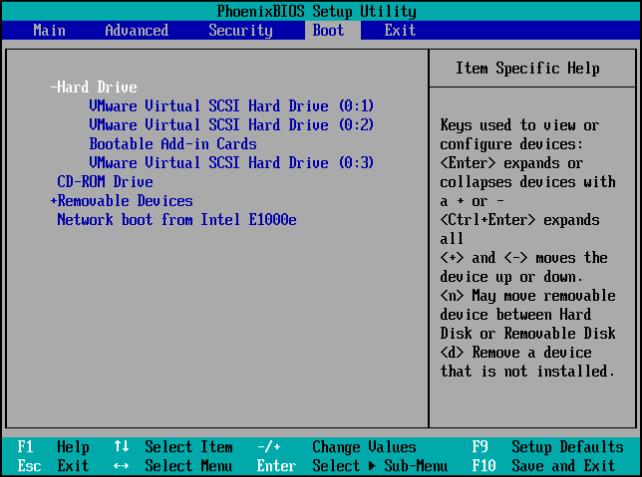
Step 3. Click "F10" to save the changes and exit the BIOS.
To Wrap Things Up
One might prefer going for a clean install to transfer OS from laptop to desktop, but it's a waste of time. The best thing to do is either back up and restore or clone the entire laptop system to the desktop. In this post, you can see how to migrate OS from laptop to desktop using both methods.
You can achieve both methods using Qiling Disk Master, a complete backup and restore solution that creates efficient backups and clones. This software allows you to choose the method that suits you best and complete the OS transfer with ease.
FAQs on How to Transfer OS from Laptop to Desktop
Here are some of the most frequent FAQs asked on how to migrate OS from laptop to desktop. I hope you find these queries helpful.
1. Can I copy my Windows 10 to another computer?
You can copy Windows 10 to another computer by using a USB drive with bootable media or by cloning the entire system, allowing you to create an exact copy of your current system.
2. How do I transfer my OS from the old SSD to the new SSD?
To transfer the operating system (OS) from an old solid-state drive (SSD) to a new SSD, you can use a cloning software to create an exact copy of the old SSD on the new one. This process is also known as "cloning" or "imaging" the OS.
- Download the Qiling Disk Copy and open it.
- Select the Source SSD (old) and the destination SSD (new) and click Clone.
- Now, click start to begin the OS cloning process to the new SSD.
3. What is the easiest way to move OS from HDD to SSD?
To easily transfer an operating system from a hard disk drive (HDD) to a solid-state drive (SSD), the process can be simplified by cloning the HDD to the SSD using Qiling Disk Copy, which creates an exact replica of the HDD's files, programs, and personal data onto the SSD.
4. Does cloning an SSD copy the OS?
Cloning an SSD will copy all data, including the operating system, applications, files, and settings, creating an exact copy of the source drive.
Related Articles
- Windows Backup Encrypted: Run Encryption Backup Software
- [3 Ways] How to Backup Laptop to OneDrive Quickly
- Buffalo NAS Backup| The Best Way to Backup Buffalo in Windows 11/10/8
- Top 3 Best Cloning Software for HDD and SSD of 2024
- 5 Best Outlook Backup Software for Windows Free Download: 2024 Update
- Why Is Windows 11 Backup Not Working on Your PC? Check the Causes and Fixes Here Instantly
- Samsung Data Migration Software Download and Perform
If you want to move your HDD or SSD to a Samsung SSD, Samsung data migration software download is an easy-to-use and efficient utility. However, it also has some restrictions. If you want a program to not only use on samsung products, this guide will introduce a free alternative to help you.
Products
Articles & Tutorials
- Data Recovery
- Data Backup
- File Recovery
- File Backup
- System Backup and Restore
- Disk and Partition Clone
- Technical articles
- Mobile articles
- Disk Master Help
- Windows Data Recovery Tutorials
- Windows Secure Delete Tutorials
- Windows Partition Management Tutorials
- Windows File Backup and Restore Tutorials
- Windows System Backup and Restore Tutorials
- Windows Disk Backup and Restore Tutorials
- Windows Clone Tutorials