Why Is Windows 11 Backup Not Working on Your PC? Check the Causes and Fixes Here Instantly
Windows 11 backup is not working for some users, preventing them from creating backups on their PCs. If you're encountering this issue, the following solutions can help you fix it and get your backups running smoothly again.
Windows 11 Backup Not Working? What Are the Causes?
Some Windows 11 users have experienced issues with the built-in backup feature, which has not been functioning properly, leaving them without a reliable way to protect their data.
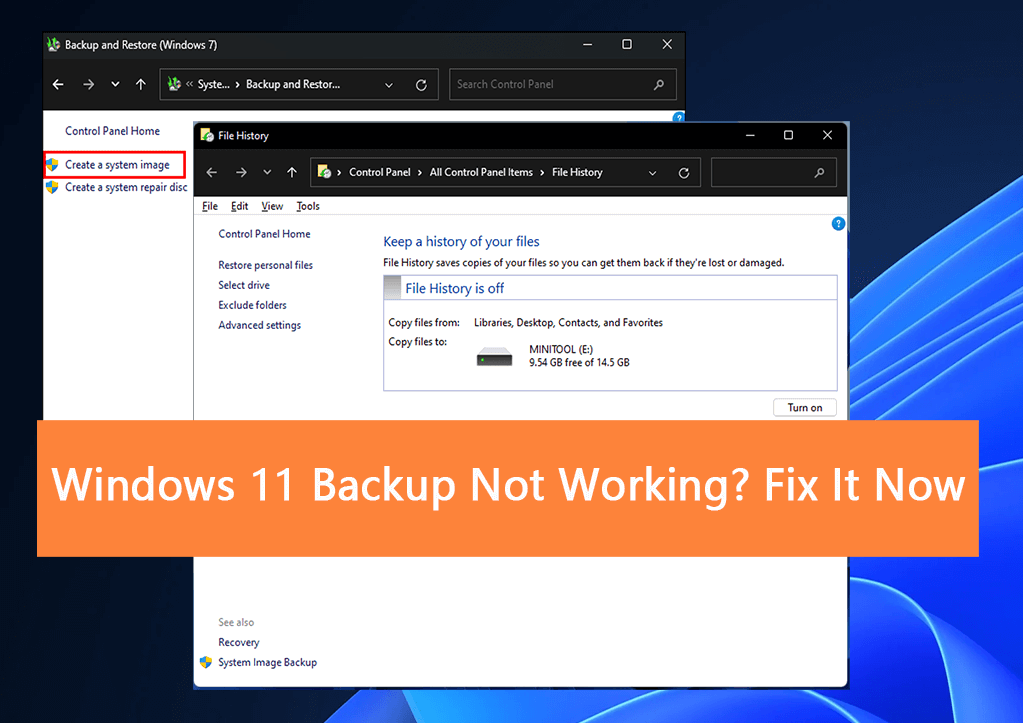
If you're experiencing symptoms like the backup process freezing, crashing, or taking an unusually long time, it indicates a backup-related issue that needs to be addressed.
- Windows 11 system restore taking a long time
- Windows 11 backup options are missing
- Cannot create a system image on Windows 11
- Windows 11 backup stuck at 0%
The causes of the backup not working issue on Windows 11 are largely similar across different scenarios. They include issues with the Windows Backup service, corrupted system files, disk errors, and incorrect settings or configurations. Conflicts with other system programs can also lead to the backup not working issue on Windows 11.
- Low disk space on the system drive
- Corrupted system files
- Missing or corrupted registry keys or files
- Windows backup services are disabled
- System C drive has some internal errors
- Windows update errors
To fix the issue of not being able to create backups on Windows 11, first check if the problem is caused by corrupted system files or a malfunctioning Windows Backup and Restore feature. If so, run the System File Checker (SFC) tool and the DISM tool to scan and repair any corrupted system files.
Key Takeaways of Windows 11 Backup Not Working:
|
Next, let's start getting rid of the "Windows 11 backup not working" issue now.
If you're experiencing similar backup issues on Windows 10 or an older operating system, you can follow the tutorial links below for further assistance.
How Do You Fix the "Windows 11 Backup Not Working" Issue? 7 Fixes
If you're experiencing issues with Windows 11 backup not working, you can try the following 7 fixes to resolve the problem instantly. These fixes include checking the backup drive, updating Windows, running the System File Checker, running the DISM tool, running the Backup and Restore (Windows XML) service, checking the Event Viewer, and resetting the Windows Backup service.
- #1. Restart Windows 11 PC
- #2. Use Backup Software & Create Windows 11 Backup
- #3. Start Windows Backup Service
- #4. Change RPC to Automatic in Registry Editor
- #5. Run Error Checking or CHKDSK on C Drive
- #6. Run SFC - System File Checker
- #7. Run DISM Command to Restore Health to Windows 11
Note that if you are newly updated to Windows 11 or installed the latest version of Windows 11 on your PC, follow and try Method 1 at first. If the error still exists, move to the next six solutions for help.
#1. Restart Windows 11 PC
When a computer is updated to a new Windows 11 version, it's recommended to restart the computer first to ensure all changes are applied.
Step 1. Save your document files, and close all running programs.
Step 2. Click the Windows icon, and click the Power button.
Step 3. Select "Restart" and then let the computer to reboot.
After this, you can try to backup Windows 11 with Windows Backup and Restore or third-party solutions for help.
If the issue persists after restarting Windows 11, don't worry! There are more solutions to try. You can continue with the next 6 solutions for help, which might resolve the problem and get you back to using your computer without any issues.
#2. Use Backup Software to Create Windows 11 Backup
Due to the causes of Windows 11 backup not working issue being multiple, it's wise to create a backup of essential Windows 11 data and the OS in advance. Third-party backup software like Qiling Backup Home can assist in backing up Windows computer content and the OS to an external hard drive, saving storage space on your PC with ease.
Step 1. To start backup, click the File backup button.

Step 2. On the left-hand side, you'll see a list of local and network files. To select the files to be backed up, simply expand the directory to choose the desired files.

Step 3. Follow the instructions on the screen and choose the location where you want to store the backup.

Step 4. In the Backup Options, you can click Options to encrypt the backup with a password, allowing for customizable features and tailored backup operations to suit your needs.

Specify the backup schedule, and choose whether or not to start the backup at a certain event in Backup Scheme.

Step 5. Backups can be stored on a local disk, in Qiling's cloud service, or on a network attached storage device (NAS).

Step 6. Qiling Backup enables customers to securely back up their data to either a third-party cloud drive or Qiling's own cloud storage, providing a convenient and reliable solution for data protection.
To back up your data to a third-party cloud drive, select Local Drive, then scroll down to add Cloud Device and enter your account information.
Step 7. To start a backup, click Proceed. A card will appear on the list view panel once the backup process is complete, allowing you to view the backup job in more detail by clicking on it.

Qiling Backup helps you smartly manage your backups to save space on your computer with its features, including scheduling, incremental backups, and automatic deletion of old backups.
- Support backup files on Windows 11
- Support How Do I Back Up PC Automatically in Windows 11
- Support backup to external hard drive, SD card
- Support backup to cloud and even NAS drives
After creating a full backup of your Windows 11 data, you're now safe to try the next solutions to resolve the Windows 11 backup not working issue.
Here is a video tutorial that covers the most efficient solutions listed below, and you may follow to instantly get rid of this issue from your PC:
#3. Start Windows Backup Service
If the Windows backup service is disabled, you won't be able to create a backup on Windows 11, and backup options might be missing. To fix this, you can start the Windows Backup Service using the Registry Editor by following the steps to enable it.
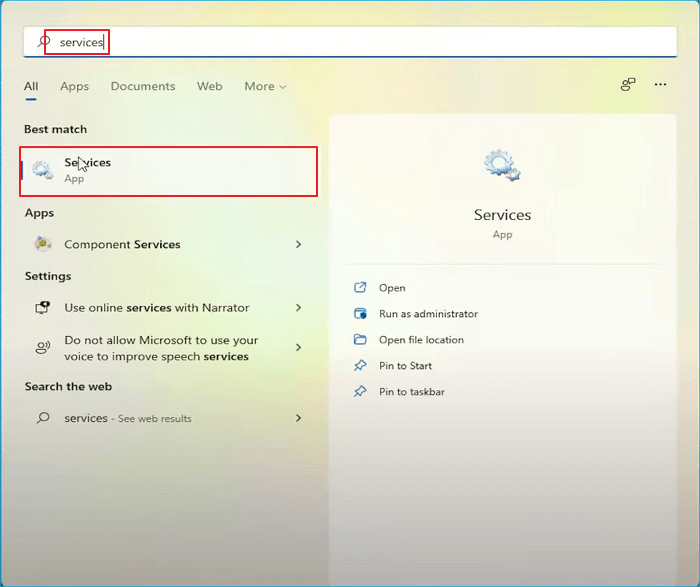
Step 1. To access the Services console on Windows 11, right-click the Search icon and type "services", then click on Services from the search results.
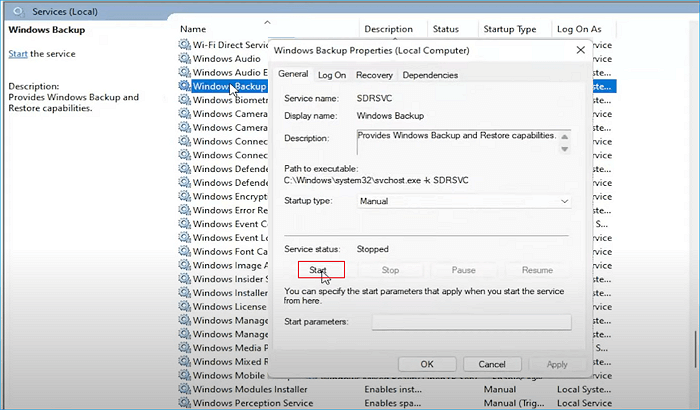
Step 2. To start Windows Backup, find the program, double-click on it, click "Start" on the Windows Backup Properties window, and then click "OK" to confirm.
If you're unable to start backing up your Windows 11 PC, try restarting your computer and then retry the backup process. If it still doesn't work, proceed with the next step.
#4. Change RPC ( Remote Procedure Call) to Automatic in Registry Editor
When Remote Procedure Call (RPC) is not enabled as automatic, Windows computers may encounter backup issues. To resolve this, enable Remote Procedure Call & RPC Endpoint Mapper to automatic in the Registry Editor by following the steps below:
Step 1. In the search box, type "services" and click "Services" to open it.
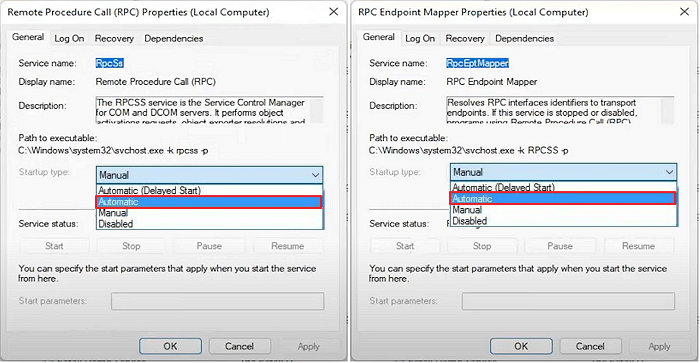
Step 2. To enable Remote Procedure Call (RPC), double-click on it in the list, then set the startup type to "Automatic" and click "OK" to confirm.
Step 3. Find and double-click RPC Endpoint Mapper, set the startup type to "Automatic", then click "OK" to confirm.
Step 4. Now, close Registry Editor and restart Windows 11 to keep all the changes.
Now, you can start backing up Windows 11 on your PC. If you've executed the methods above and they work, congratulations - you can stop here. However, if not, it may be due to internal errors on the system drives or system files, and you'll need to try additional methods to fix the computer to a healthy state.
#5. Run Error Checking or CHKDSK on C Drive
Error Checking and CHKDSK are two Windows internal features that work together to check and fix file system errors on the system drive or data partitions, ensuring the integrity and stability of the operating system and data.
Here are the steps to fix internal errors by using Error Checking or CHKDSK on Windows 11: Run the built-in Error Checking tool to scan your system drive for errors, or run the CHKDSK command to check and fix disk errors. This process can help identify and repair corrupted system files, disk errors, or bad sectors on your C drive, which may be causing the backup not working issue.
Run Error Checking on System C Drive:
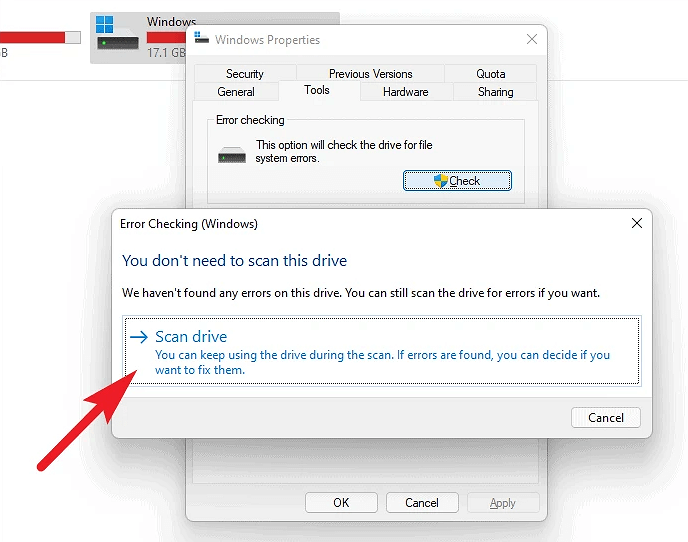
Step 1. Open File Explorer, right-click C drive, and select "Properties".
Step 2. To resolve the issue, go to the Tools tab and click on "Check" under the error checking section. This will allow you to check for and correct any errors in your document.
Step 3. Click "Scan drive" and let the app check and fix all errors found on the system's C drive.
Run CHKDSK to Fix Internal Errors on C Drive:
Step 1. To open Command Prompt as an administrator, click the Windows icon, select "Search", type "cmd" in the search box and right-click on Command Prompt, select "Run as Administrator".
Step 2. Type chkdsk C: /f /r /x and hit Enter.
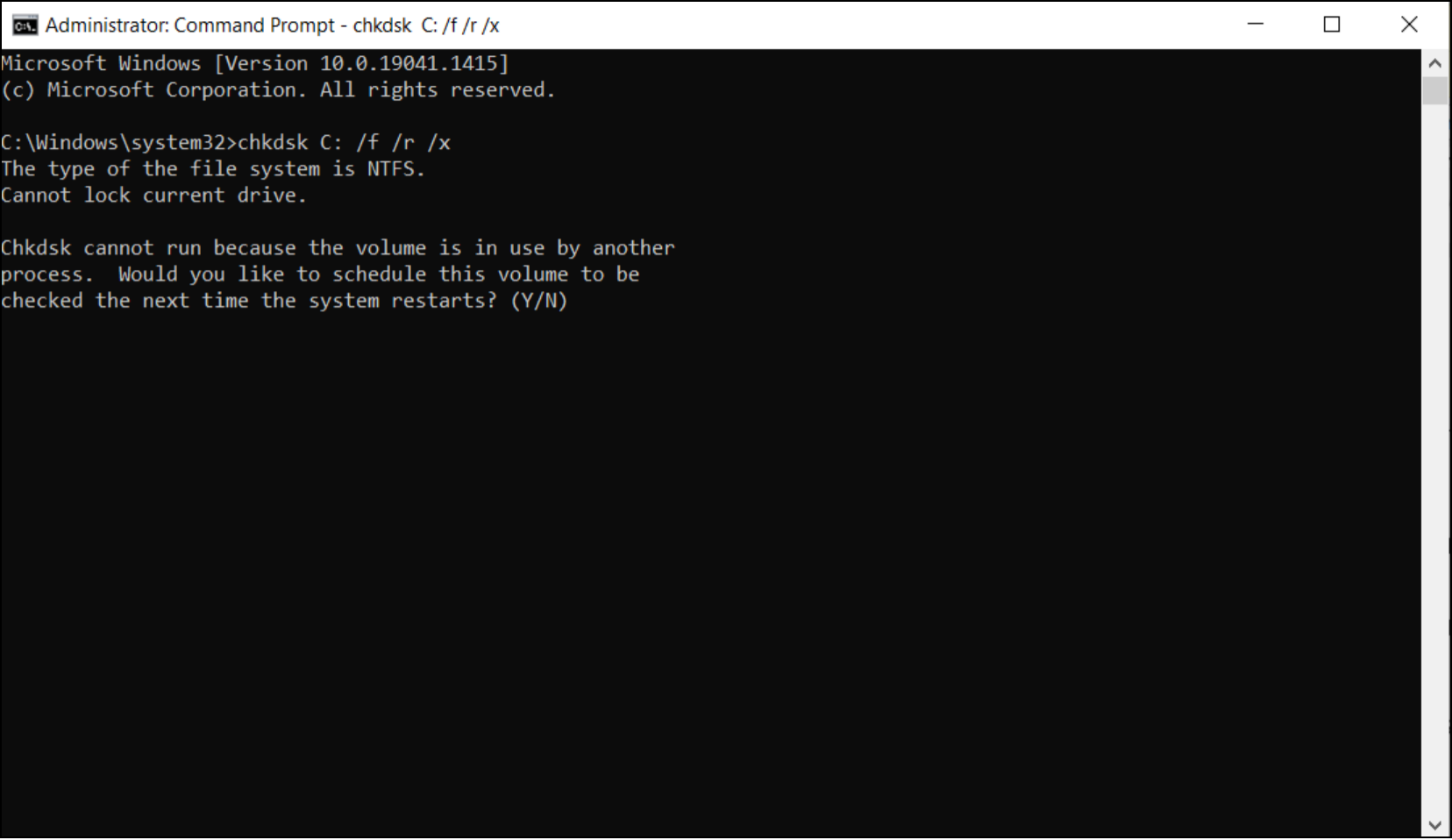
Let the process complete and after this, restart Windows 11. Then, you can try to create a backup on Windows 11.
#6. Run SFC - System File Checker
Here are the steps to use SFC command to fix corrupted system files on Windows 11:
Step 1. To open Command Prompt in Windows 11, type "cmd" in the Search box, right-click on Command Prompt, and select "Run as Administrator" to open it.
Step 2. Type sfc /scannow and hit Enter.
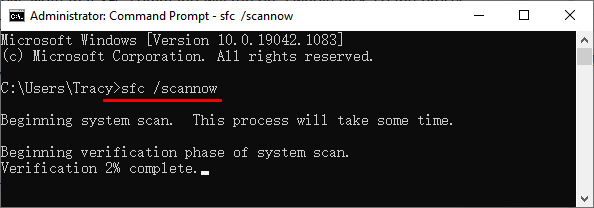
Wait patiently to let the scanning and repairing process complete. And then, you can retry to create Windows 11 backup then.
You may wonder what the difference is between SFC and CHKDSK. The two commands serve different purposes, with SFC (System File Checker) scanning and repairing corrupted system files, and CHKDSK (Check Disk) checking and fixing disk errors, including bad sectors and file system corruption. Understanding the difference between these two tools can help you troubleshoot and resolve system issues more effectively.

SFC and CHKDSK: How to Run SFC and Chkdsk
SFC (System File Checker) and CHKDSK (Check Disk) are two tools used to detect and repair corrupted system files and disk errors, respectively. While they share some similarities, SFC is specifically designed to scan and repair corrupted Windows system files, whereas CHKDSK is used to check and repair disk errors, including bad sectors and file system inconsistencies. In other words, SFC focuses on file corruption, whereas CHKDSK focuses on disk corruption. Both tools are essential for maintaining the health and integrity of a Windows system.
#7. Run DISM Command to Restore Health to Windows 11
To repair a corrupted Windows installation, you can use the SFC command, which scans and replaces corrupted system files. Alternatively, running the DISM restore health command can also be an efficient method to repair the overall computer to a healthy state. This involves running the command "DISM /Online /Cleanup-Image /RestoreHealth" in the Command Prompt as an administrator, which will scan and repair corrupted system files and components.
Step 1. To open the Command Prompt on Windows 11, you can search for "cmd" and right-click on the result to open it.
Step 2. Type `dism /online /cleanup-image /restorehealth` in the command prompt window, and press Enter to execute the command.
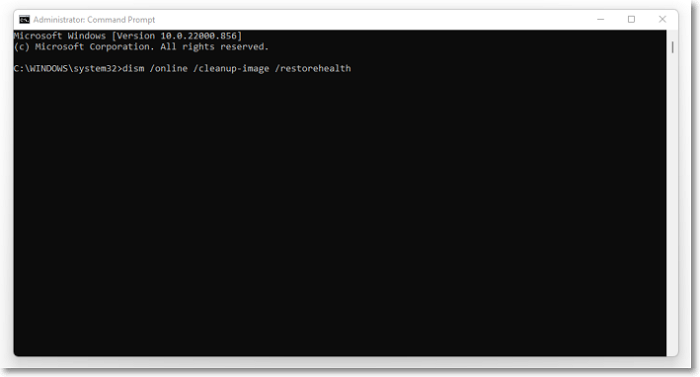
Wait for the process to complete and close the window when you see a success message. Then, restart your Windows 11 computer and try creating a backup again.
- Essential Notes:
-
If you've tried all the manual methods to fix Windows 11 backup not working issue and they didn't work, you're left with two options:
1. To back up everything on Windows 11, you can run third-party backup software like Qiling Backup, which allows you to schedule automatic backups of your entire system, including files, folders, and system settings. This method provides an additional layer of protection and peace of mind, ensuring that your important data is safely stored and can be easily restored in case of any issues or disasters.
2. To revert Windows 11 to a previous healthy state or reinstall Windows 11, you can download the Windows 11 ISO from its official site. This will allow you to either revert to a previous state or completely reinstall the operating system.
Windows 11 Backup Not Working Issue Is Solved: You Can Fix It with the Correct Solutions
If you're having trouble creating a backup on Windows 11, don't worry - we've got the main causes listed on this page. Whether you're experiencing issues on Windows 11 or another version, these potential problems can help you troubleshoot and get your backups working smoothly.
If Windows 11 backup not working issue persists, try restarting your PC first. If that doesn't work, create a full backup of your computer data to an external hard drive using Qiling Backup. Then, try the next 5 manual and efficient solutions to resolve the issue. With patience and the correct solutions, you can fix the problem.
FAQs About Windows 11 Backup Not Working
Here we also connected some other hot questions that are related to Windows 11, and if you have the same doubts, follow and find the answers here:
1. Windows 11 Backup Stuck at 97%, What to Do?
If Windows 11 backup is stuck on your PC, try restarting the computer first. Then, check if your C drive is full, as a full drive can cause issues with the backup process.
- If you're experiencing issues with your Windows 11 installation, try to troubleshoot the problem first. If that doesn't work, consider reinstalling Windows 11.
- If you're unable to create a backup on your Windows PC, try removing the old backup and then retrying to create a new backup. This should resolve the issue.
2. Does Windows 11 have a Backup Program?
Windows 11 has two internal backup programs: Windows Backup and Restore, which creates a system image of the OS and performs disaster recovery from OS crashes or system failure errors.
File History is a program that creates backups of files and folders on the system C drive, helping you quickly recover missing files from these backups.
3. How do I use File History in Windows 11?
To run File History in Windows 11, you can follow these steps: Go to Settings, then select Update & Security, and finally, click on Backup. From there, you can toggle File History on, choose a drive to save your backups, and select how often you want them to be saved.
Step 1. To connect an external hard drive to a Windows 11 PC when your C drive is full, first, ensure the external drive is properly formatted for use with Windows. Then, plug the external drive into a USB port on your PC.
Step 2. To access the backup settings in Windows, go to the Settings app, select System, and then click on Storage. From there, click on Backup Options.
Step 3. Click "Add a drive" under Back up using File History.
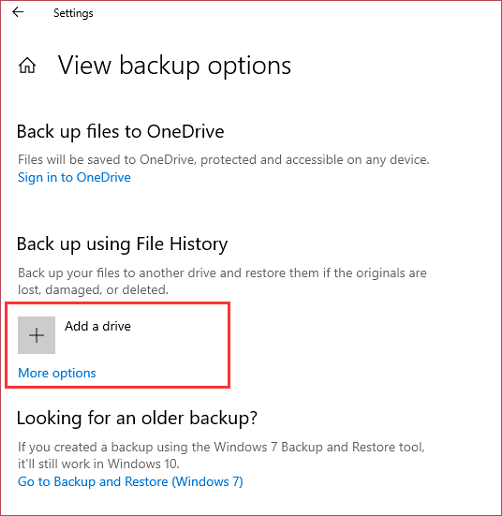
Step 4. To enable automatic file backup, turn on the feature and then select the specific files you want to back up by clicking on "More options".
Related Articles
- Create Windows 7 Recovery Disk from Another Computer In-Depth Guide 2022
- Reset Lenovo Laptops with OneKey Recovery Without Data Loss
- How to Use the Best Kingston SSD Cloning Software to Clone HDD to SSD
- How to Fix Macrium Reflect Clone Failed
- Is Dell Migrate Worth It in Data Migration Between PCs? How to Use It [2022 New]
When searching for reliable data migration software to transfer files from one PC to another, you may come across Dell Migrate, which is often recommended by others. But what is Dell Migrate, is it worth trying, and what are its pros and cons. - Is Windows 10 Backup Any Good? Check the Answer
Windows 10 has built-in backup tools, but they may not be sufficient for all users. The built-in tools, such as File History and System Image Backup, can be useful for backing up individual files and the entire system, respectively.
Products
Articles & Tutorials
- Data Recovery
- Data Backup
- File Recovery
- File Backup
- System Backup and Restore
- Disk and Partition Clone
- Technical articles
- Mobile articles
- Disk Master Help
- Windows Data Recovery Tutorials
- Windows Secure Delete Tutorials
- Windows Partition Management Tutorials
- Windows File Backup and Restore Tutorials
- Windows System Backup and Restore Tutorials
- Windows Disk Backup and Restore Tutorials
- Windows Clone Tutorials