SFC and CHKDSK: How to Run SFC and Chkdsk | Difference Unveiled
Page Content:
What Is SFC?
How to Run SFC Scan in Windows 10
What is CHKDSK?
To run the CHKDSK command in Windows 10, first, open the Command Prompt as an administrator. You can do this by searching for "Command Prompt" in the Start menu, right-clicking on it, and selecting "Run as administrator".
Any Simple yet Powerful CHKDSK Alternative?
The Difference Between SFC and CHKDSK
Both SFC (System File Checker) and CHKDSK (Check Disk) are tools used to detect and repair corrupted files, but they serve different purposes. SFC is specifically designed to scan and repair corrupted system files, while CHKDSK is used to check and repair errors on disk partitions, including file system corruption, bad sectors, and disk errors. In essence, SFC focuses on system file integrity, whereas CHKDSK is a more comprehensive tool that checks the entire disk for errors.
What Is SFC?
SFC, or System File Checker, is a utility in Windows 10 that helps administrators detect and fix file corruption issues. Its function is to check for registry data problems and is effective in fixing them. SFC is available in the latest versions of Windows, including Windows 7, 8, 10, and Vista.
The System File Checker (SFC) tool allows users to access a command prompt window, which triggers a system scan to check if files have been corrupted. It is recommended to keep the prompt window open until the scanning process is complete.
When running the System File Checker (SFC) tool, it may report that no file integrity violations were found. If SFC can repair corrupted files, it will indicate that the system found the corrupted files and fixed them. If SFC cannot handle the issue, the user can manually replace the corrupted files.
How to Run SFC Scan in Windows 10
To run the System File Checker (SFC), follow these steps: Open the Command Prompt as an administrator, type `sfc /scannow`, and press Enter. This will scan and replace corrupted system files with a fresh copy from the installation media. If you're prompted to insert the installation media, do so, and the SFC will continue to scan and replace corrupted files.
Step 1.To access the elevated command prompt, right-click the Start menu icon, select "Command Prompt (Admin)" from the list, or use the shortcut keys Win + X to navigate to it.
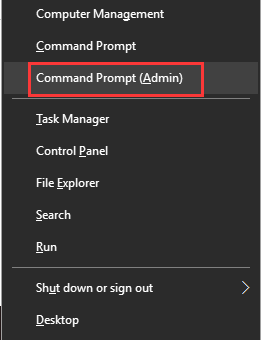
Step 2.After running the command line, type the following command to run the SFC scan: follow the steps below. Make sure not to abort this process and wait for it to complete, as the result will be displayed after the scan is complete.
Step 3.Press Enter on the keyboard after typing, it will start looking for corrupted or lost files on your PC.
How does this command scan your PC?
This command helps resolve file corruption issues by scanning and replacing corrupted system files with a cached copy located in the C: WindowsSystem32dllcache folder.
SFC Scan Results:
After the process is 100% complete, if all goes well, you will receive the message "Windows Resource Protection did not find any integrity violation".
If the SFC Scanner displays the message "Windows Resource Protection found corrupt files and repaired them successfully. The details are included in the CBS.Log% WinDir% N N -LogsCBSCBS.log," you can check the components by running the DISM tool with the /RestoreHealth option. This will scan for and repair any corrupted system files and components. To do this, open Command Prompt as Administrator, type "DISM /Online /Cleanup-Image /RestoreHealth," and press Enter.
- To access the command prompt, navigate to it and type the following line of code, then press Enter on your keyboard.
- The command is trying to find and delete two log files, one in the Windows directory and one in the user's profile, as well as a file on the desktop. The files are named "NCBS.log" and "Nsfcdetails.txt".
The command to repair corrupt system components is: `sfc /scannow` and hit enter at the command prompt. This command will scan and repair any corrupted system files, ensuring a stable and functional operating system.
Dism / Online / Cleanup-Image / RestoreHealth
The SFC scan was performed on the PC and details were recorded in a file named sfcdetails.txt on the desktop, where you can view the analysis results.
If the SFC Scanner does not fix the issue, try using SFCFix, a third-party tool that reads from the CBS.LOG file to repair corruptions.
What is CHKDSK?
The CHKDSK command in Windows is used to verify the integrity of the file system on a partition of the hard disk or floppy disk. It has several functions, including analysis, and can be used to check for errors and inconsistencies in the file system. The command can be used to perform various tasks, including checking the file system, fixing errors, and analyzing the disk, and can be customized to suit specific needs.
To access the Windows command console, go to the start menu, search for "cmd," and run it as administrator.
- Anyway, this time, you will write the following code "chkdsk /?" and hit the Enter key.
To display all information related to the CHKDSK command and its parameters, you can type the command `chkdsk /?` in the command console. This will show you all the available options and tools you can use with CHKDSK.
To run a CHKDSK command, simply type "chkdsk" followed by the drive letter you want to scan, and then the desired option. For example, you can type "chkdsk c:" followed by a specific option such as "l" for a quick scan, "f" for a full scan, or "v" for a verbose scan. You can also add additional options or parameters as needed.
How to Run CHKDSK Command in Windows 10 Step by Step
Many people wonder how to disable disk checking or CHKDSK when starting Windows, but the truth is that the CHKDSK command can be handy. To use or execute the CHKDSK command in Windows 10 to check if your drive partition has a problem, you can follow the guide. This will help you determine if your drive partition has any issues, and the CHKDSK command can be useful in this regard.
CHKDSK can be a useful tool for identifying and resolving issues with your storage device. If you're experiencing performance or stability problems, running CHKDSK from within Windows can be a good option.
The hard drive is often the main culprit behind computer freezes or malfunctions. To identify if a disk partition error is the cause, you can use the CHKDSK command. CHKDSK is a built-in tool that checks for disk partition errors, and using it can help you troubleshoot the issue. By following the guide on how to use the CHKDSK command, you can determine if a disk partition error is the root of the problem.
To access the command prompt, go to the Windows start menu and look for "cmd."
Right-click on the Windows command console, select "Run as administrator" to access options with admin privileges. This is necessary to make changes to the equipment.
Once the Windows command console is displayed, type "CHKDSK" followed by the drive letter of the drive you want to analyze, such as "chkdsk c:", and press Enter.
Wait for the process to finish, then check the drive for problems. If you find any, you can use the DISM and SFC commands to repair your Windows 10 system.
Any Simple yet Powerful CHKDSK Alternative?
While the Windows Command Prompt is useful for resolving hard disk issues and file system errors, its complex command lines can be challenging for many users to navigate. The various CHKDSK commands, designed to tackle specific drive problems, are often best utilized by those with advanced computer skills who can avoid mistakes. For average users, the CHKDSK command is not typically the optimal choice for checking and repairing hard drive partition errors.
Qiling Partition Master is a more intelligent program that can be a perfect alternative to the Windows CHKDSK utility. It's an all-round disk & partition manager software that provides users with a collection of practical functions to maximumly utilize their disk partitions like resize/move, delete, format, hide, copy and clone. It's a third-party solution that simply covers all the demands in managing a Windows hard drive and partitions.
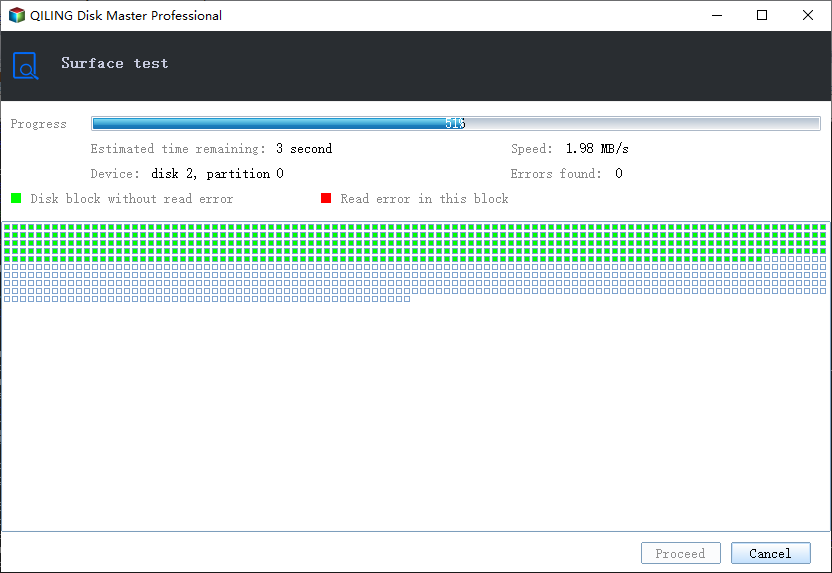
Step 1. To check the disk partition on your computer using Open Qiling Partition Master, open the software, locate the disk you want to check, click on the partition you're interested in, and select the "Surface test" option from the menu. This will initiate a surface test on the partition.
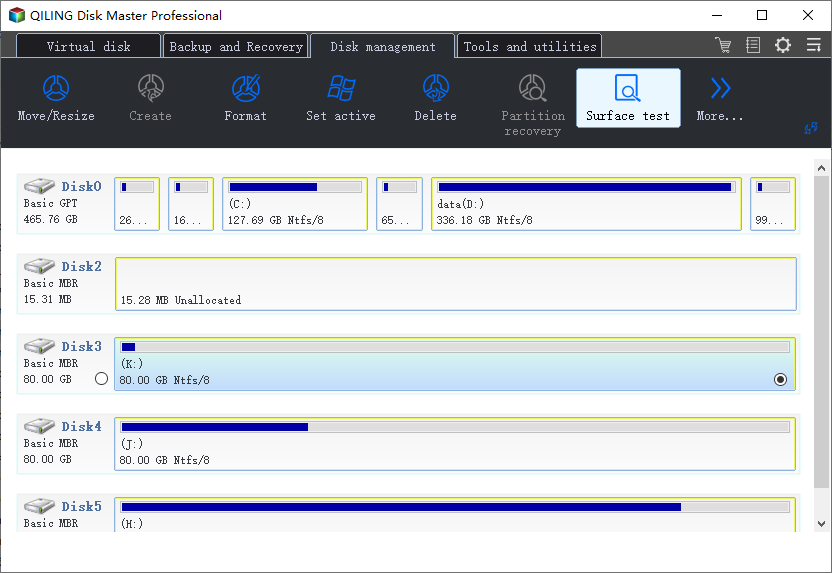
Step 2. In the Check File System window, click "Proceed" to start.
The Difference Between SFC and CHKDSK
CHKDSK checks for errors on a specific partition, while SFC detects and repairs file errors on a Windows system, replacing corrupt files with healthy versions if needed. If a BSOD occurs and displays a missing file message, running SFC can help resolve the issue.
Conclusion
SFC and CHKDSK are two tools that serve the same purpose of detecting file errors, but they have some differences. SFC, specifically designed for Windows, not only detects errors but also takes automatic action, whereas CHKDSK tends to only report the issues.
Related Articles
- Fix "We could not complete the Updates/Undoing changes" Error Windows 11
- Effective Fixes for Hard Drive Not Detected in Windows 10 Installation
- How to Remove Partition on External Hard Drive in Windows 11/10
- How to Fix SSD Full for No Reason
- Sony VAIO Boot Menu: Everything You Should Know
This guide will introduce the Sony VAIO boot menu and Sony BIOS key, allowing you to easily boot Sony VAIO from USB drives. - How to Speed Up Computer Performance in Windows 11/10/8/7 [Step-by-Step Guide]
This article provides a guide on how to speed up computer performance in Windows 11/10/8/7, addressing the issue of computers running slow. A professional tool is also introduced to help extend your partition, which is a key solution to resolving computer performance issues.
Products
Articles & Tutorials
- Data Recovery
- Data Backup
- File Recovery
- File Backup
- System Backup and Restore
- Disk and Partition Clone
- Technical articles
- Mobile articles
- Disk Master Help
- Windows Data Recovery Tutorials
- Windows Secure Delete Tutorials
- Windows Partition Management Tutorials
- Windows File Backup and Restore Tutorials
- Windows System Backup and Restore Tutorials
- Windows Disk Backup and Restore Tutorials
- Windows Clone Tutorials