How to Speed Up Computer Performance in Windows 11/10/8/7 [Step-by-Step Guide]
| 🚩Aspects | 📃Details |
|---|---|
| 🧩Applies to | Speed up computer performance on Windows 11, 10, 8, 7 |
| 🔨Fixes |
|
| 🔦Complex Level | Low, step-by-step guide |
To speed up your computer performance and get a faster and better computer experience, there are several steps you can take without upgrading your computer. By learning how to optimize your computer's settings, update your operating system and software, and manage your files and programs effectively, you can significantly improve your computer's speed and performance. Additionally, implementing simple habits such as regularly cleaning up temporary files, closing unused programs, and disabling unnecessary startup programs can also make a big difference.
If your computer is running slow, don't worry! There are several quick fixes you can try to speed it up.
All computers inevitably experience slower speeds at some point. As software requirements become more demanding, how your PC reacts to the changes can have a major impact on its performance. Now, let's start to learn the solutions one by one. Kindly share this article with your friends.
Solution 1. Update Drivers
Using the latest device drivers can also help improve your PC's performance. Qiling DriverHandy is a reliable tool that helps automatically update all your drivers, making it a great option to consider.
Step 1. Download and launch Qiling DriverHandy and open this tool.
Step 2. Click "Scan" to quickly identify all outdated drivers that need to be updated.
Step 3. Choose all you want to update and click "Update all."
Solution 2. Disable Unnecessary Startup Programs
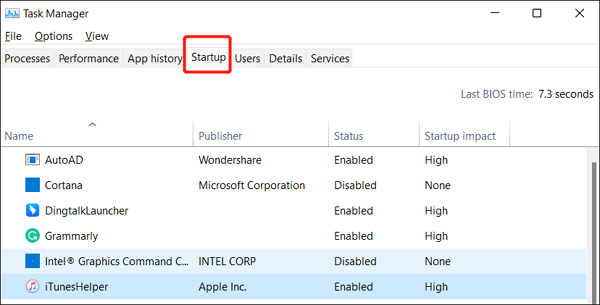
To disable programs from running automatically when your computer starts up, follow these steps:
Step 1. To open Task Manager, press Shift + Ctrl + Esc.
Step 2. List all installed programs and display their corresponding RAM usage.
Step 3. Click "Startup," right-click on the target program, and choose "Disable."
If you're wondering how to add RAM to your device, there's a helpful link available that can guide you through the process.

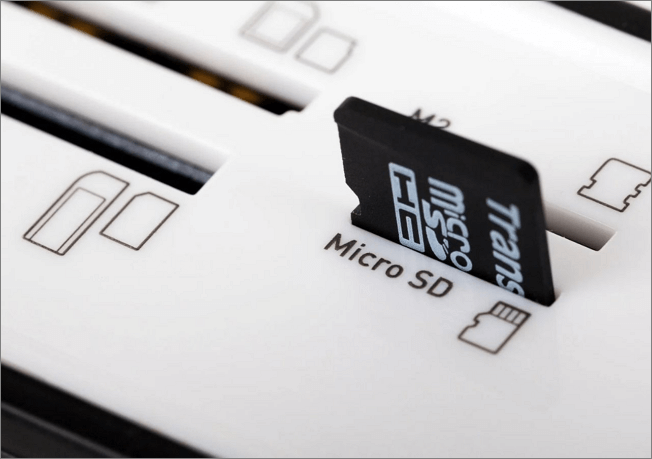
While SD cards can be used to increase storage on Android and Windows devices, they cannot be used as a substitute for RAM. RAM (Random Access Memory) is used to temporarily store data that the device is actively using, whereas an SD card is used for permanent storage. However, some Android devices do have a feature called "adoptable storage" that allows the user to format the SD card as internal storage, which can improve performance by allowing the device to access the SD card's contents more quickly.
Using an SD card as RAM, also known as "SDRAM" or "expandable RAM," is a technique that can temporarily boost your device's memory on both Windows and Android. On Windows, you can use a program like SD Card as RAM to allocate a portion of your SD card's storage as a RAM drive, which can then be used to run applications and store data. On Android, you can use apps like Expandable RAM or SD Card as RAM to achieve similar results.
Solution 3. Pause OneDrive Sync
To improve your PC's performance, you can temporarily pause OneDrive syncing, which can help speed up your computer by freeing up resources used for syncing files.
Step 1. Locate OneDrive near the notification area on the taskbar.
Step 2. Click OneDrive > More > Pause syncing.
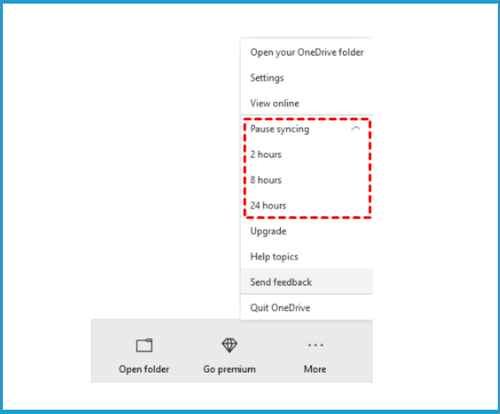
Step 3. You can choose to stop syncing for 2, 4, or 12 hours.
Solution 4. Make Sure the System Is Managing the Page File Size
The paging file is an area on the hard disk that Windows uses for memory, and there's an option to automatically manage its size in Windows 10, which can improve PC performance. To try this, follow the steps.
Step 1. To view advanced system settings, type "advanced system settings" in the search box, then select the option that appears.
Step 2. To access the System Properties, follow these steps: select the Advanced tab, then click on Settings within the Performance area.
Step 3. To adjust virtual memory settings, click the Advanced tab and then click Change in the Virtual Memory area.
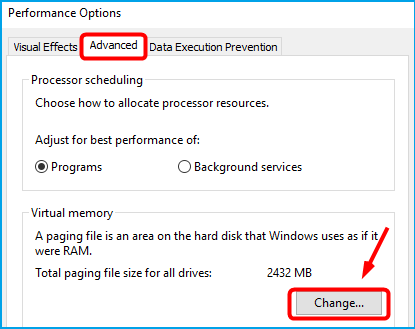
Step 4. To fix the issue with the Windows Update not installing, you should ensure that the "Automatically manage paging file size for all drives" option is selected in the System Properties. After making this change, restart your PC to see if the Windows Update issue is resolved.
Solution 5. Check Disk Space and Free Up More
Allocating more space to the C drive can improve computer performance, and Qiling Disk Master can efficiently extend the C drive by merging unallocated space or moving partitions to make space adjacent to the C drive.
You can download the software and follow the guide to expand the C drive. The process involves downloading the software, creating a bootable USB drive, and then using the software to expand the C drive.
Option 1. Extend System C drive with unallocated space
- 1. Right-click on the System C: drive and select "Resize/Move".
- 2. To increase the size of the C: drive, drag the system partition end into the unallocated space, effectively adding it to the C: drive.
- 3. To proceed, click "Proceed" to execute the operations and extend the C drive. This will allow the system to resize the partition and make more space available on the C drive.
Option 2. Extend System C drive without unallocated space
- 1. Right-click a big partition with enough free space on the system disk, select "Resize/Move".
- 2. Select the system drive at the "Allocate Space From" section, and drag the end of the System C drive into the unallocated space.
- 3. Proceed to save the changes and extend the C drive.
This tool can help extend other drives, fix low disk space errors, and manage disk partitions, among other features.
Key features of Qiling Disk Master:
- Check disk for errors
- Free up space on C drive
- Move Unallocated Space to C drive
- Wipe/format the hard drive to get more space
- Partition hard drive to speed up hard drive
- Resize/create/delete/merge/split partitions
You can use this tool to keep your disk partitions organized, which can help speed up your computer performance. Download it now to experience the benefits.
Solution 6. Restore PC From a System Restore Point
Restoring your PC will undo recent changes that may have caused the problem, and can help resolve issues by reverting to an earlier point in time when the PC was functioning properly. This can be particularly helpful if recent Windows applications or drivers have caused problems.
Step 1. To create a restore point in Windows, type "restore point" in the search box, then select the "Create a restore point" option from the search results.
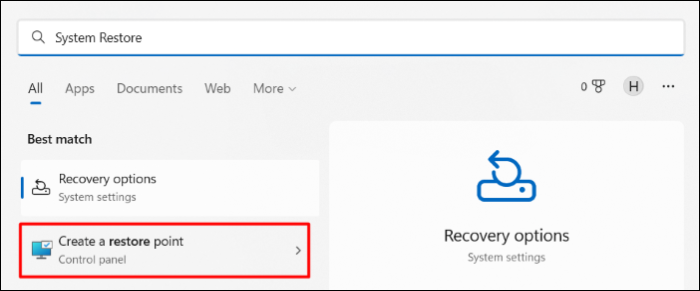
Step2. Select System Restore in the System Protection section.
Step 3. To resolve the issue, click Next to proceed, and choose a restore point that is associated with the problematic applications, drivers, or updates. After that, select Next > Finish.
If you can't create a restore point, click on the link to help.
Solution 7. Adjust the Performance and Appearance of Windows
Windows 10 offers visually appealing effects like animations and shadows, but they consume system resources and can slow down PCs.
To adjust them, follow the steps below:
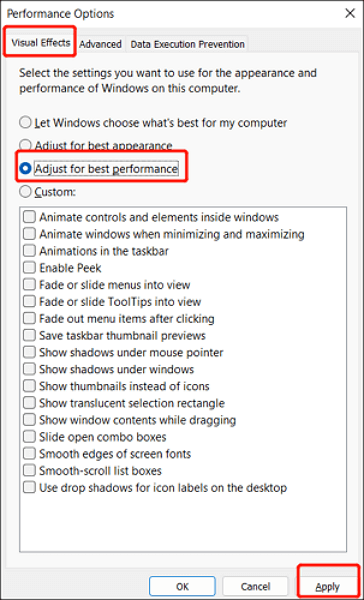
Step 1. To adjust the appearance and performance of Windows, type "Performance" in the search box and choose "Adjust the appearance and performance of Windows."
Step 2. Choose Adjust for best performance > Apply.
Solution 8. Check and Remove Virus and Malware
Here are the steps to scan viruses and malware on your PC:
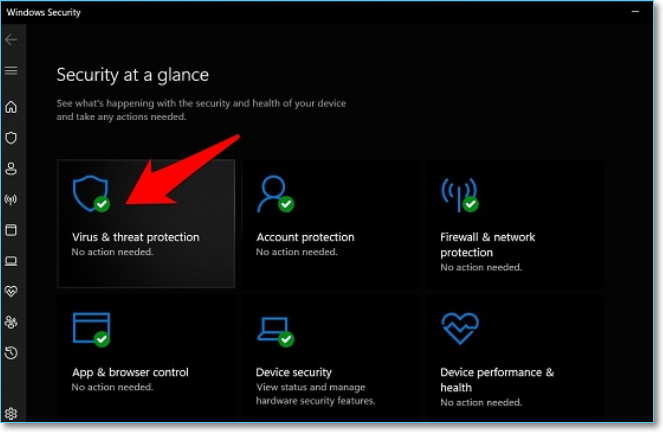
Step 1. To open Windows Security, type "Windows Security" in the search box located in the taskbar, then click on the result to open it.
Step 2. To run a Windows Defender Offline scan, go to Virus & threat protection and click on Current threats. Then, select Scan options and choose Windows Defender Offline scan, followed by clicking Scan now.
Step 3. Windows Defender Offline will scan for viruses and malware, taking around 15 minutes. After the scan, your PC will restart.
Conclusion
Want to make Windows run faster? We provide nine efficient ways to solve this problem for you. Try these tips and your machine will be more responsive and less prone to performance and system issues.
We've also mentioned a professional tool, Qiling Disk Master, which can help manage your hard drives. It allows you to test disk performance and monitor temperature, ultimately improving the health of the hard drive and PC. Downloading it can help solve your issues.
Speed Up Computer Performance FAQs
Improving PC performance can significantly enhance the user experience. If you need further assistance, consider checking out these related questions and answers for additional help.
1. How do I speed up my PC performance for free?
You can try various free methods to boost your PC's performance, including optimizing startup programs, disabling unnecessary animations, closing resource-intensive programs, upgrading your RAM, and using the built-in Disk Cleanup and Disk Defragmenter tools to free up space and improve disk organization. These simple tweaks can help improve your PC's speed and responsiveness without breaking the bank.
- Pause OneDrive sync
- Update old drivers
- Add more RAM to the PC
- Free up space on hard drive
- Disable some unnecessary startup programs
To speed up your PC, you can rely on a reliable program like Qiling Disk Master to manage your hard drive effectively. This program can help you optimize your hard drive's performance, ensuring that your computer runs smoothly and efficiently.
2. Why is my PC running so slowly?
Having many applications and web browsers open at the same time can slow down your PC, and your memory may be occupied by applications that start automatically and run in the background or that you opened but forgot to close.
3. What upgrades increase computer speed?
You can increase your computer's performance by adding more and faster RAM, upgrading your SSD storage, or overclocking your CPU.
Related Articles
- How to Format Write Protected USB/Pen Drive [7 Ways]
- How to Perform SD Card Lifespan Test
- Tutorial: Surface Pro 8 SSD Upgrade [Step-by-Step Guide]
- Why Extend Volume Greyed Out and How to Fix Successfully?
If you're unable to extend a volume using the built-in Disk Management tool, you can use Qiling Disk Master to extend the partition when there's no contiguous unallocated space available. This alternative approach allows you to expand the volume even when the standard method is greyed out. - How Can I Format My WD MyPassport to Work on Windows 10
Do Xbox and Windows use the same hard drive format? On this page, you will quickly learn how to format your WD MyPassport to work on Windows. You'll get the best formatting tools to help you. - How to Format the Write Protected Flash Drive
This page provides you a detailed guide to solving the flash drive is write protected error. Read this article and follow the instructions to get your problem fixed.
Products
Articles & Tutorials
- Data Recovery
- Data Backup
- File Recovery
- File Backup
- System Backup and Restore
- Disk and Partition Clone
- Technical articles
- Mobile articles
- Disk Master Help
- Windows Data Recovery Tutorials
- Windows Secure Delete Tutorials
- Windows Partition Management Tutorials
- Windows File Backup and Restore Tutorials
- Windows System Backup and Restore Tutorials
- Windows Disk Backup and Restore Tutorials
- Windows Clone Tutorials