Is Windows 10 Backup Any Good? Check the Answer
What About Windows 10 Backup?
Windows 10 comes with a built-in backup utility that allows users to store critical files locally, making it a convenient option for basic backups. This native tool, combined with other backup features included in various Windows versions, enables users to make backups of essential files and folders, providing a reliable way to safeguard important data.
Windows 10 backup offers two main options: File History and Backup and Restore (Windows 7).
File History
Microsoft's File History utility, introduced in Windows 8, regularly backs up different versions of files in various folders, such as documents, music, videos, and pictures, allowing you to maintain a complete history of your files. This means that if the original files are lost, damaged, or deleted, you can easily restore them using File History.
Guide: How to Create Backups for Windows 10 with This Tool
To make backups for Windows 10 computers using File History, follow these steps: First, ensure that your computer is connected to a network drive or an external hard drive, as File History requires a separate storage device to store backups. Next, go to Settings > Update & Security > Backup and set up File History by selecting the drive you want to use for backups and choosing the folders you want to include.
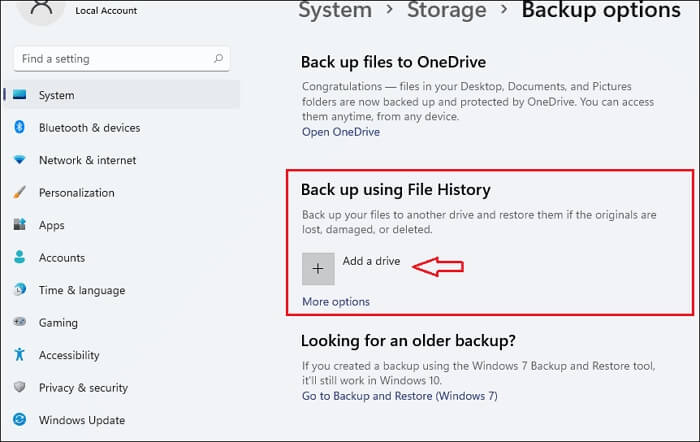
Step 1. To enable File History, first, connect an external drive to your computer. Next, go to System > Storage > Advanced storage settings > Backup Options, where you will see the option to "Back up using File History is here".
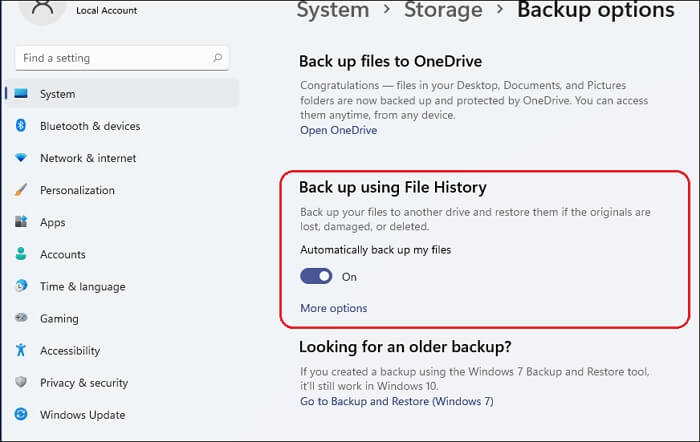
Step 2. Click on "On" under "Automatically back up my files."
Step 3. Click on "More options" to customize your backup needs.
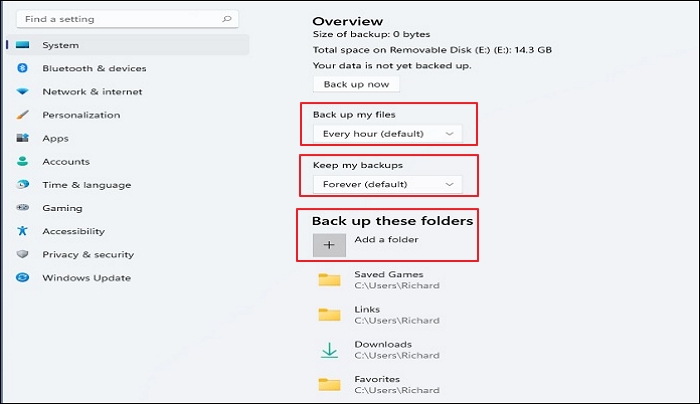
Step 4. Click on "back up now." It will back up your files to the external drive connected to the computer.
Backup and Restore
Windows Backup and Restore, first introduced in Windows 7, has become a widely used tool for backing up data. It allows users to take a snapshot of their hard drive and create an image, which can be used for data recovery in case of loss. Additionally, Backup and Restore can back up data to local and external drives, providing a convenient and reliable way to safeguard important files.
Guide: How to Create Windows 10 Backups with Backup and Restore
To create file backups, follow these specific steps below.
Step 1. Type "Control Panel" in the search box on the taskbar, then go to System and Security > Backup and Restore (Windows 7).
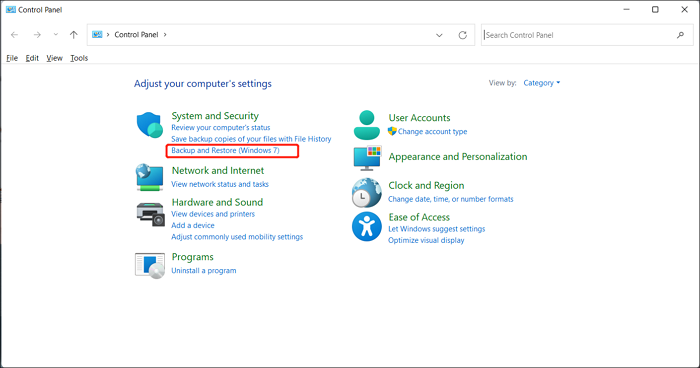
Step 2. Now you will enter Backup and Restore and click on Set up backup.
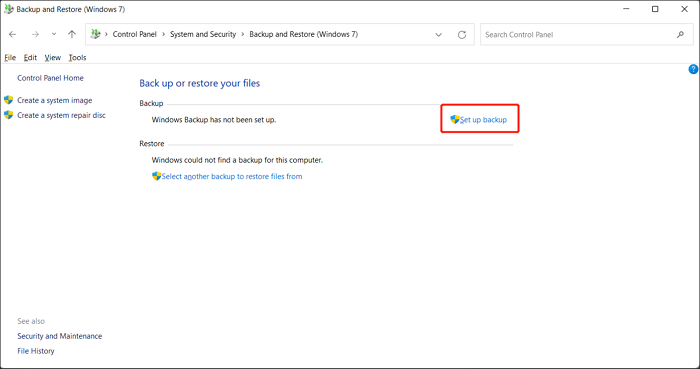
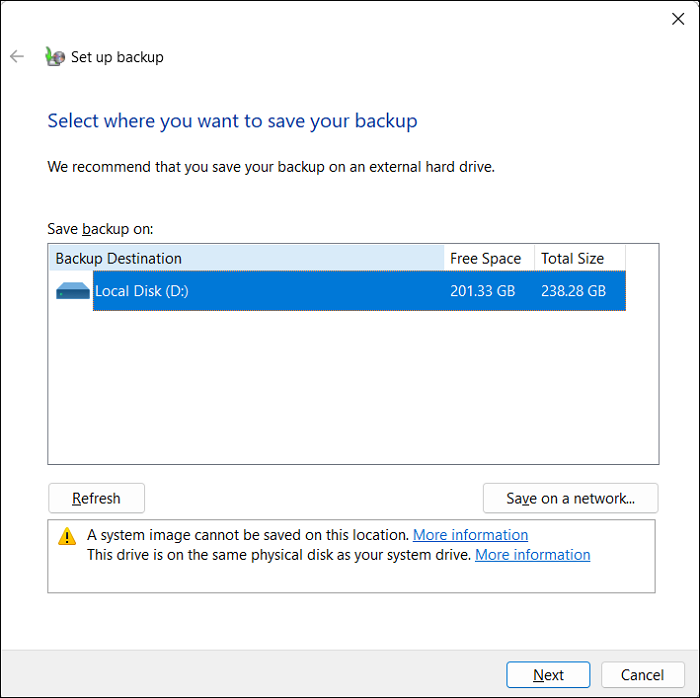
Connect an external hard drive to your computer as the backup storage drive.
Step 3. Windows will scan and list available drives on the computer, then allow you to select where you want to save the backup, including the option to choose a network drive.
Step 4. Choose what you want to back up.
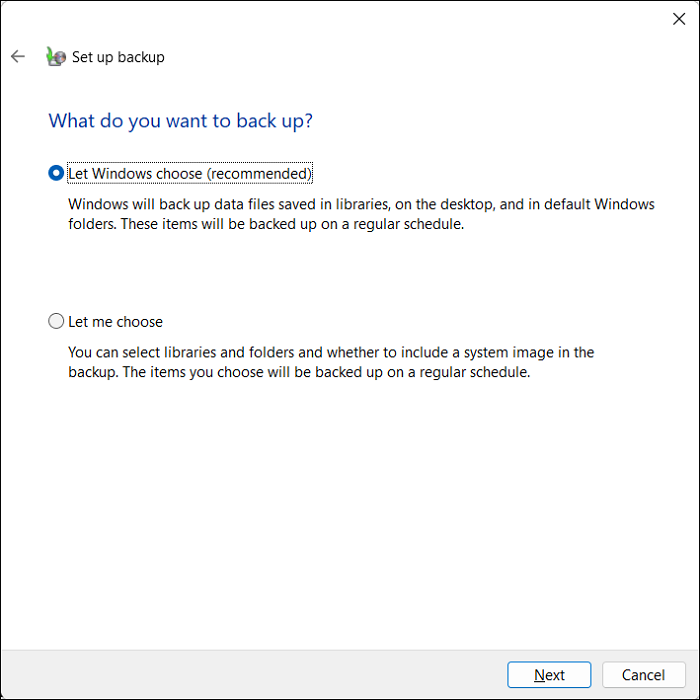
Windows will automatically backup files from libraries and Windows folders, and also create a system image, by default.
Step 5. Review and confirm backup settings, then start the backup process.
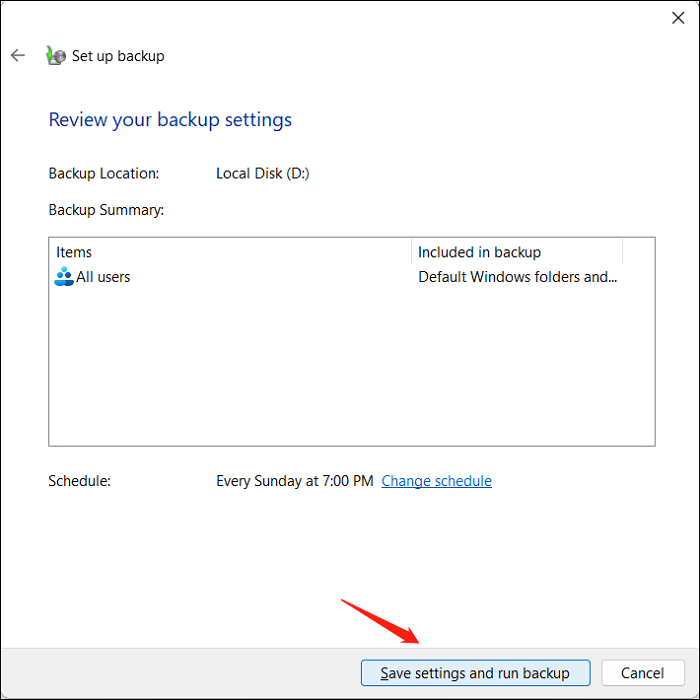
Direct Answer to Windows 10 Backup, Good or Not.
Windows 10 comes with two integrated backup tools that can meet the basic needs of backup, making it a reliable option.
However, the two backup tools aren't as fully featured as you would like. A few things to keep in mind:
When using Backup and Restore, the configuration backup options are limited. The tool has two backup options: "Let Windows Choose" and "Let Me Choose." However, if you choose the file and folders yourself, Windows will not allow you to create backups of certain items.
- Files in the Recycle Bin.
- Files in Windows System folders.
- Files stored on hard drives formatted with the FAT file system are typically identified by a unique name, known as the file name, and are stored in a hierarchical structure, with subdirectories and folders. The FAT file system uses a simple and intuitive naming convention, where file names can contain a combination of letters, numbers, and special characters, but are limited to a maximum length.
- Disks and partitions without drive letters.
File History is different from Backup and Restore as it primarily focuses on backing up personal files, not creating a complete system image, and does not allow for a complete system backup.
Windows 10 backup is a good tool, but it has its limitations, so it's a good idea to use professional backup software as a supplement.
For Everyone: Use a Windows 10 Computer with Backup Software
Professional backup software like Qiling Backup Free can overcome Windows' built-in backup limitations by supporting various storage media, offering better automation and scheduling, and allowing cloud-based backup storage.
Qiling Backup Free is a free backup software that offers automatic system, disk, and file backup capabilities, as well as the ability to back up different file types and SSDs to image. It also supports cloud storage, providing 250 GB of free cloud storage for users.
- This software is highly compatible and supports a wide range of Windows operating systems, including Windows 11, 10, 8.1, 8, 7, XP, and Vista.
- Easy-A user-friendly backup tool that enables you to complete backups in just a few clicks, making it easy to safeguard your important data.
- This feature provides more storage options, allowing users to save backups to local drives, security zone, NAS devices, and the cloud.
- It allows you to perform different types of backups, including full, incremental and differential backups.
Guide: How to Make Windows 10 File Backup with a Free Backup Tool
To create file backups on Windows 10, follow these steps. You can use Qiling Backup Free to make Windows 10 backup, following the guide to ensure a smooth process.
Step 1. To initiate a backup, click the File backup button.

Step 2. On the left, both local and network files will be displayed, and you can expand the directory to select the backup files.

Step 3. Follow the on-screen instructions and choose a location to store the backup.

Step 4. Click Options to encrypt the backup with a password in Backup Options, where you can also make additional choices to customize the backup process according to your needs.

To specify the backup schedule, click on the "Backup Scheme" option and select the desired backup frequency, such as daily, weekly, or monthly. Then, choose the start time for the backup, which can be triggered by a specific event, like a login or logout.

Step 5. The backup can be stored on a local disk, Qiling's online service, or a network-attached storage (NAS).

Step 6. Qiling Backup allows customers to back up their data to both a third-party cloud drive and Qiling's own cloud drive.
To back up data to a cloud drive provided by a third party, select Local Drive, scroll down to add Cloud Device, and add your account to log in.
Step 7. Click Proceed to start the backup process. Once done, the backup job will be displayed as a card on the left side, allowing you to manage it further.

Conclusion: Better to Use Windows 10 Computer with a Backup Application
While Windows 10's built-in backup feature is helpful, it's not enough to ensure complete data protection. To safeguard against data loss, it's recommended to use third-party backup tools, such as Qiling Backup Free, as a supplementary measure to create a robust backup of your Windows computer.
FAQs
1. Should I use Windows 10 backup?
Creating backups is a crucial strategy to protect your important files, including documents, pictures, videos, and Windows 10 files, from potential threats such as software problems, hackers, hardware failure, system failure, and malware.
2. How do I clean up my Windows backup files?
To delete all file backups while keeping the recent ones, run PowerShell as an administrator and type in the command "fhmanagew.exe -cleanup 0" and press Enter. This will clear up space in your local drive while keeping recent backups on a separate or external drive. (Note: This response is a rewritten version of the original text in a single paragraph)
3. Does Windows 10 backup overwrite old backups?
Windows 10 File History can be set to automatically delete old backup versions to prevent the backup disk from becoming full.
Related Articles
- [Unstable Wifi] How to Fix Wifi Keeps Disconnecting in Windows 11
- How to Change Android SD Card to A Bigger One in Windows 10/8/7
- Outlook Data Files PST Usage is Disabled on This Computer[Fixed]
- Top 7 Free Cloud Storage Service for Backup
- Quick Start Guide to Sysprep in Windows Server 2012 (R2)
Before deploying an operating system to multiple devices, you must clear the security information via Sysprep. Learn how to run Sysprep in Windows Server 2012 (R2) and deploy OS to other computers simultaneously from this page. - How to Take System State Backup in Windows Server 2012 (R2)?
How to take system state backup in Windows Server 2012 (R2)? This article provides you with three methods to accomplish this. Master at least one to protect your computer with this system state backup.
Products
Articles & Tutorials
- Data Recovery
- Data Backup
- File Recovery
- File Backup
- System Backup and Restore
- Disk and Partition Clone
- Technical articles
- Mobile articles
- Disk Master Help
- Windows Data Recovery Tutorials
- Windows Secure Delete Tutorials
- Windows Partition Management Tutorials
- Windows File Backup and Restore Tutorials
- Windows System Backup and Restore Tutorials
- Windows Disk Backup and Restore Tutorials
- Windows Clone Tutorials