Outlook Data Files PST Usage is Disabled on This Computer[Fixed]
Outlook is a personal information manager that helps users manage their daily tasks, including emails, contacts, tasks, and notes, making it a necessity for many office workers and students.
Outlook data files are saved in the .pst format on the local computer, specifically in a Personal Storage Table, which is an open proprietary file format used to store copies of messages, calendar events, and other data in Outlook.
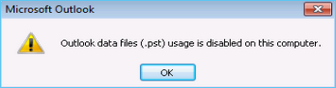
When using Microsoft Outlook (2016/2013/2010/2007/2003/2000), you may encounter the error "Outlook data files (.pst) is disabled on your computer" for unknown reasons, preventing you from opening or adding PST files, and making your emails and data inaccessible.
Why the Outlook Data File PST Usage is Disabled on This Computer Error Appears
The error "Outlook data file (.pst) usage is disabled on this computer" occurs because the option to add PST files or a new data PST file has been disabled.
To resolve the issue, go to Outlook settings, disable the option "Prevent User from Adding New Data to Existing PST file", and this should allow users to add new data to existing PST files.
- Editor's Recommendation: Backup Outlook Regularly to Prevent PST Data Lose
-
While changing settings can resolve the issue of Outlook data file (.pst) usage being disabled on a computer, it's essential to remember that Outlook remains vulnerable to data loss. To ensure the safety of your Outlook data, it's recommended to back it up regularly, so even if something unfortunate happens, you can restore it from the backup.
Qiling Backup Home is a reliable Outlook backup software that allows you to back up your Outlook data to a safe location with minimal effort, offering full, incremental, and differential backup modes to ensure your data's safety.
How to Fix Outlook Data File PST Usage is Disabled on This Computer
To fix the "Outlook Data File (.pst) Usage is Disabled on this Computer" issue, you can either manually disable Outlook's auto-archive settings or use the Registry to resolve the problem.
To solve the issue, we'll focus on the manual method first, which involves a step-by-step guide, rather than using the Registry, which can lead to incorrect changes and potentially severe consequences.
- Notice:
- The manual method has many steps, so make sure you follow the instructions correctly every step of the way.
Step-by-Step Guide:
Step 1. Download and install the Office Administrative 2010 Template from the MS download center, choosing the 32-bit or 64-bit version based on your installed Office version.
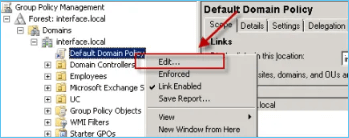
Step 2. Open the Policy Management Support, choose the GPO that will be requested in Custom settings, right-click on the Default Domain Policy and tap Edit.
Step 3. Open Outlook settings, and find Outlook Options.
Step 4. To auto-archive in the program, select the "Other" option, click on "Auto-archive", enable the "Disable data file", and then exit the Archive option.
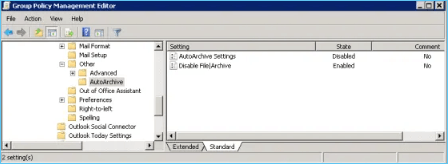
Step 5. To disable the feature that prevents users from adding new data to an existing PST file in Outlook, go to the PST settings, and untick the box next to "Prevent User from Adding New Data to Existing PST File". Alternatively, you can also disable "Prevent using starting Exclusive PSTs" to achieve the same result. This will allow users to add new data to the existing PST file.
Step 6. To apply the Group Policy Object (GPO) instantly and log in on your local machine, run the command `gpupdate /force`. This will update the GPO settings, and you can then log in to see the changes, specifically that the user is no longer blocked from executing Outlook .pst-related operations.
You have successfully resolved the Outlook error "Outlook data file (.pst) usage is disabled on your computer". As a result, you can now freely open or add any PST files in Outlook without encountering any issues. This means you can access and manage your PST files as needed, ensuring your email and data are accessible and up-to-date.
You may be interested:
Bonus: Qiling Backup - Ensure Absolute Security of Outlook Data
To summarize, even though the "outlook data file (.pst) usage is disabled on this computer" issue has been resolved, it's still essential to back up your Outlook data regularly to prevent data loss, as PST files and other Outlook data are still at risk.
Qiling Backup is a user-friendly tool that easily backs up and restores Microsoft Outlook data with just a few clicks, supporting versions 2010, 2013, 2016, and 2019.
Qiling Backup allows storing backup files to external hard drives, Cloud services like Google Drive, or network locations (NAS), providing a safe and accessible way to restore Outlook data in case of computer issues, such as virus attacks. Unlike PST files, which can only save data on a local drive, Qiling Backup offers greater flexibility and security.
Qiling Backup supports full backup, incremental backup, and differential backup modes to ensure your Outlook data is always safe. In addition to backing up Outlook data, it also allows you to back up your system, hard drive, partitions, and more, providing comprehensive protection for your data.
To use Qiling Backup to back up Outlook data, follow these steps: First, download and install Qiling Backup software. Next, launch the software and select the "Backup" option.
Step 1. Launch Qiling Backup on your computer, and click File Backup on the home screen.

Step 2. Select the Microsoft Outlook database folder, which will display the mailbox addresses you want to back up, such as mails, contacts, or calendars.

Step 3. To save the Outlook backup, click on the illustrated area to choose a location.

Step 4. The backup location can be another local drive on your computer, an external hard drive, network, cloud, or NAS. We recommend using an external physical drive or cloud to preserve backup files.

Step 5. The customization settings, such as setting an automatic backup schedule in daily, weekly, or monthly intervals, or upon an event, are available in the Options button. This allows for a differential and incremental backup. Proceeding with the backup process begins the Outlook backup, with the completed task displaying on the left side in a card style.

The Bottom Line
If you're experiencing the "Outlook data file (.pst) usage is disabled" error, this guide can help you resolve the issue. If you have any further questions or suggestions, please feel free to comment below. In the meantime, if you encounter unexpected Outlook data loss, consider using Qiling Backup to ensure the security of your Outlook data.
FAQ
1. How do I enable Outlook data file PST?
To enable a PST file in Outlook, go to File, then click on Account Settings, and from the navigation pane, select Data Files. Double-click on the desired PST file and confirm by clicking OK. This will enable the PST file for use in Outlook.
2. How do I back up my Outlook PST file disabled?
If the PST file is disabled, you can use a third-party tool like Qiling Backup to back up your Outlook data, which can be done with just a few clicks and supports full, incremental, and differential backup modes to ensure your data is always safe.
3. Why can't I open a PST file in Outlook?
Outlook PST files cannot be opened when they have been corrupted, resulting in a damaged or missing elements that make the file unreadable.
Related Articles
- The Cloud File Provider Is Not Running: Causes and Solutions
- For Business of All Sizes: A Solid Way for Business Data Backup
- Quick Answer: Is Virus Protection Necessary
- Tips for Clean Install Windows 10 without Losing Data
- How Does Windows Backup Work? Explanation to All 3 Windows Backup Tools
Learn how Windows Backup works in Windows 7, 8, 10, and 11. Compare File History, Backup and Restore, system image backup, and third-party backup options. - How Long Does a Windows Backup Take?
Do you know how long does a Windows backup take? This short will describe how long it takes to back up your computer and offer a professional backup program to help you back up your Windows computer.
Products
Articles & Tutorials
- Data Recovery
- Data Backup
- File Recovery
- File Backup
- System Backup and Restore
- Disk and Partition Clone
- Technical articles
- Mobile articles
- Disk Master Help
- Windows Data Recovery Tutorials
- Windows Secure Delete Tutorials
- Windows Partition Management Tutorials
- Windows File Backup and Restore Tutorials
- Windows System Backup and Restore Tutorials
- Windows Disk Backup and Restore Tutorials
- Windows Clone Tutorials